

Channel Deployment Guide
A detailed guide for connecting your AI employee to Feishu, WeCom, Lark, Telegram, and other channels.
Supported Channels
| Channel | Best for |
|---|---|
| Feishu | Top choice for domestic teams, enterprise collaboration |
| Top choice for domestic users, convenient personal use | |
| WeCom | Top choice for domestic enterprise users |
| DingTalk | Domestic team collaboration, no public callback needed |
| Lark | Top choice for international teams, enterprise collaboration |
| Telegram | Top choice for international users, convenient personal use |
| International business users | |
| Slack | European / US enterprise users |
| Microsoft Teams | Enterprise teams, Microsoft 365 organizations |
| Discord | Developer / community scenarios |
| LINE | Japan / Taiwan / Thailand users, personal & business use |
| Zalo (Official) | Vietnam users, personal & business use |
| Zalo Personal (Unofficial) | Vietnam users, personal Zalo account (unofficial) |
Tip: You can connect multiple channels at once; your AI employee will respond across all connected channels.
WeCom / Feishu / DingTalk / Lark also support "Talk to the Agent (Chat-based Quick Connect)" — just tell the AI in the conversation "I want to connect XX", the Agent sends you a QR code, and scanning it completes the setup. You never touch any developer configuration.
Before you start, you only need two things: an OpenMax account (with a trial started and your AI employee created), and the channel account you want to connect (WeCom / Feishu / DingTalk / Lark / Telegram, etc.). No technical preparation required: no server, no coding.
1. Feishu Deployment (Recommended for domestic teams)
Estimated time: 8-15 minutes
Note: Adding a self-built app (Bot) in Feishu requires enterprise admin approval. If you don't want to set up an enterprise Bot right away, you can first create a Feishu personal account and create and use Bots in your personal workspace without admin approval.
Feishu offers the following deployment options, from the most effortless to the most flexible — choose the one that fits your needs:
- Option 1: Talk to the Agent (Chat-based Quick Connect) (Easiest · Recommended) — no backend, no credentials to fill in; just tell the Agent in the conversation and scan a QR code to connect, done in about 1 minute
- Option 2: Smart Agent Quick Deploy — 1-2 minutes, the system auto-configures permissions and events, suitable for most users
- Option 3: Custom App Deploy — requires manual permission configuration, event subscription, and version publishing, suitable for advanced users who need fine-grained control
Option 1: Talk to the Agent (Chat-based Quick Connect) (Recommended)
Estimated time: ~1 minute | No backend, no manual credential entry — everything happens in the conversation with the Agent.
- Simply tell the Agent "I want to connect Feishu";
- The Agent sends you a connection confirmation request (valid for 5 minutes) — click to confirm;
- The system then generates a QR code (valid for 5 minutes);
- Scan and authorize with the Feishu app, and the Agent completes the connection for you automatically.
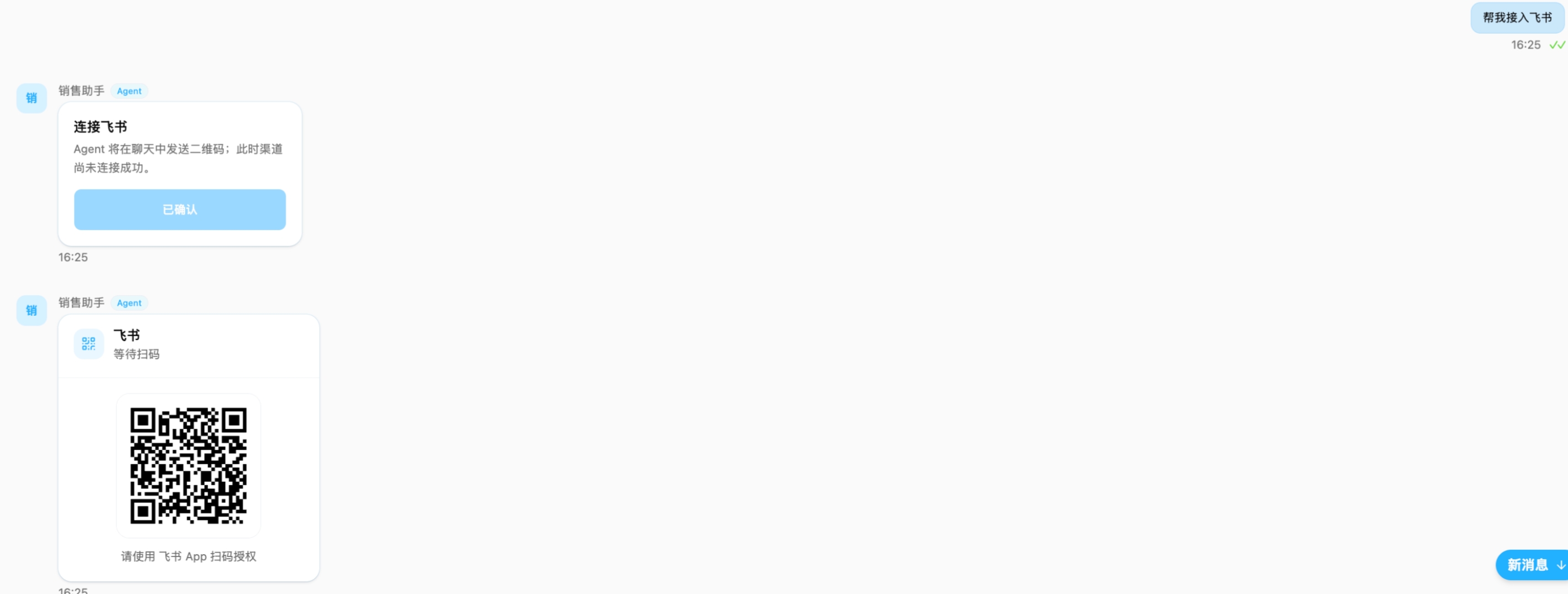
✅ Deployment complete! Your AI employee is now online — you can chat with it directly or add it to a group.
Option 2: Smart Agent Quick Deploy
Estimated time: 1-2 minutes | The system auto-configures permissions and event subscriptions — just create a Smart Agent and fill in the credentials to complete deployment.
Step 1: Access Feishu Open Platform
Visit Feishu Open Platform
Log in with your Feishu account
Click Developer Backend in the top-right corner
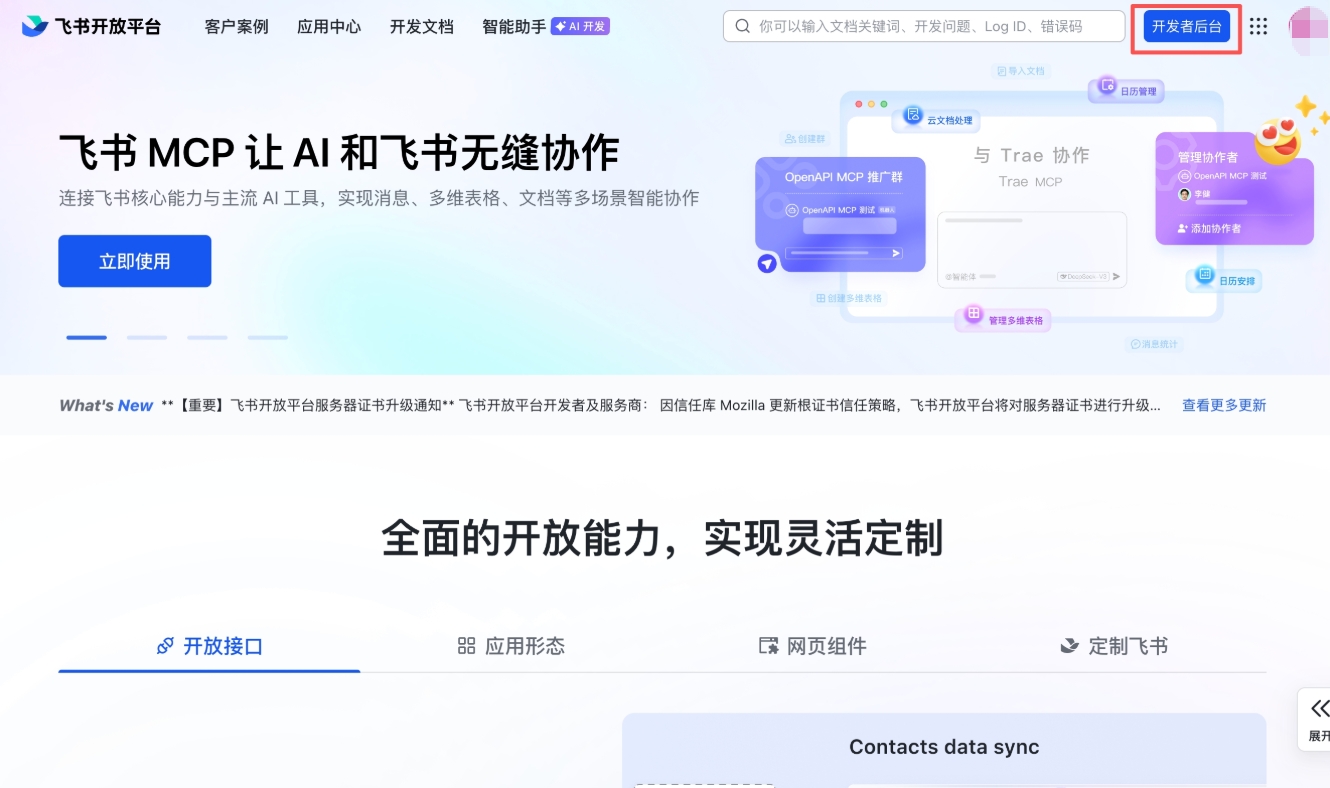
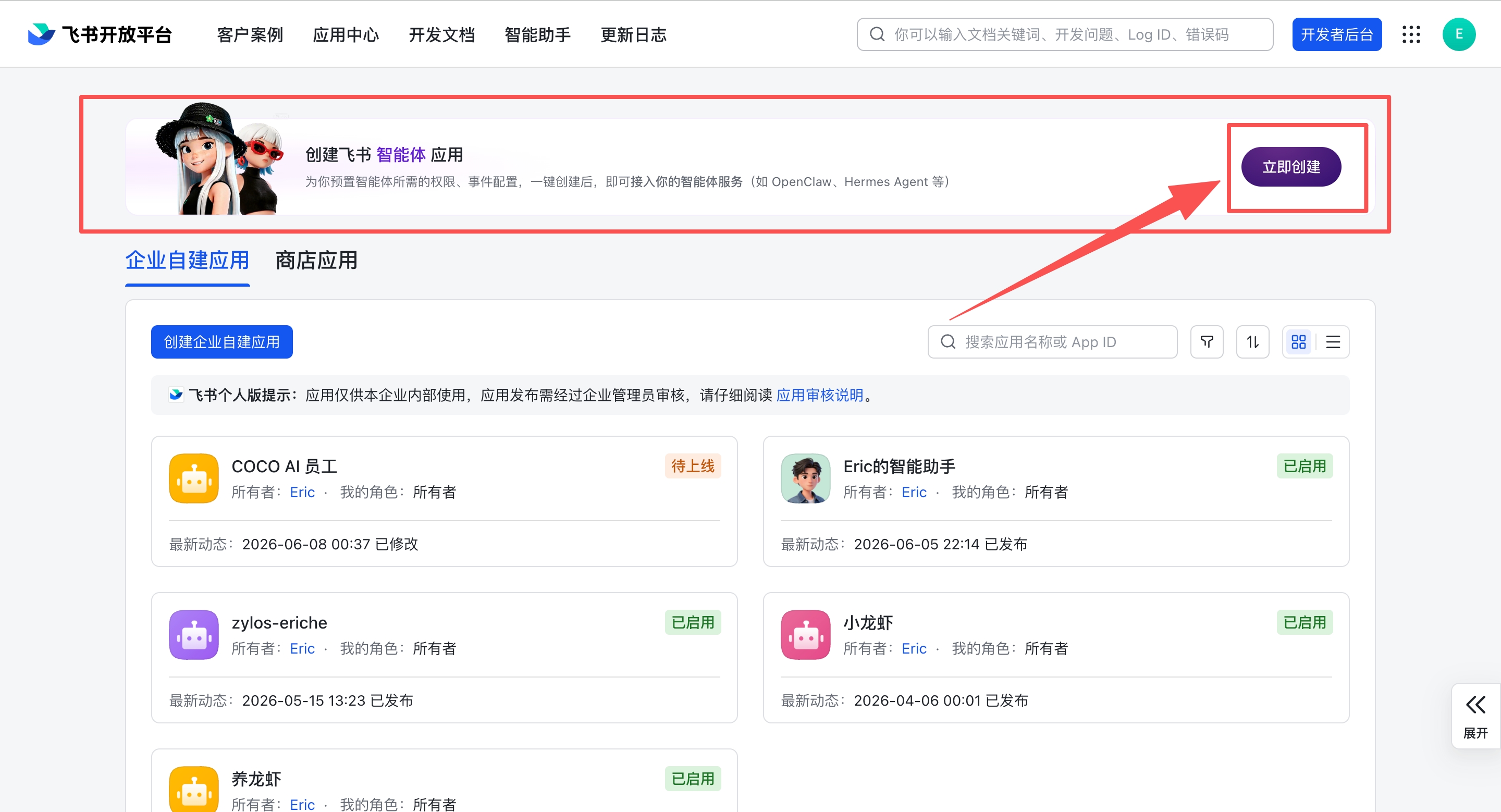
Step 2: Click "Create Now" to Create a Feishu Smart Agent App
In the Developer Backend, find the Create Feishu Smart Agent App banner at the top and click Create Now on the right side.
Step 3: Fill in Information and Create
Choose your preferred avatar
Fill in the name (e.g.,
OpenMax Employee)Click Create Now
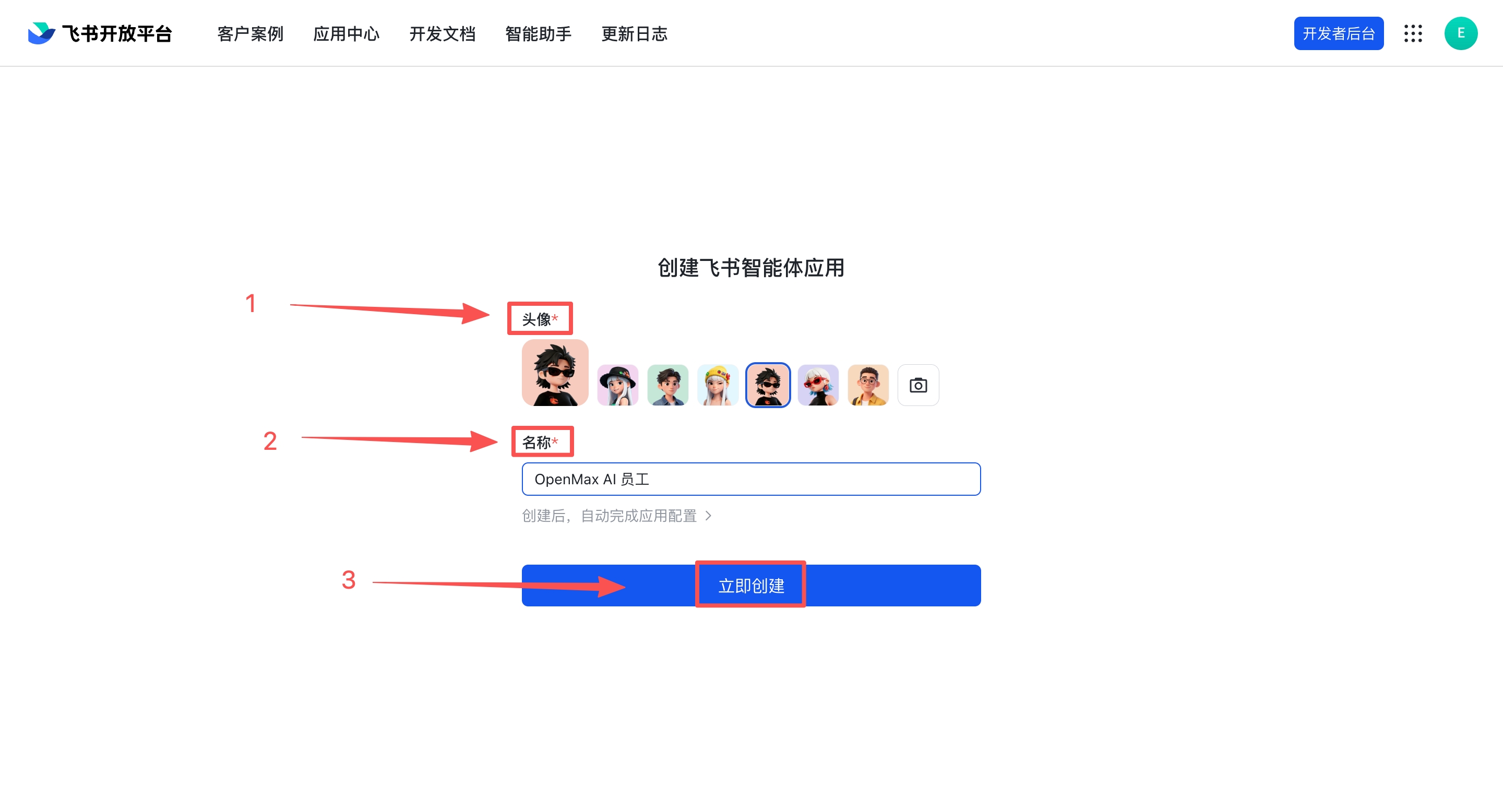
Enterprise account note: After creation, if you are using an enterprise Feishu account, the enterprise admin must approve the app in the Feishu Admin Console before it becomes active. If you are using a personal account, this step is not needed.
Step 4: Fill in Credentials in OpenMax Workspace and Deploy
Log into OpenMax Workspace
Click Channels on the left sidebar, select Feishu
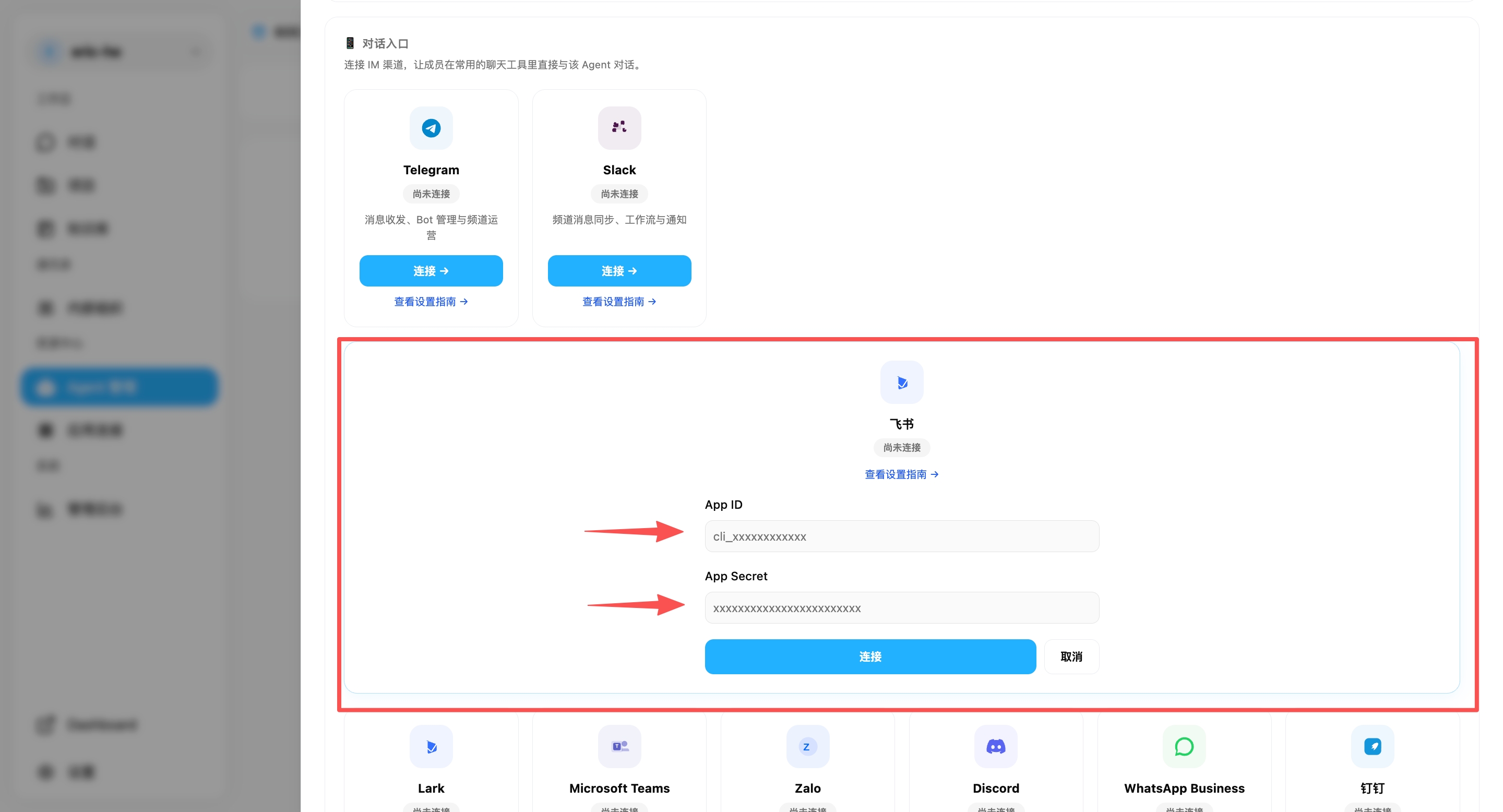
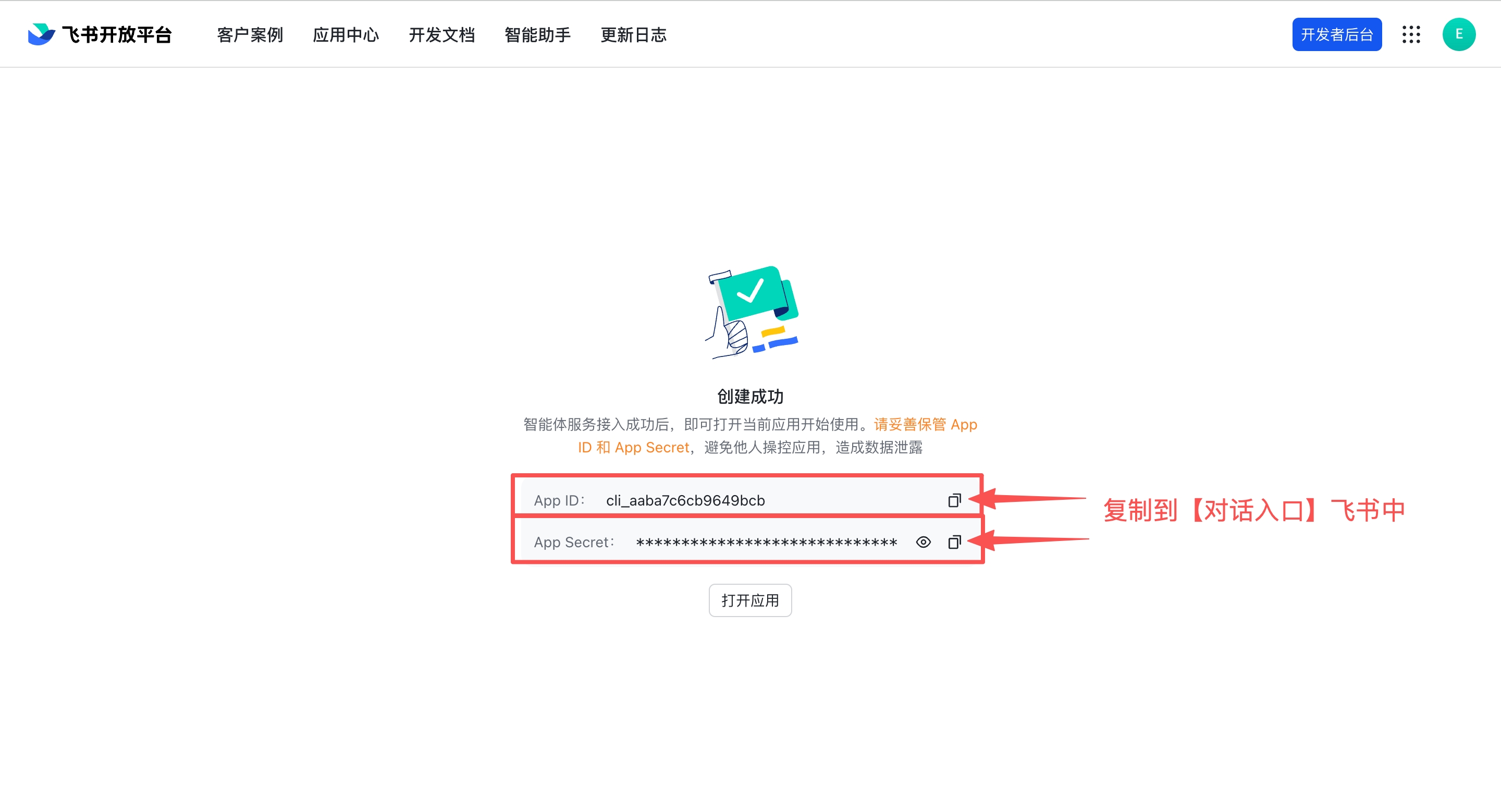
- Go back to the Smart Agent Created Successfully page and copy the App ID and App Secret into the Feishu entry under Channels
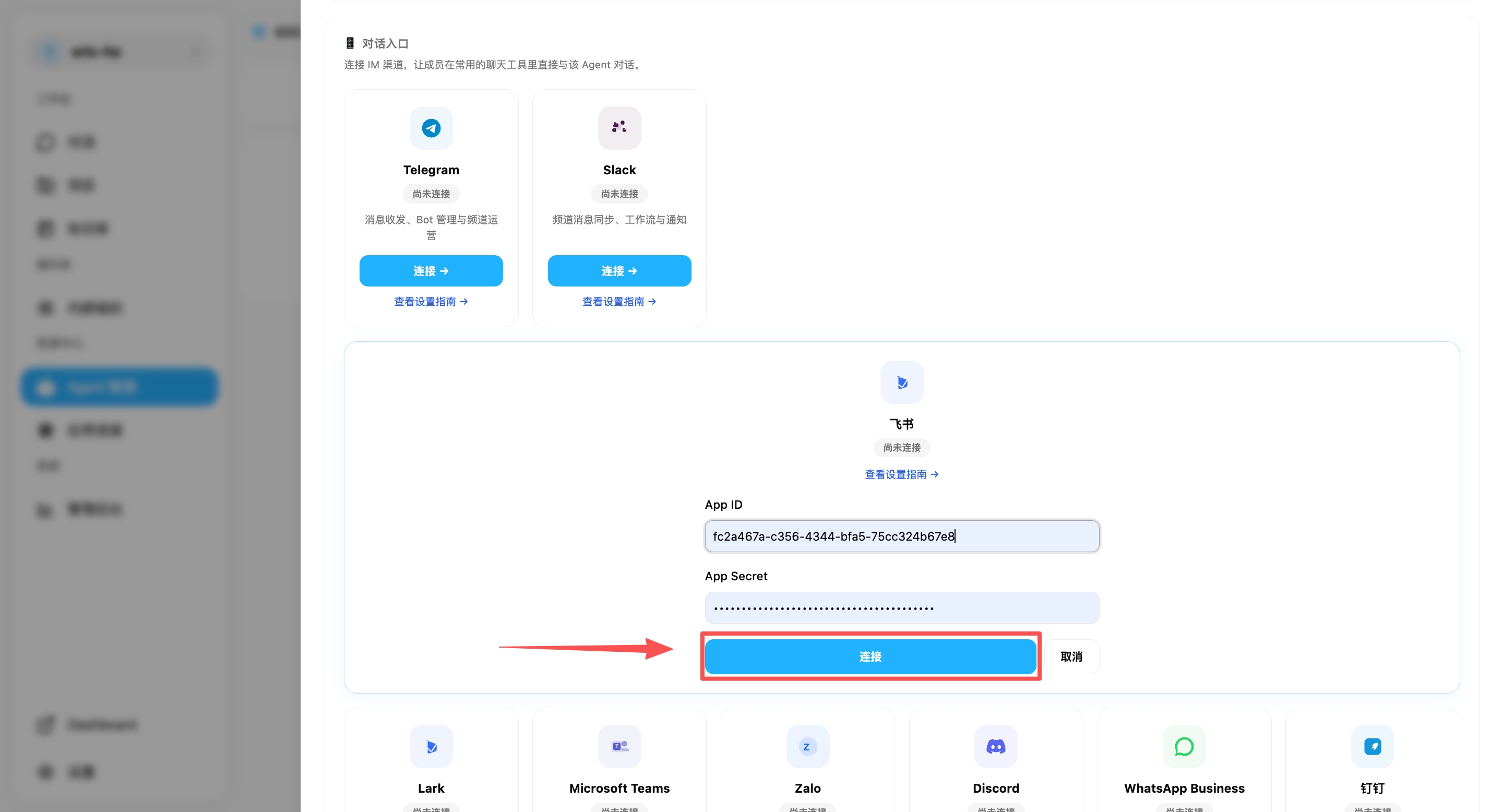
- After filling in the App ID and App Secret, click Connect — the system will automatically deploy your AI employee (typically takes 2-3 minutes)
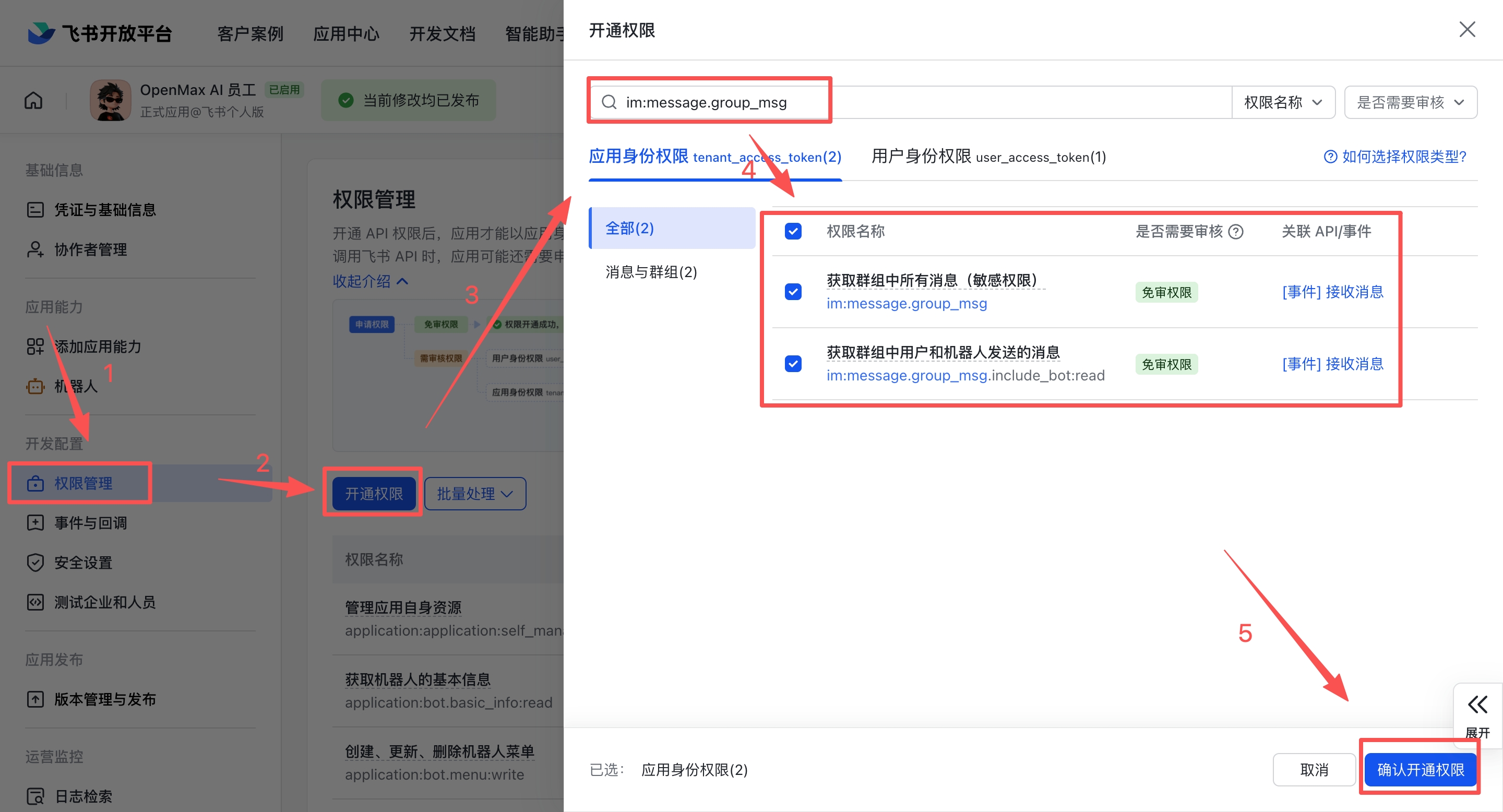
Step 5: Add Required Permissions for Group Chats
The permissions granted automatically at creation only cover basic messaging. For your AI employee to work properly in group chats and display real user names, manually enable the following 4 scopes:
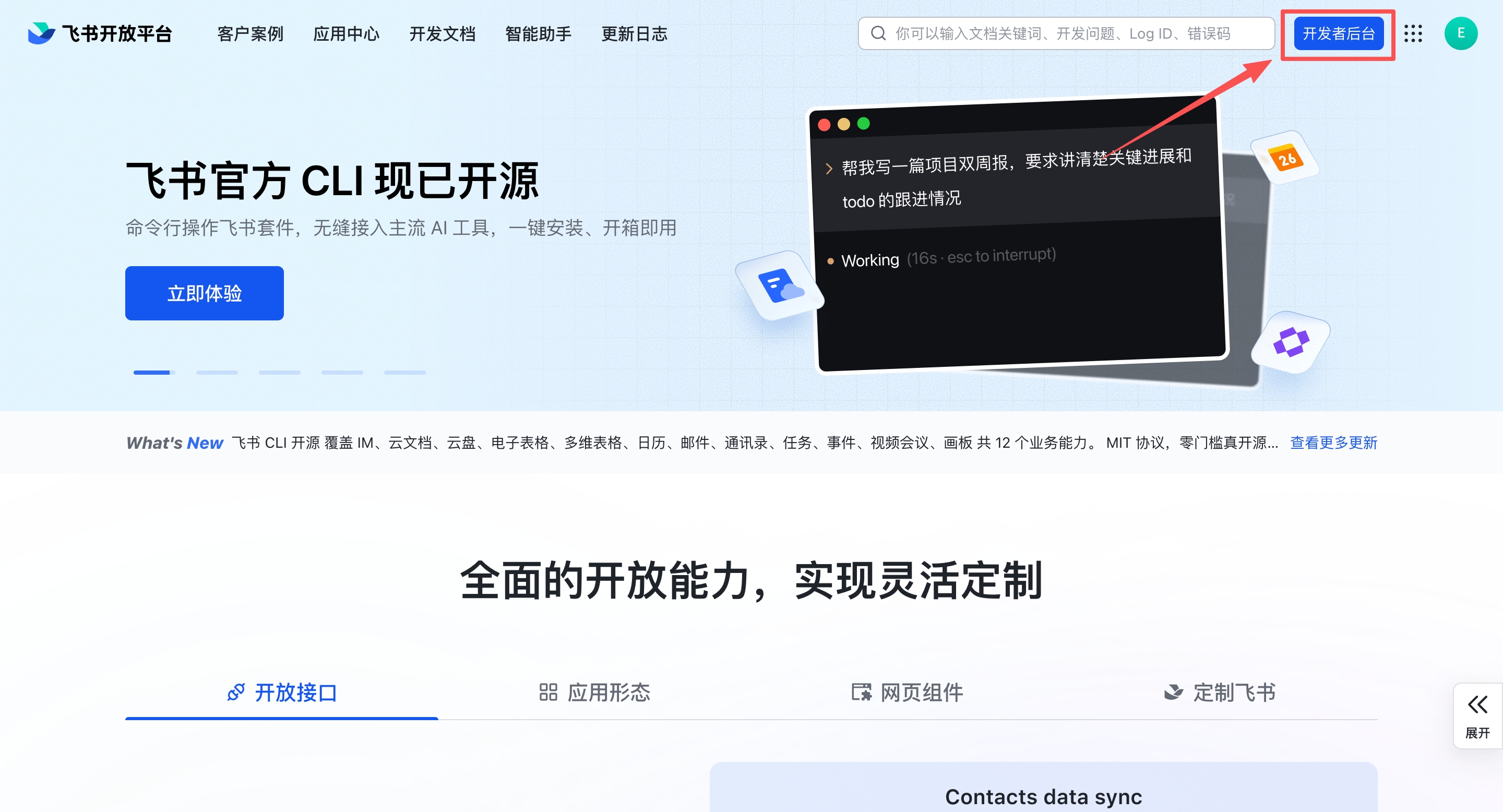
- Go back to the Feishu Open Platform and click Developer Backend in the top-right corner
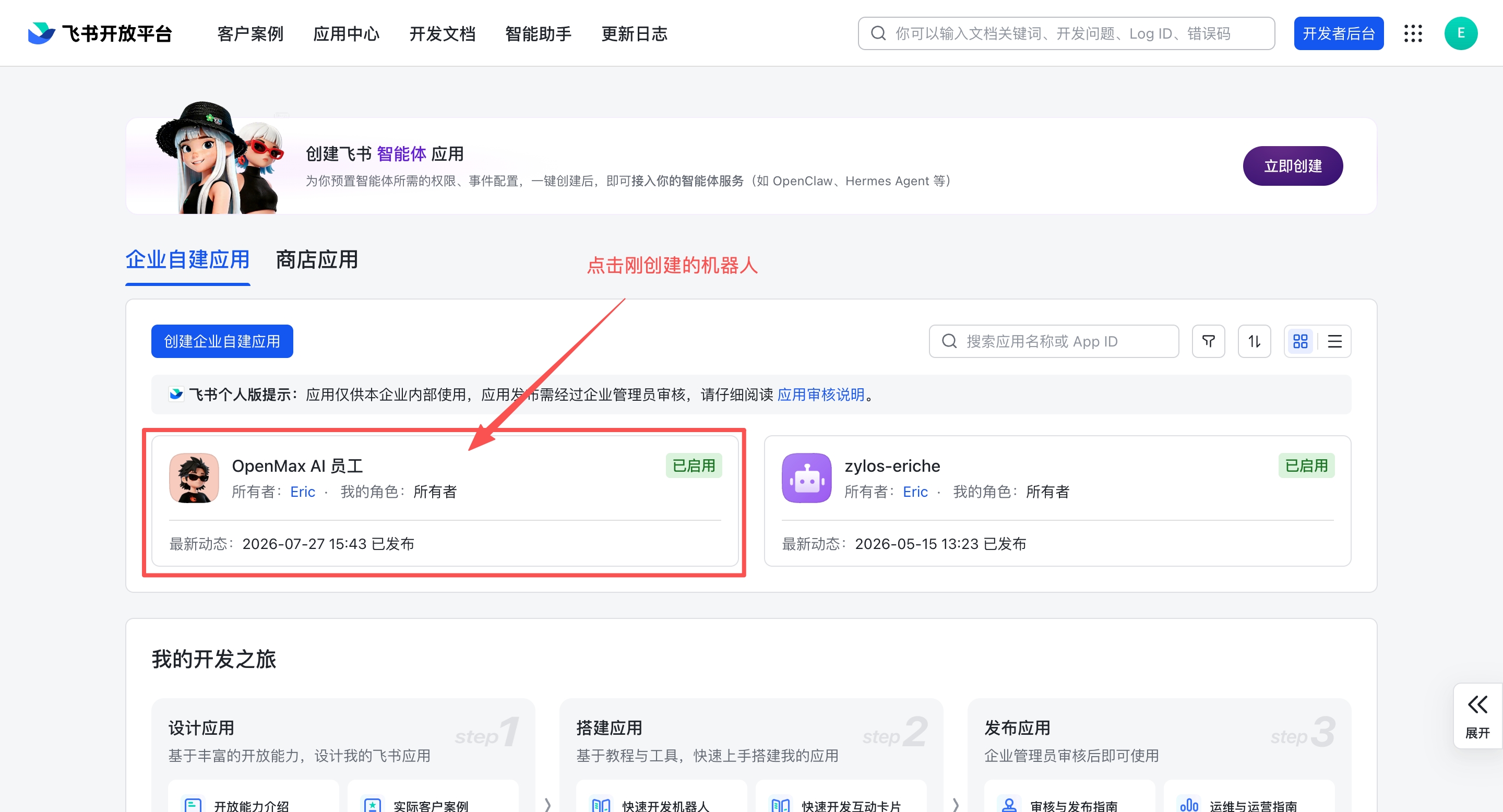
- Click the bot you just created and go to Permissions & Scopes
- Click Enable Scopes, search for each scope ID below, tick it, and click Confirm:
| Scope | Purpose | If missing |
|---|---|---|
im:message.group_msg |
Receive group messages and respond to @mentions | Bot cannot see group messages |
im:chat:readonly |
Read group info and member lists | Names show as ID fragments (e.g. c08f09) |
contact:user.base:readonly |
Resolve user IDs to real names | User names are unreadable |
contact:user.employee_id:readonly |
Match users by employee ID | Users cannot be identified by employee ID |
Enterprise account note: On enterprise accounts, permission changes take effect only after the enterprise admin approves them.
Step 6: Search for Bot and Start Chatting
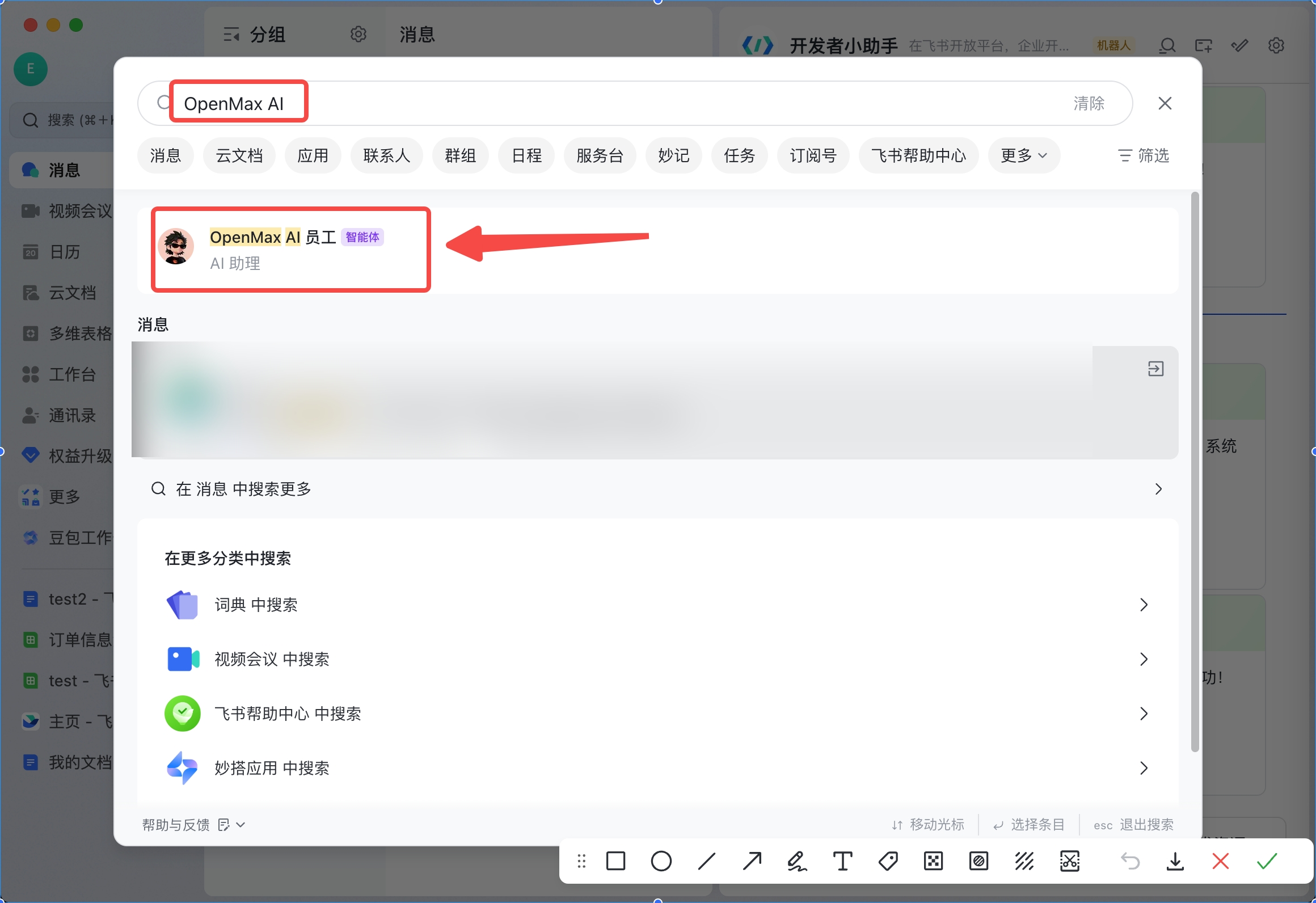
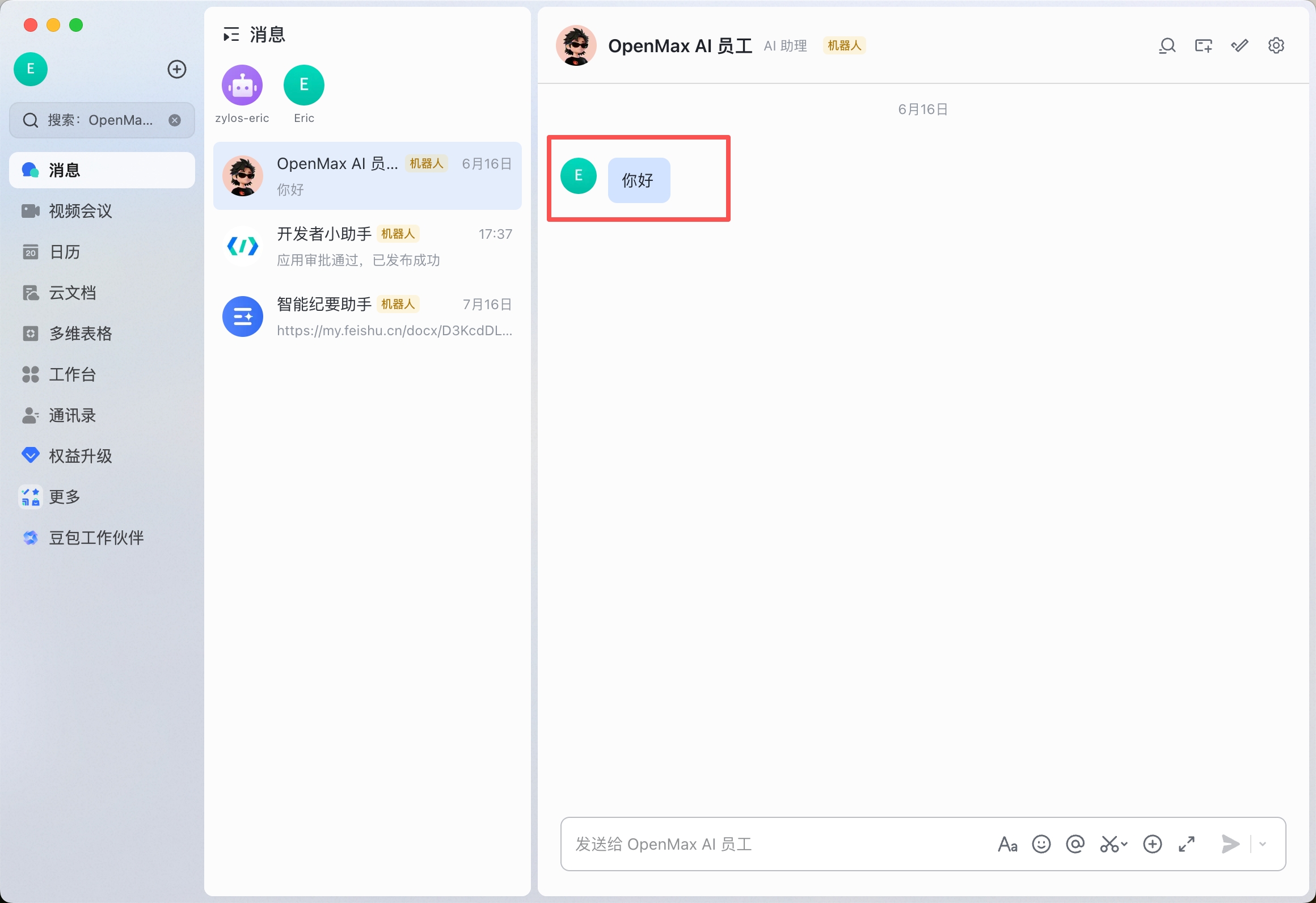
Once connected, search for the bot name you just set up in the top-left corner of the Feishu client, confirm the bot has been created correctly, and click to start chatting.
✅ Deployment complete! Your AI employee is now online — you can chat with it directly or add it to a group.
Option 3: Custom App Deploy (Full Configuration)
Estimated time: 8-15 minutes | Manually create a custom app and configure permissions, event subscriptions, and version publishing step by step. Suitable for advanced users who need fine-grained permission control or custom configuration.
WebSocket long connection (Recommended): Simplest configuration — only App ID and App Secret needed, no Webhook URL or verification required.
Step 1: Access Feishu Open Platform
Visit Feishu Open Platform
Log in with your Feishu account
Click Developer Backend in the top-right corner
Step 2: Create an Enterprise Custom App
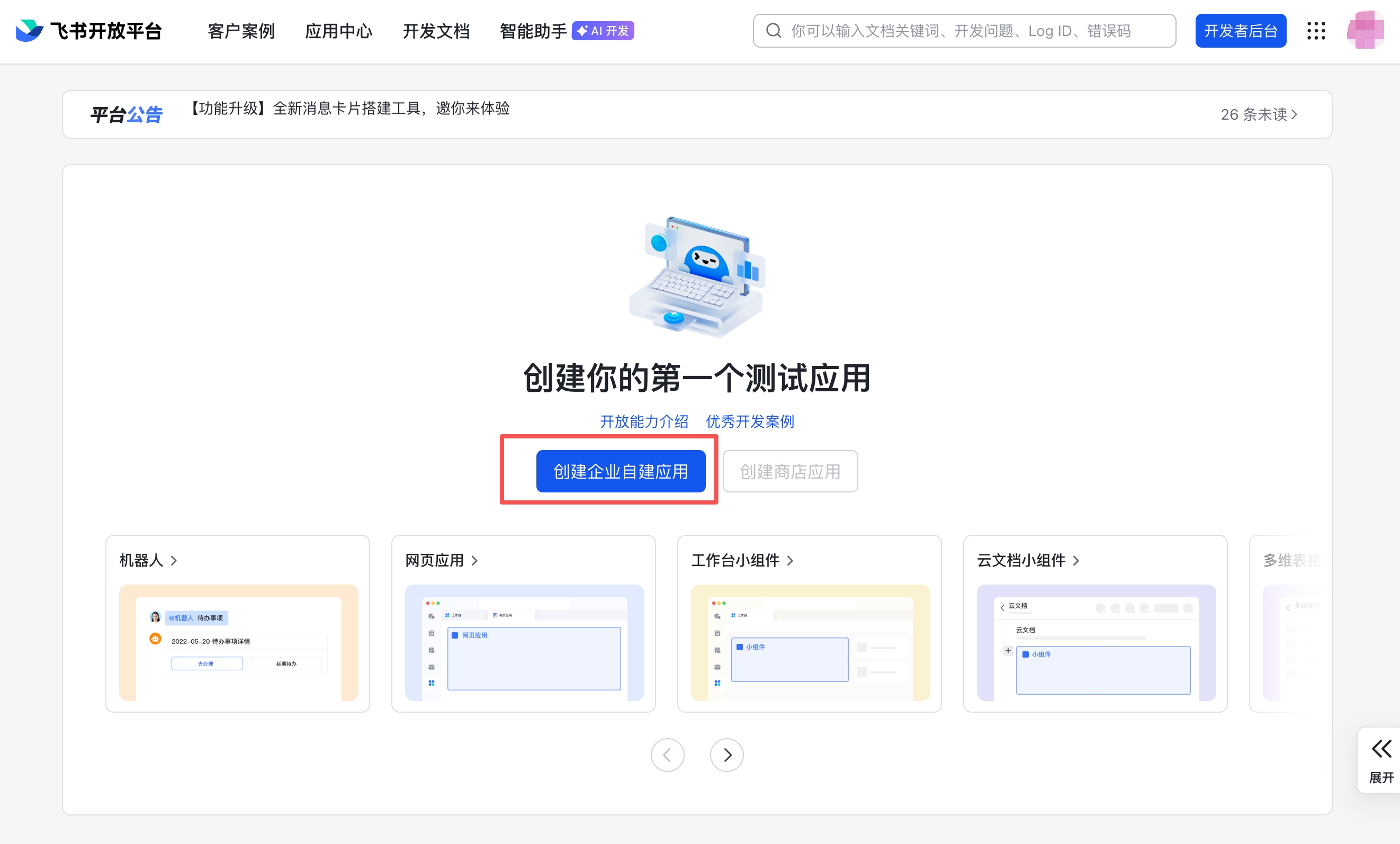
- In the Developer Backend, click Create Custom App
- Enter the app name (e.g.,
OpenMax Employee) and description, and select an app icon
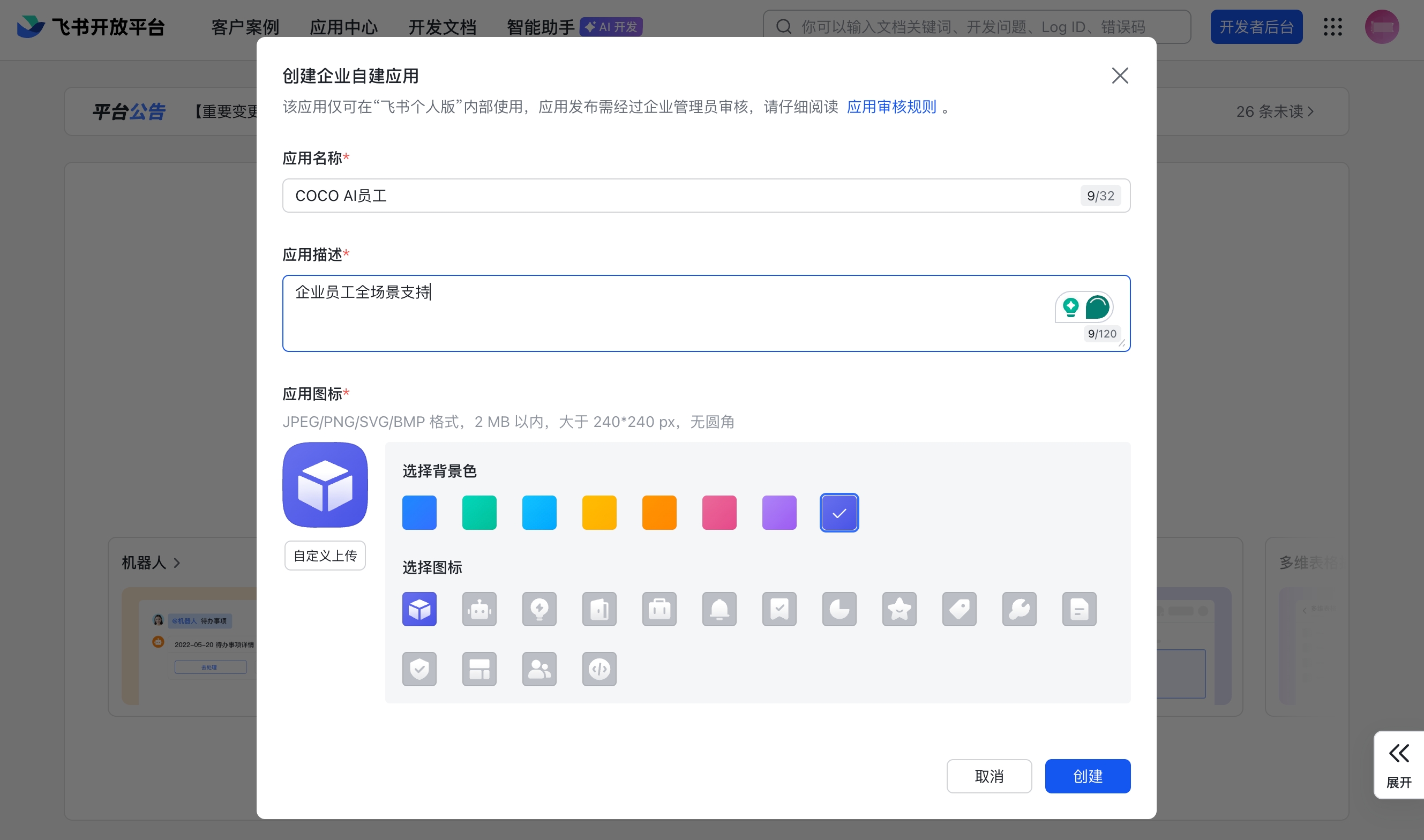
- Click Create to finish
Tip: Enterprise admin permissions are required to create an app. If you're not an admin, contact your IT department for help, or try it out with a Feishu personal account first.
Step 3: Add Bot Capability
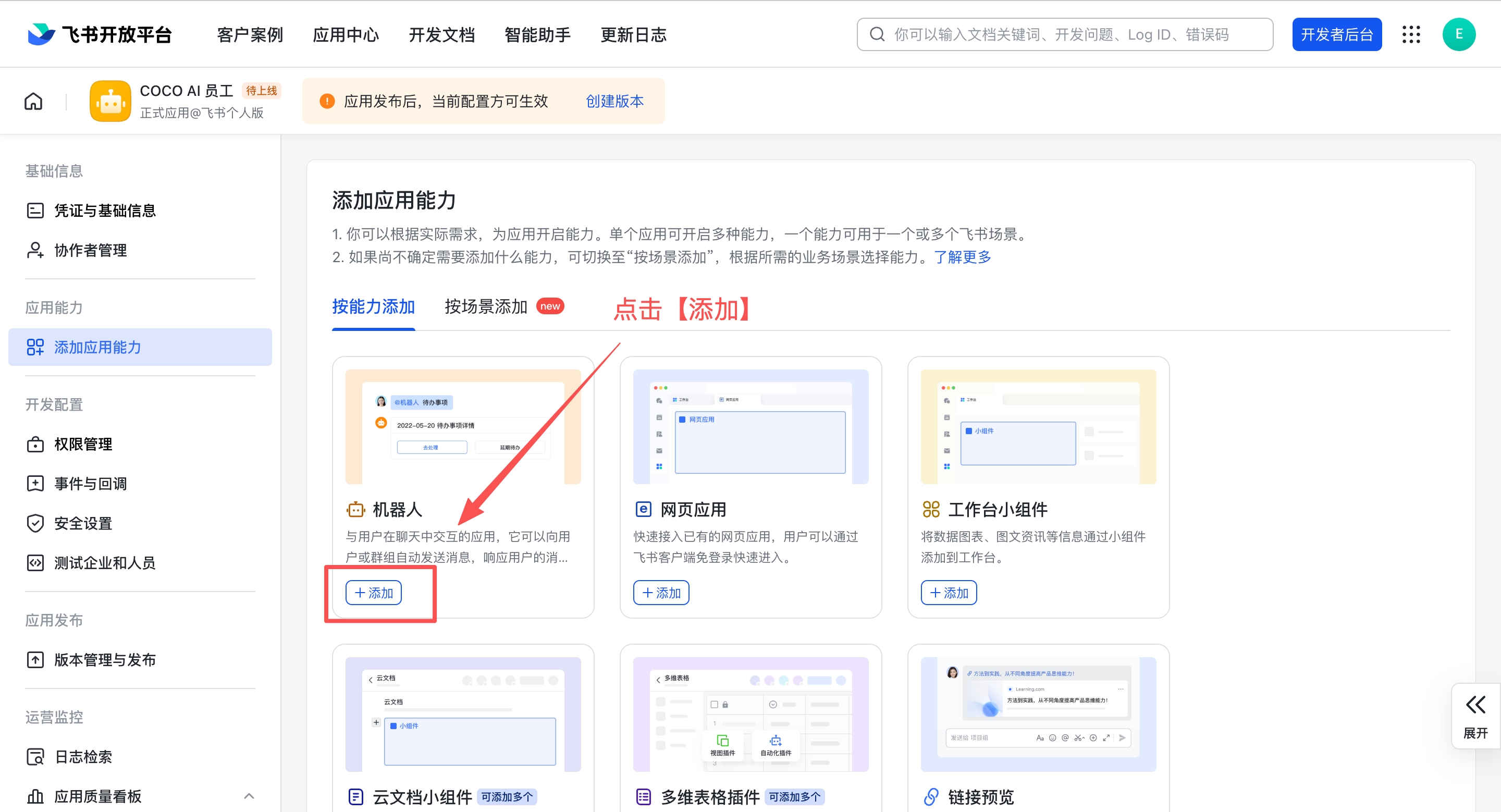
In the app management page, go to Add Capabilities in the left sidebar, find the Bot card, and click "+ Add".
Step 4: Configure Permissions
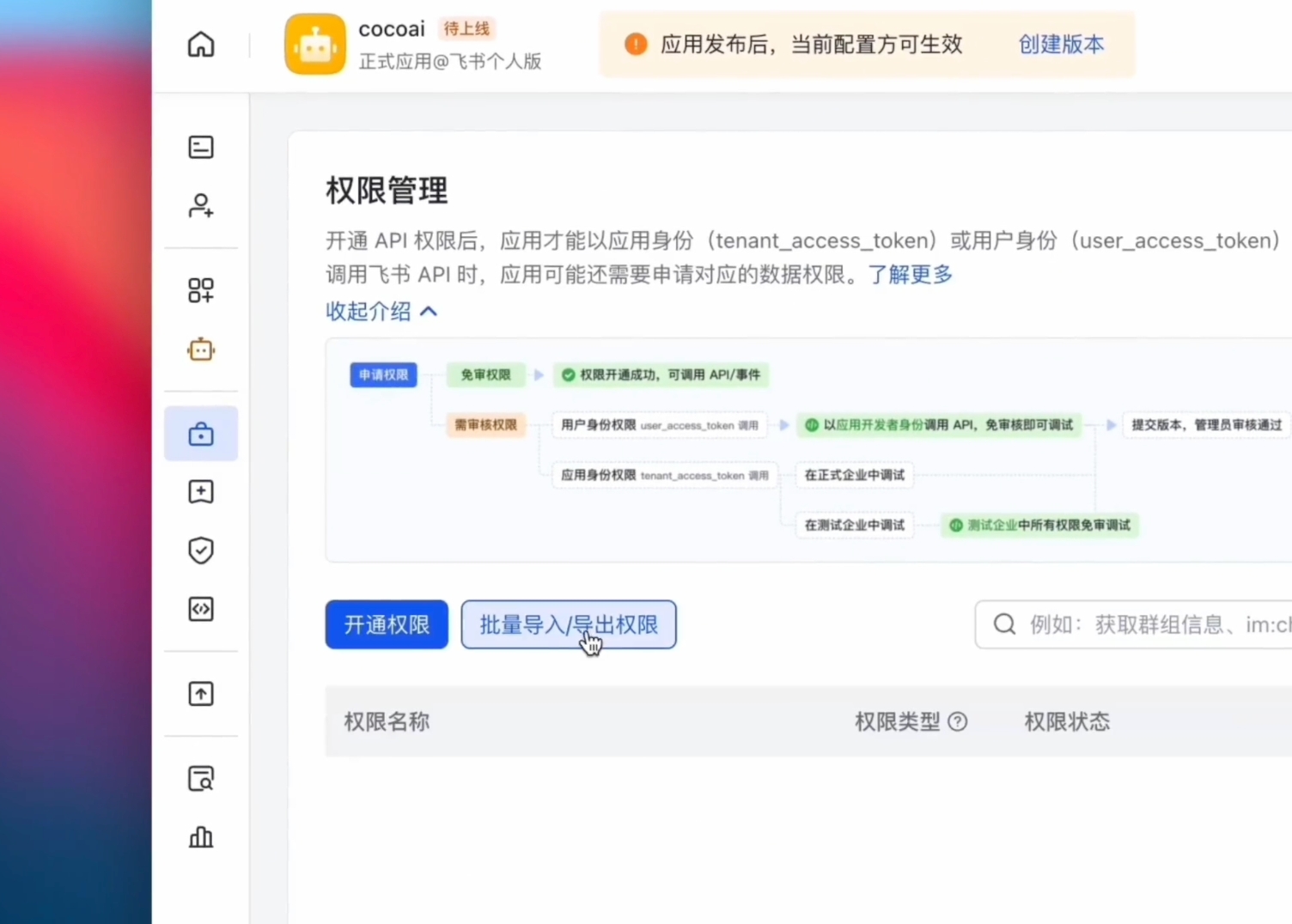
After adding the Bot capability, go to Permissions & Scopes in the left sidebar. You can click Enable Scopes to select the required permissions one by one, or click Batch Import/Export Permissions and paste our prepared JSON to import them all at once:
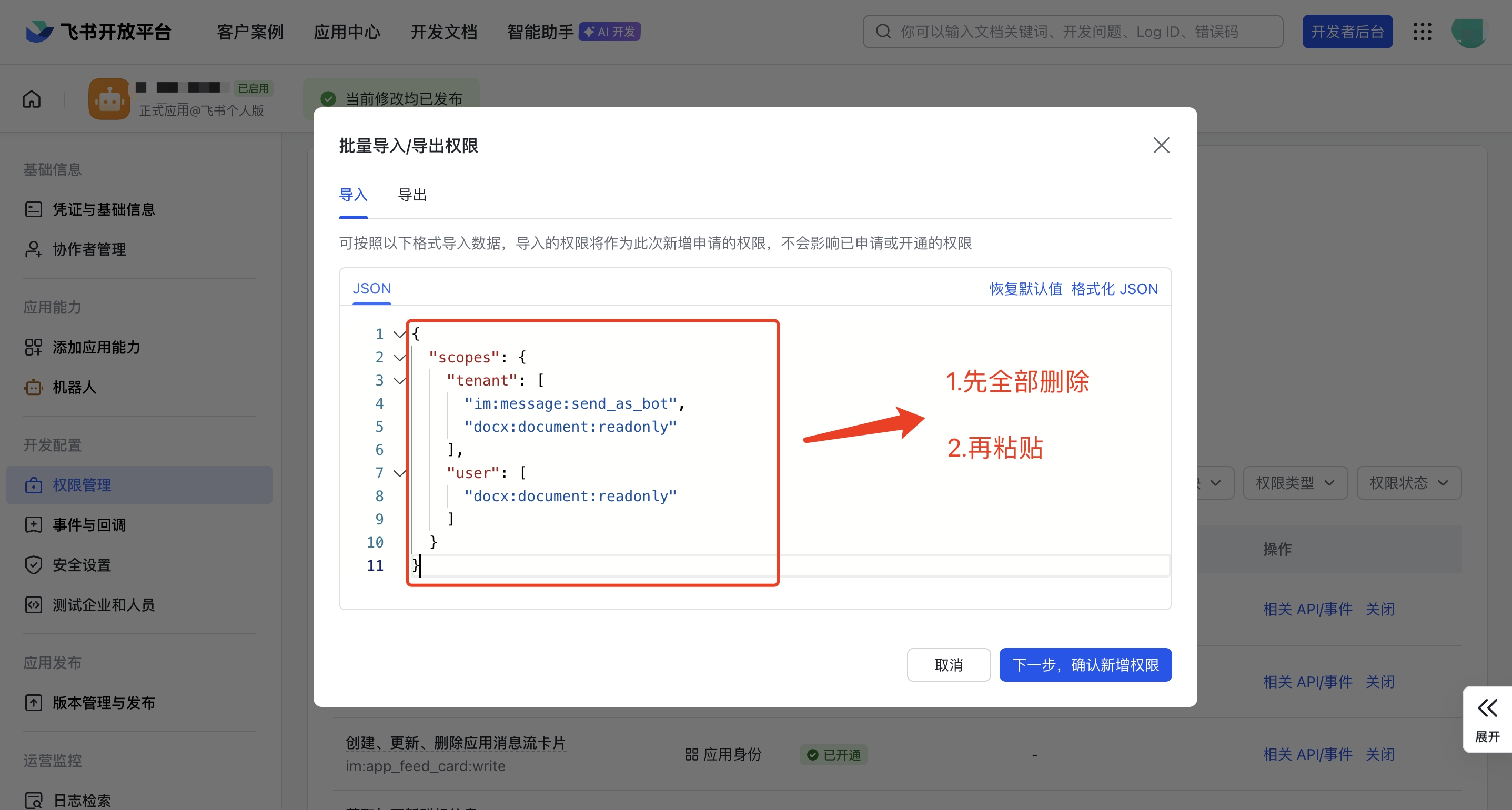
Copy the following JSON to import all permissions at once:
{
  "scopes": {
    "tenant": [
      "contact:contact.base:readonly",
      "contact:user.base:readonly",
      "im:app_feed_card:write",
      "im:chat",
      "im:chat.announcement:read",
      "im:chat.announcement:write_only",
      "im:chat.chat_pins:read",
      "im:chat.chat_pins:write_only",
      "im:chat.collab_plugins:read",
      "im:chat.collab_plugins:write_only",
      "im:chat.managers:write_only",
      "im:chat.members:bot_access",
      "im:chat.members:read",
      "im:chat.members:write_only",
      "im:chat.menu_tree:read",
      "im:chat.menu_tree:write_only",
      "im:chat.moderation:read",
      "im:chat.tabs:read",
      "im:chat.tabs:write_only",
      "im:chat.top_notice:write_only",
      "im:chat.widgets:read",
      "im:chat.widgets:write_only",
      "im:chat:create",
      "im:chat:delete",
      "im:chat:moderation:write_only",
      "im:chat:operate_as_owner",
      "im:chat:read",
      "im:chat:readonly",
      "im:chat:update",
      "im:datasync.feed_card.time_sensitive:write",
      "im:message",
      "im:message.group_at_msg:readonly",
      "im:message.group_msg",
      "im:message.p2p_msg:readonly",
      "im:message.pins:read",
      "im:message.pins:write_only",
      "im:message.reactions:read",
      "im:message.reactions:write_only",
      "im:message.urgent",
      "im:message.urgent:phone",
      "im:message.urgent:sms",
      "im:message:readonly",
      "im:message:recall",
      "im:message:send_as_bot",
      "im:message:send_multi_depts",
      "im:message:send_sys_msg",
      "im:message:update",
      "im:resource",
      "im:url_preview.update",
      "im:user_agent:read"
    ],
    "user": []
  }
}
After enabling some permissions, a "Data Scope" configuration dialog may pop up — keep the default configuration and click Confirm:
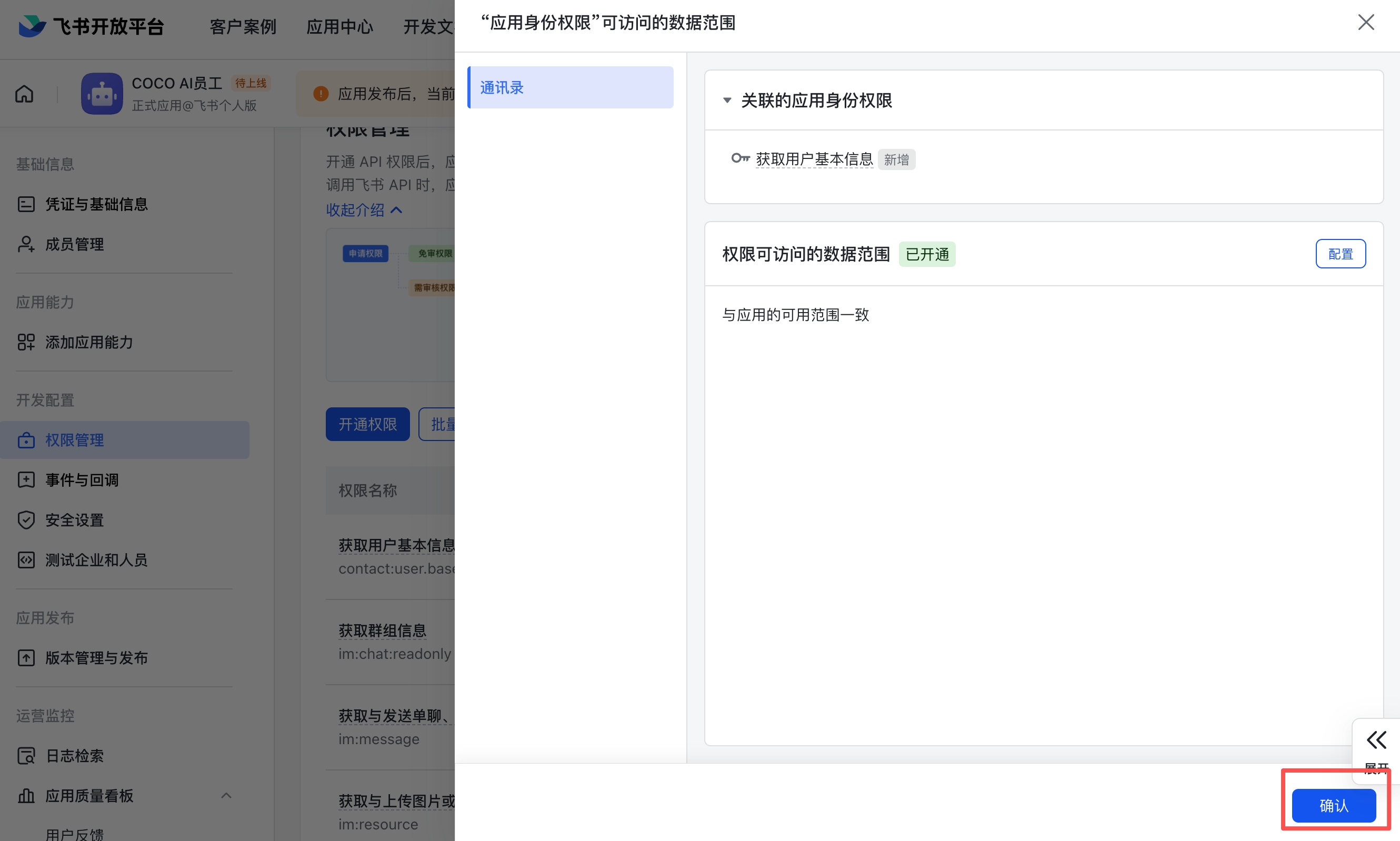
Step 5: Configure Event Subscription
Return to the Feishu Developer Backend and go to Events & Callbacks in the left sidebar
Under the "Event Configuration" tab, select Receive events through persistent connection
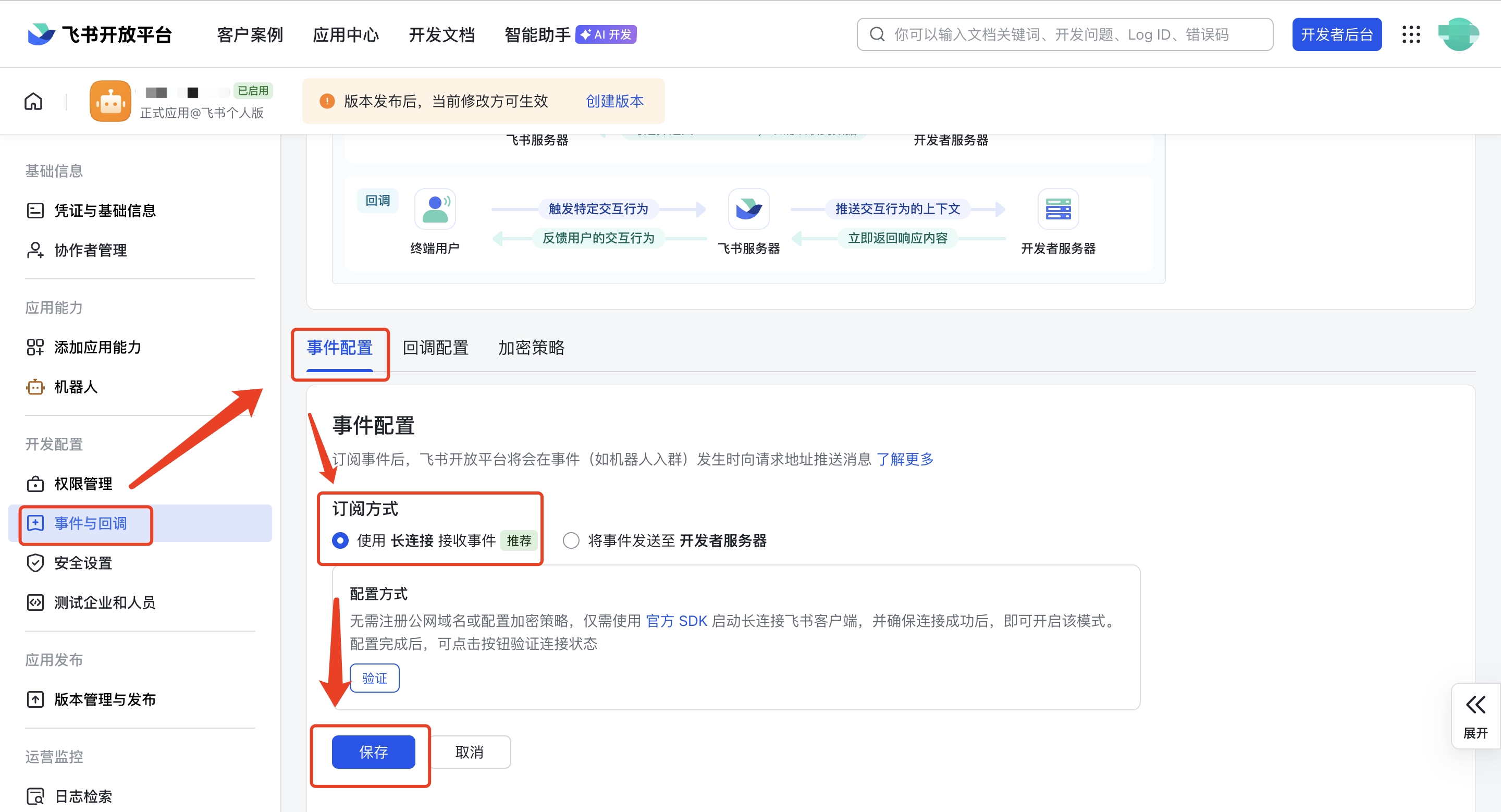
Click Add Events below and subscribe to the following events:
Receive messages (required):
im.message.receive_v1Bot added to group (optional):
im.chat.member.bot.added_v1
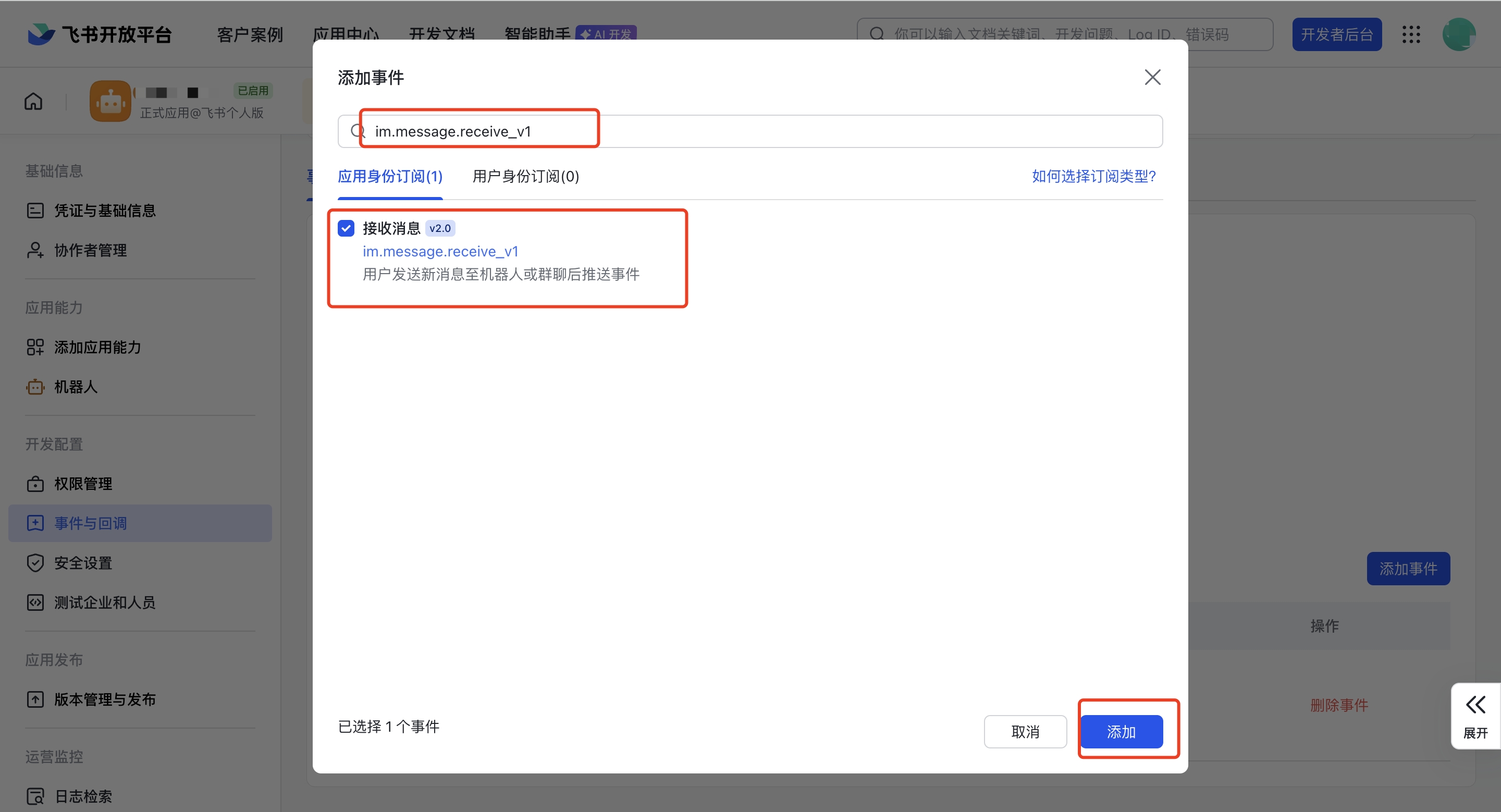
- Click Save
Step 6: Create Version and Publish
In the Feishu Developer Backend, go to Version Management & Publishing in the left sidebar
Click Create Version
Enter the version number (e.g.,
1.0.0) and update descriptionConfirm the app capabilities and permission information are correct, then click Save
In the confirmation dialog, click Confirm Publish
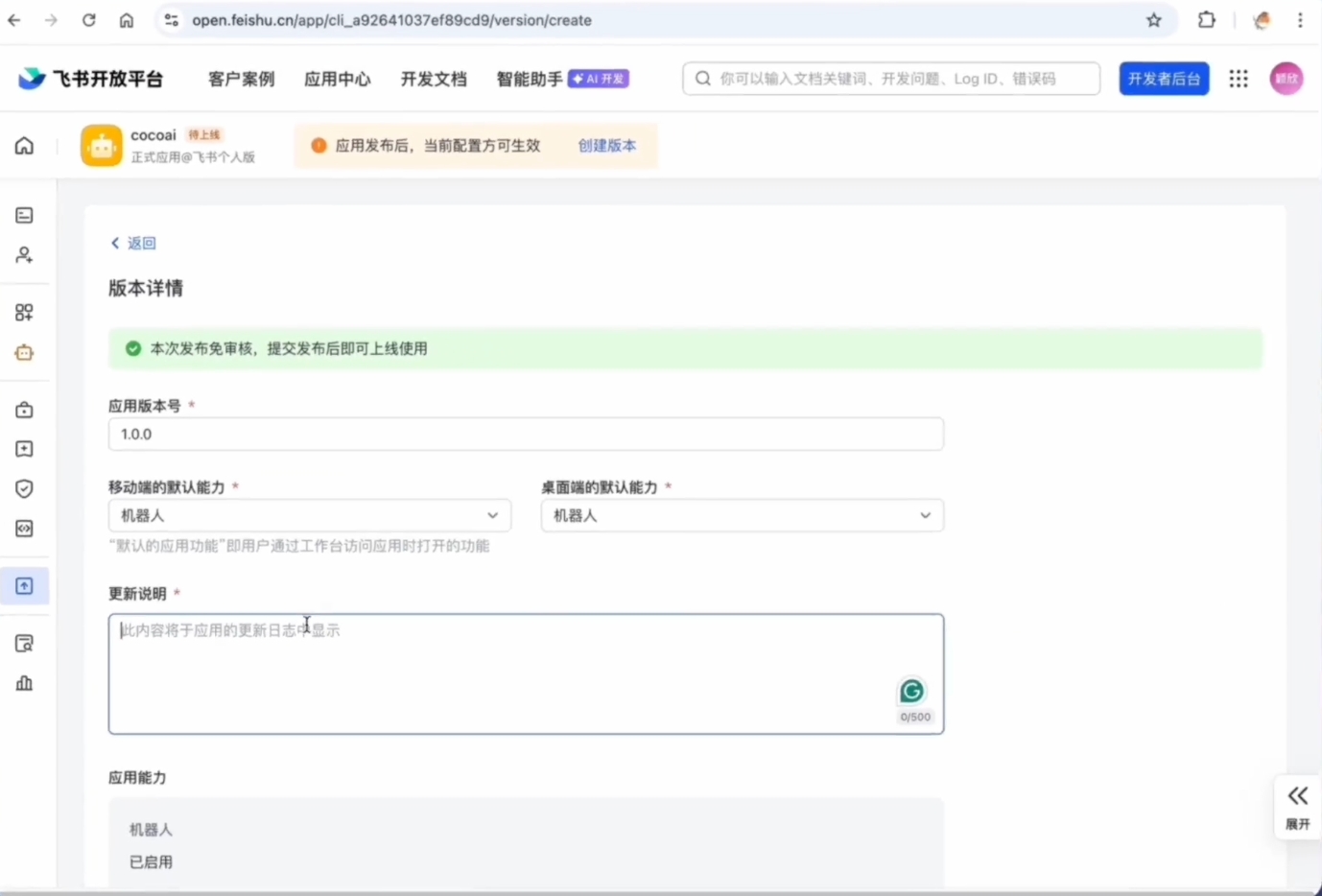
Admin Approval: After publishing a Feishu custom app, the enterprise admin must approve it in the Feishu Admin Console before the app becomes active. If you are using a personal account, this step is not needed.
Once configured, you can search for your app name in the Feishu client to confirm the bot has been created correctly:
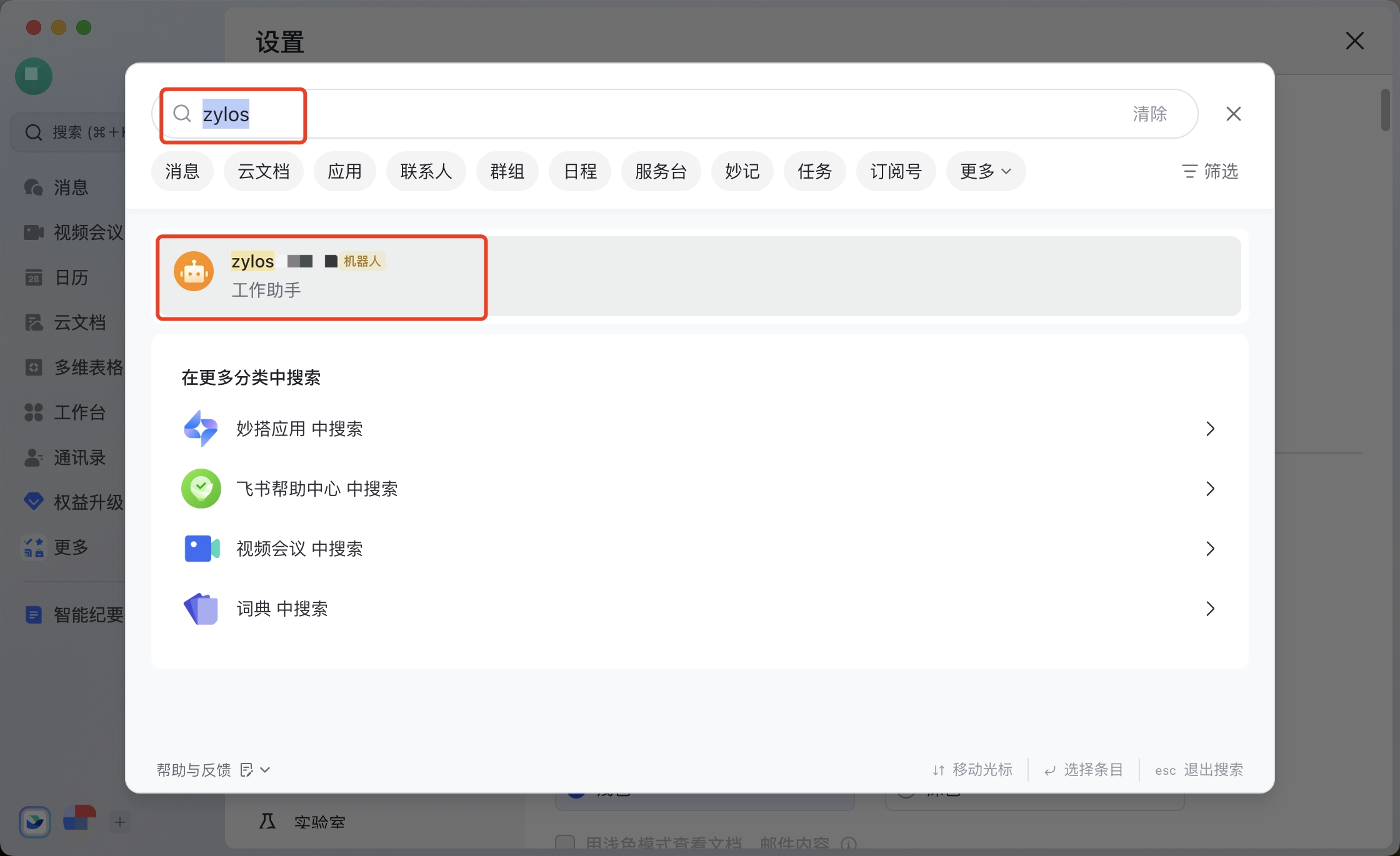
Step 7: Fill in Credentials in OpenMax Workspace and Deploy
Log into OpenMax Workspace
Click Channels on the left sidebar, select Feishu
Go back to the Feishu Open Platform, and on the Credentials & Basic Info page in the left sidebar, copy the App ID and App Secret into the Feishu entry under Channels
Click Connect — the system will automatically deploy your AI employee (typically takes 2-3 minutes)
Step 8: Enable Bot and Add to Groups
First, confirm on the Feishu Open Platform that the app status has changed to "Enabled":
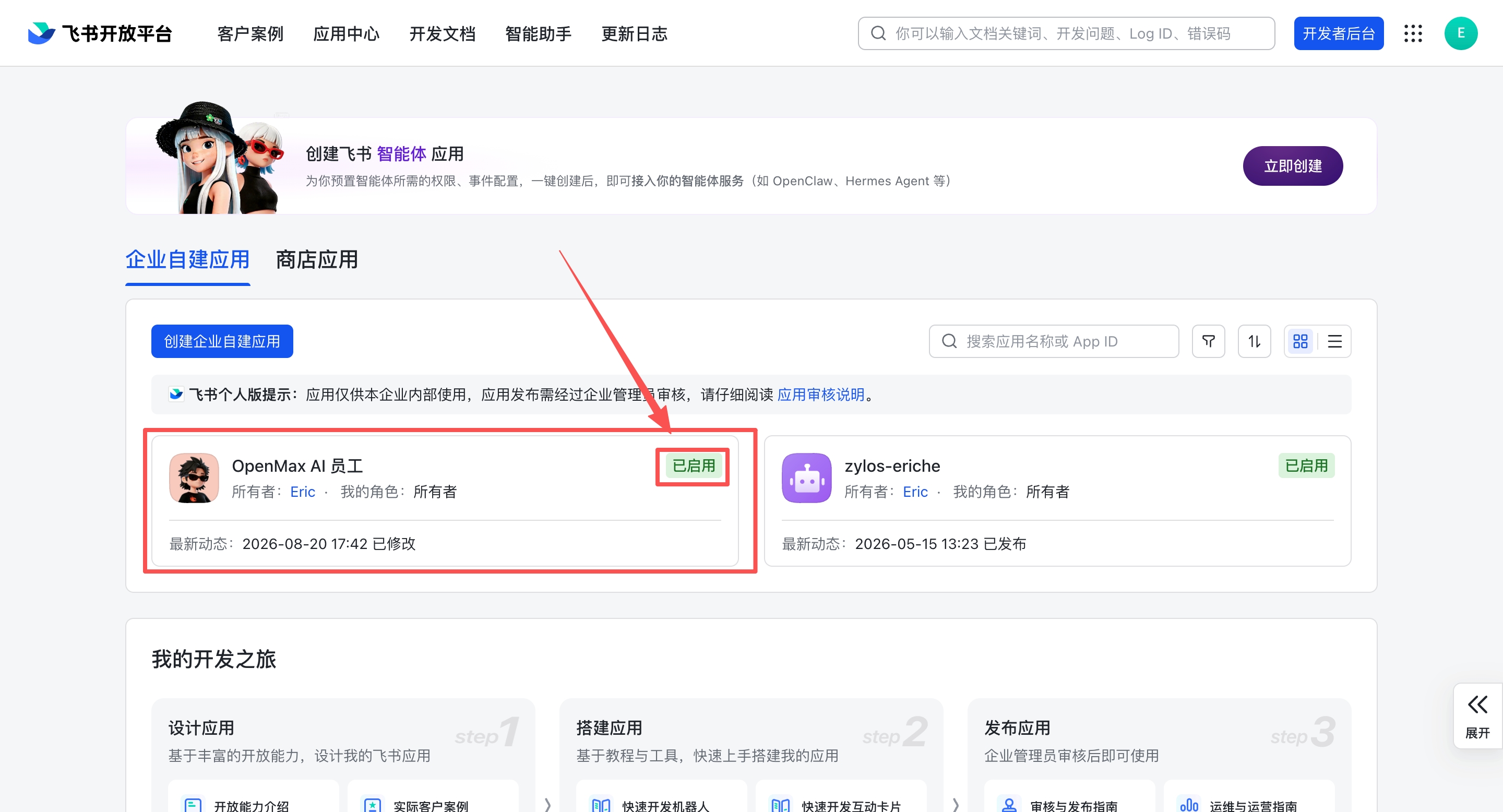
Open the Feishu client
Create or enter a group
Click the ... menu in the top-right corner → Settings
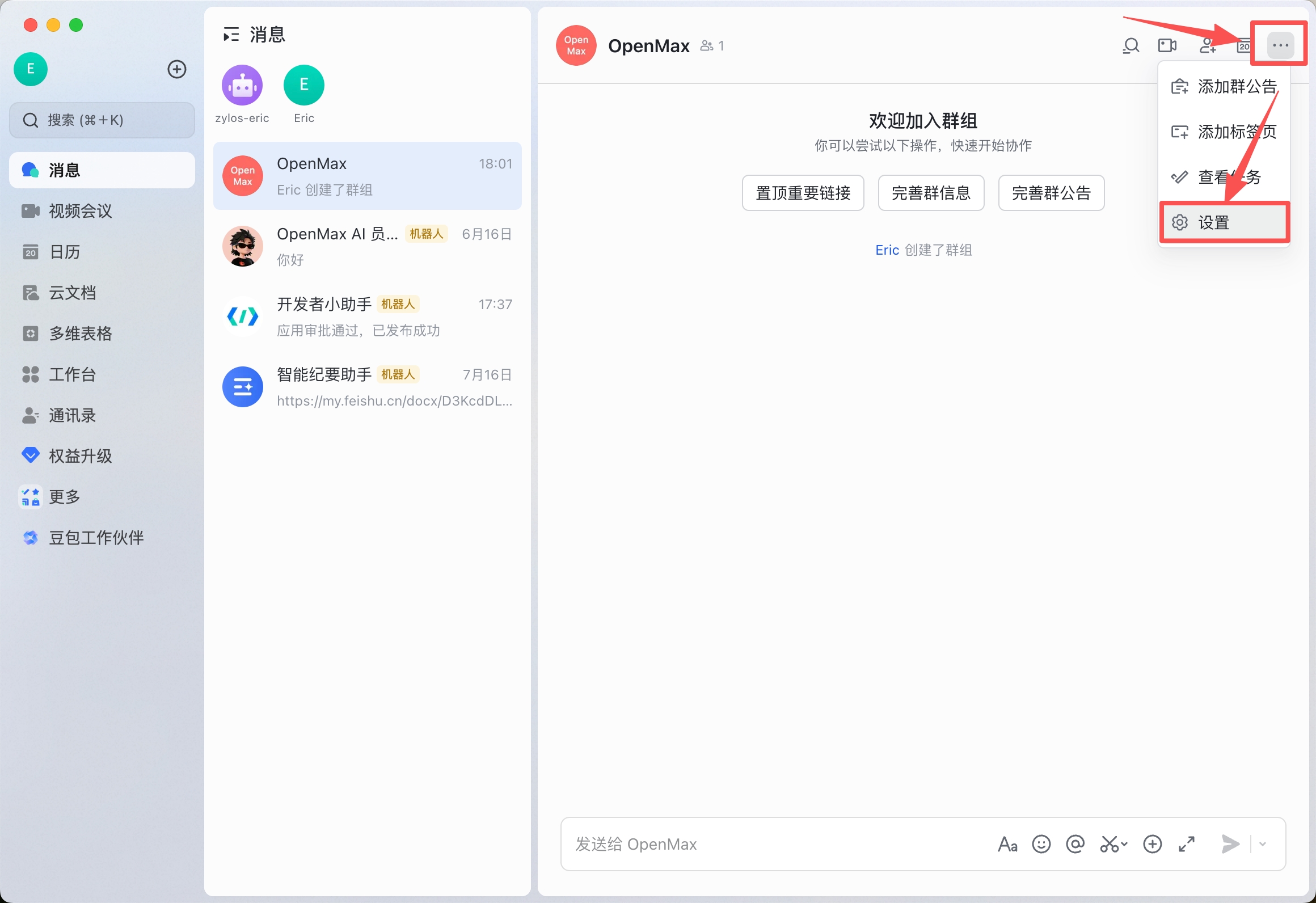
- In Settings, find the Group Bots option and click it
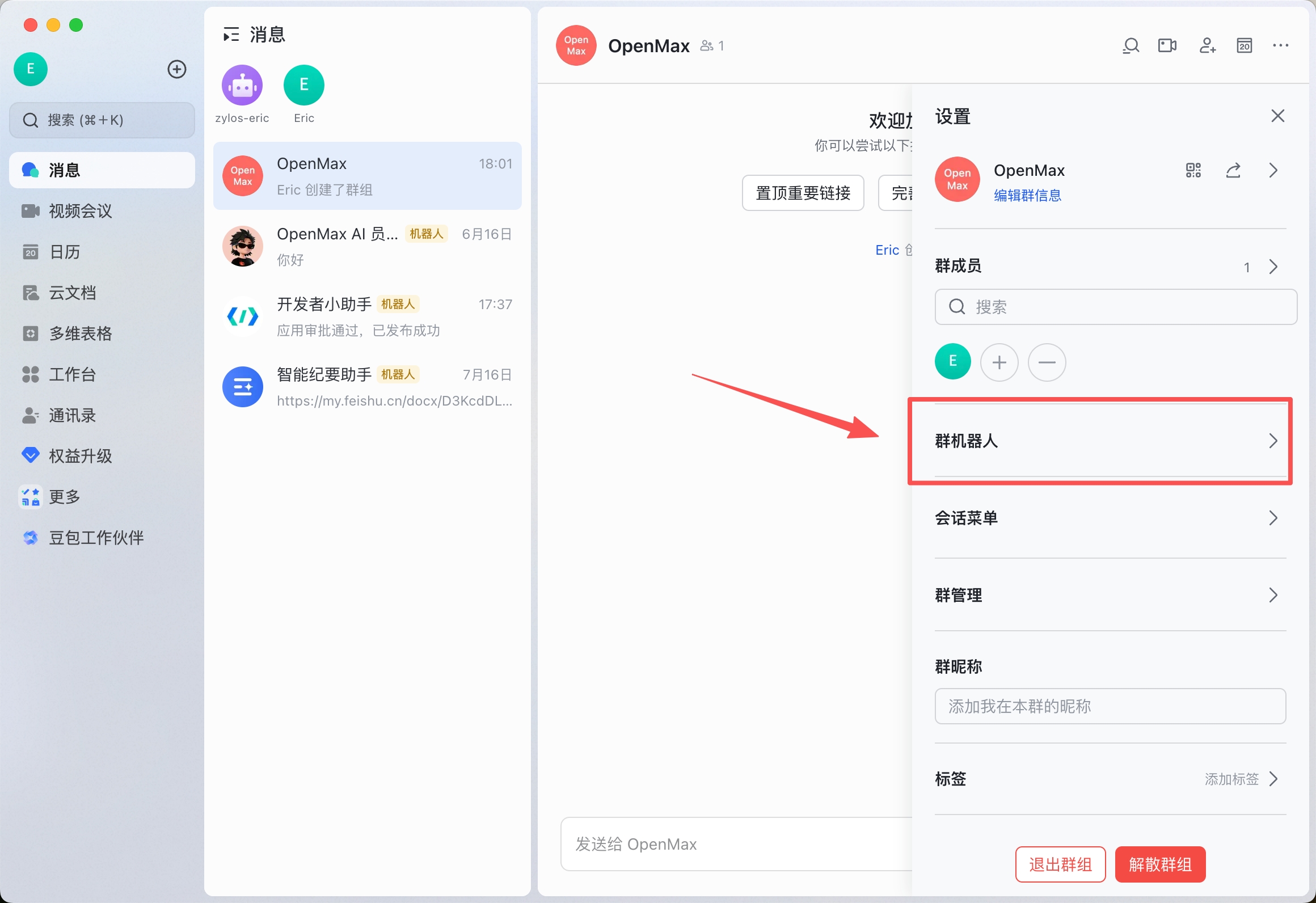
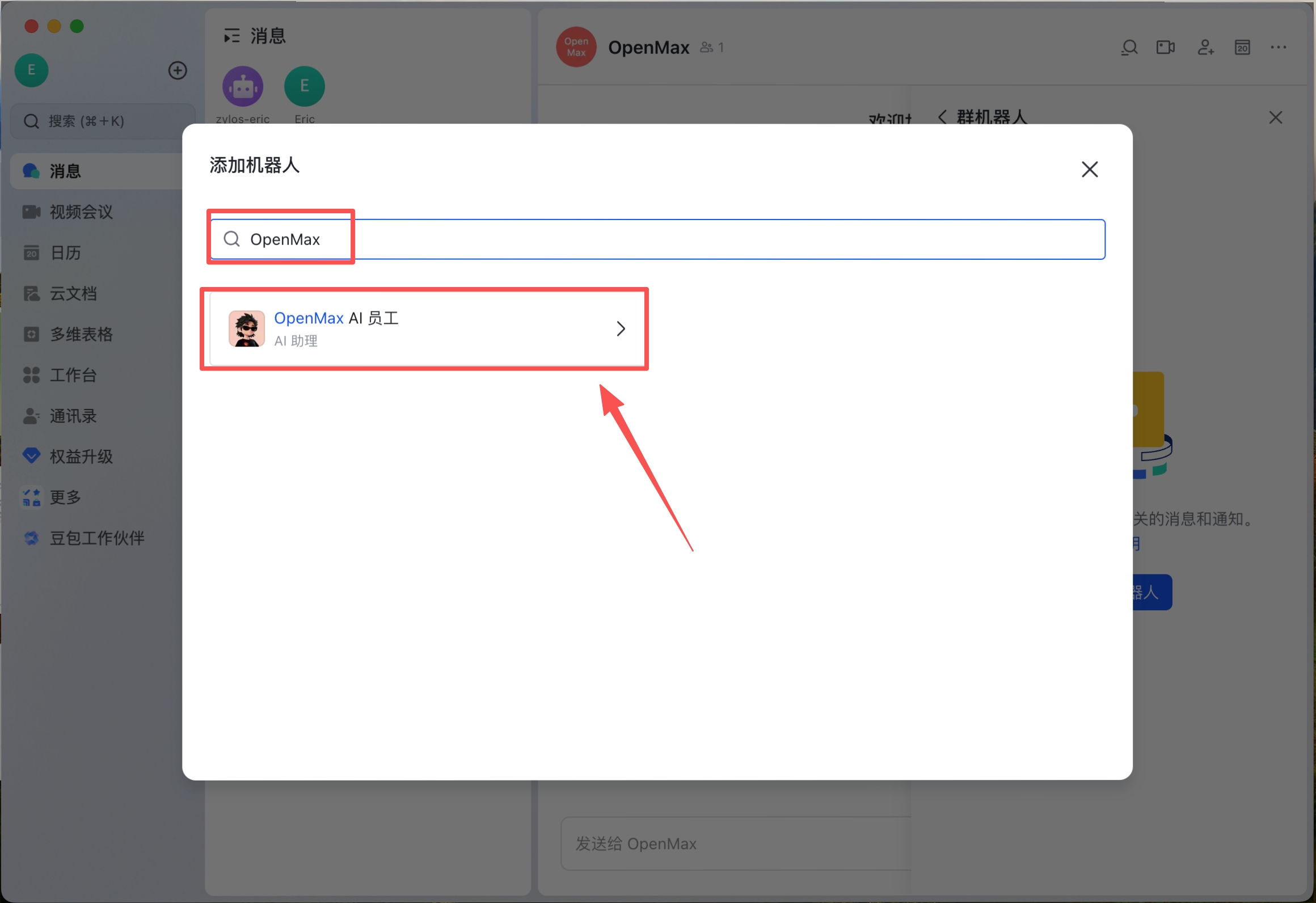
- Click Add Bot → search for your app name → click add
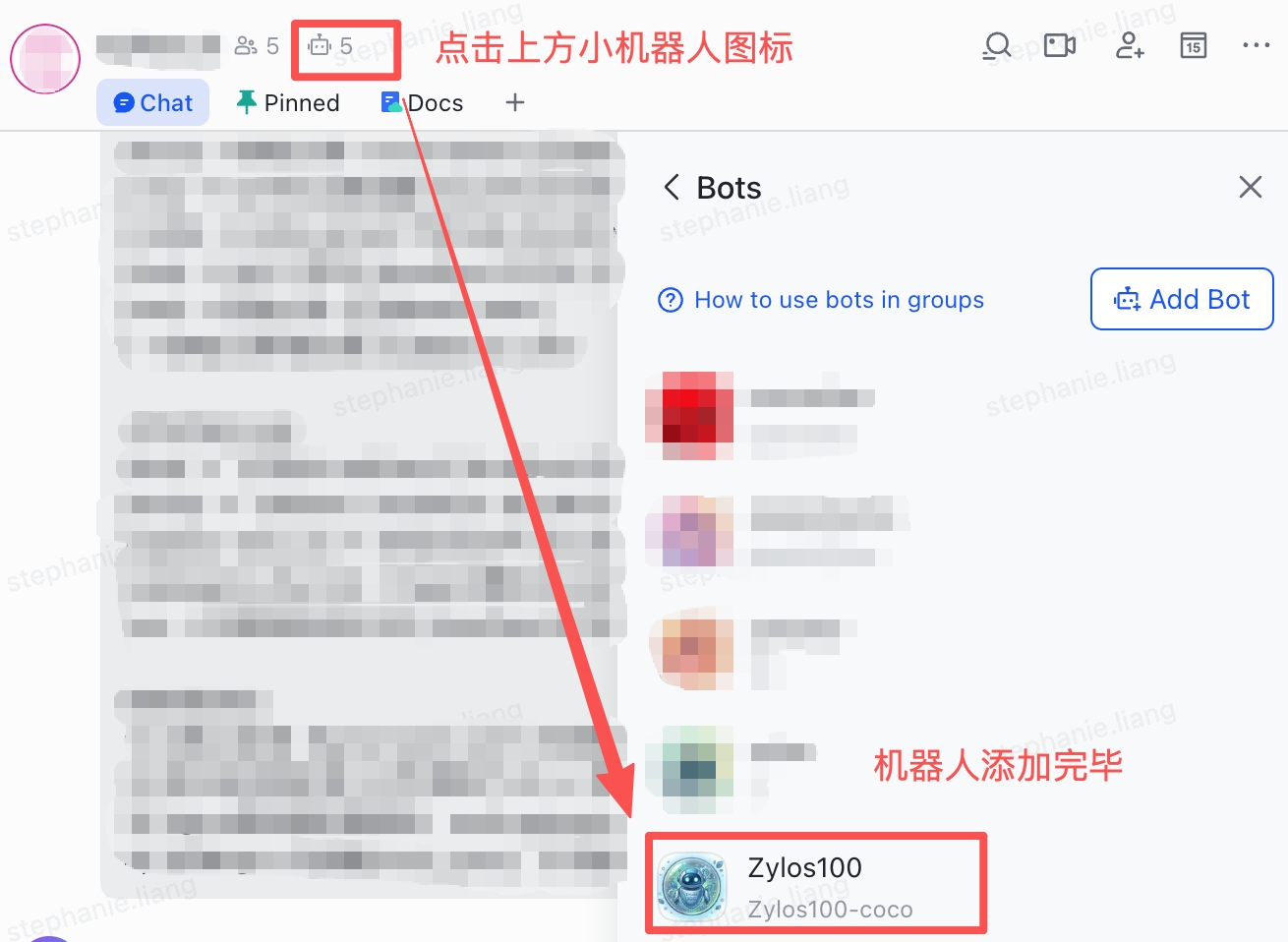
- After adding, your bot will appear in the group bots list
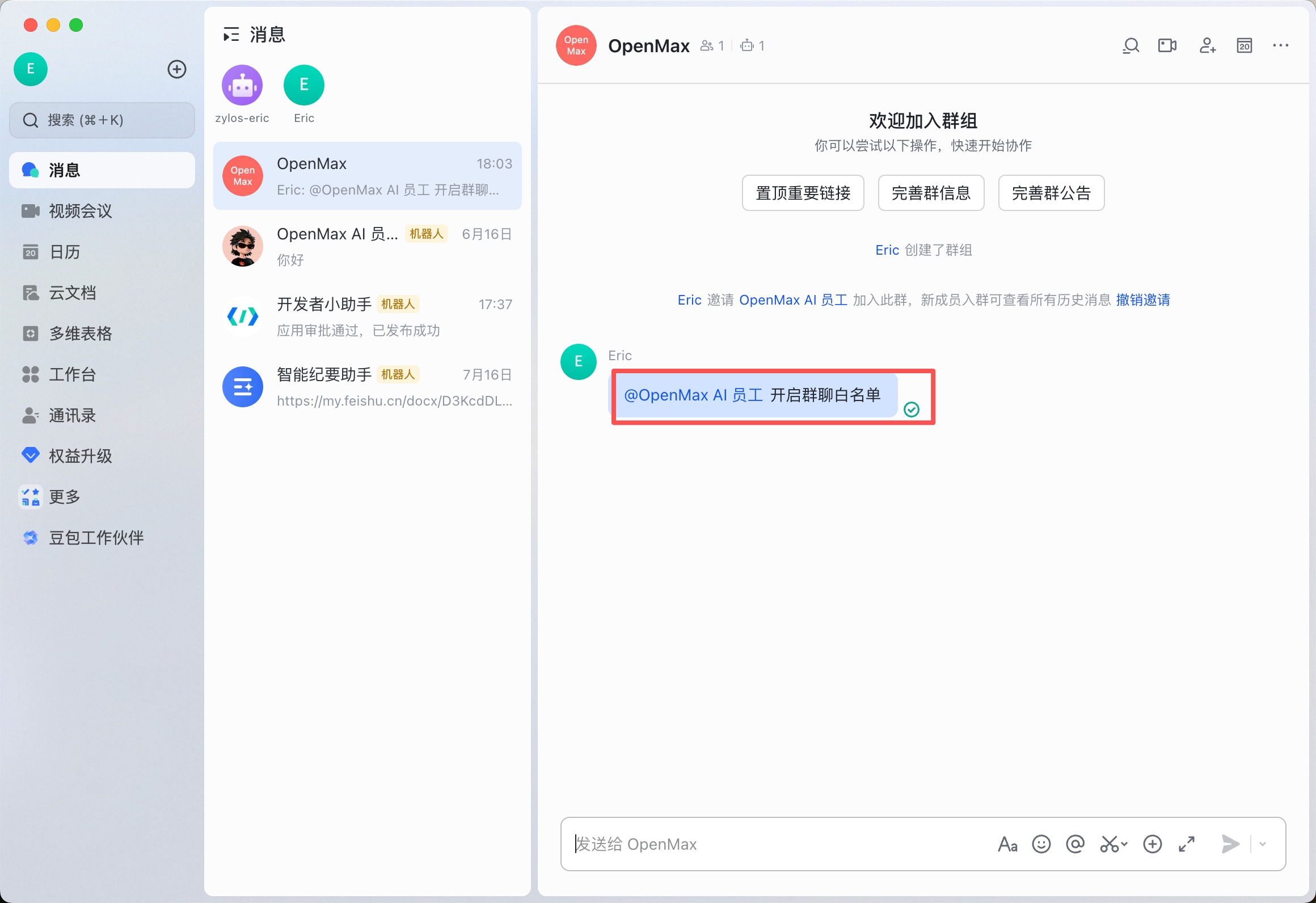
- Enable the group whitelist: the group owner must @mention the bot in the group and send "开启群聊白名单" (enable group whitelist) — only then can other group members use the bot via @mention
@mention your bot in the group and send a message
Your AI employee responds
✅ Deployment complete! Your AI employee is now online — you can chat with it directly or add it to a group.
2. WeChat Deployment
Estimated time: ~2 minutes
Step 1: Update WeChat (latest version recommended)
iOS WeChat 8.0.70 or above
Android WeChat 8.0.69 or above
Desktop WeChat 4.1.9 or above
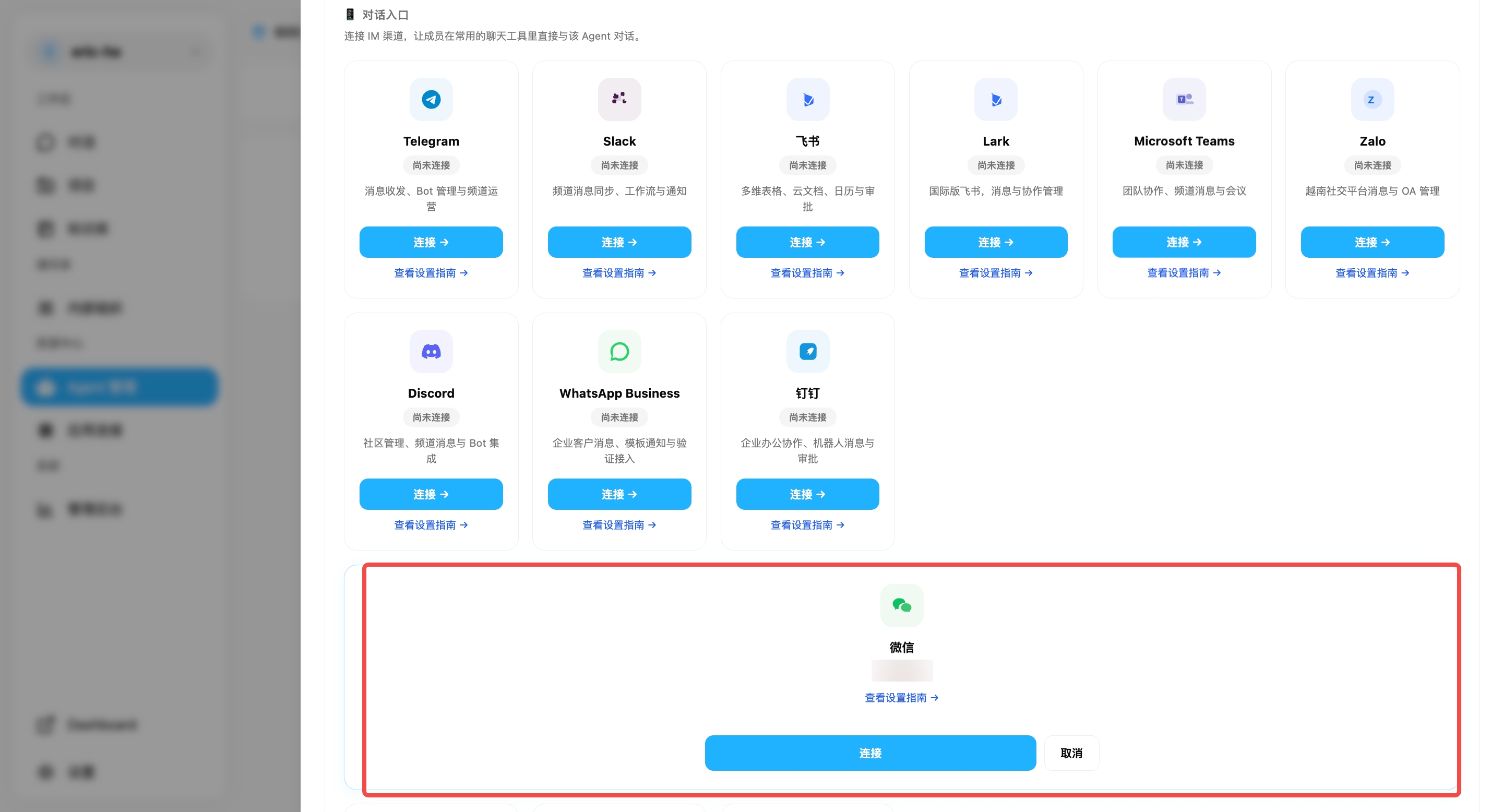
Step 2: Log into Workspace → Agent Management → Channels → Scan QR Code with WeChat (with screenshot)
Log into Workspace → Agent Management → select your agent and click into it → scroll down to Channels → select WeChat → wait for the QR code to appear → scan it with WeChat on your phone
Step 3: Start Using
WeChat on your phone will automatically open the WeChat ClawBot chat page
Send any message — your AI employee responds immediately
✅ Deployment complete! Your AI employee is now online — you can chat with it directly or add it to a group.
3. WeCom Deployment
Estimated time: Option 1 / Option 2 ~1-2 minutes; Option 3 ~5 minutes
Version Note: This guide applies to WeCom component v0.1.1 and above (WebSocket long connection mode — no public IP or SSL required). If you are still on the older v0.1.0 webhook mode, upgrade by sending
帮我升级 wecom 组件via the Workspace Web Console.
WeCom offers the following deployment options, from the most effortless to the most flexible — choose the one that fits your needs:
- Option 1: Talk to the Agent (Chat-based Quick Connect) (Easiest · Recommended) — no backend needed; just tell the Agent in the conversation and scan a QR code to connect
- Option 2: Scan to Connect — go to the Channels backend and scan with the WeCom app to authorize, no need to create a robot
- Option 3: Enter ID and Secret — requires first creating an intelligent robot in the WeCom backend, suitable for users who want to manage the robot configuration themselves
Option 1: Talk to the Agent (Chat-based Quick Connect) (Recommended)
Estimated time: ~1-2 minutes | No backend, no manual credential entry — everything happens in the conversation with the Agent.
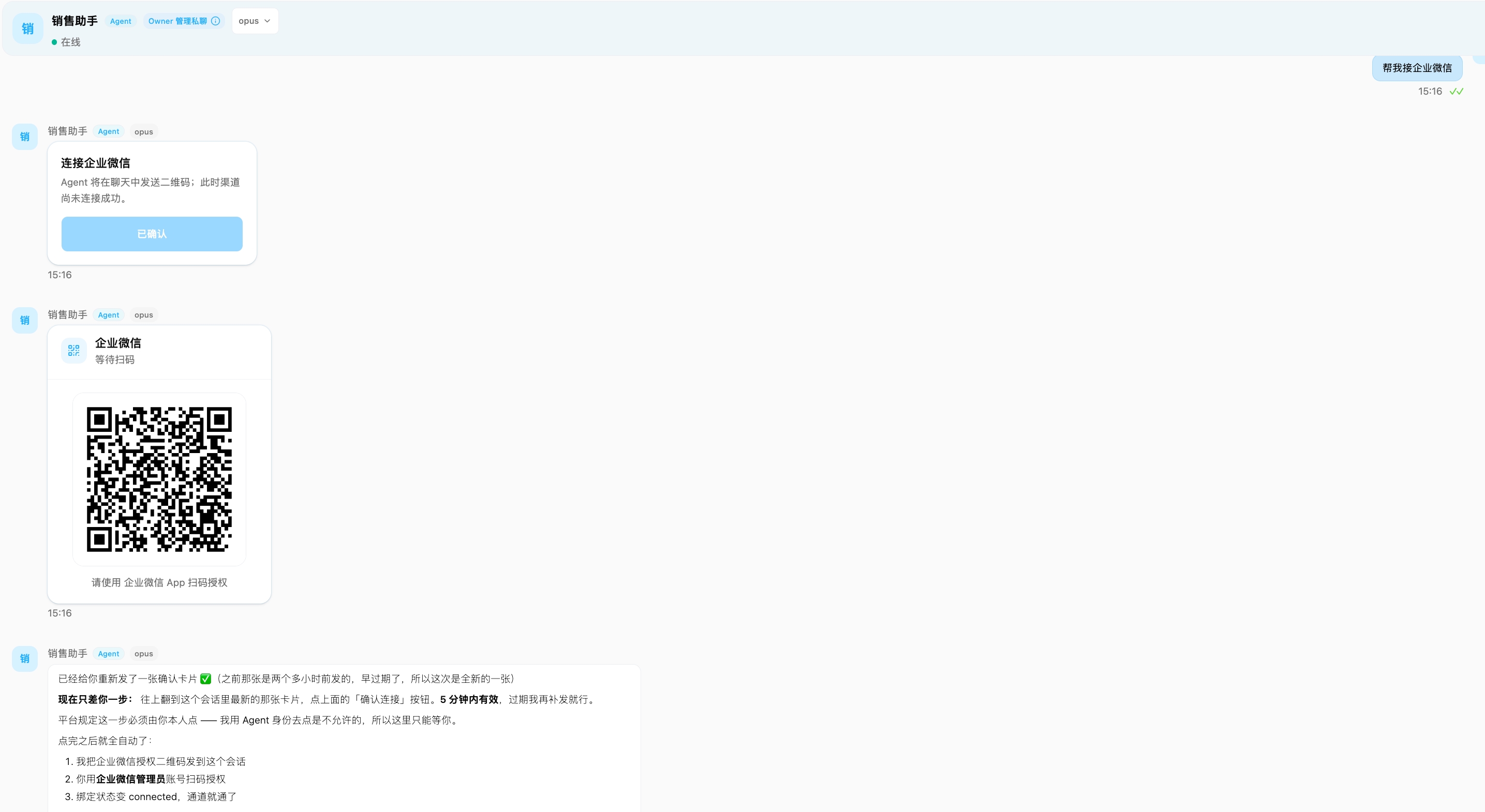
- Simply tell the Agent "I want to connect WeCom";
- The Agent sends you a connection confirmation request (valid for 5 minutes) — click to confirm;
- The system then generates a QR code (valid for 5 minutes);
- Scan and authorize with the WeCom app, and the Agent completes the connection for you automatically.
✅ Deployment complete! Your AI employee is now online — you can chat with it directly or add it to a group.
Option 2: Scan to Connect with WeCom
Step 1: Open the Connection Entry
Log into OpenMax Workspace → go to Agent Management and click the agent to open its detail page → scroll down to the Channels section, and click the Connect button on the WeCom card.
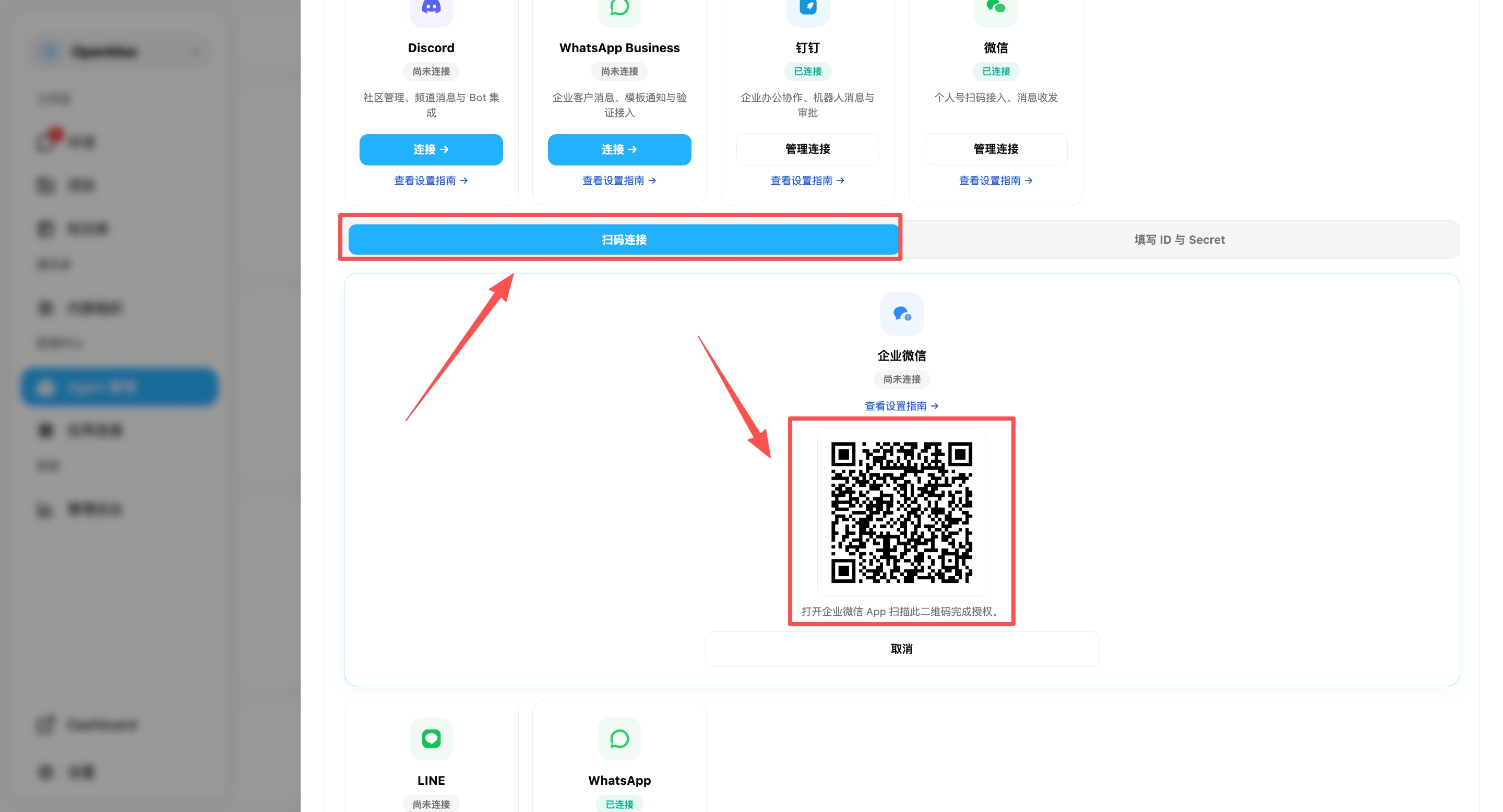
Step 2: Choose Scan to Connect
In the pop-up window, select the Scan to Connect tab.
Step 3: Scan to Authorize
Open the WeCom app and scan the QR code on the page to complete authorization and connect successfully.
Option 3: Enter ID and Secret
Two credentials are required:
| Field | Description |
|---|---|
| Bot ID | Unique identifier of the intelligent robot |
| Secret | Robot authentication key |
Step 1: Create an Intelligent Robot
In the WeCom Admin Console, go to Workbench → Intelligent Robots, and click Create Robot.
Step 2: Choose the Creation Method
In the pop-up dialog, click Manual Creation >, or choose AI auto-generation.
Step 3: Switch to API Mode
At the bottom of the page, click Switch to API Mode Creation.
Step 4: Enable Long Connection and Copy Credentials
Select Use Long Connection
Copy the Bot ID and Secret displayed on the page
Set the Visibility Scope to choose which members can use the robot
Click Save
Important: The Secret is only shown once at creation. Save it immediately.
Step 5: Connect in Workspace
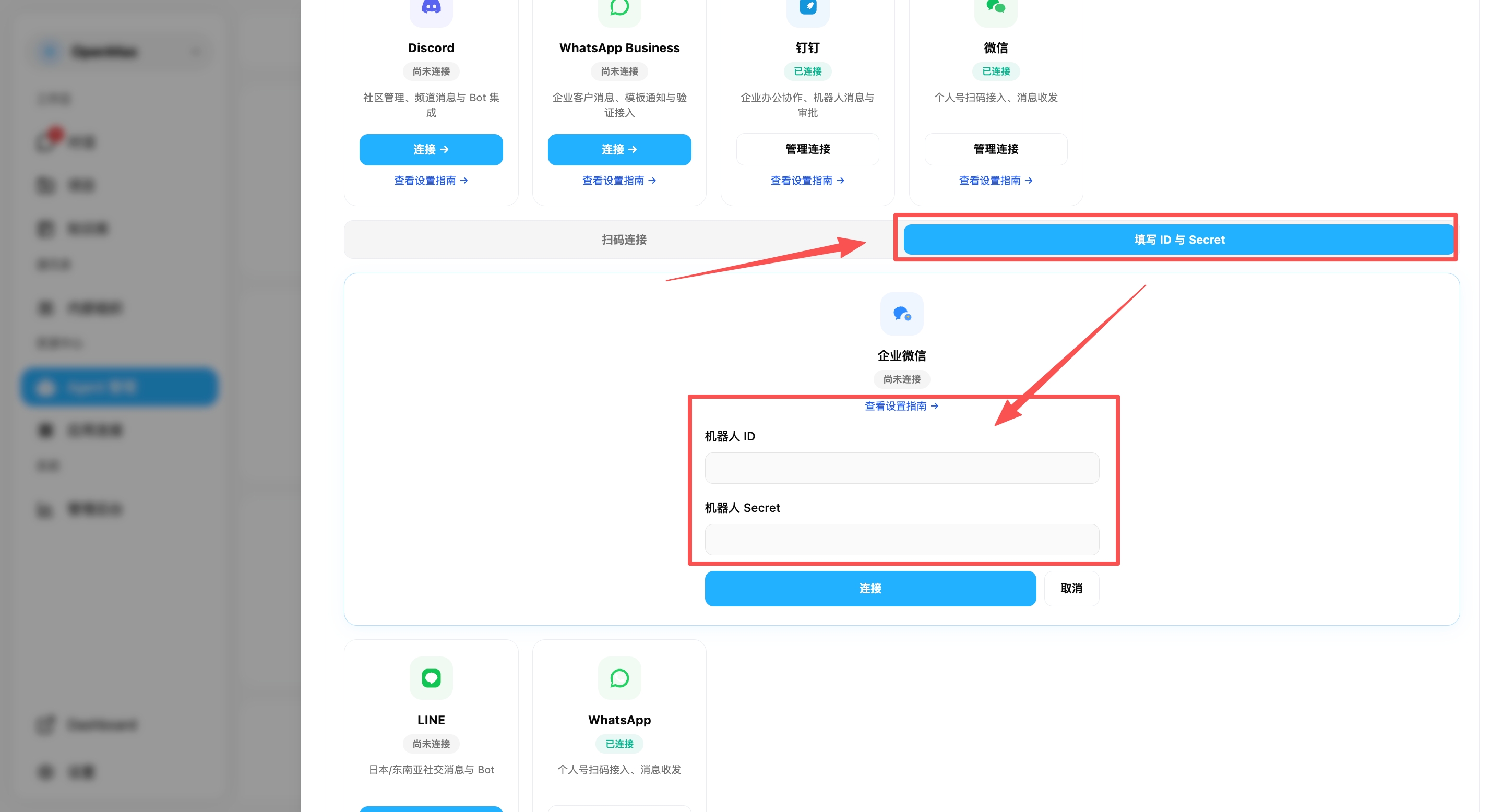
Log into OpenMax Workspace → go to Agent Management and click the agent to open its detail page → scroll down to the Channels section → click the Connect button on the WeCom card → select the Enter ID and Secret tab → enter the Bot ID and Secret obtained in Step 4, then click Connect.
WeCom FAQ
| Issue | Solution |
|---|---|
| Bot not responding | Verify that Long Connection mode is enabled and the Bot ID and Secret are entered correctly |
| Secret lost | Delete the robot and create a new one — the Secret cannot be viewed again after creation |
4. DingTalk Deployment
Estimated time: 8-12 minutes
Note: DingTalk is Alibaba's enterprise collaboration platform, widely used by Chinese companies. DingTalk uses Stream mode (WebSocket long connection), so no public callback URL is needed — deployment is simpler.
DingTalk offers the following deployment options, from the most effortless to the most flexible — choose the one that fits your needs:
- Option 1: Talk to the Agent (Chat-based Quick Connect) (Easiest · Recommended) — no backend, no credentials to fill in; just tell the Agent in the conversation and scan a QR code to connect, done in about 1-2 minutes
- Option 2: Custom App Deploy — requires creating an app on the DingTalk Open Platform and filling in 3 credentials, suitable for users who want to manage the robot configuration themselves
Option 1: Talk to the Agent (Chat-based Quick Connect) (Recommended)
Estimated time: ~1-2 minutes | No backend, no manual credential entry — everything happens in the conversation with the Agent.
- Simply tell the Agent "I want to connect DingTalk";
- The Agent sends you a connection confirmation request (valid for 5 minutes) — click to confirm;
- The system then generates a QR code (valid for 5 minutes);
- Scan and authorize with the DingTalk app, and the Agent completes the connection for you automatically.
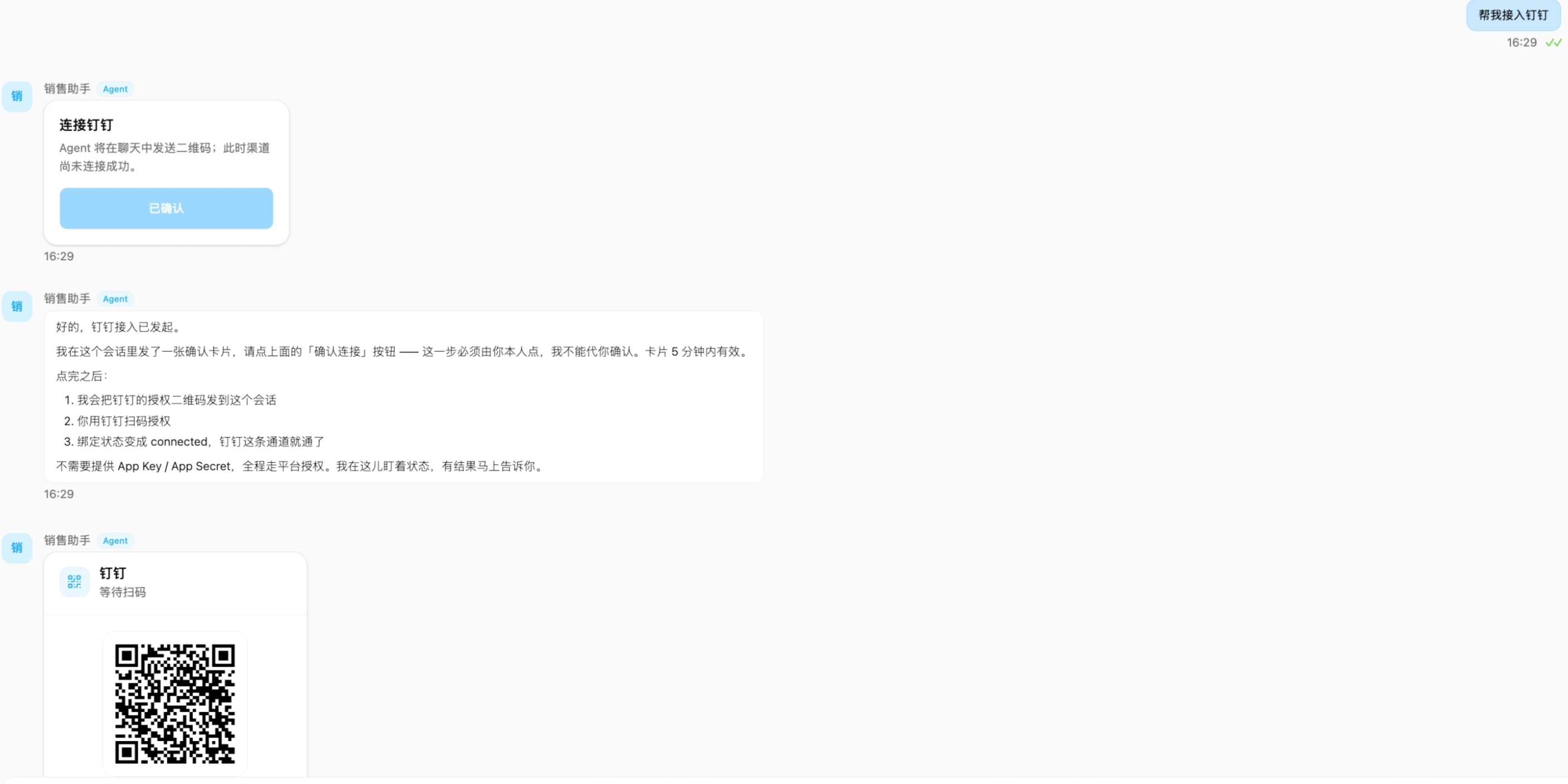
✅ Deployment complete! Your AI employee is now online — you can chat with it directly or add it to a group.
Option 2: Custom App Deploy
If you want to create and manage the DingTalk robot app yourself, follow the steps below. Three credentials are required:
| Field | Description |
|---|---|
| AppKey | Application unique identifier |
| AppSecret | Application credential key |
| RobotCode | Robot identifier (usually the same as AppKey) |
Step 1: Access the DingTalk Open Platform and Create an App
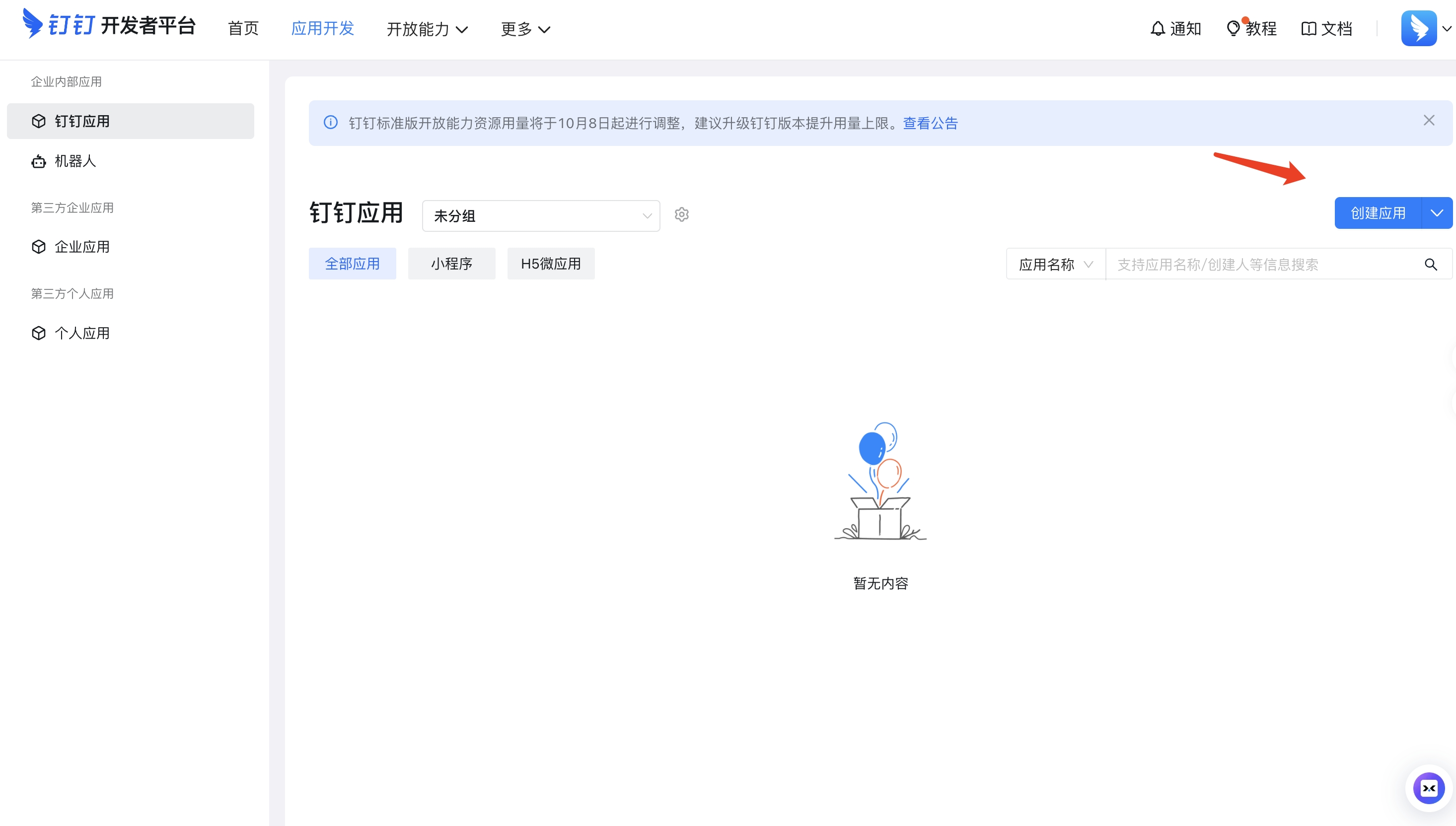
Visit the DingTalk Open Platform App Management page and click Create Application.
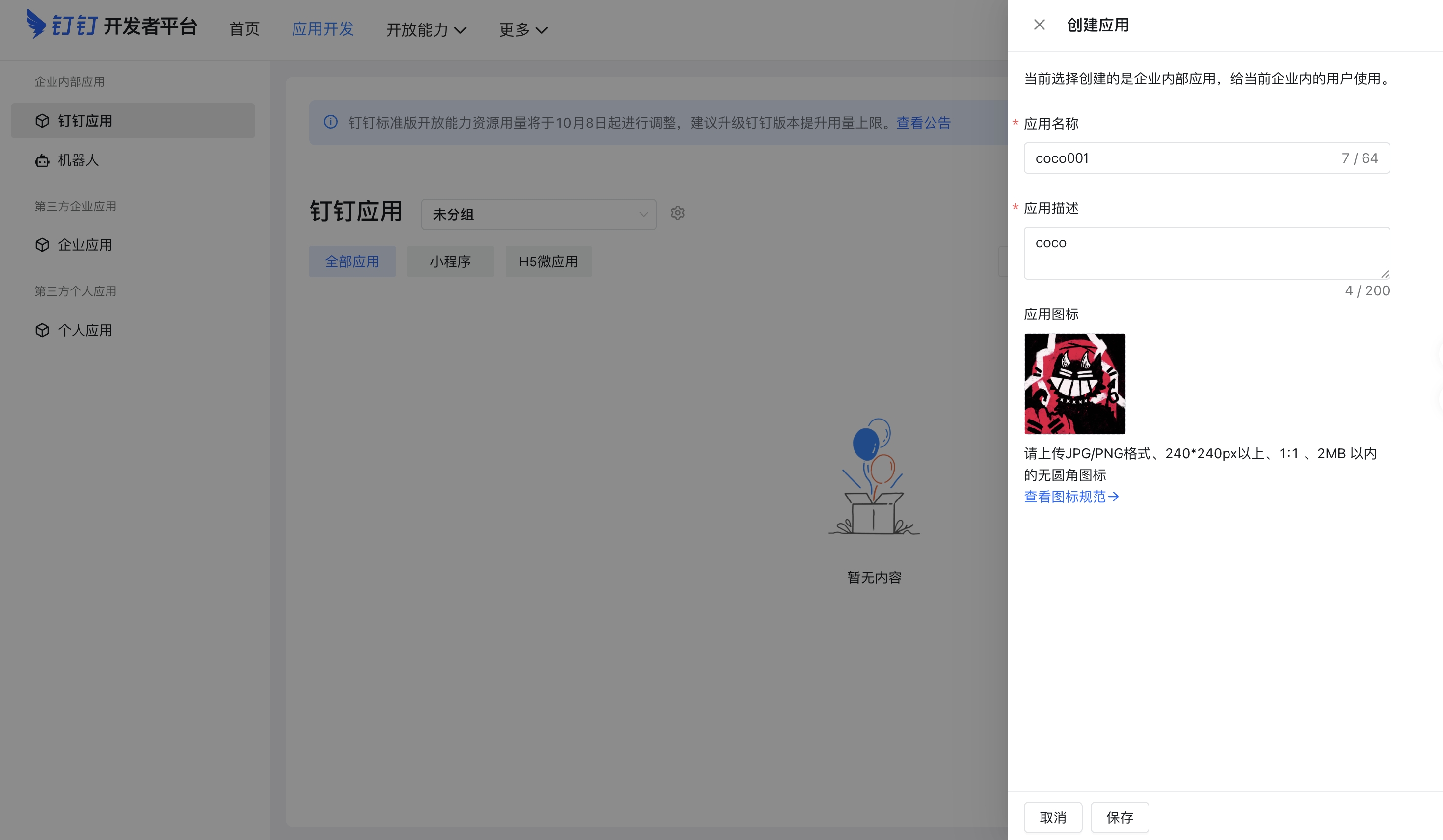
Step 2: Enter the App Name and Description
Enter the Application Name (e.g., OpenMax Employee) and Description, then click Save.
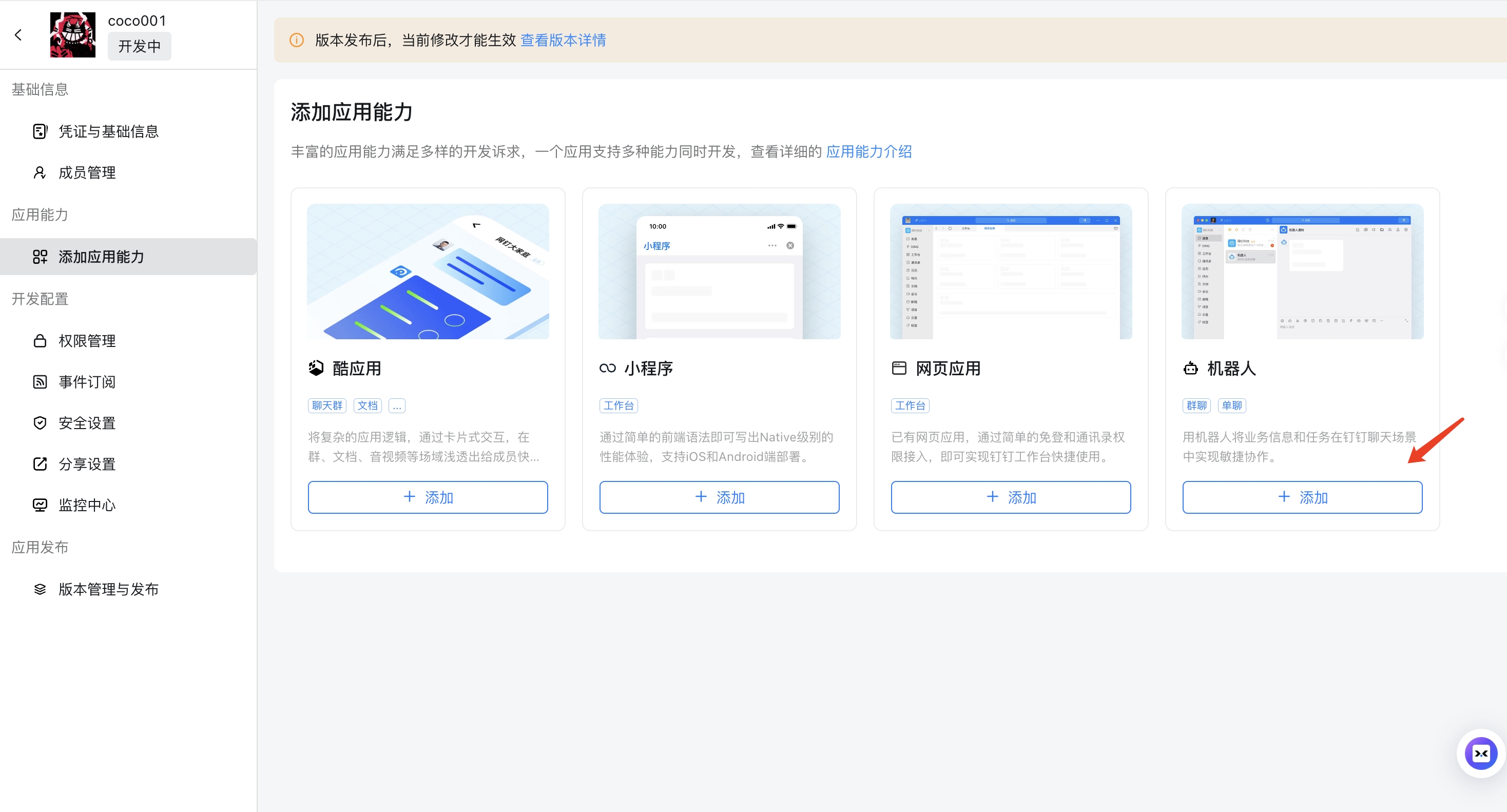
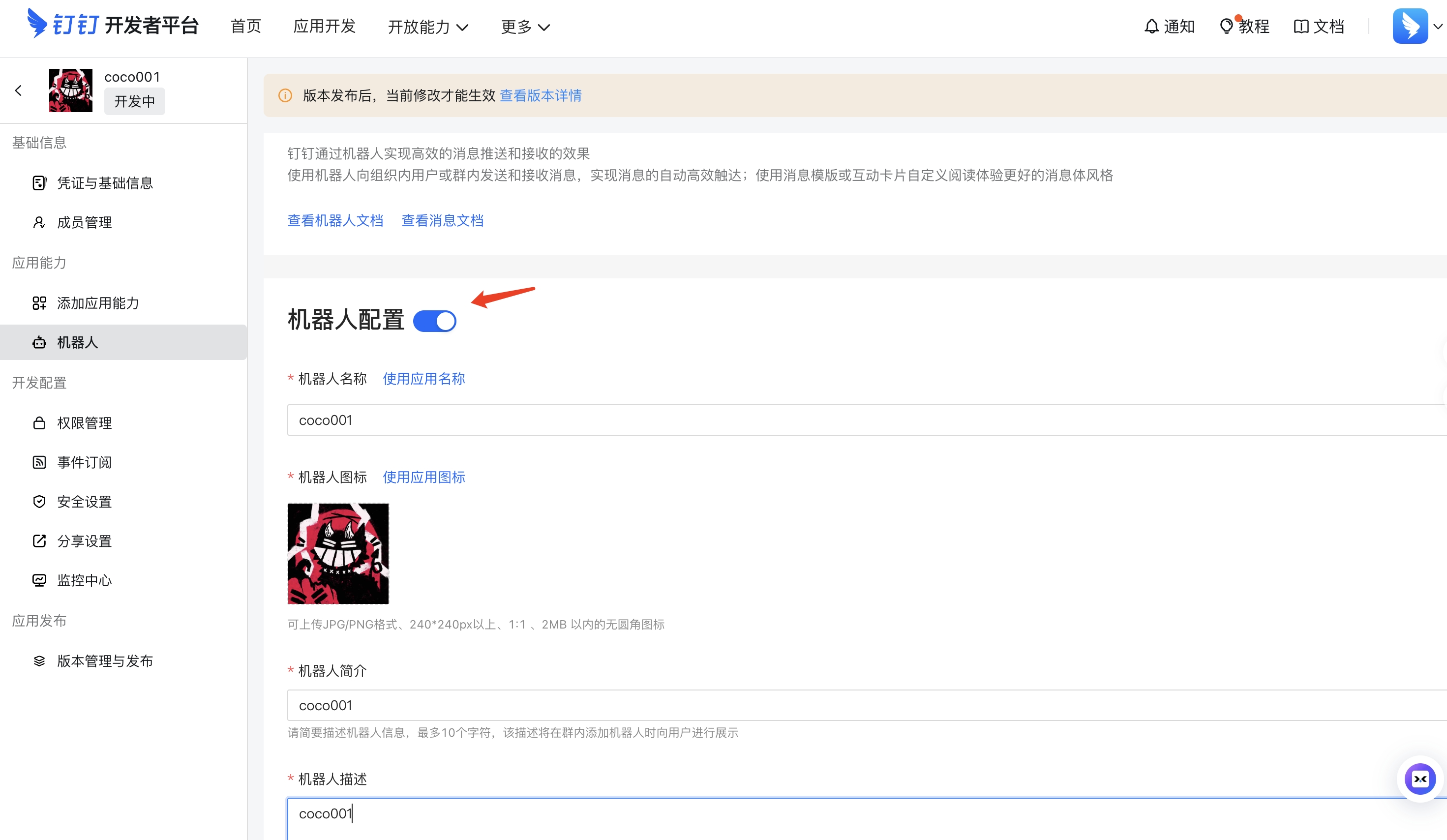
Step 3: Add Robot Capability
After saving, you'll be redirected to the "Add Capabilities" page. Click Add Robot capability.
Step 4: Configure Robot and Select Stream Mode
Open the robot configuration page, fill in the required information, select Stream Mode for Message Reception, then publish.
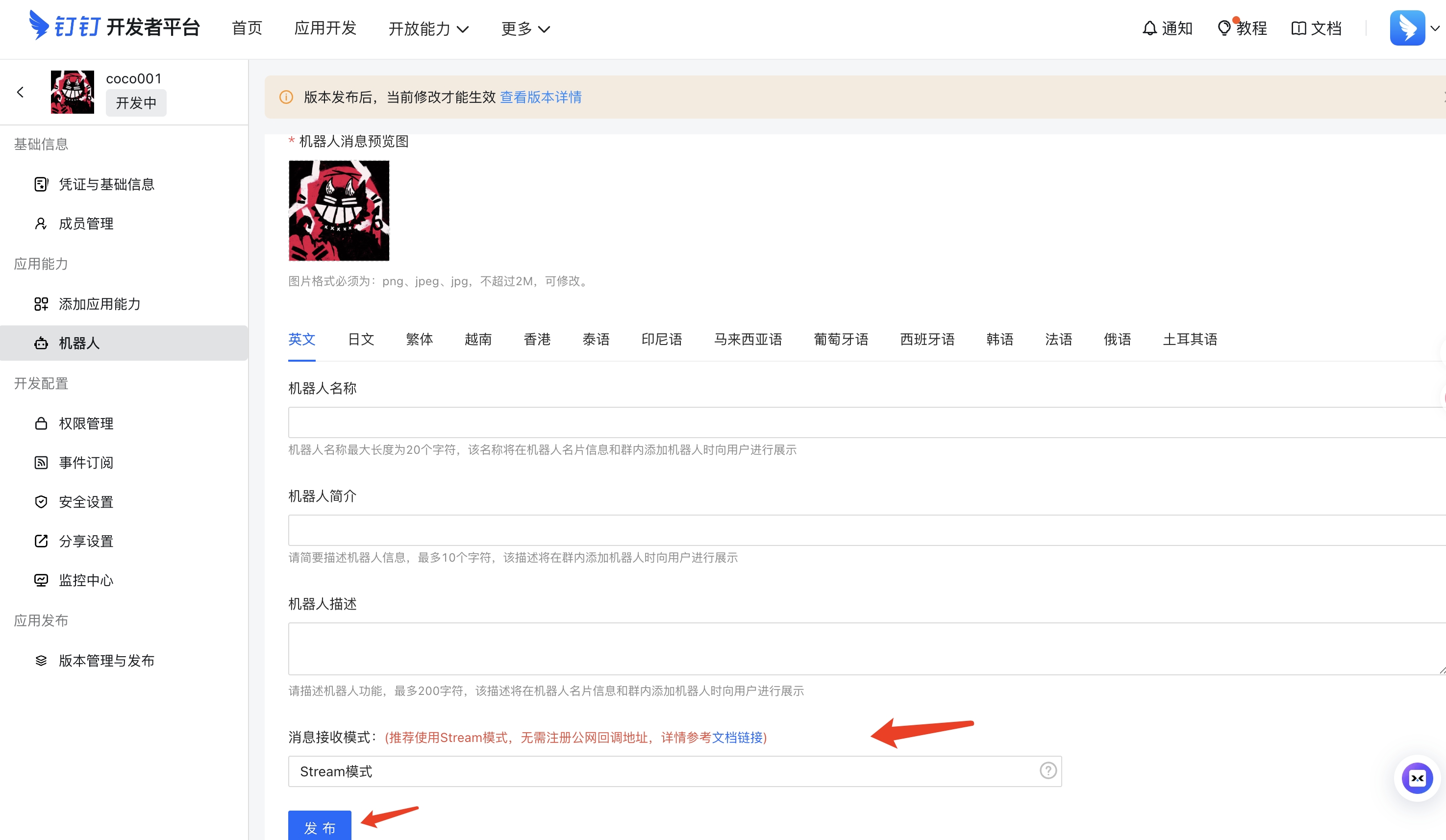
Note: Stream mode receives messages via WebSocket long connection — no public callback URL configuration needed, making deployment simpler.
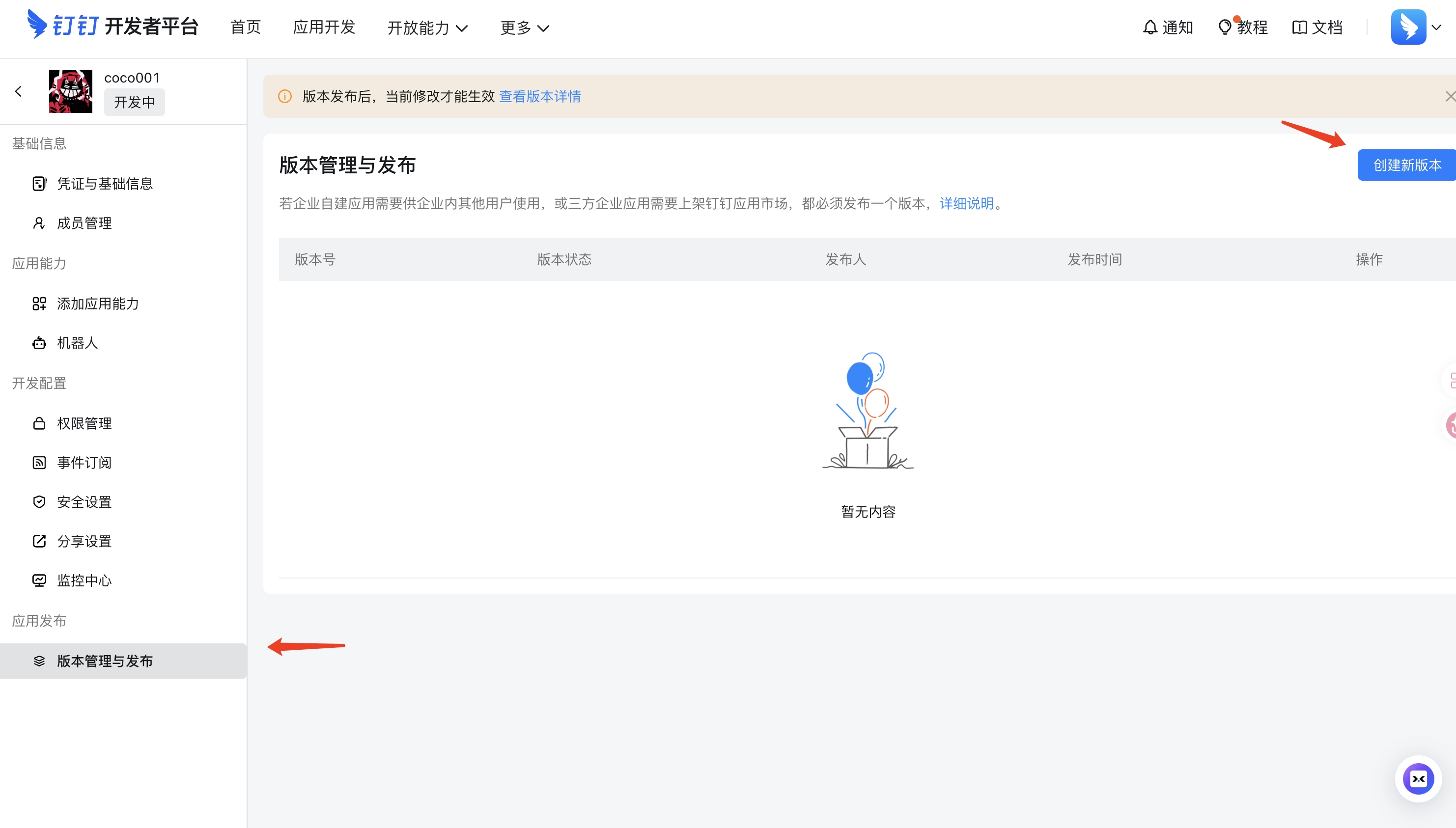
Step 5: Version Management and Publishing
In the left sidebar, select Version Management & Publishing and click Create New Version.
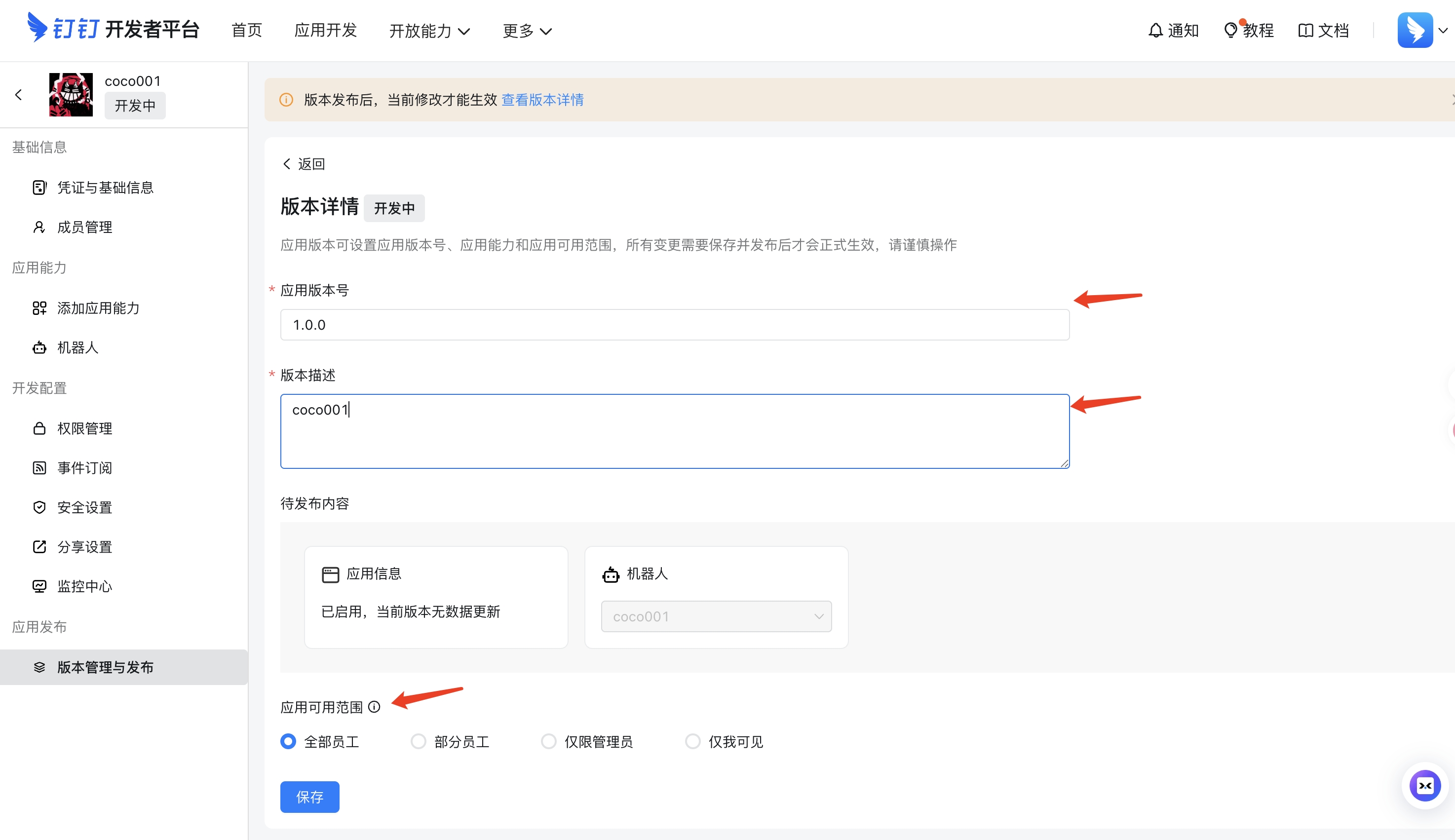
Step 6: Set the App Visible Scope
Fill in the version information, select the appropriate Visible Scope (which determines which members can see and use the Bot), then save and publish.
Step 7: Get AppKey, AppSecret, and RobotCode
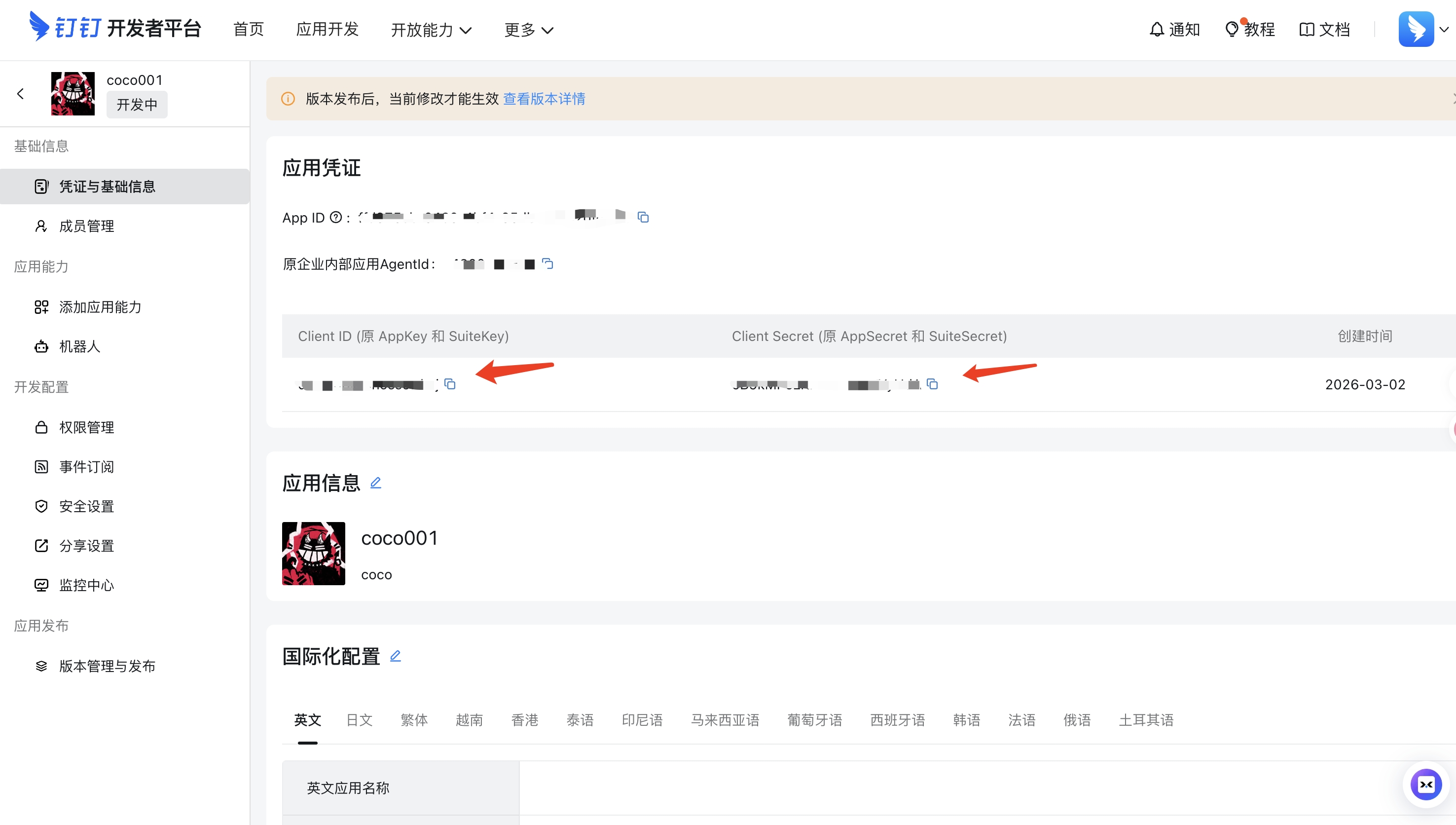
In the app detail page under "Credentials & Basic Info":
- AppKey — application unique identifier
- AppSecret — click "Show" to view
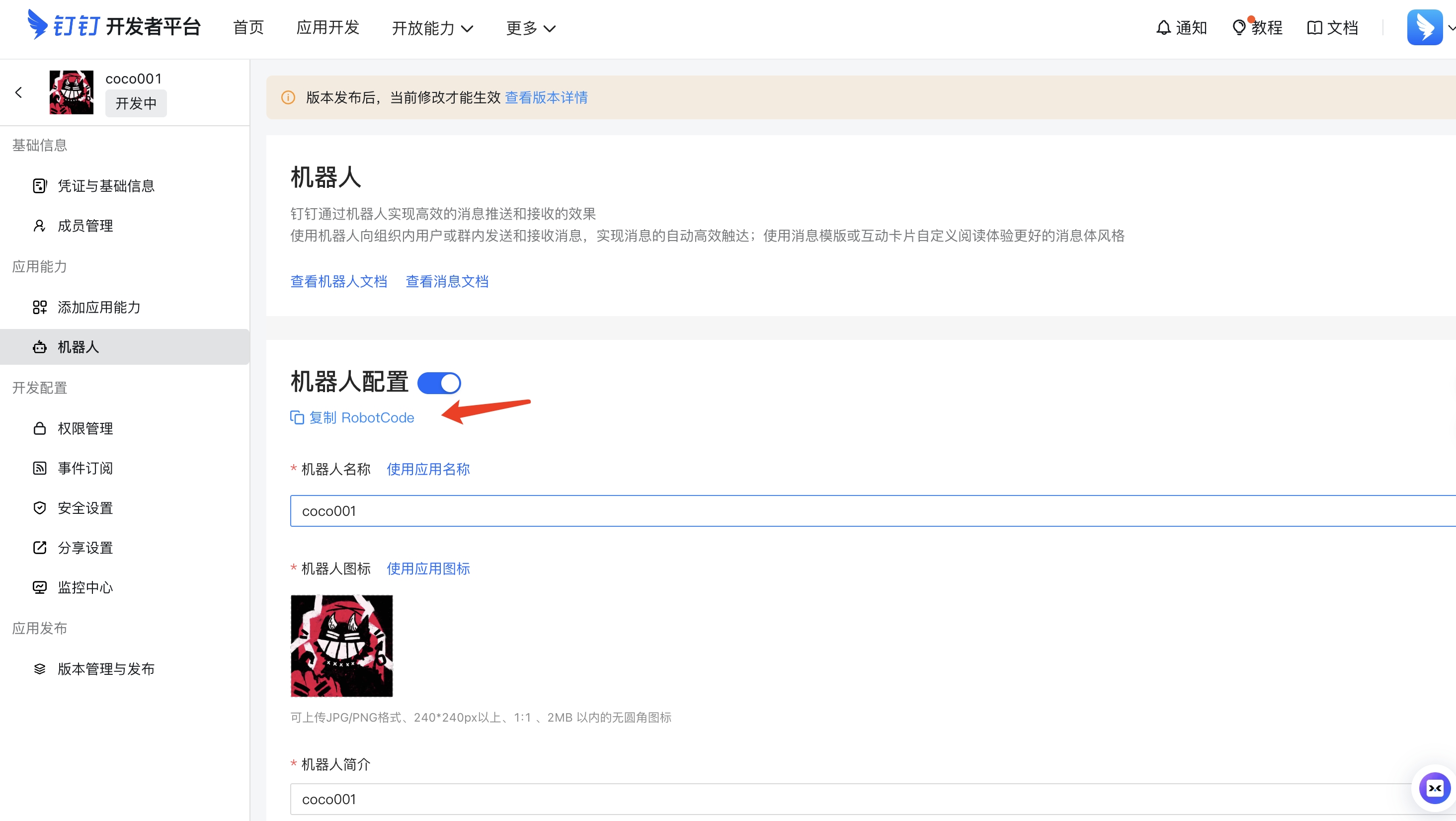
On the robot configuration page, find the RobotCode (usually the same as AppKey).
Step 8: Enter Credentials in Workspace
Enter the obtained AppKey, AppSecret, and RobotCode correctly into the DingTalk channel configuration page in OpenMax Workspace, then click Connect.
Step 9: Start Chatting
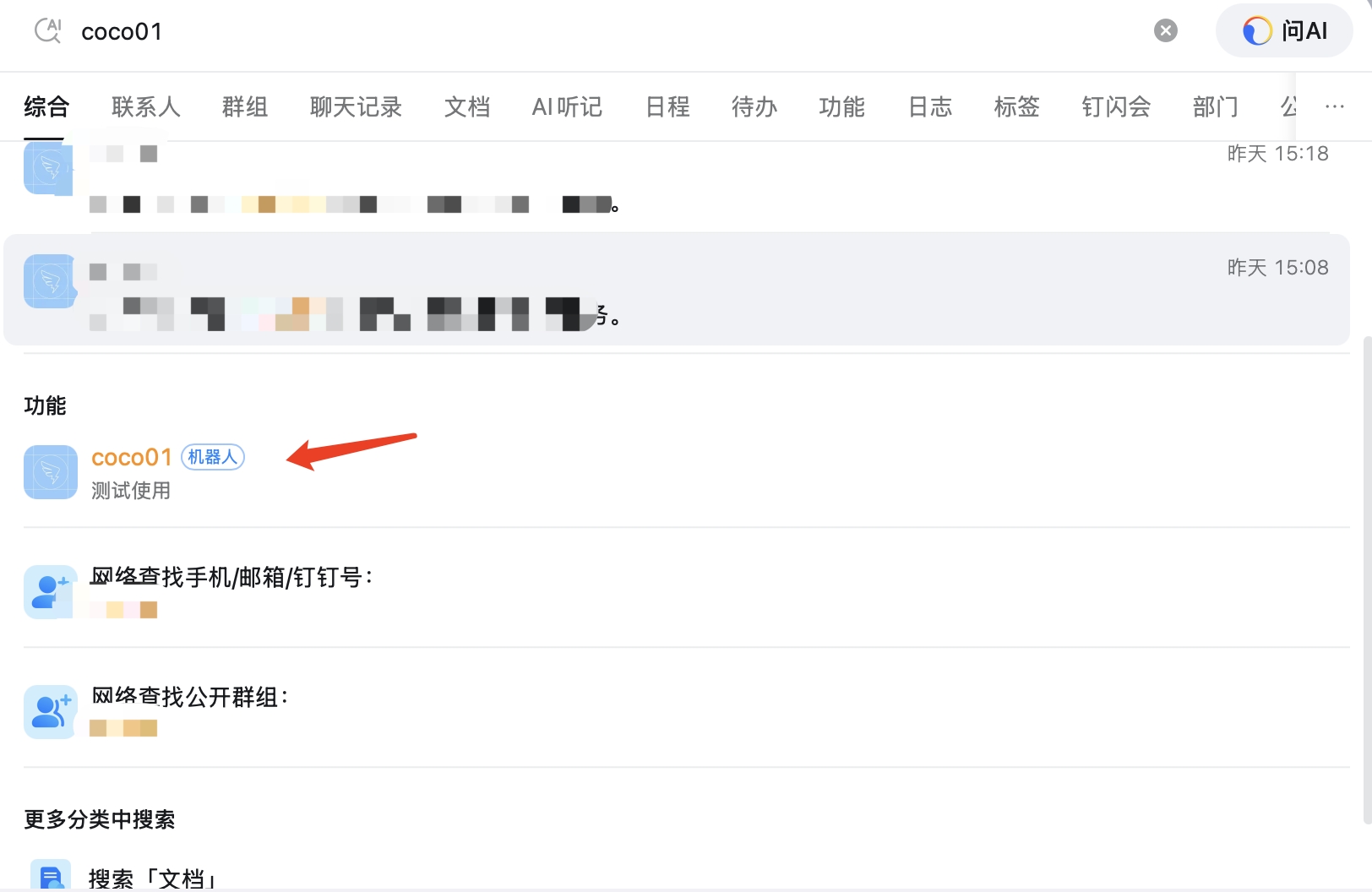
Search for the corresponding Bot name in DingTalk and start chatting with your AI robot.
Group usage: In a DingTalk group chat, @mention your Bot to interact with the AI employee.
DingTalk FAQ
| Issue | Solution |
|---|---|
| App not visible to some members | Check the Visible Scope setting during version publishing to ensure all users are included |
| Bot not responding in group | Confirm the robot has been added to the group and use @mention to trigger it |
| AppSecret forgotten | View or reset it on the app credentials page |
5. Lark Deployment (Recommended for international teams)
Estimated time: 8-15 minutes
Note: Adding a self-built app (Bot) in Lark requires enterprise admin approval. If you don't want to set up an enterprise Bot right away, you can first create a Lark personal account and create and use Bots in your personal workspace without admin approval.
Lark offers the following deployment options, from the most effortless to the most flexible — choose the one that fits your needs:
- Option 1: Talk to the Agent (Chat-based Quick Connect) (Easiest · Recommended) — no backend, no credentials to fill in; just tell the Agent in the conversation and scan a QR code to connect, done in about 2 minutes
- Option 2: Smart Agent Quick Deploy — 1-2 minutes, the system auto-configures permissions and events, suitable for most users
- Option 3: Custom App Deploy — requires manual permission configuration, event subscription, and version publishing, suitable for advanced users who need fine-grained control
Option 1: Talk to the Agent (Chat-based Quick Connect) (Recommended)
Estimated time: ~2 minutes | No backend, no manual credential entry — everything happens in the conversation with the Agent.
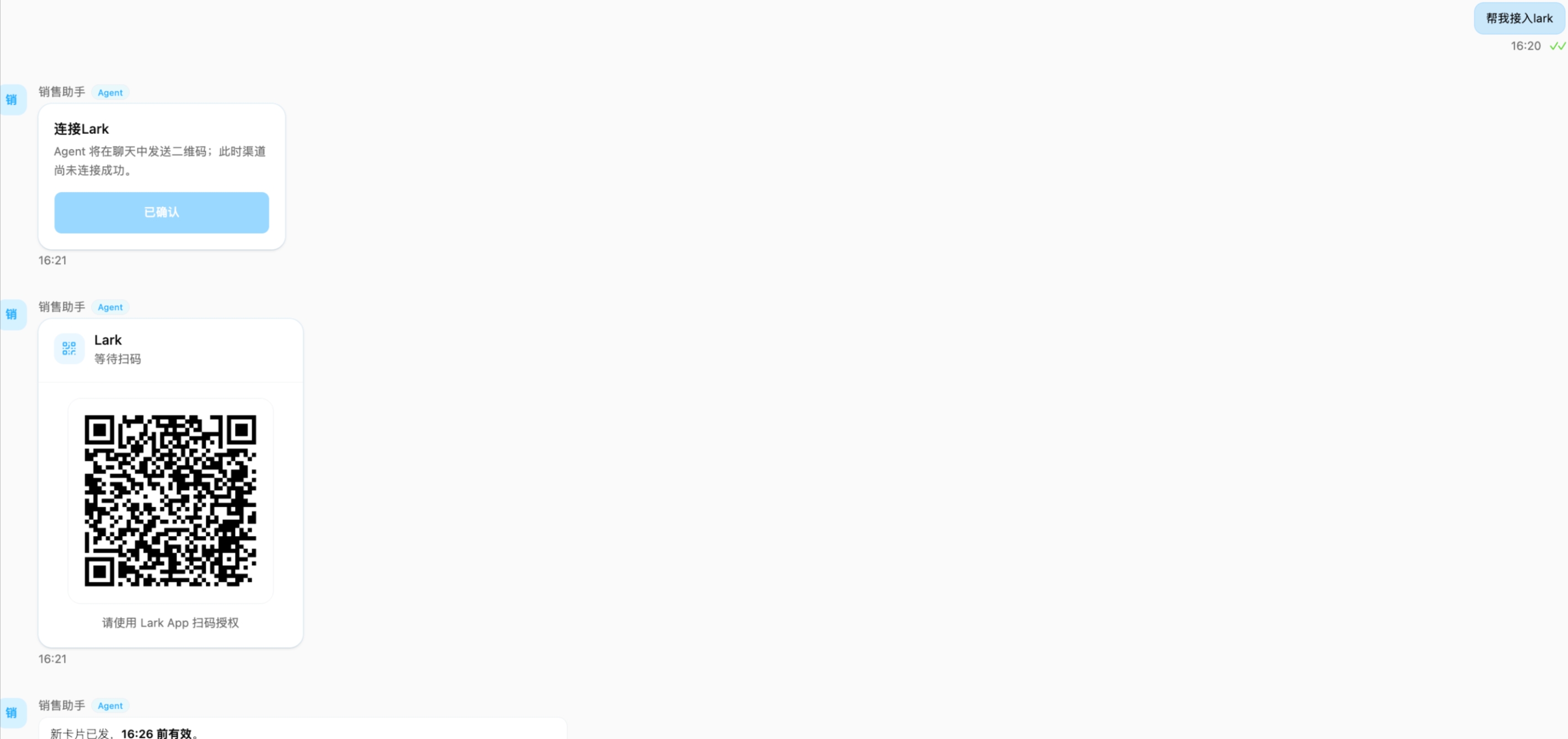
- Simply tell the Agent "I want to connect Lark";
- The Agent sends you a connection confirmation request (valid for 5 minutes) — click to confirm;
- The system then generates a QR code (valid for 5 minutes);
- Scan and authorize with the Lark app, and the Agent completes the connection for you automatically.
✅ Deployment complete! Your AI employee is now online — you can chat with it directly or add it to a group.
Option 2: Smart Agent Quick Deploy
Estimated time: 1-2 minutes | The system auto-configures permissions and event subscriptions — just create a Smart Agent and fill in the credentials to complete deployment.
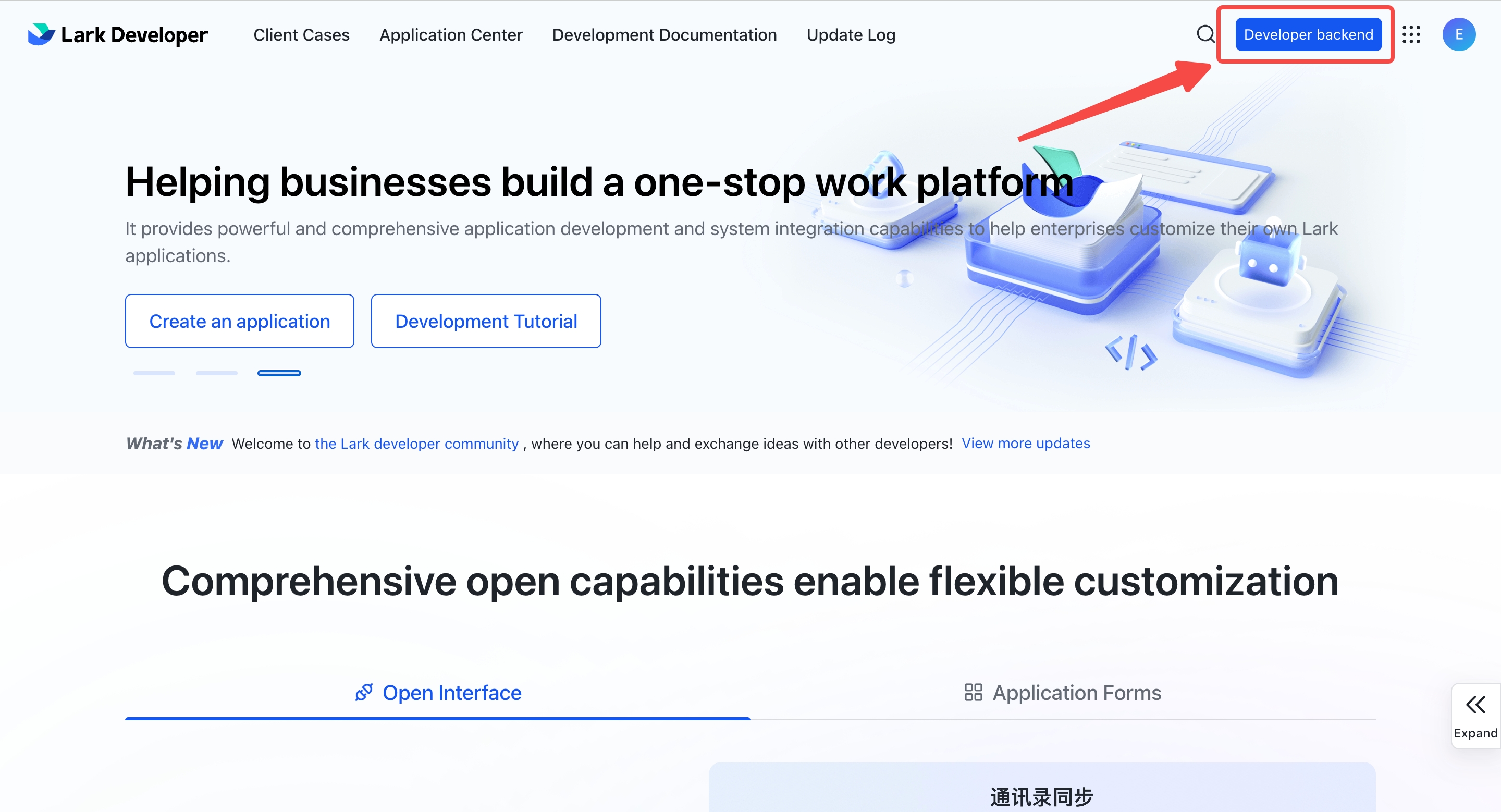
Step 1: Access Lark Open Platform
Visit Lark Open Platform
Log in with your Lark account
Click Developer Backend in the top-right corner
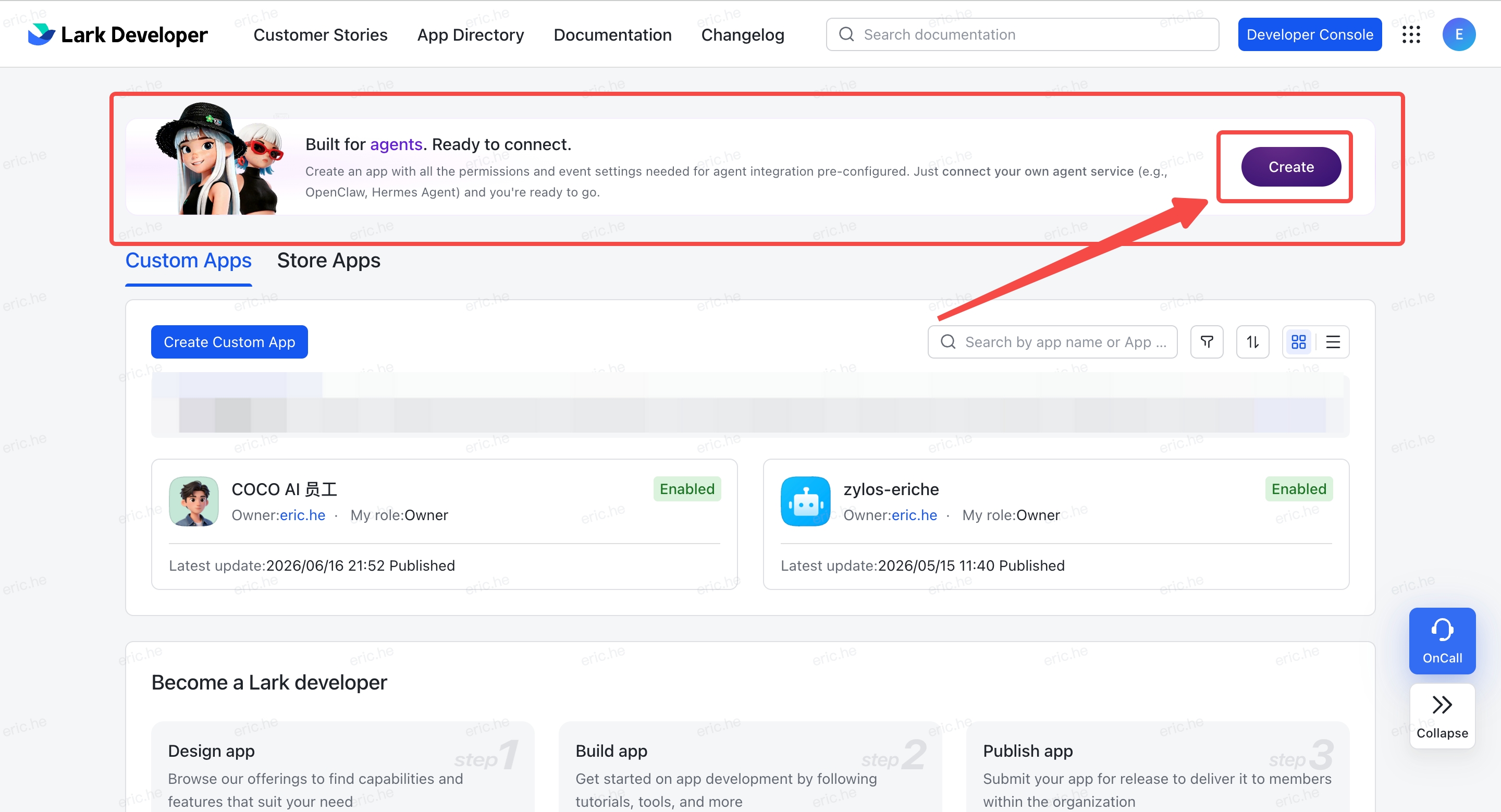
Step 2: Click "Create Now" to Create a Lark Smart Agent App
In the Developer Backend, find the Create Lark Smart Agent App banner at the top and click Create Now on the right side.
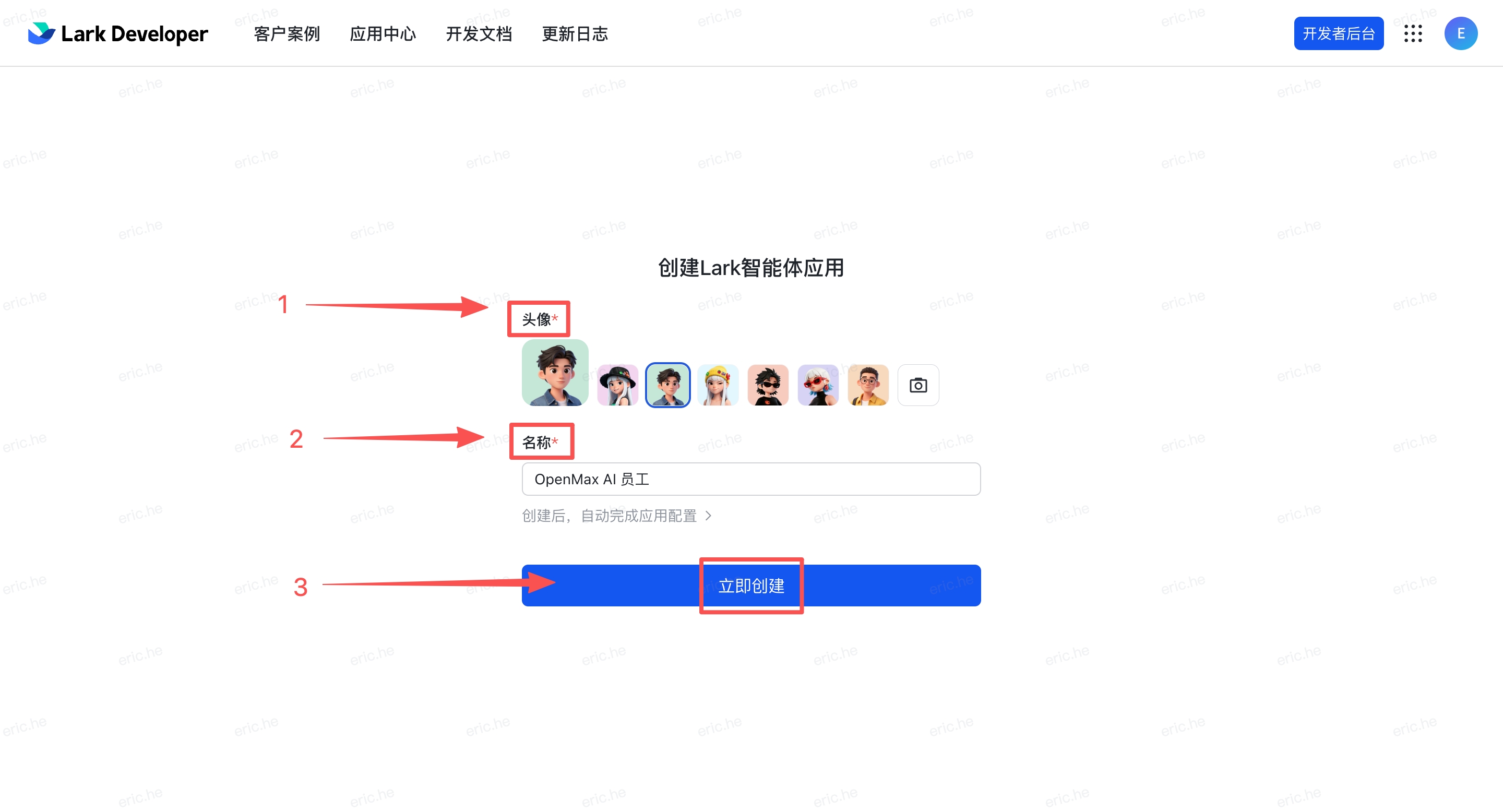
Step 3: Fill in Information and Create
Choose your preferred avatar
Fill in the name (e.g.,
OpenMax Employee)Click Create Now
Enterprise account note: After creation, if you are using an enterprise Lark account, the enterprise admin must approve the app in the Lark Admin Console before it becomes active. If you are using a personal account, this step is not needed.
Step 4: Fill in Credentials in OpenMax Workspace and Deploy
Log into OpenMax Workspace
Click Channels on the left sidebar, select Lark (Feishu International)
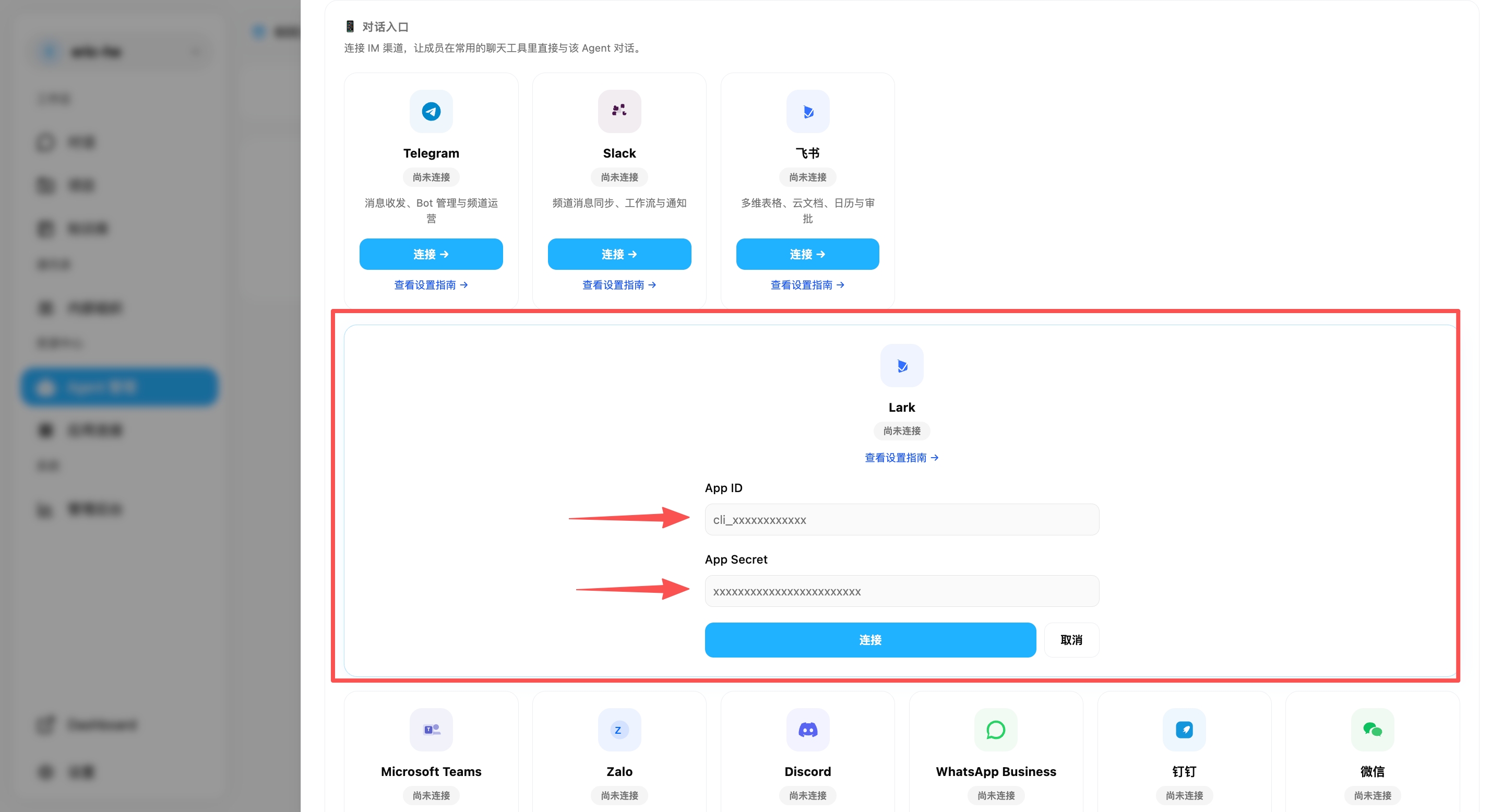
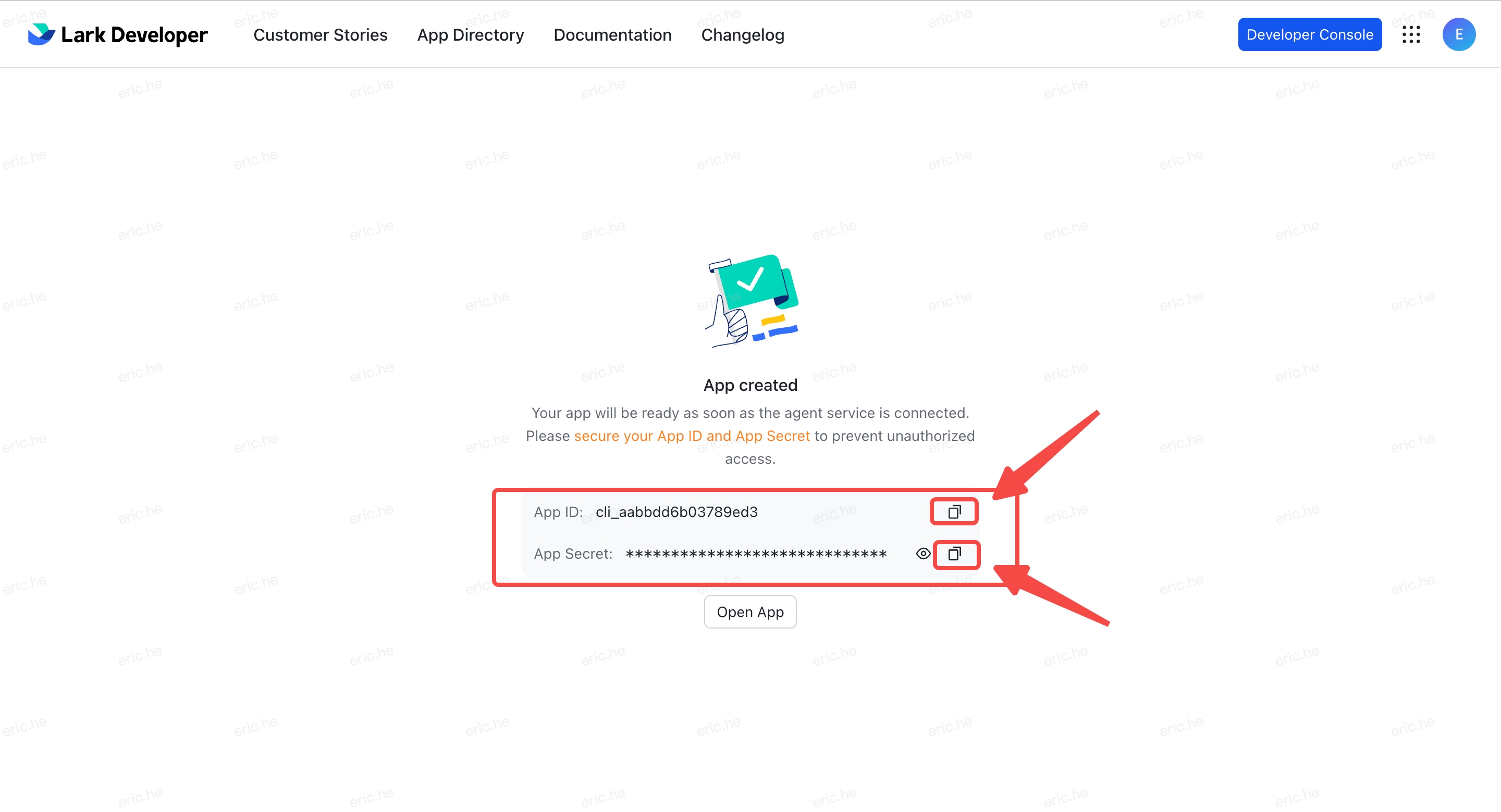
- Go back to the Smart Agent Created Successfully page and copy the App ID and App Secret into the Lark entry under Channels
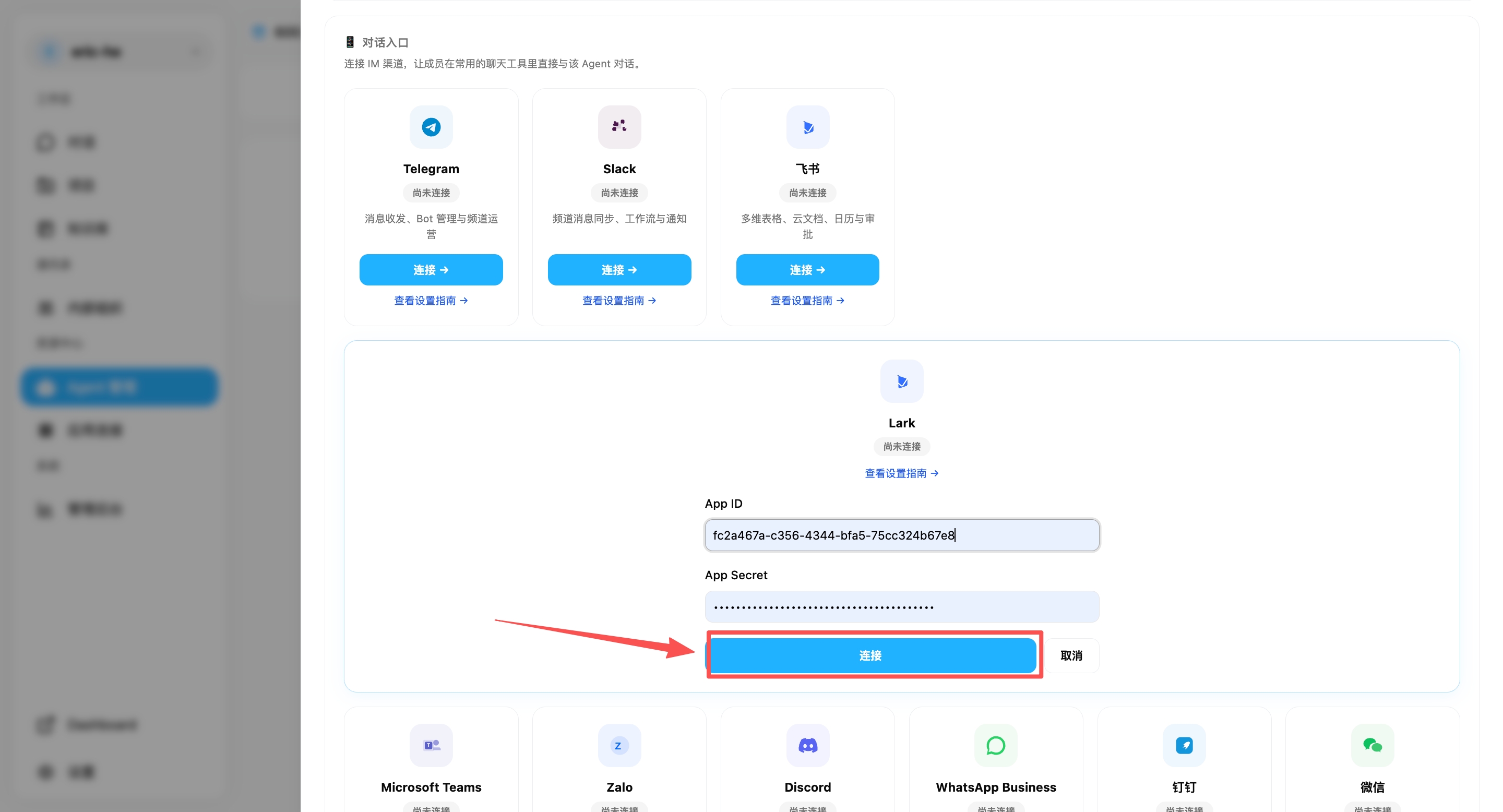
- After filling in the App ID and App Secret, click Connect — the system will automatically deploy your AI employee (typically takes 2-3 minutes)
Step 5: Add Required Permissions for Group Chats
The permissions granted automatically at creation only cover basic messaging. For your AI employee to work properly in group chats and display real user names, manually enable the following 4 scopes:
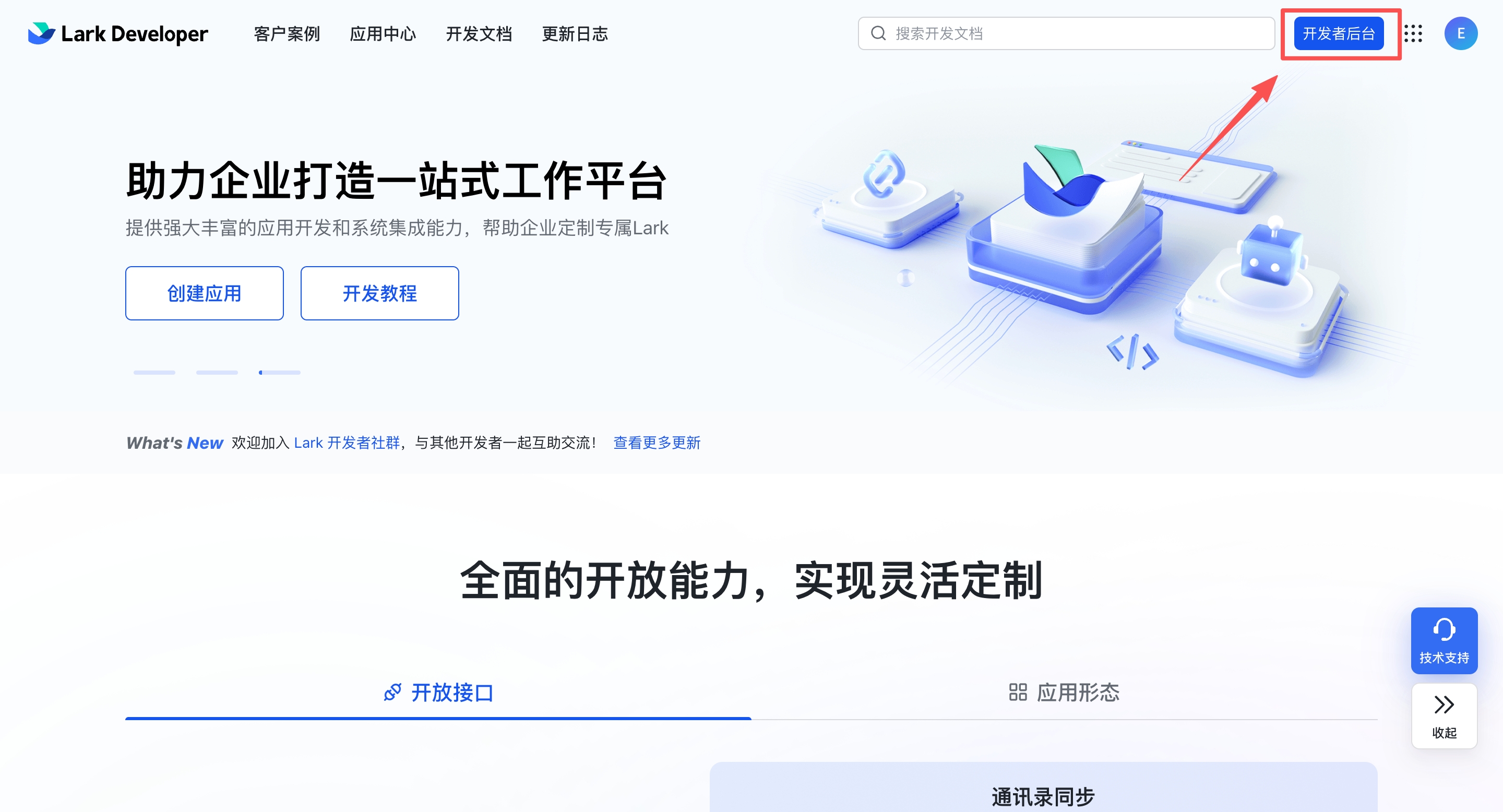
- Go back to the Lark Open Platform and click Developer Backend in the top-right corner
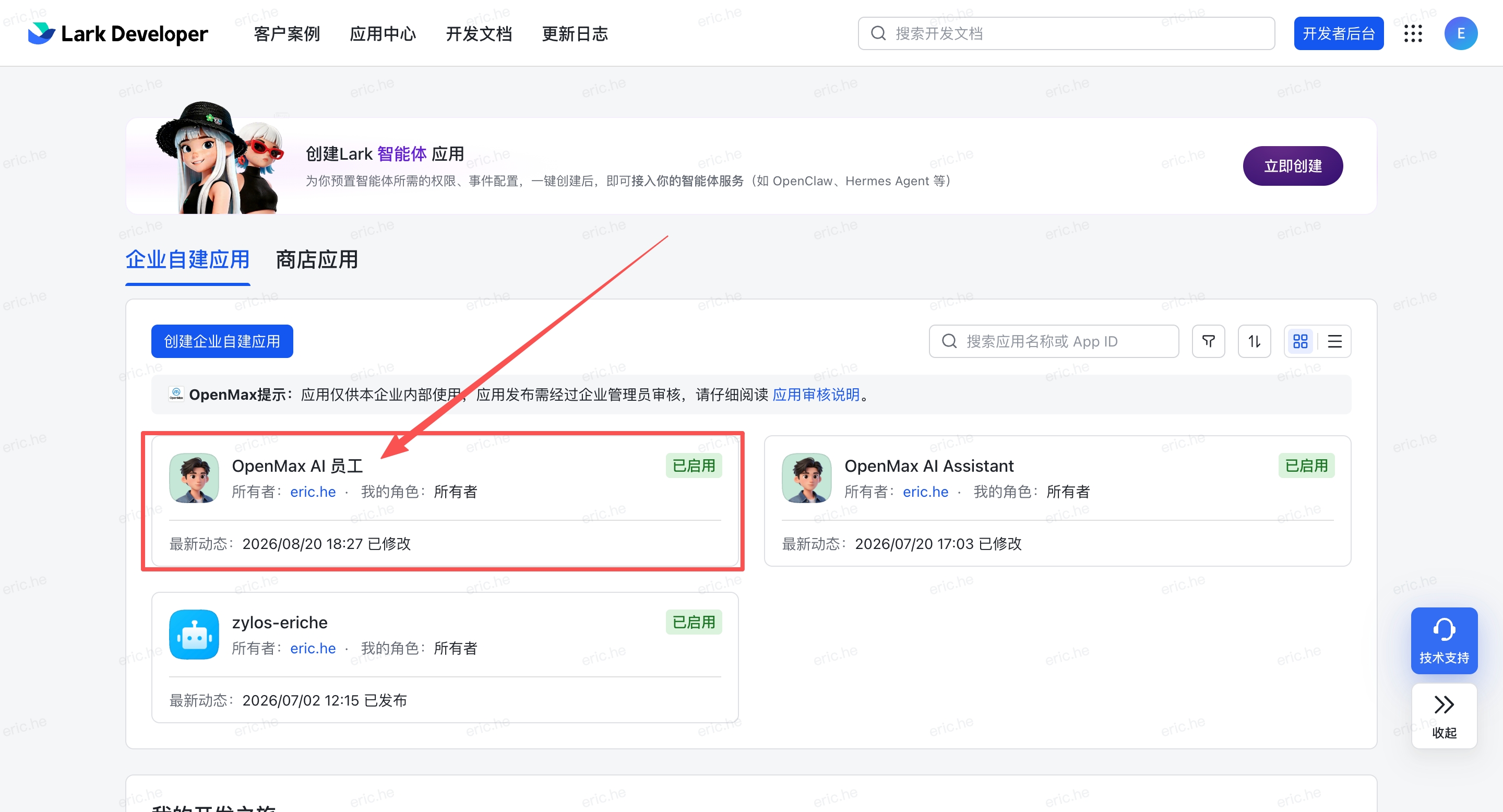
- Click the bot you just created and go to Permissions & Scopes
- Click Enable Scopes, search for each scope ID below, tick it, and click Confirm:
| Scope | Purpose | If missing |
|---|---|---|
im:message.group_msg |
Receive group messages and respond to @mentions | Bot cannot see group messages |
im:chat:readonly |
Read group info and member lists | Names show as ID fragments (e.g. c08f09) |
contact:user.base:readonly |
Resolve user IDs to real names | User names are unreadable |
contact:user.employee_id:readonly |
Match users by employee ID | Users cannot be identified by employee ID |
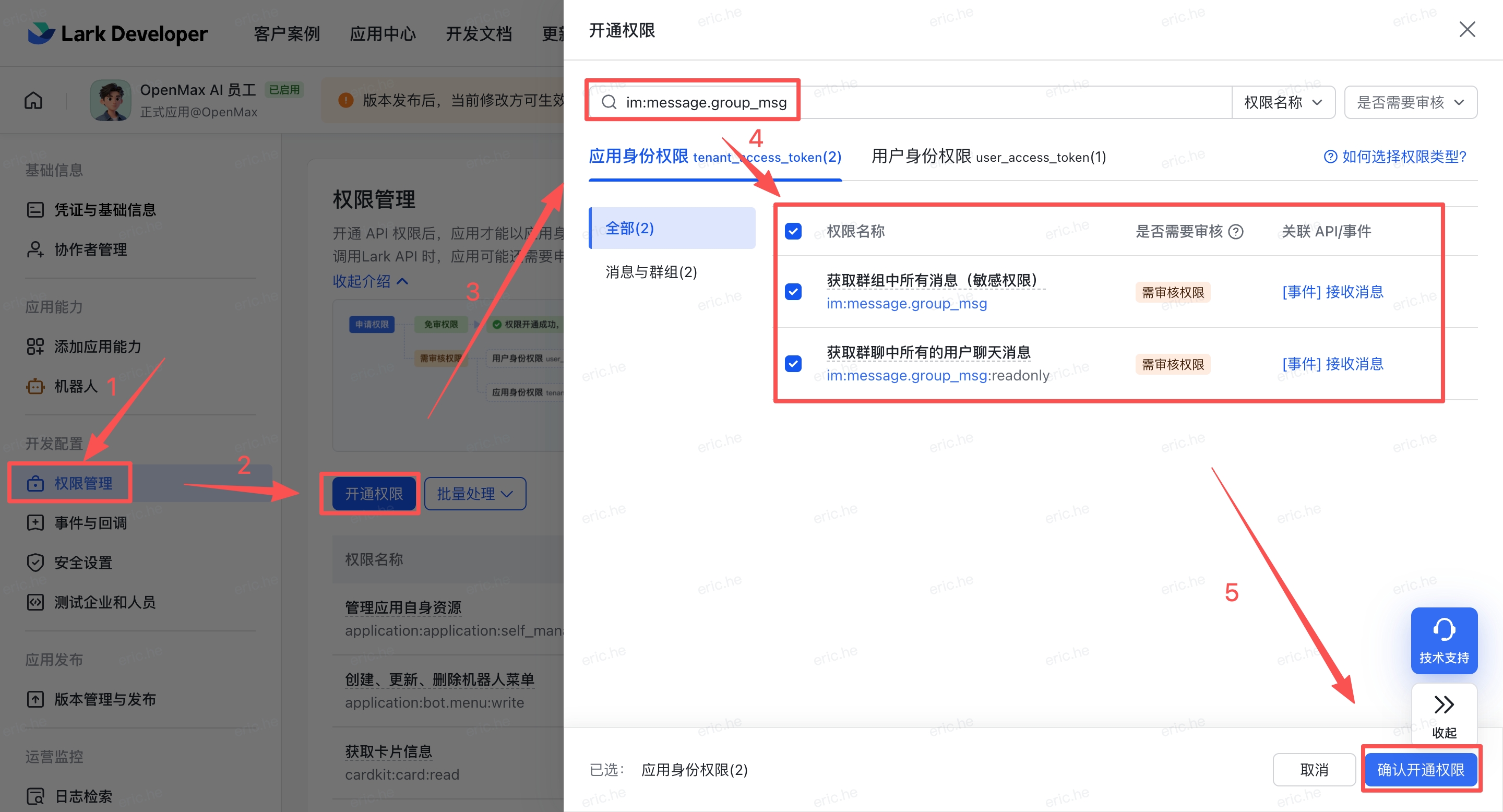
Enterprise account note: On enterprise accounts, permission changes take effect only after the enterprise admin approves them.
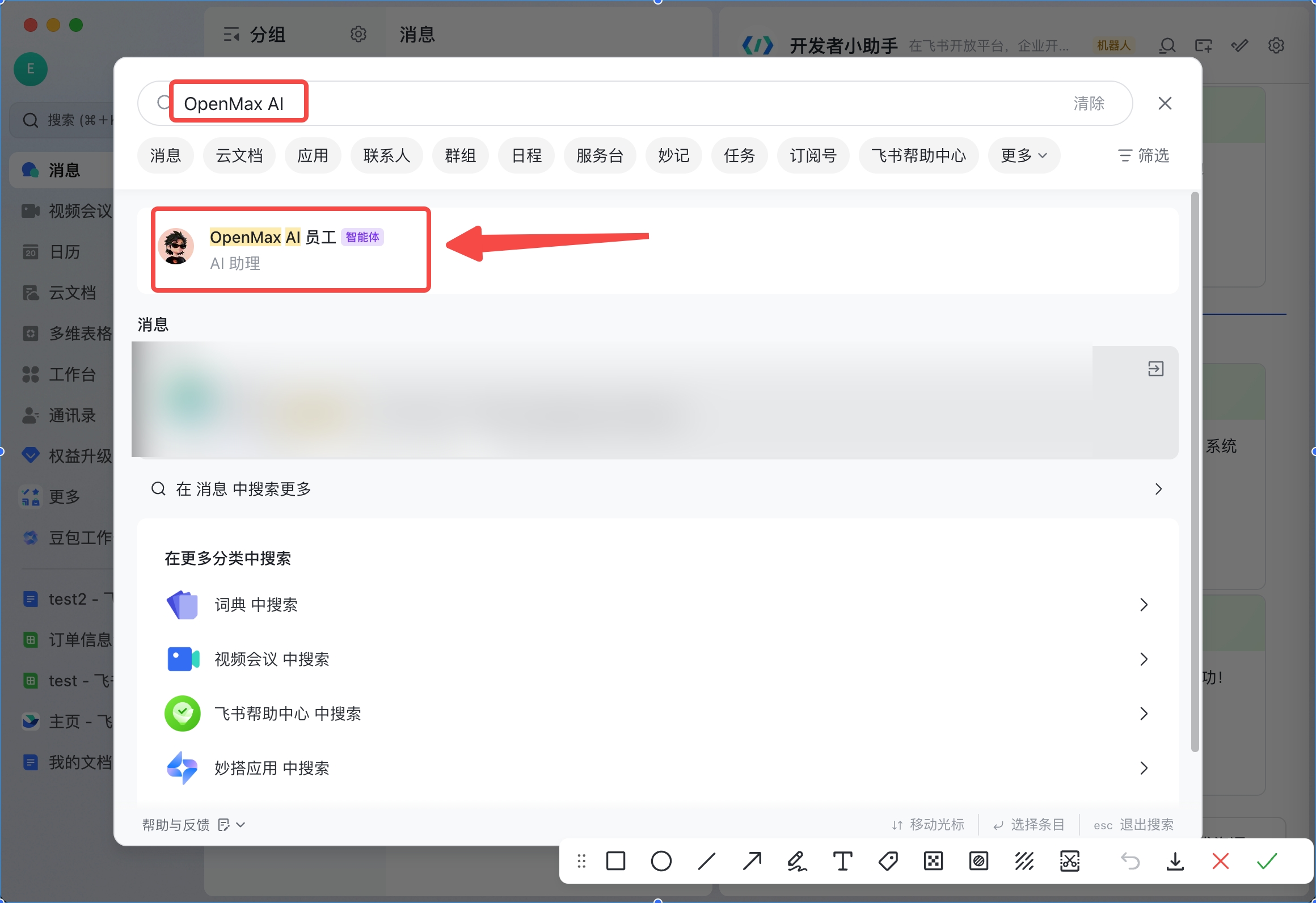
Step 6: Search for Bot and Start Chatting
Once connected, search for the bot name you just set up in the top-left corner of the Lark client, confirm the bot has been created correctly, and click to start chatting.
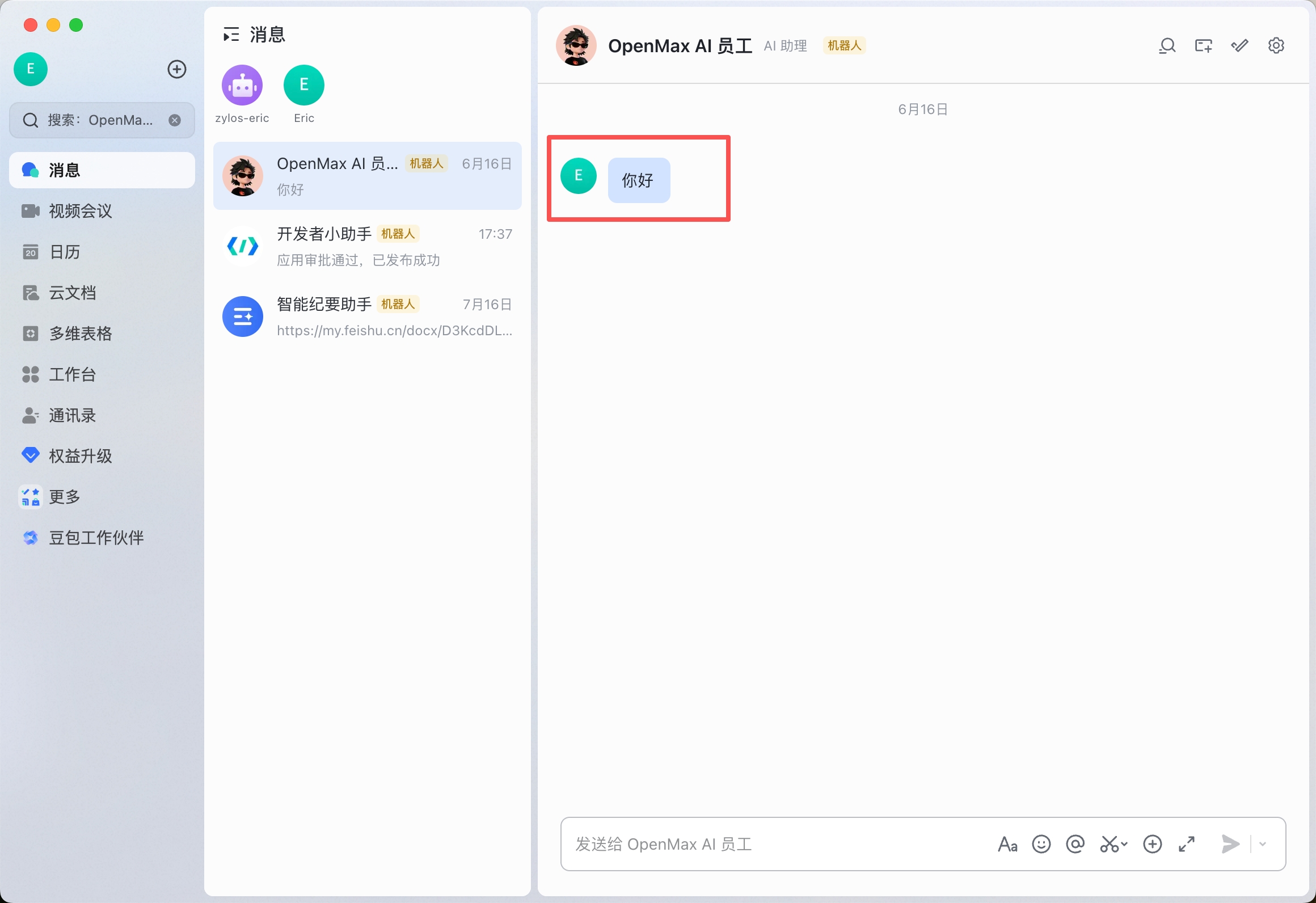
✅ Deployment complete! Your AI employee is now online — you can chat with it directly or add it to a group.
Option 3: Custom App Deploy (Full Configuration)
Estimated time: 8-15 minutes | Manually create a custom app and configure permissions, event subscriptions, and version publishing step by step. Suitable for advanced users who need fine-grained permission control or custom configuration.
WebSocket long connection (Recommended): Simplest configuration — only App ID and App Secret needed, no Webhook URL or verification required.
Step 1: Access Lark Open Platform
Visit Lark Open Platform
Log in with your Lark account
Click Create App to start the app creation flow
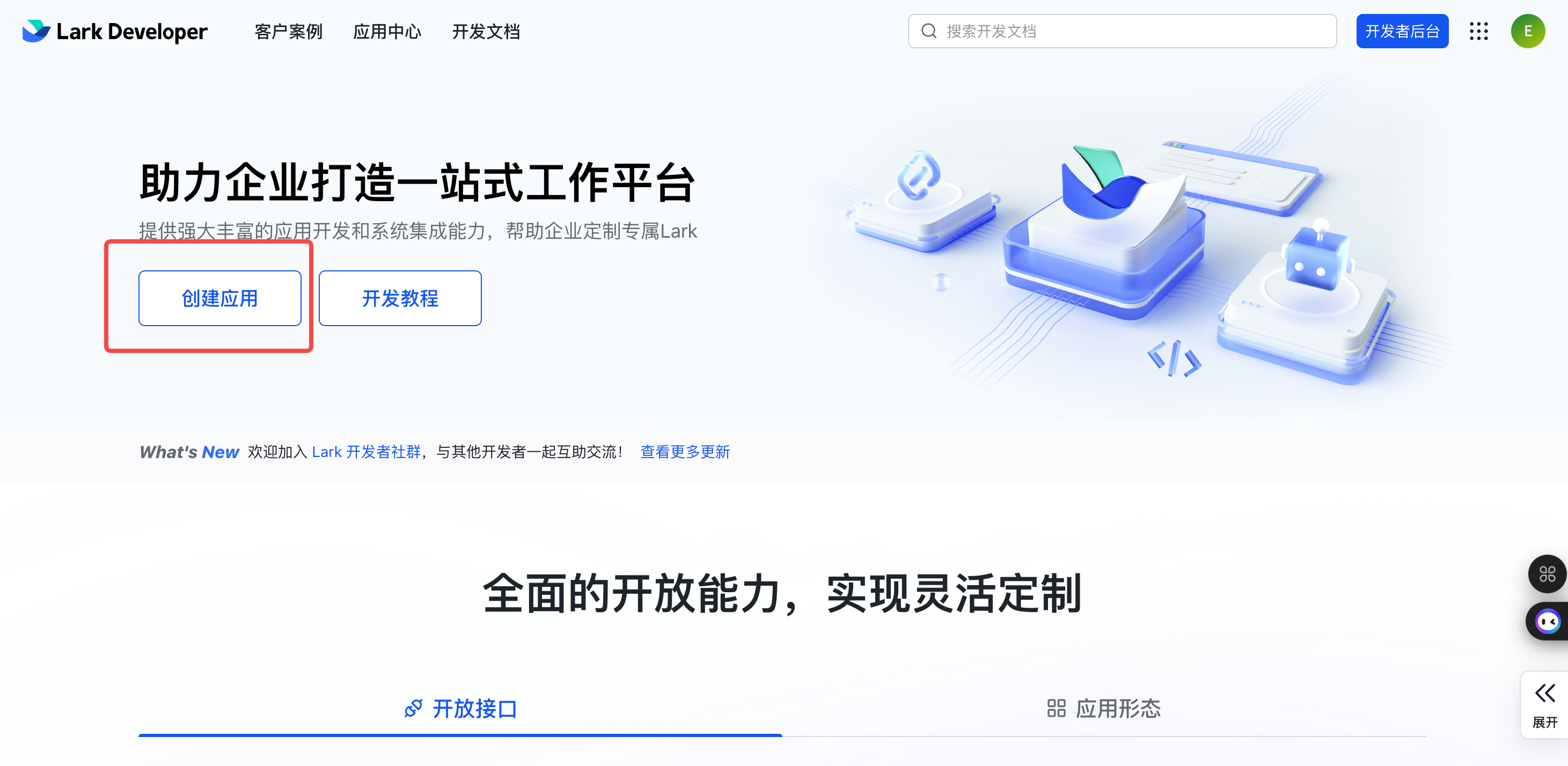
Tip: Lark is the international version of Feishu, with an English interface. Its features are largely the same as Feishu, but the platform address and some operation names differ.
Step 2: Create an App
- In the Developer Backend, click Create Custom App
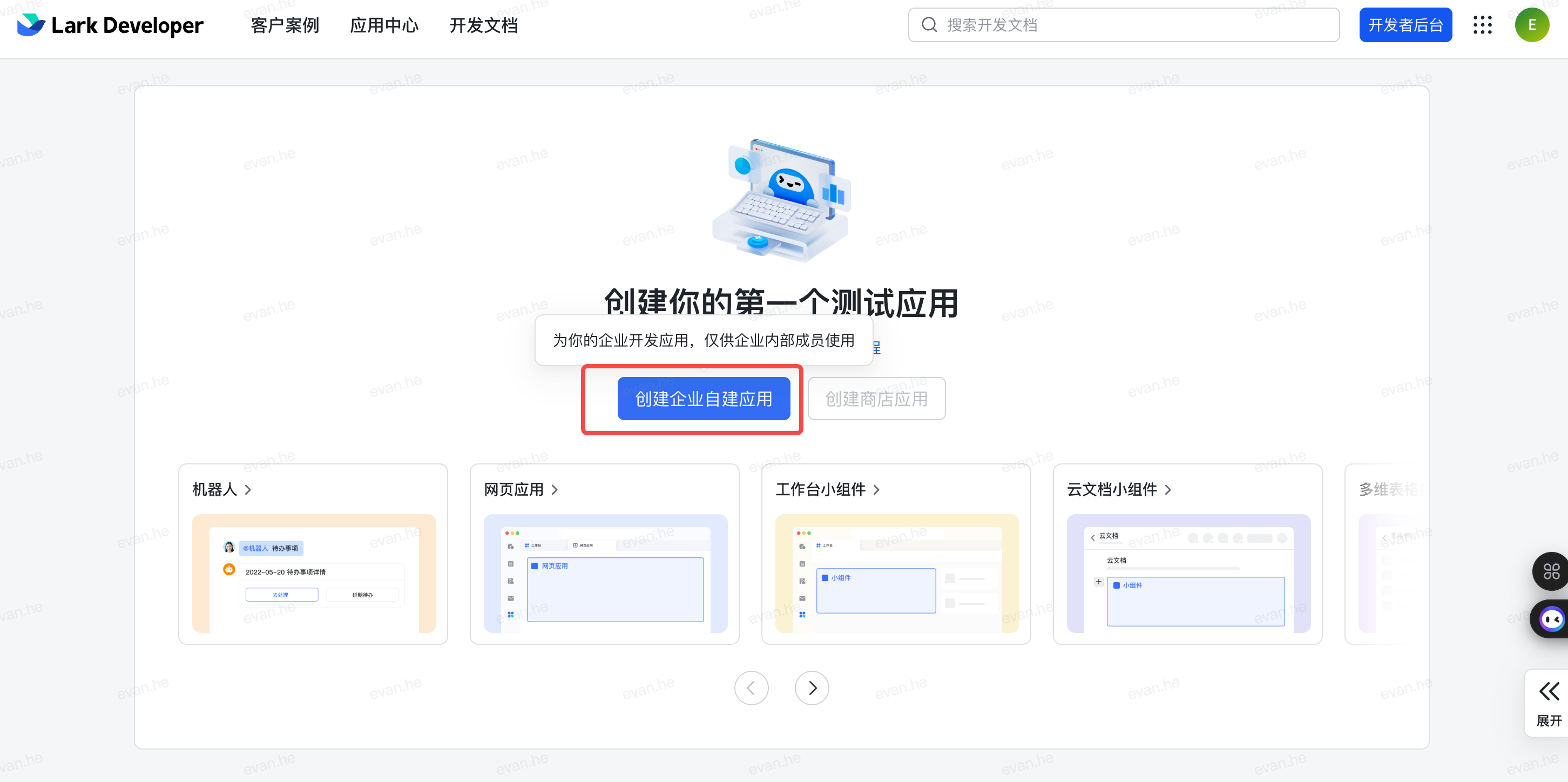
- Enter the app name (e.g.,
OpenMax Employee) and description, and select an app icon
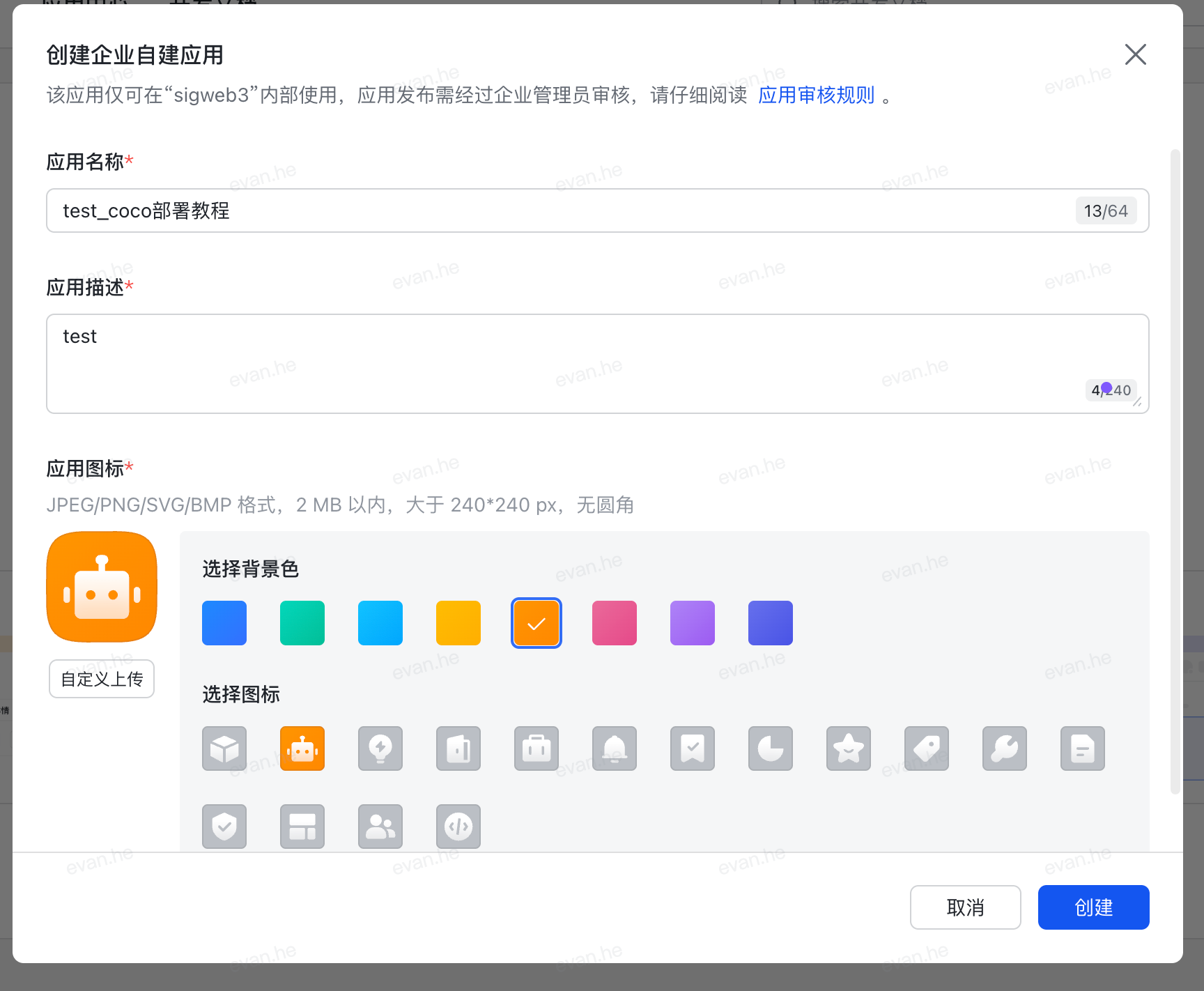
Click Create to finish
After creation, you can see your app in the workspace
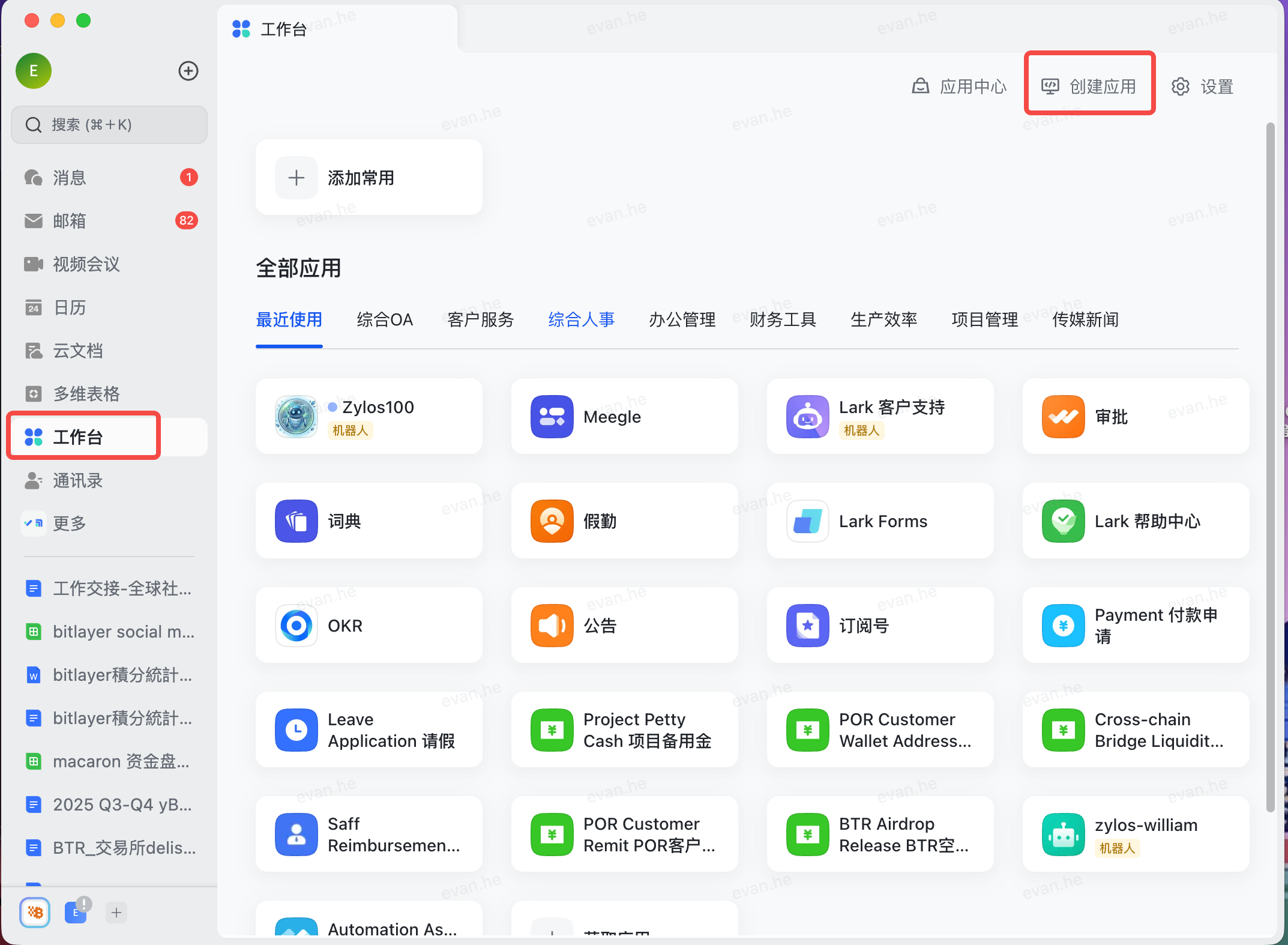
Tip: Lark enterprise admin permissions are required. If you're not an admin, contact your IT department for help, or try it out with a Lark personal account first.
Step 3: Add Bot Capability
In the app management page, go to Add Capabilities in the left sidebar, find the Bot card, and click "+ Add".
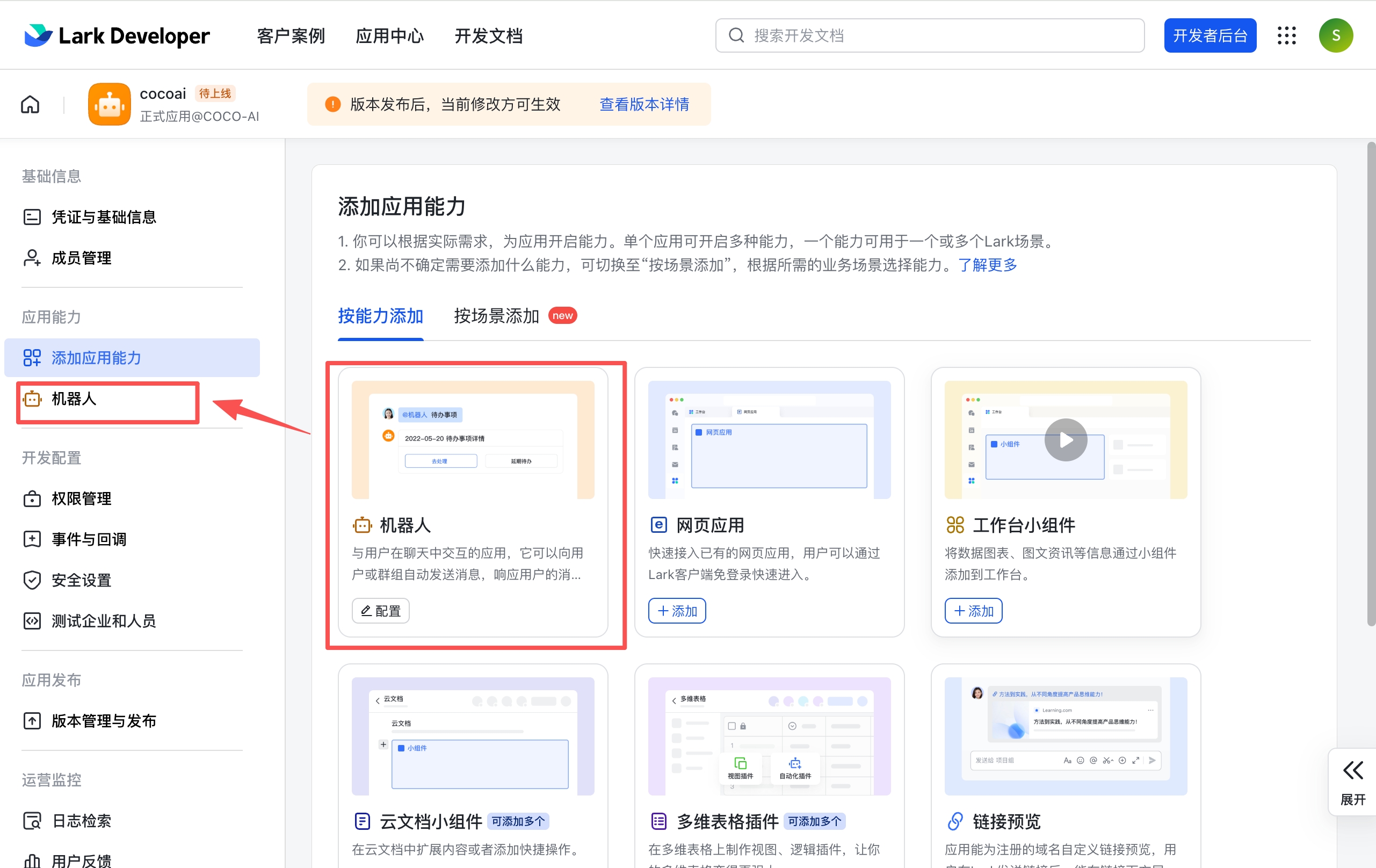
Step 4: Configure Permissions
After adding the Bot capability, go to Permissions & Scopes in the left sidebar. You can click Enable Scopes to select the required permissions one by one, or click Batch Import/Export Permissions and paste our prepared JSON to import them all at once:
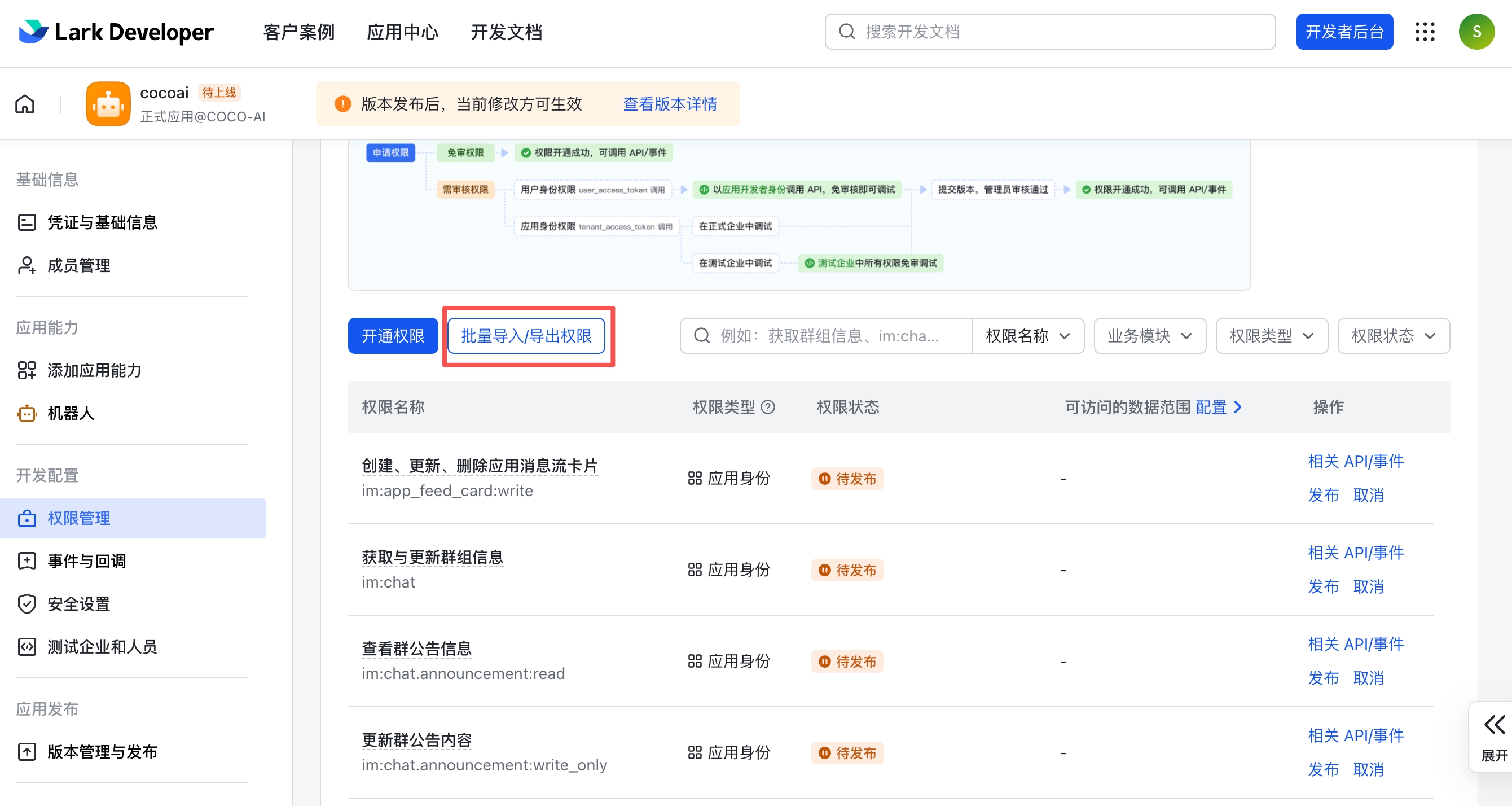
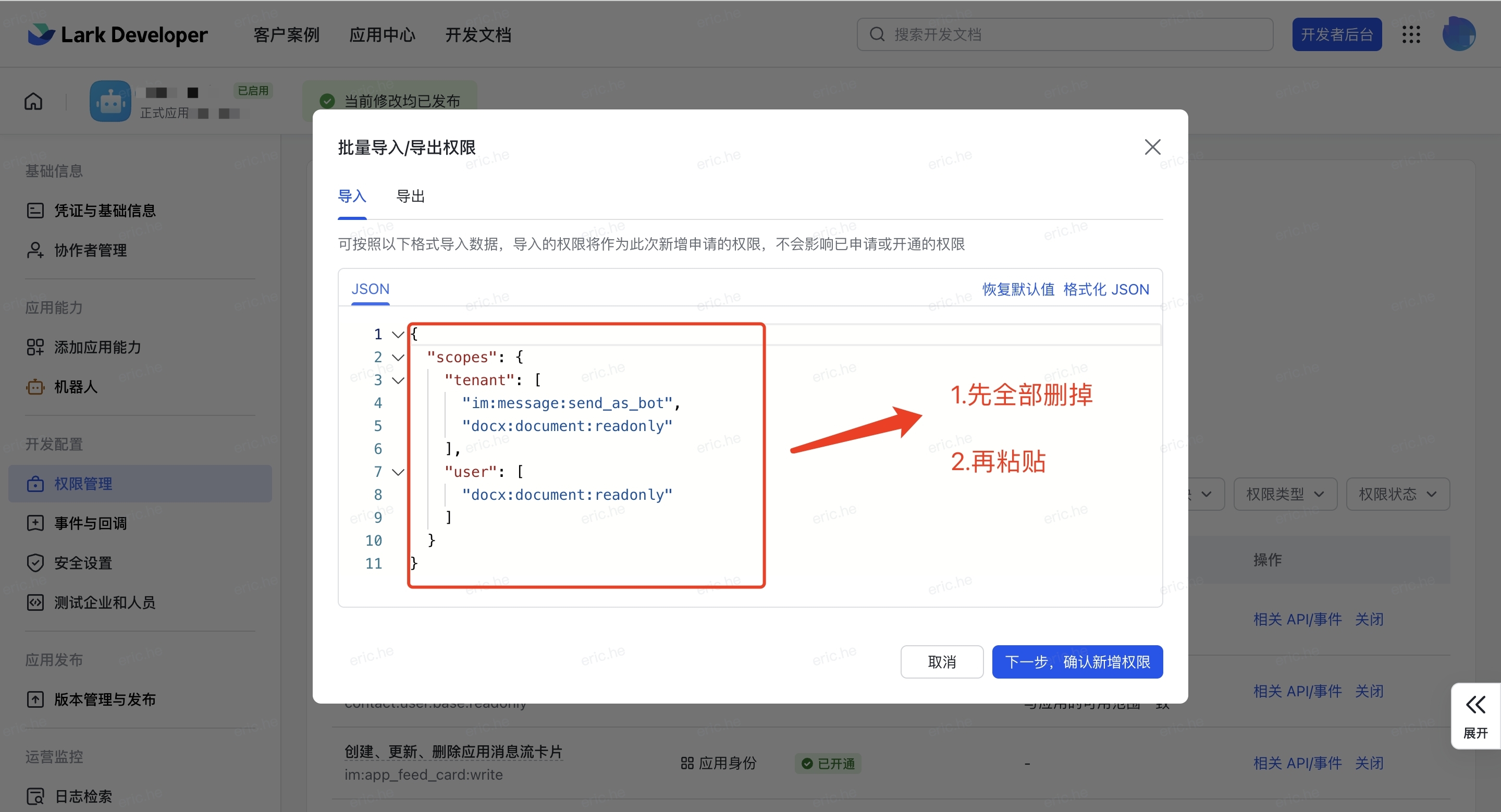
Copy the following JSON to import all permissions at once:
{
  "scopes": {
    "tenant": [
      "contact:contact.base:readonly",
      "contact:user.base:readonly",
      "im:app_feed_card:write",
      "im:chat",
      "im:chat.announcement:read",
      "im:chat.announcement:write_only",
      "im:chat.chat_pins:read",
      "im:chat.chat_pins:write_only",
      "im:chat.collab_plugins:read",
      "im:chat.collab_plugins:write_only",
      "im:chat.labels",
      "im:chat.managers:write_only",
      "im:chat.members:bot_access",
      "im:chat.members:read",
      "im:chat.members:write_only",
      "im:chat.menu_tree:read",
      "im:chat.menu_tree:write_only",
      "im:chat.moderation:read",
      "im:chat.tabs:read",
      "im:chat.tabs:write_only",
      "im:chat.top_notice:write_only",
      "im:chat.widgets:read",
      "im:chat.widgets:write_only",
      "im:chat:create",
      "im:chat:delete",
      "im:chat:moderation:write_only",
      "im:chat:operate_as_owner",
      "im:chat:read",
      "im:chat:readonly",
      "im:chat:update",
      "im:datasync.feed_card.time_sensitive:write",
      "im:message",
      "im:message.group_at_msg:readonly",
      "im:message.group_msg",
      "im:message.group_msg:readonly",
      "im:message.p2p_msg:readonly",
      "im:message.pins:read",
      "im:message.pins:write_only",
      "im:message.reactions:read",
      "im:message.reactions:write_only",
      "im:message.urgent",
      "im:message.urgent:phone",
      "im:message.urgent:sms",
      "im:message:readonly",
      "im:message:recall",
      "im:message:send_as_bot",
      "im:message:send_multi_depts",
      "im:message:send_sys_msg",
      "im:message:update",
      "im:resource",
      "im:url_preview.update",
      "im:user_agent:read"
    ],
    "user": []
  }
}
Scope overview: The scopes above cover contacts (read-only), chat management (full), messaging (send/receive/recall/pin/reaction), group @message listening, urgent messages, file resources, and feed cards.
im:message:send_multi_deptsis the new name for the olderim:message:send_multi_users. The Feishu (domestic China) version uses a slightly different scope set — see Feishu Deployment for details.
Step 5: Configure Event Subscription
Return to the Lark Developer Backend and go to Events & Callbacks in the left sidebar
Under the subscription method, select Receive events through persistent connection
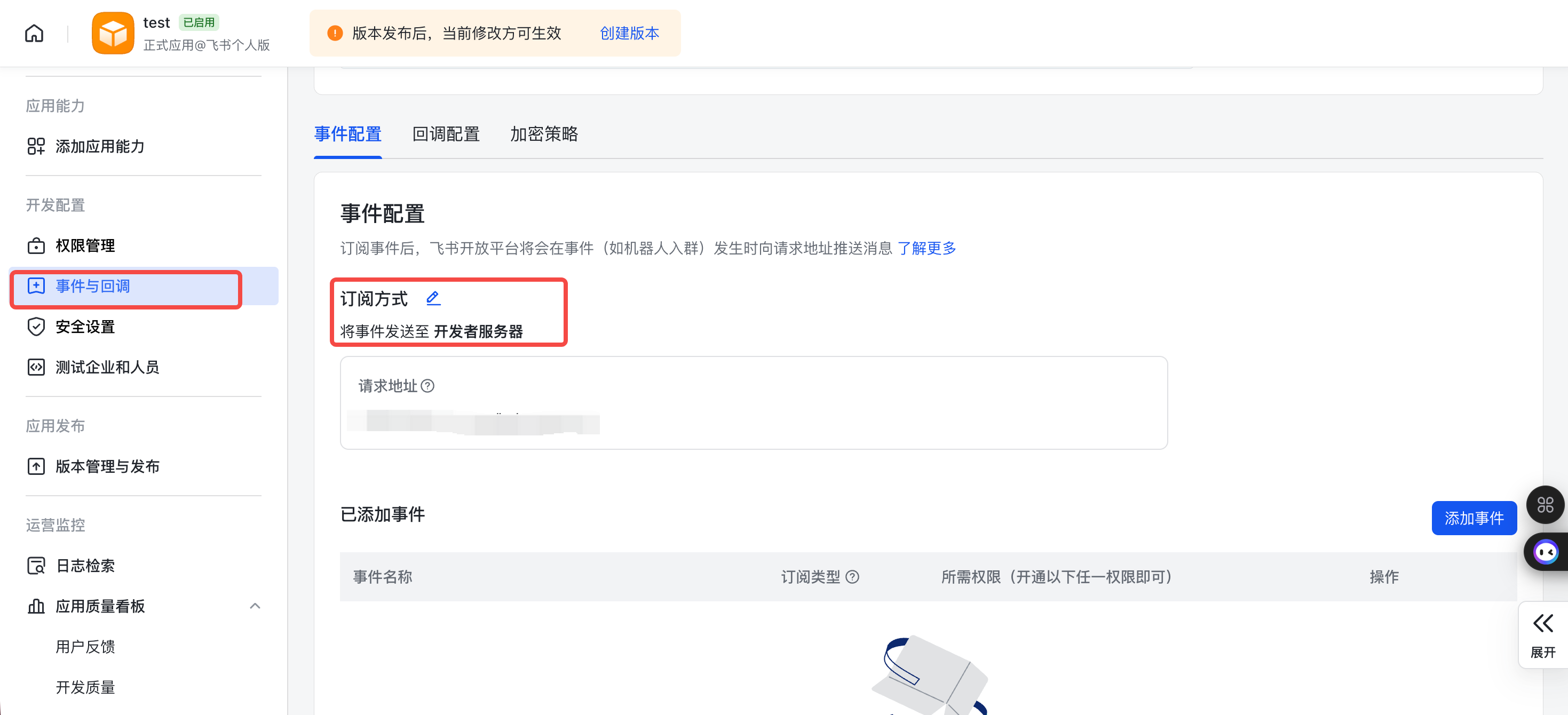
Click Add Events below and subscribe to the following events:
Receive messages (required):
im.message.receive_v1Bot added to group (optional):
im.chat.member.bot.added_v1Click Save
Step 6: Create Version and Publish
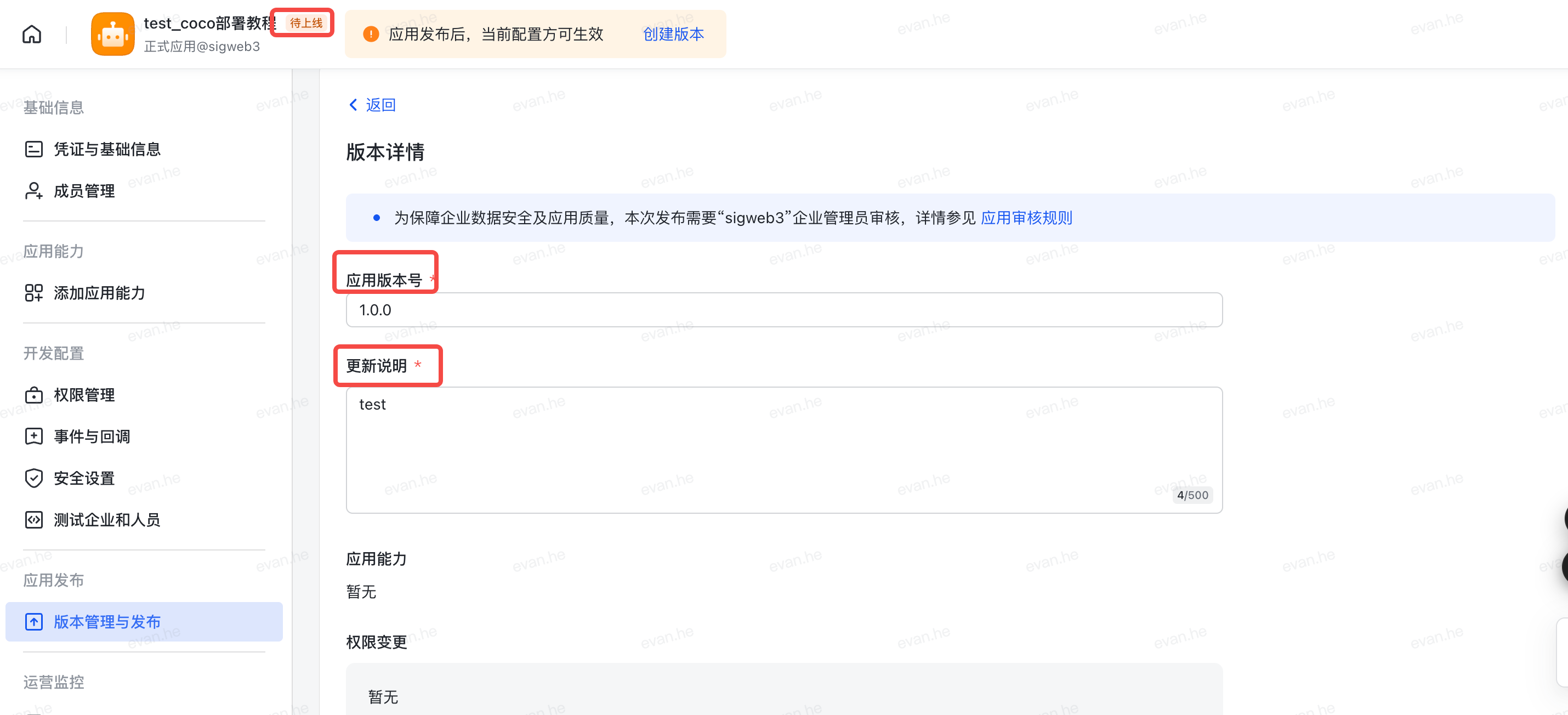
Go to Version Management & Publishing in the left sidebar and click Create Version
Enter the version number (e.g.,
1.0.0) and update descriptionConfirm the app capabilities and permission information are correct, then click Save
In the confirmation dialog, click Confirm Publish
Admin Approval: After submitting, enterprise admin approval is required. Personal accounts do not need this step.
Once configured, you can search for your app name in the Lark client to confirm the bot has been created correctly.
Step 7: Fill in Credentials in OpenMax Workspace and Deploy
Log into OpenMax Workspace
Click Channels on the left sidebar, select Lark
Enter the following information:
| Field | Source |
|---|---|
| App ID | Lark Open Platform → Credentials & Basic Info |
| App Secret | Lark Open Platform → Credentials & Basic Info |
- Click Connect — the system will automatically deploy your AI employee (typically takes 2-3 minutes)
Step 8: Enable Bot and Add to Groups
First, confirm on the Lark Open Platform that the app status has changed to Enabled:
Open the Lark client
Create or enter a group
Click the ... menu in the top-right corner → Settings
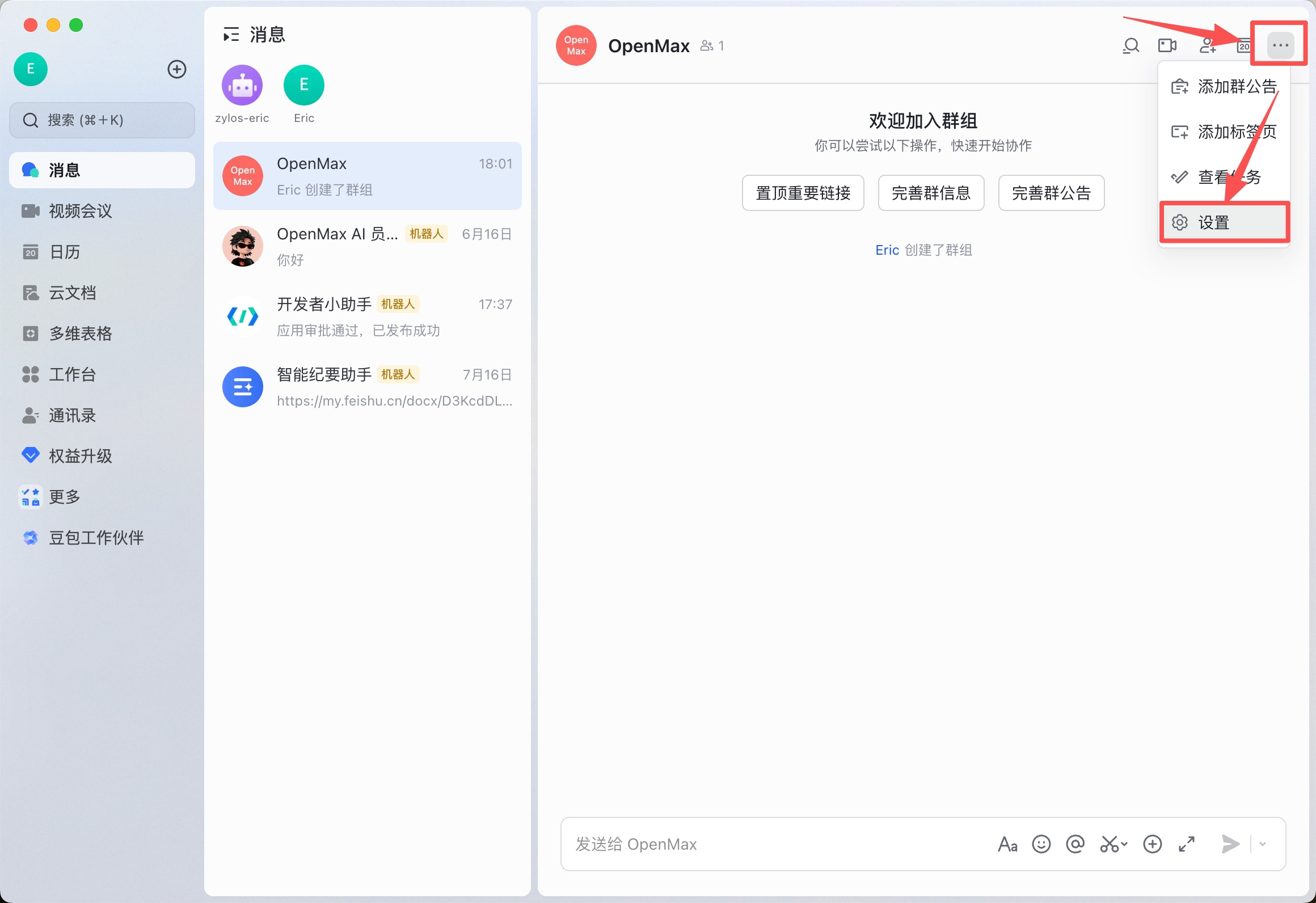
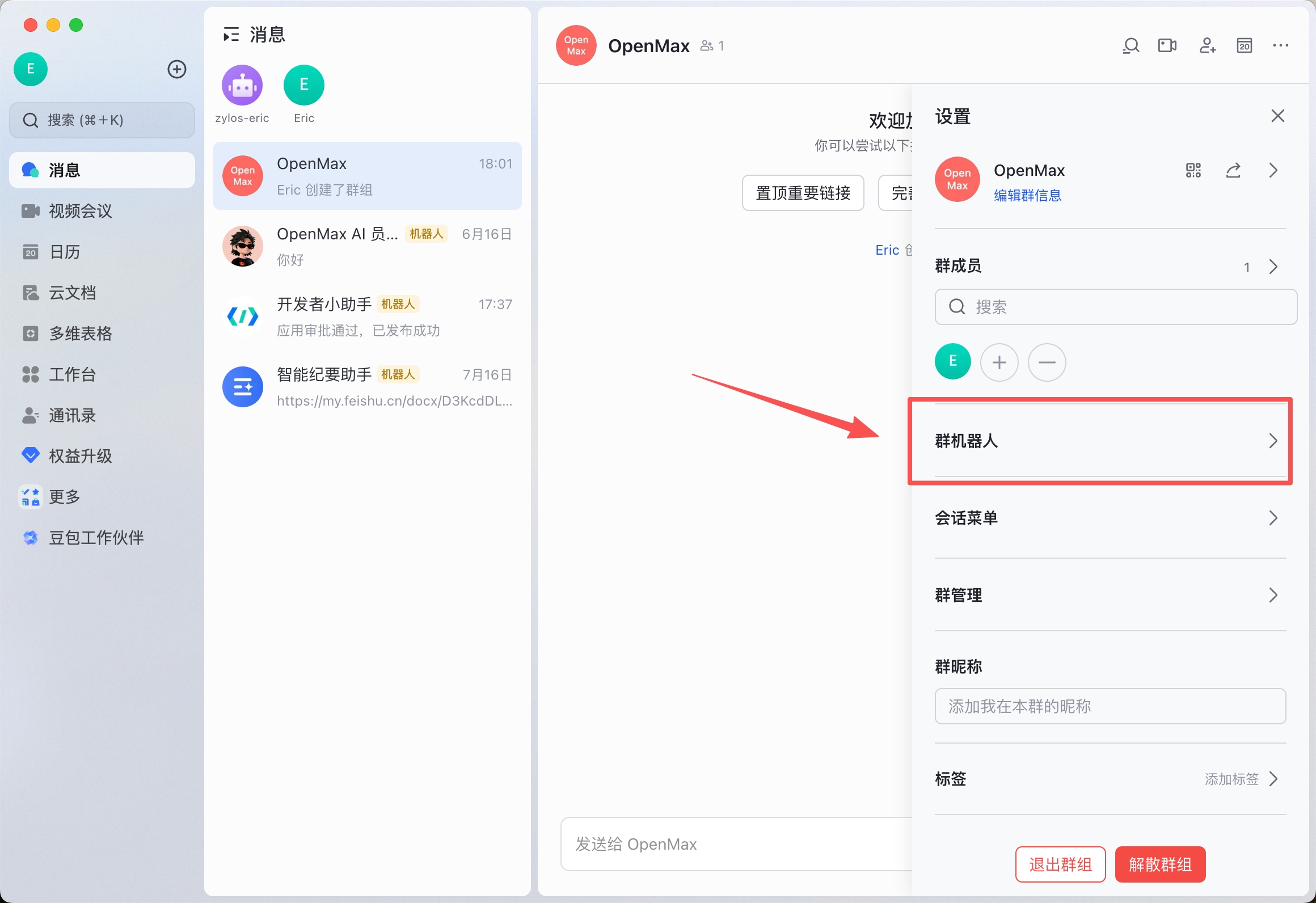
- In Settings, find the Bots option and click it
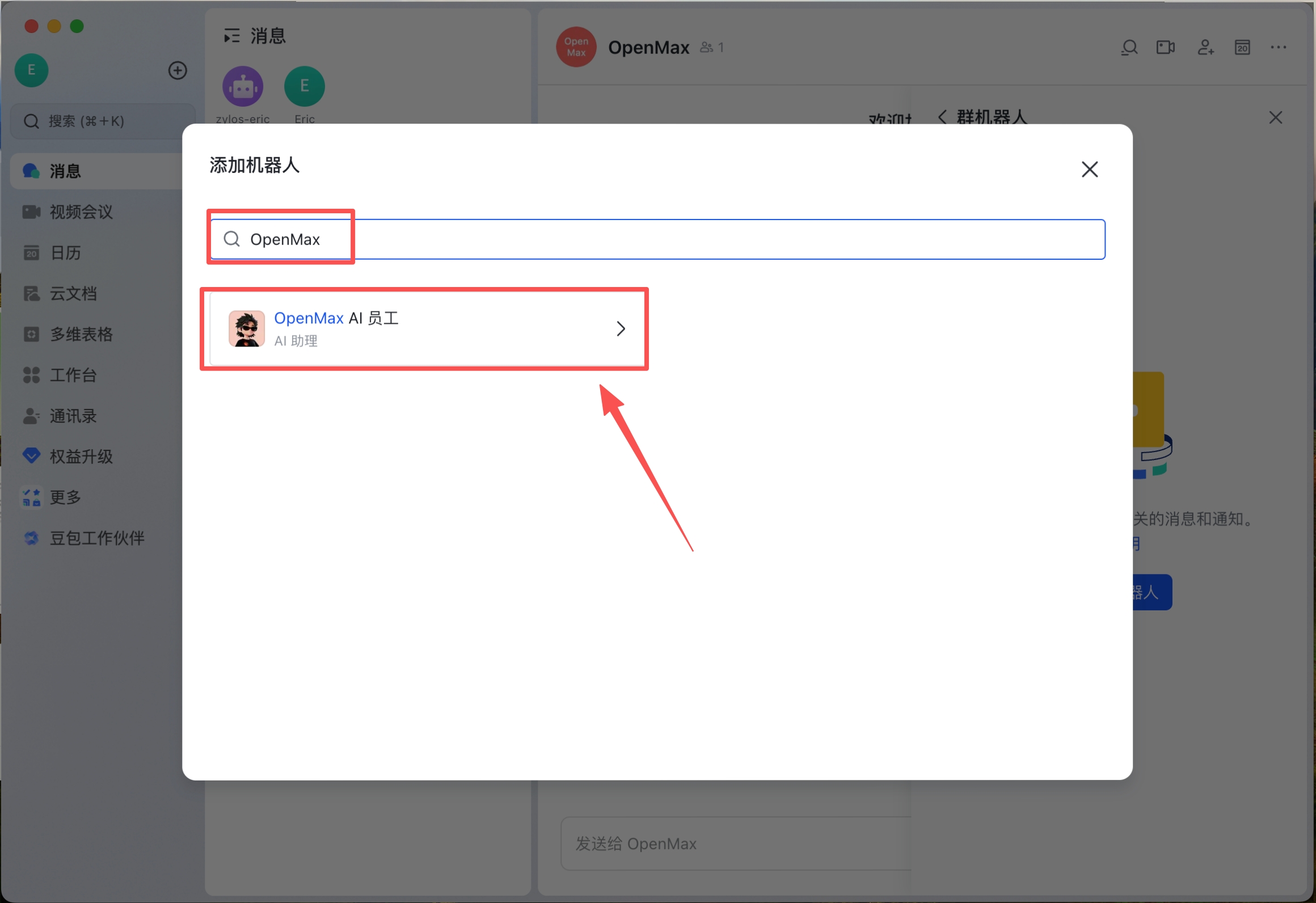
- Click Add Bot → search for your app name → click add
- Enable the group whitelist: the group owner must @mention the bot in the group and send "开启群聊白名单" (enable group whitelist) — only then can other group members use the bot via @mention
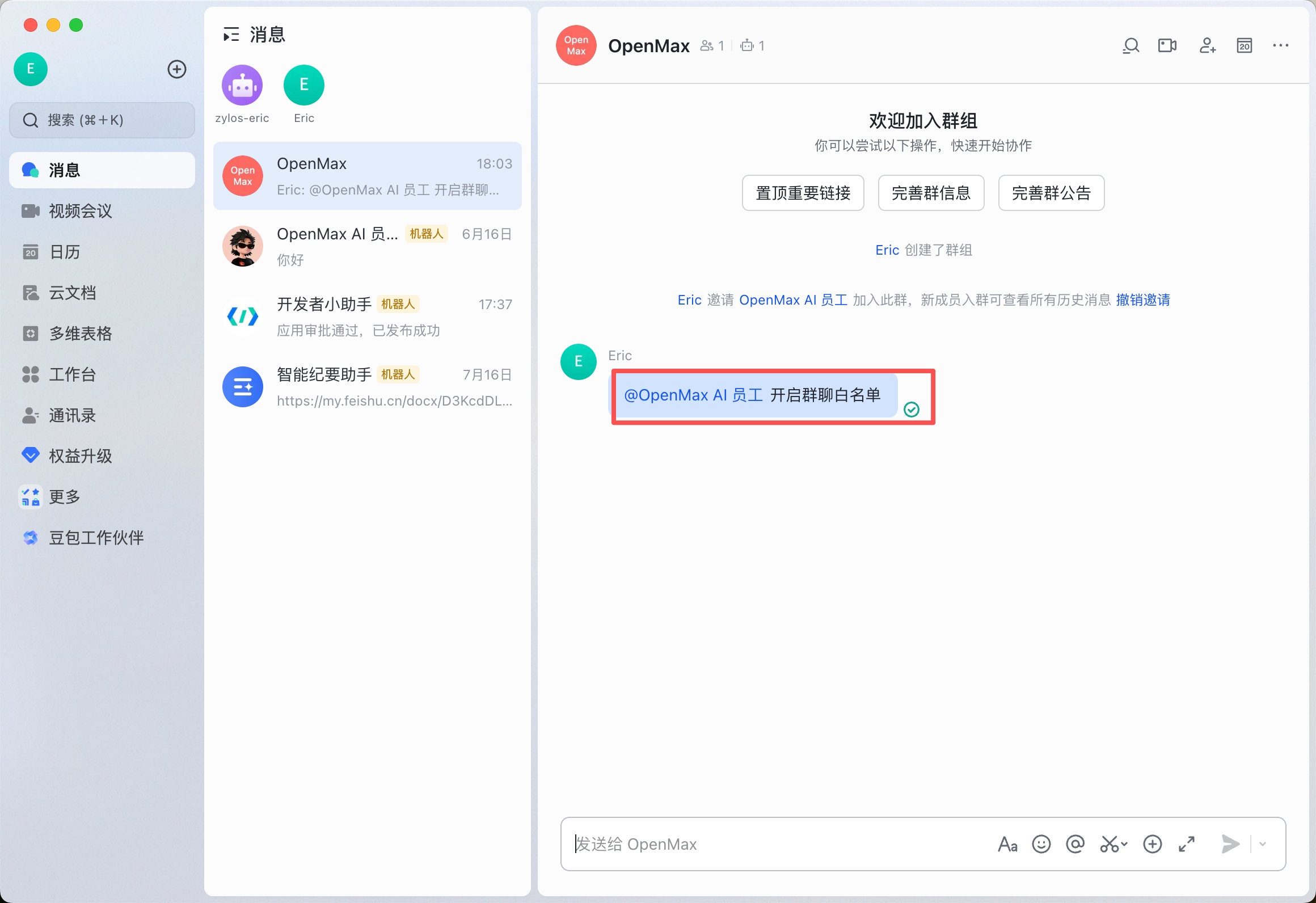
@mention your bot in the group and send a message
Your AI employee responds
✅ Deployment complete! Your AI employee is now online — you can chat with it directly or add it to a group.
6. Telegram Deployment (Recommended for international users)
Estimated time: 5-8 minutes
Step 1: Create a Telegram Bot
Open Telegram, search for @BotFather (Telegram's official bot manager)
Send the
/newbotcommandEnter your Bot display name (e.g.,
My OpenMax)Enter your Bot username (must end with
bot, e.g.,my_openmax_ai_bot)BotFather returns a Bot Token (format:
110201543:AAHdqTcvCH1vGWJxfSeofSAs0K5PALDsaw)Copy and save this Token — you'll need it in the next step
Important: The Bot Token is your bot's unique credential. Do not share it with others.
Step 2: Connect in OpenMax Workspace
Log into OpenMax Workspace
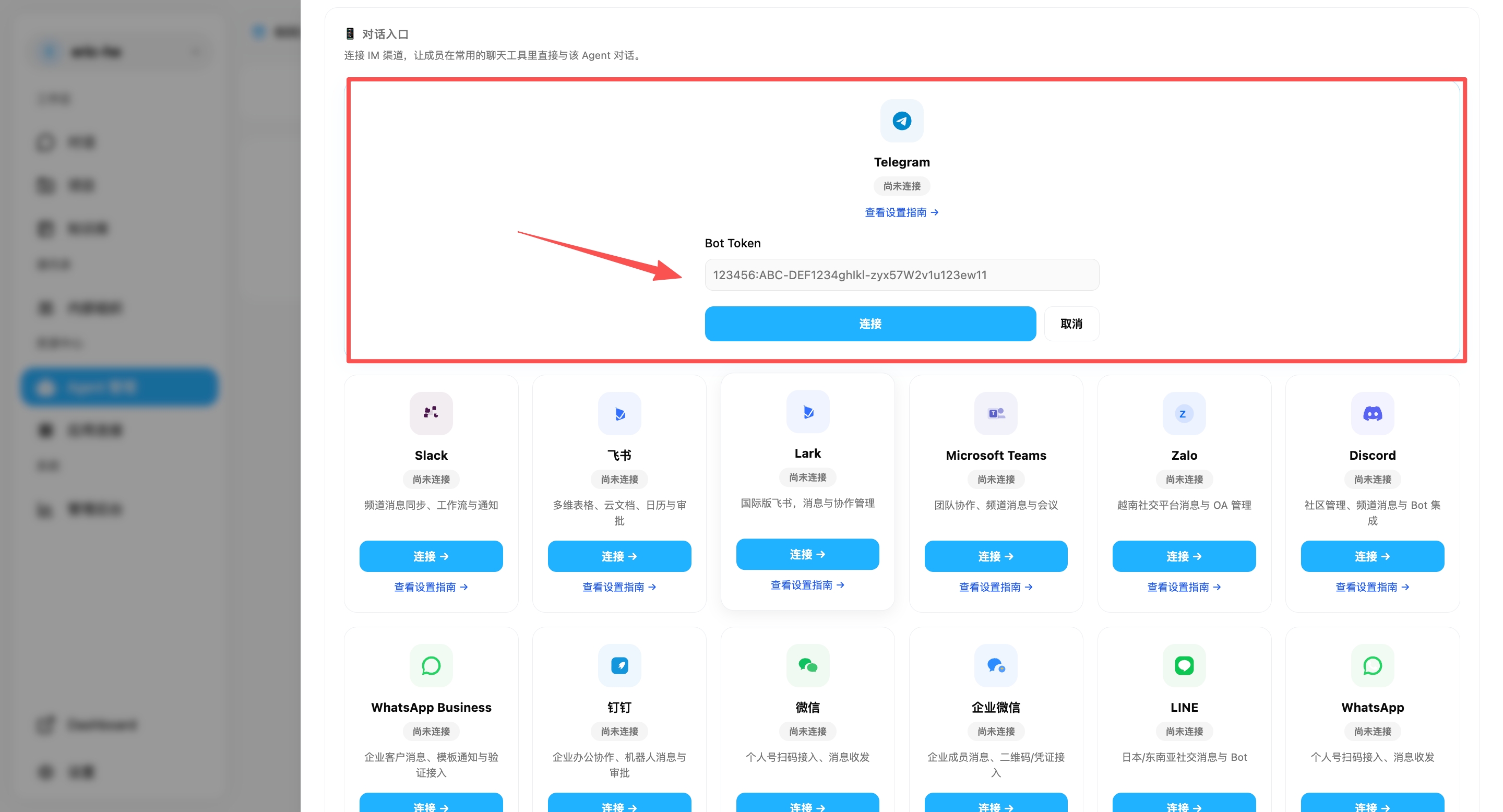
Open the Channels page and find the Telegram card
Paste the Bot Token from the previous step
Click Connect
The system automatically validates the Token and completes the connection
Step 3: Start Using
In Telegram, search for your Bot username (e.g.,
@my_openmax_ai_bot)Click Start or send
/startSend any message — your AI employee responds immediately
✅ Deployment complete! Your AI employee is now online — you can chat with it directly or add it to a group.
Tip: Telegram is the simplest deployment — no admin permissions and no extra configuration needed. Recommended for first-time users.
Telegram FAQ
| Issue | Solution |
|---|---|
| Bot not responding | Check that the Token is correct, and verify the connection status in Workspace |
| Slow responses | Check your network connection. Telegram requires a stable internet connection |
| Want multi-user access | Add the Bot to a Telegram group — all group members can interact with the AI |
| Want to switch Bot | Disconnect the old one in Workspace, create a new Bot, and reconnect |
7. WhatsApp Deployment
Estimated time: ~5 minutes
Note: WhatsApp connects via QR code scanning (linked device). No API keys, developer accounts, or app configuration are needed.
Unofficial Connection — Risk of Account Ban
This WhatsApp option connects via the WhatsApp Web protocol (linked device) — it is not an official WhatsApp API integration. Automated use over this protocol is against WhatsApp's Terms of Service and may get the connected number temporarily or permanently banned.
Do not connect your personal or main business number. Use a separate, dedicated number that you are prepared to lose.
Important: Use a New, Dedicated Number
For this AI employee to work properly as a standalone Bot, be sure to connect a new, dedicated WhatsApp number.
Why can't I just use my current WhatsApp? If you connect your own WhatsApp, that account plays both "you" and "the Bot" at once, which usually means you can only message yourself, and others can't interact with it as an independent Bot.
Why register a new number? The Bot needs its own identity. Only with a dedicated number can others message it, add it to groups, @mention it, and interact with it normally as a separate account.
No credentials are required. You only need:
| Item | Description |
|---|---|
| OpenMax Employee | An existing instance in OpenMax Workspace |
| WhatsApp Account | A phone with WhatsApp installed and logged in |
| ~5 minutes | Time to complete deployment |
Step 1: Open the Agent's Chat Entry
Log into OpenMax Workspace
Go to Agent Management and click the agent you want to deploy to open its detail page
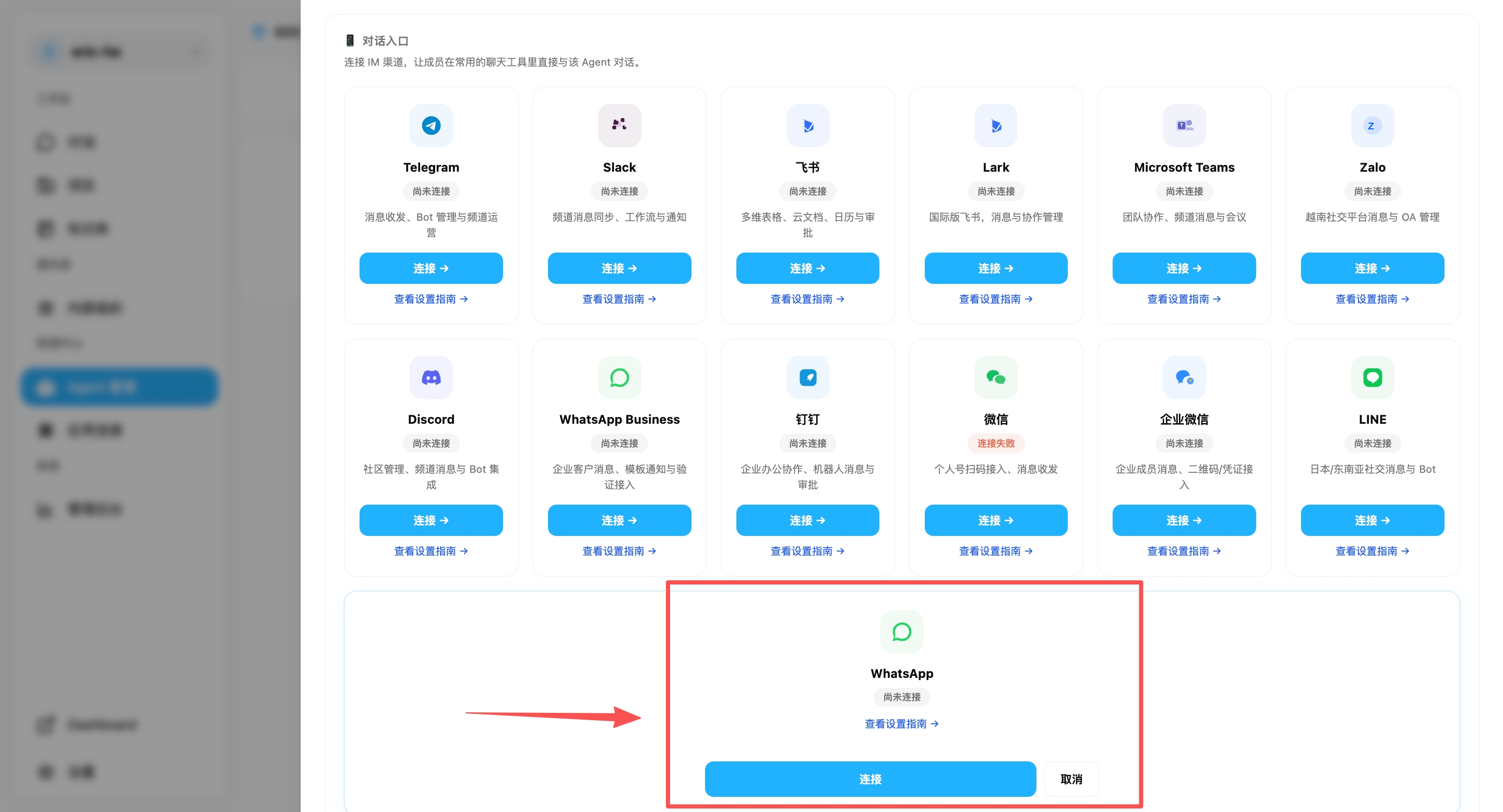
Scroll down to the Channels section and find WhatsApp
Step 2: Click WhatsApp "Connect" and Wait for QR Code
Click Connect on the WhatsApp card
The system will prepare a WhatsApp session in the background — wait for the QR code to generate
Once generated, the QR code refreshes automatically every 15 seconds
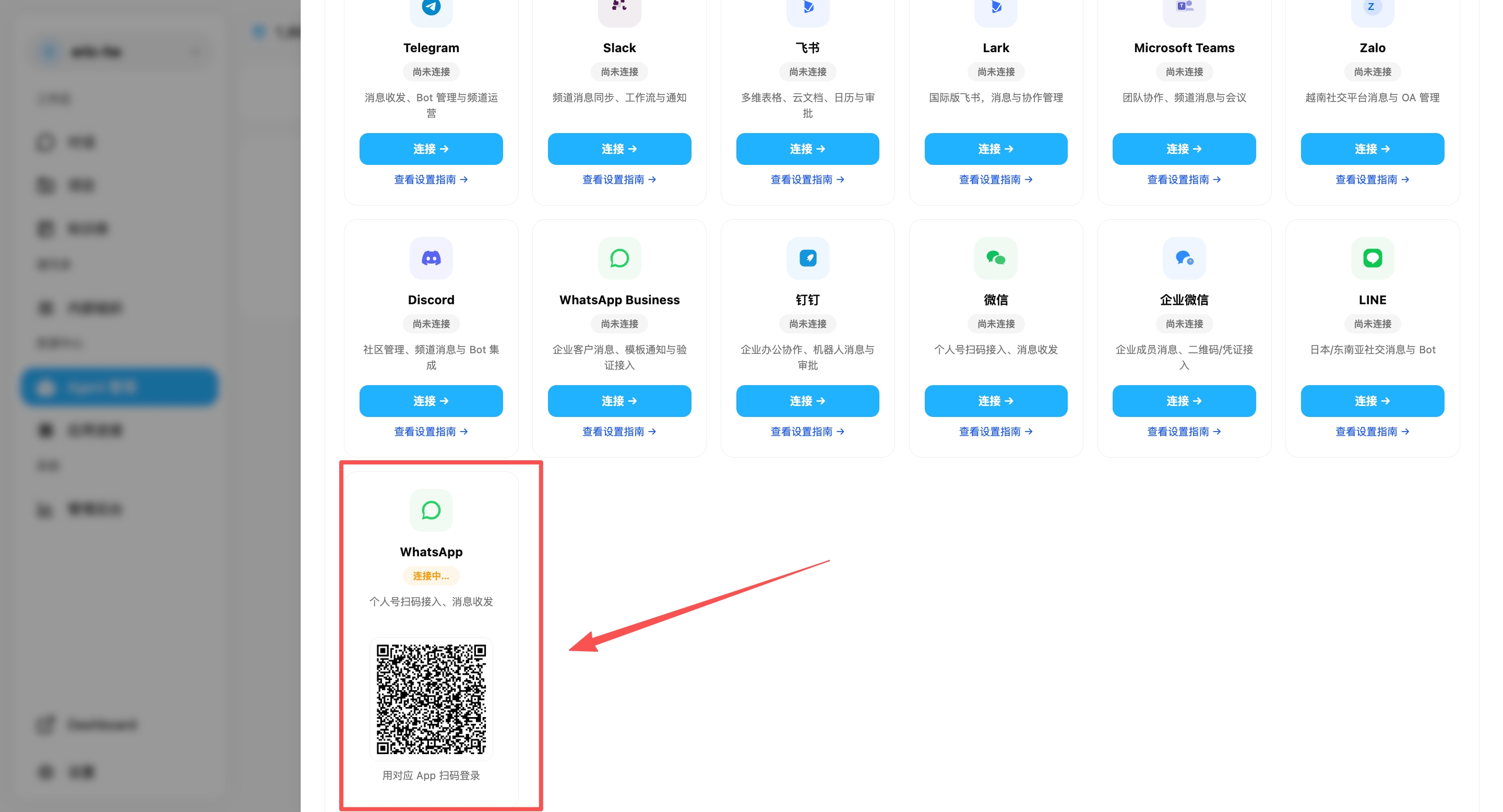
Note: Do not close the page or click repeatedly while waiting — this may trigger duplicate requests.
Step 3: Open WhatsApp on Your Phone → Linked Devices
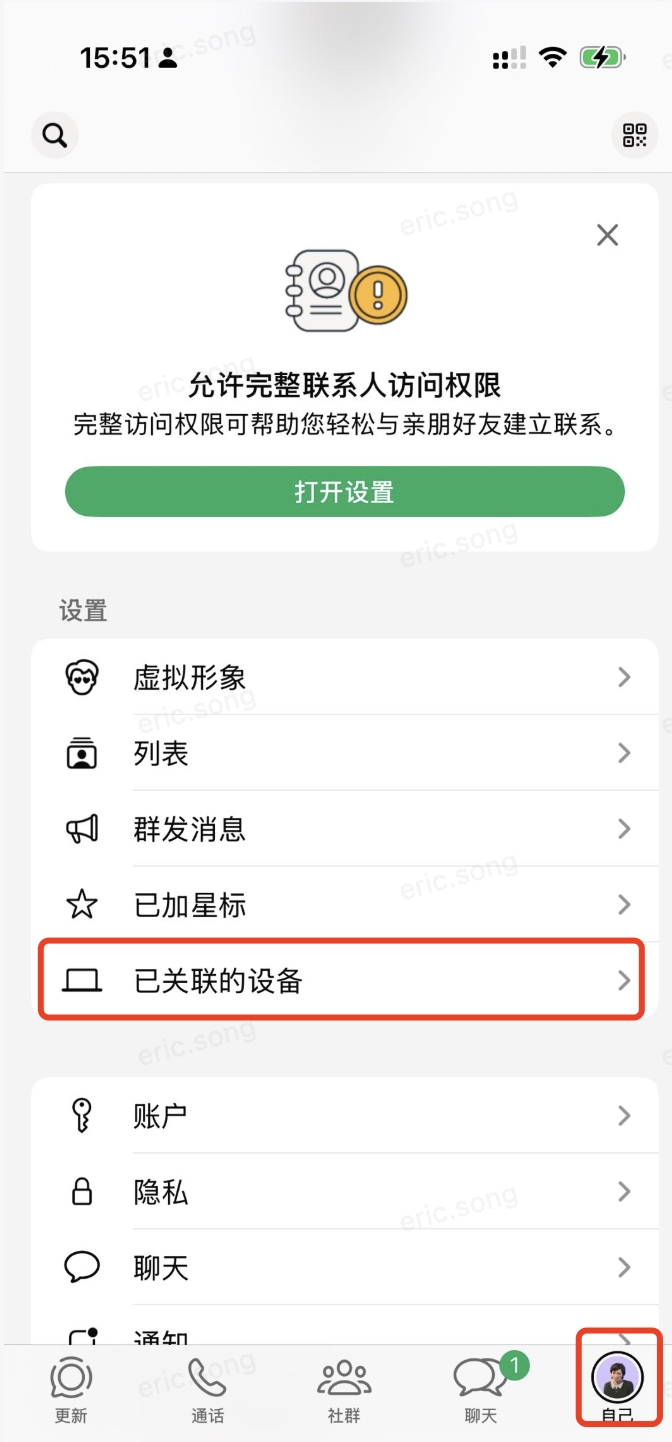
Open WhatsApp on your phone
Tap Me (profile icon) in the bottom-right corner
In the settings list, tap Linked Devices
Step 4: Tap "Link a Device" and Scan the QR Code
On the "Linked Devices" page, tap the Link a Device button at the bottom
Your phone's camera opens — point it at the QR code displayed in Workspace in Step 2
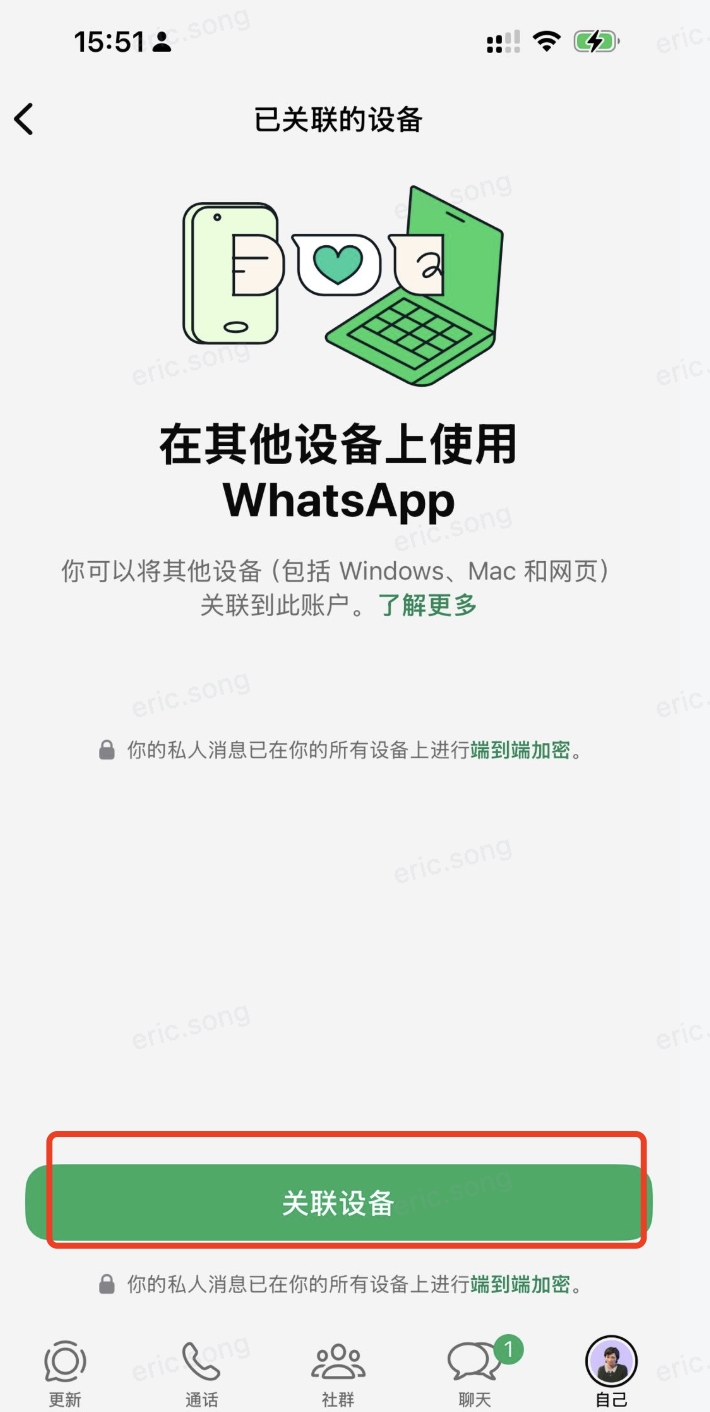
Tip: If the QR code has expired, Workspace will automatically refresh it. Just scan the latest QR code displayed.
Step 5: Verify Connection and Manage Chat Permissions
After successful scanning, Workspace automatically detects the connection — the WhatsApp card shows Connected.
First Chat Binds You as Owner (Important!)
After connecting, use your own WhatsApp to search for the phone number the bot is bound to and send the bot its first message. This first chat binds you as the bot's Owner (administrator) — all later permission management (such as allowing others to chat) relies on the Owner identity, so this step is essential — do not skip it. When the bot replies automatically, the connection is confirmed live.
Let Other People Chat with the Bot
By default, only the Owner can chat with the bot. To allow others to use it, there are two modes:
- Allowlist mode: only specified numbers can chat
- Open mode: anyone can chat
You can give the bot instructions directly in natural language:
- Allowlist example:
Enable allowlist mode and add +1 555xxxx888 to the list - Open example:
Enable open mode, anyone can DM you
Note: WhatsApp linked devices disconnect automatically if the phone is offline for an extended period. If disconnected, return to Workspace and scan the QR code again to reconnect.
8. Slack AI Agent Deployment
Estimated time: 3-5 minutes
Note: Use Slack's AI agent template instead of creating a regular Slack app from scratch. The template automatically creates the bot, enables Socket Mode, and configures the basic permissions and events required for DMs, channel messages, and @mentions.
Slack provides the messaging surface and bot identity. The AI model, memory, tools, and tasks continue to run inside your OpenMax Agent. We recommend one Slack AI Agent app per OpenMax Agent; a single Slack workspace can contain multiple agent apps.
Only two credentials are required:
| Credential | Format | Description |
|---|---|---|
| Bot Token | xoxb-... |
Represents the Slack bot identity and is used to read and send messages |
| App Token | xapp-... |
Establishes the Socket Mode connection, so no public callback URL is required |
Step 1: Create a Slack AI Agent
- Open Slack App Management and sign in.
- Click Create New App.
- Select AI agent, then click Continue.
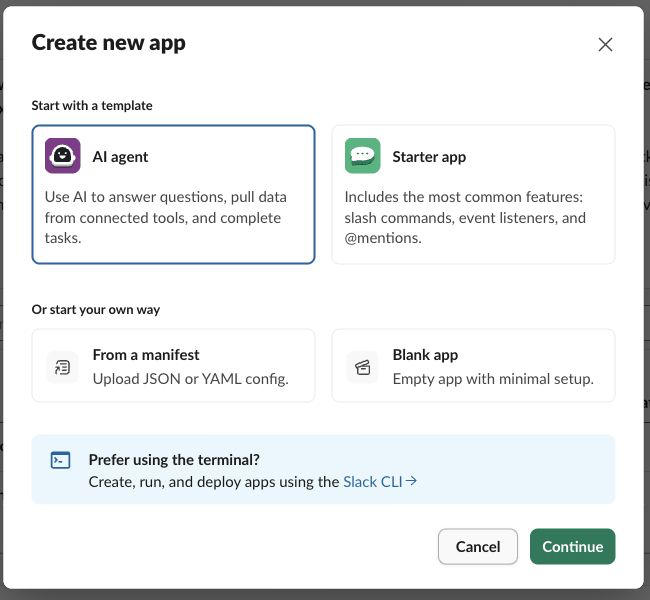
- Under What should your agent do?, select Starter agent.
- Enter the agent name. We recommend using the same name as your OpenMax Agent.
- Select the Slack workspace where the agent will be installed.
- Click Review Agent, then Create and Install, and approve the installation when prompted.
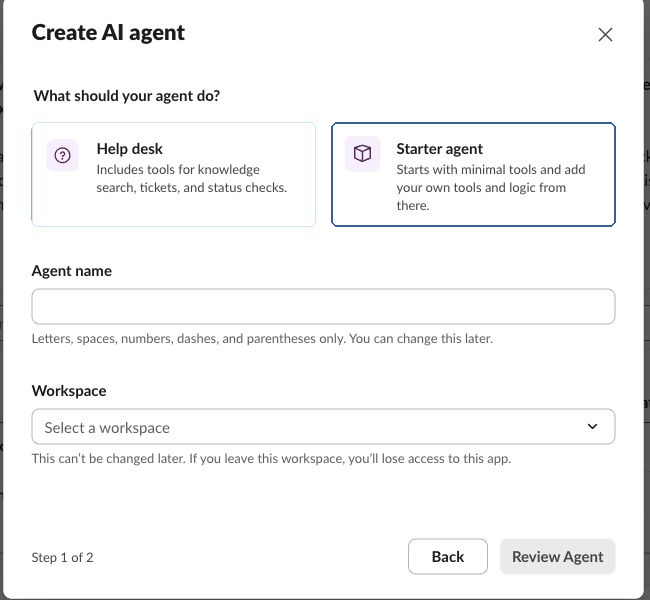
Why Starter agent? OpenMax already provides the AI model and agent runtime. Slack is the messaging entry point, so the Slack Help desk sample implementation is not needed.
If your workspace requires administrator approval, wait for the installation to be approved before continuing.
Step 2: Copy the Slack credentials
After the app is created, Slack displays Your app credentials. Expand it and copy:
- Bot token, beginning with
xoxb- - App token, beginning with
xapp-
Slack may also display instructions to install the Slack CLI, create a project, and run a sample application. You do not need to follow those steps for OpenMax—the Slack connector already runs in your OpenMax cloud instance.
Keep tokens private
Tokens act like bot passwords. Never post real tokens in Slack channels, issues, or source repositories. If a token is exposed, revoke it in the Slack app settings and generate a replacement immediately.
Step 3: Connect the OpenMax Agent
- Open OpenMax Workspace and navigate to the target Agent's detail page.
- Find Channels and select Slack.
- Paste the
xoxb-...value into Bot Token. - Paste the
xapp-...value into App Token. - Connect and wait until the status shows connected.
Step 4: Start chatting
- In Slack, search for the agent name or find it under Apps.
- Open a DM and send a test message.
- To use it in a channel, type
/invite @AgentNamein that channel. - Test a channel response with
@AgentName your question.
Channels support two trigger modes:
- mention: the Agent responds only when explicitly mentioned. This is recommended for most team channels.
- smart: the Agent can receive normal user messages without an @mention.
mention and smart are OpenMax message-trigger policies. They are separate from Slack's AI agent app template.
Optional: Enable files and images
The Slack AI Agent template includes the permissions and events required for basic text messaging. To let the Agent receive or upload files and images:
- Open the app's OAuth & Permissions page.
- Add
files:readandfiles:writeunder Bot Token Scopes. - Click Reinstall to Workspace to apply the new permissions.
- If Slack issues a new Bot Token, update it in OpenMax Workspace.
Slack FAQ
| Issue | Solution |
|---|---|
| The AI agent option is not visible | Check the Slack workspace plan, app installation permissions, and administrator policy; you can also test with a Slack Developer Sandbox |
| The bot does not respond to DMs | Confirm OpenMax shows connected and that the xoxb- and xapp- tokens belong to the same Slack app |
| The bot does not respond in a channel | Invite it with /invite @AgentName, then confirm whether the channel uses mention or smart mode |
| Files stop working after permission changes | Click Reinstall to Workspace and update the Bot Token in OpenMax if Slack issued a new one |
| Is the Slack CLI required? | No. OpenMax already provides and runs the Slack connector |
| Can multiple OpenMax Agents use one workspace? | Yes. We recommend creating a separate Slack AI Agent app for each OpenMax Agent |
See Slack's official AI documentation for additional details.
9. Microsoft Teams Deployment
Estimated time: 15-20 minutes with a personal subscription, or if you are the admin yourself; 30 minutes or more with an enterprise organization account where you are a regular member (not counting the wait for admin approval).
Note: Microsoft Teams is widely used by enterprises on Microsoft 365. Deployment requires creating an Azure Bot resource, configuring permissions, and publishing the app via the Teams Developer Portal. No servers or coding skills needed — a free Azure tier is sufficient.
Before You Begin
Make sure you have the following in place:
- A Microsoft Entra (Azure AD) tenant — every organization using Microsoft 365 already has one.
- An active Azure subscription belonging to your company's organization — required to create the Azure Bot resource. This tutorial uses the F0 (Free) pricing tier throughout, and Teams is a standard channel not billed per message, so your Azure cost for the entire deployment is $0.
- "Contributor" permission on that subscription (or on a resource group inside it) — granted by the subscription owner under Subscription → Access control (IAM) → Add role assignment. Note that a global admin does not see subscriptions by default: subscription permissions and Microsoft 365 admin roles are two separate systems.
- Microsoft 365 admin cooperation — Step 5 requires a global admin to grant admin consent for the Graph API permissions; publishing the app to the whole organization in Step 9 requires Teams admin approval.
⚠️ An Azure subscription is not a Microsoft 365 / Teams subscription. They are two different things — having Microsoft 365 does not mean you have an Azure subscription.
The subscription has to sit in the same organization directory as your Teams. Microsoft no longer allows new multi-tenant bots, only single-tenant ones, so if the subscription lives in a different directory (for example one registered with a personal Microsoft account such as outlook / hotmail), your company's Teams cannot use the bot.
How to get an Azure subscription:
| Option | Workable? | Notes |
|---|---|---|
| Your company already has an Azure subscription | ✅ Best option | Ask the subscription owner to assign you Contributor, then use it directly |
| Your company opens a new pay-as-you-go subscription | ✅ | Set up by someone with billing rights; it requires a credit card, but this deployment bills $0 and one subscription can serve the whole company |
| Sign up for an Azure free trial with your work account | ⚠️ Not recommended | The subscription sits in the company directory but is owned by you personally; after the 30-day trial it has to be upgraded to pay-as-you-go, otherwise it is disabled and the bot goes down with it. Some companies do not allow members to sign up on their own |
| Sign up with a personal Microsoft account | ❌ Does not work | The subscription lands in a separate personal directory, which is not the same organization as your company's Teams |
If it's all free, why do I need a subscription? An Azure subscription is just the "container" for creating resources — the subscription itself is free and you're only billed for resource usage, and the Azure Bot in this deployment is billed at $0 on the F0 tier.
First, work out which situation you are in
Case A: a personal subscription, or you are the admin yourself (You signed up for Azure yourself, or you are both the company's M365 global admin and the Azure subscription owner.) → You can do every step yourself; expect 15-20 minutes.
Case B: an enterprise organization account, and you are a regular member → Four things need an administrator. It is worth lining those people up before you start:
| When | What is needed | Who |
|---|---|---|
| Before you start | The company needs an Azure subscription (if there is none, open pay-as-you-go — the F0 bill is $0) | An admin with billing rights |
| Before you start | Assign you Contributor on the subscription (or on a resource group) | The subscription owner (a global admin does not see subscriptions by default) |
| Step 5 | Grant admin consent for the Graph API permissions | Global admin / Privileged Role Administrator |
| Step 9 | Approve and publish the app in the Teams Admin Center | A Teams administrator (a team "owner" cannot do it) |
→ Expect 30 minutes or more, not counting the wait for admin approval.
Enterprise organizations: what the subscription and permissions look like
The pictures below cover the two things Case B needs to confirm before starting.
1) If your company does not have an Azure subscription yet, the Azure portal home page tells you there is no subscription available — in that case, start by asking an admin with billing rights to open one.
2) When the admin opens a pay-as-you-go subscription, the "Plan" has to be Microsoft Azure Plan.
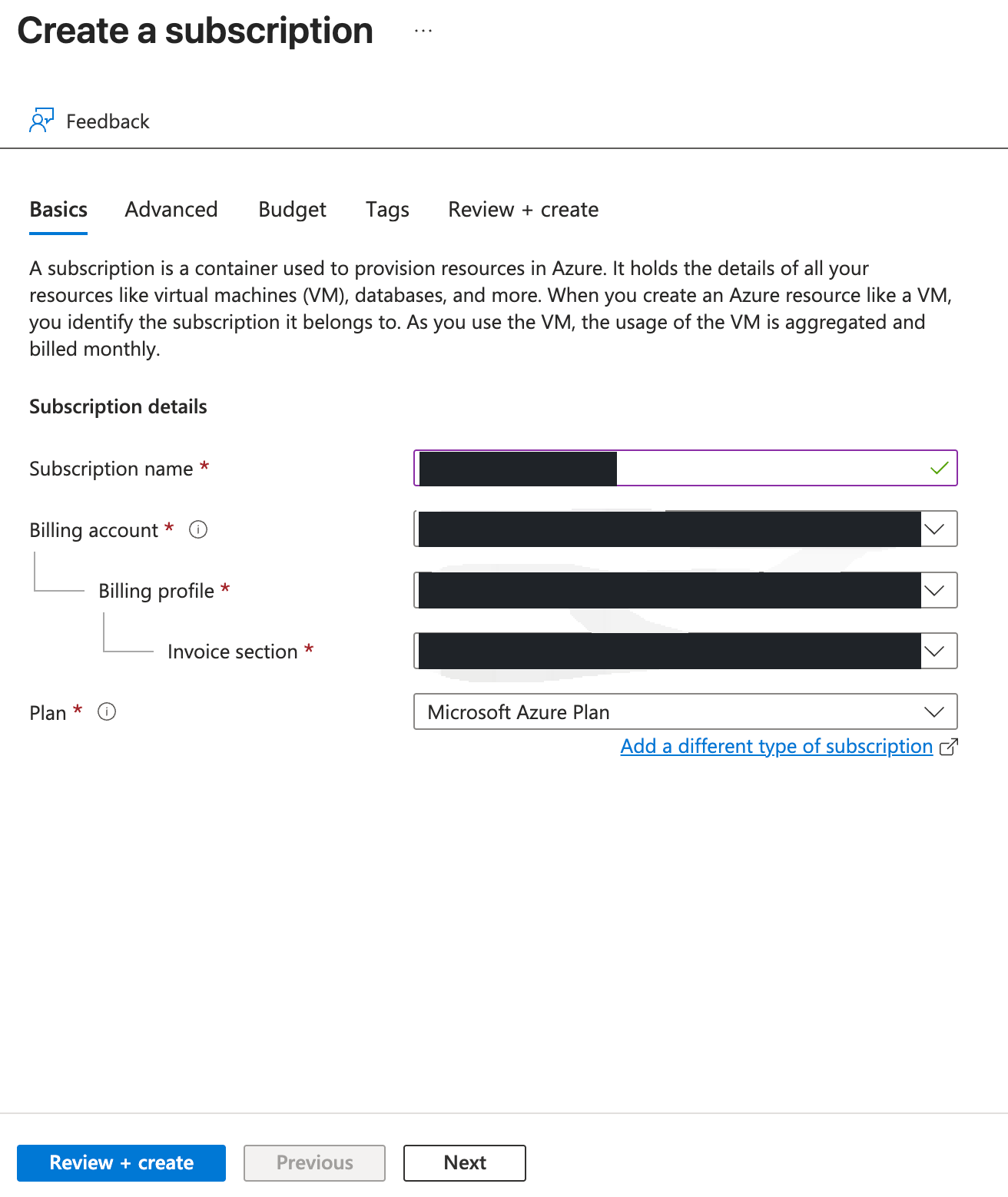
3) Once it is created, the subscription shows up in the subscription list with the status Active, along with your role (Owner / Contributor).

4) Once the subscription owner has assigned you Contributor, you will be able to pick that subscription from the Subscription dropdown on the Create an Azure Bot page in Step 1 — if you can select it, the permission went through.
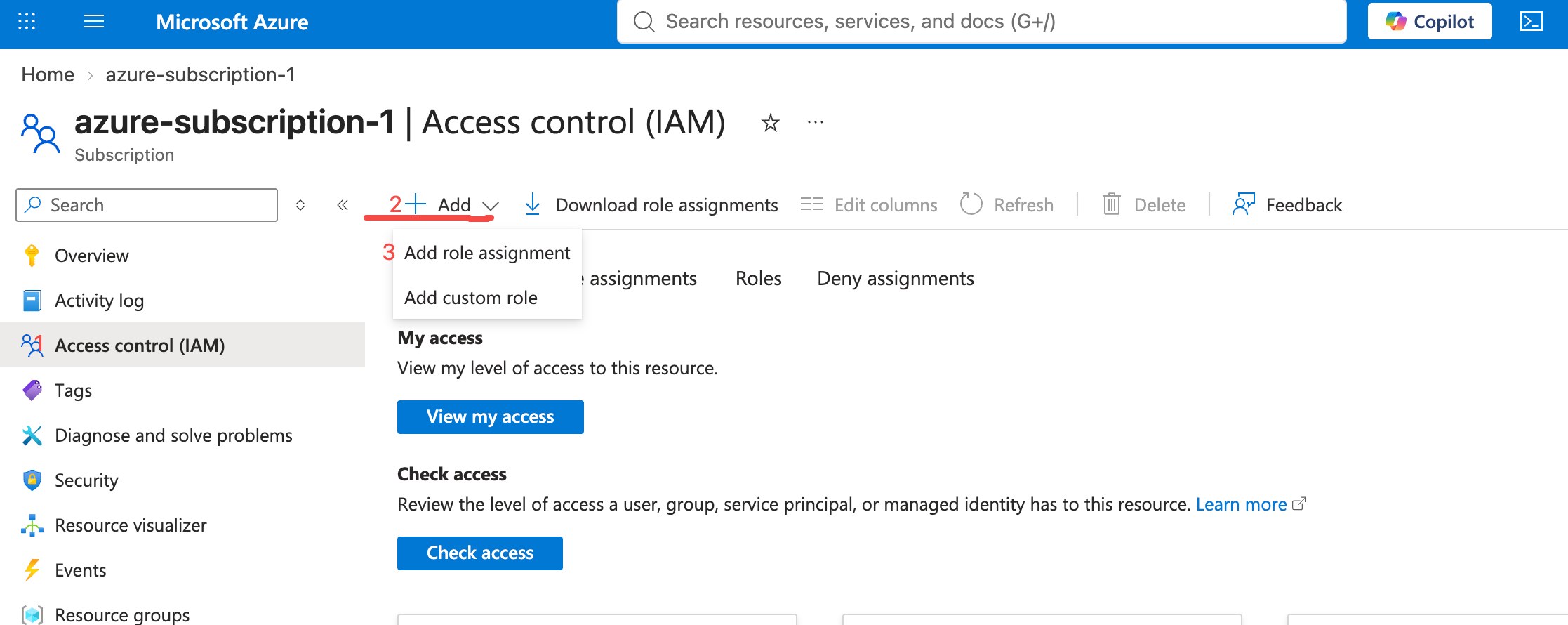
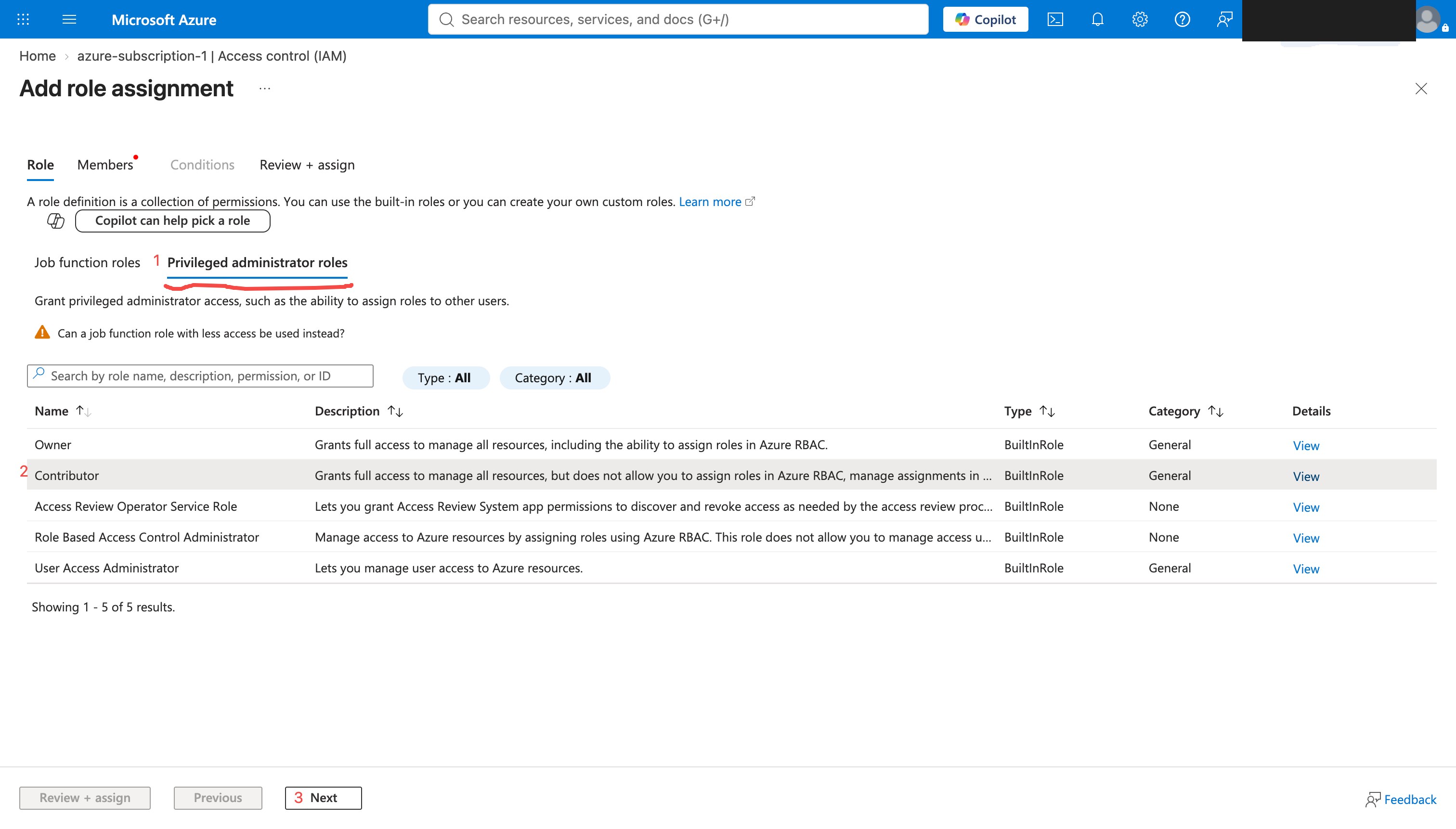
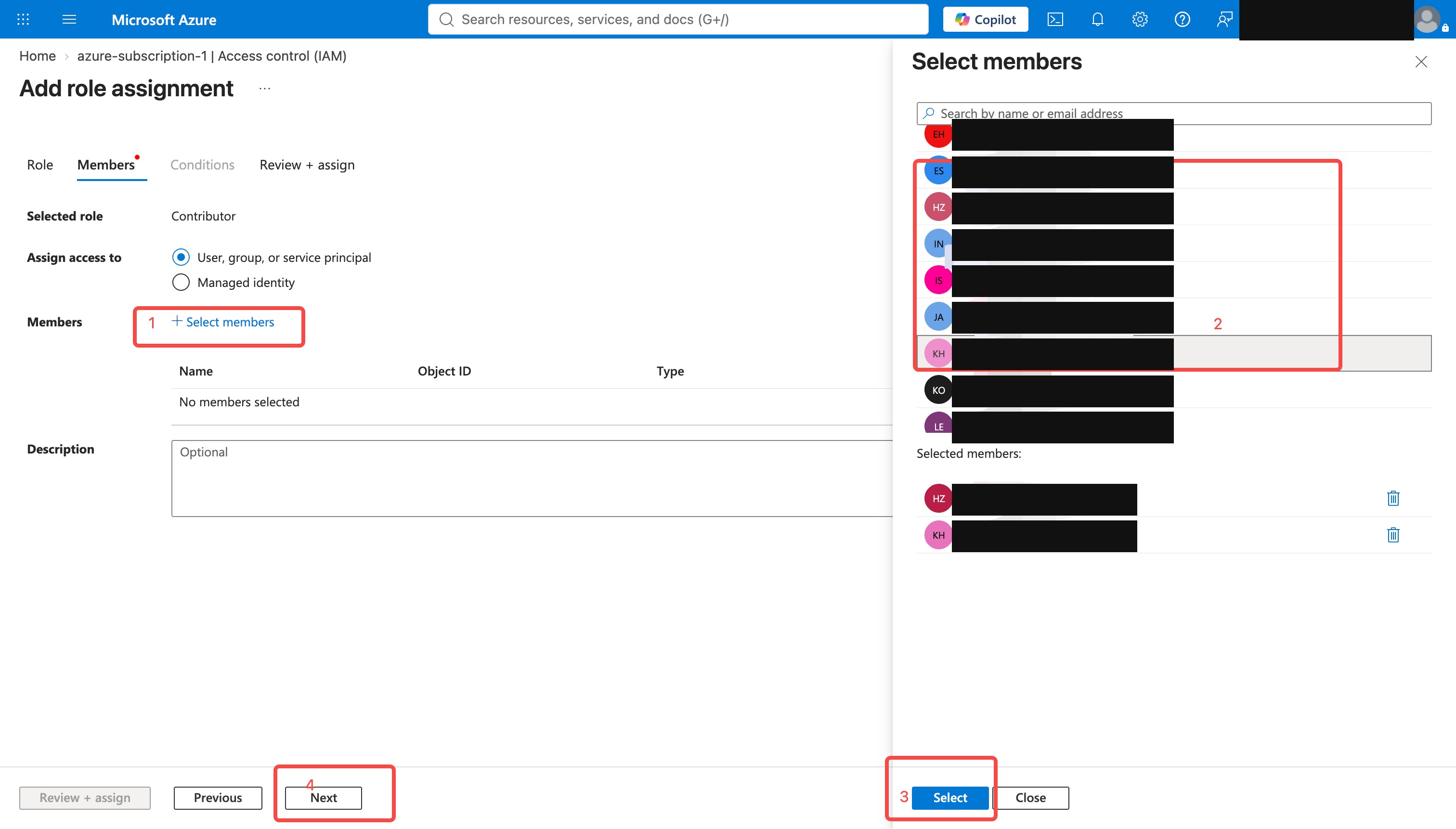
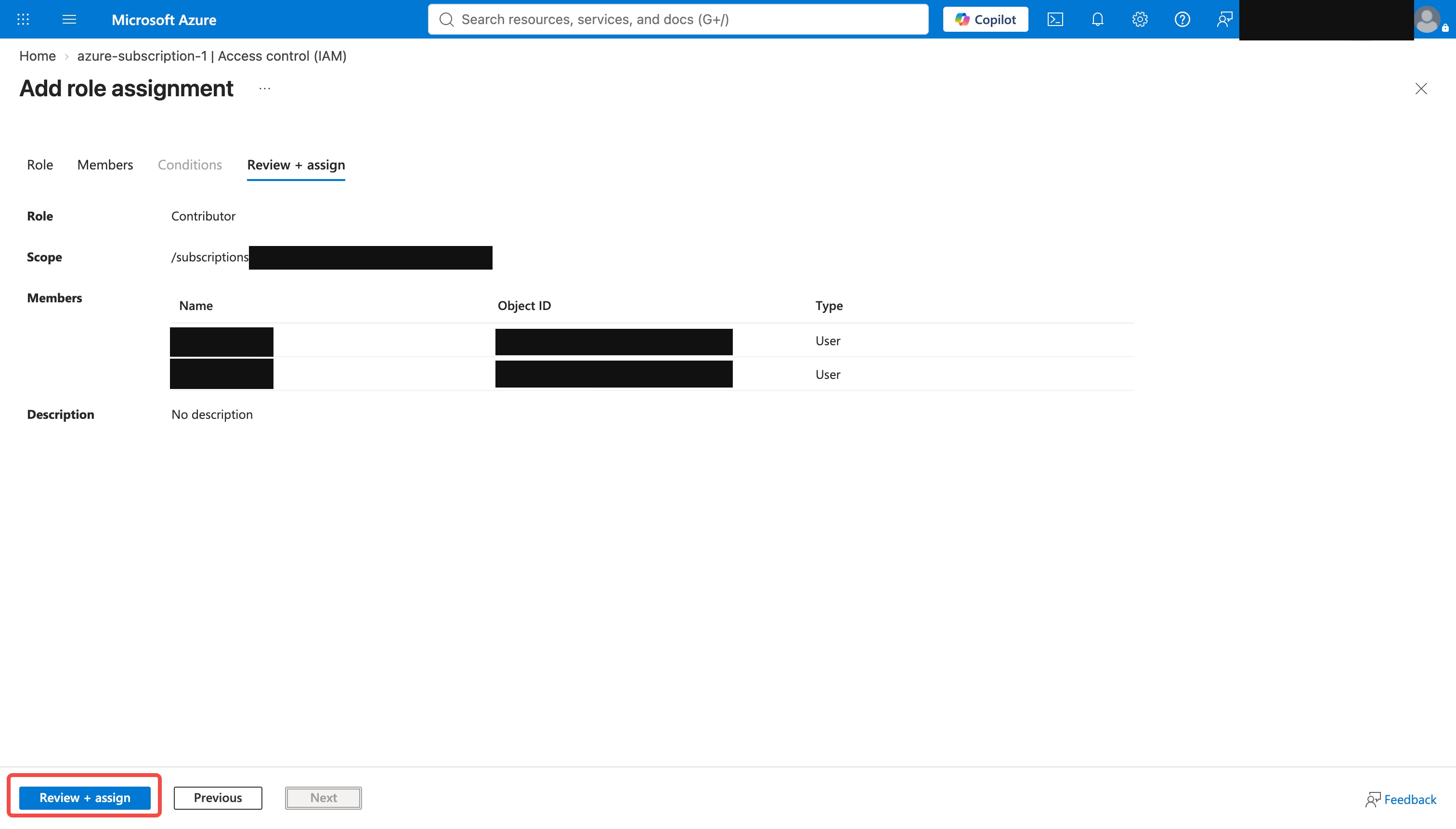
How to assign "Contributor" — this is the step people get stuck on. Done by the subscription owner: Subscription → Access control (IAM) → Add role assignment → switch to the Privileged administrator roles tab → pick the role named exactly Contributor, with no prefix.
- ⚠️ The page opens on the Job function roles tab by default, and the unprefixed "Contributor" is not there. Switch tabs first.
- ⚠️ The role list has many entries with "Contributor" in the name (xxx Contributor and so on) — none of those are the right one. Pick only the one with no prefix.
- ⚠️ A global admin does not see subscriptions by default, so only the subscription owner can do this. Once it is granted, the person deploying may need to switch directory or sign in again before the subscription appears.
- Microsoft's own walkthrough, with screenshots: https://learn.microsoft.com/en-us/azure/role-based-access-control/role-assignments-portal
① Open the subscription's [Access control (IAM)] and click [Add] → [Add role assignment]
② Switch to the [Privileged administrator roles] tab, select the row named exactly "Contributor", and click [Next]
③ On the [Members] tab, click [Select members], search for the person doing the deployment, select them and click [Select]
④ On [Review + assign], check that the role is Contributor and the member is the right person, then click [Review + assign] to finish
Credentials to Collect
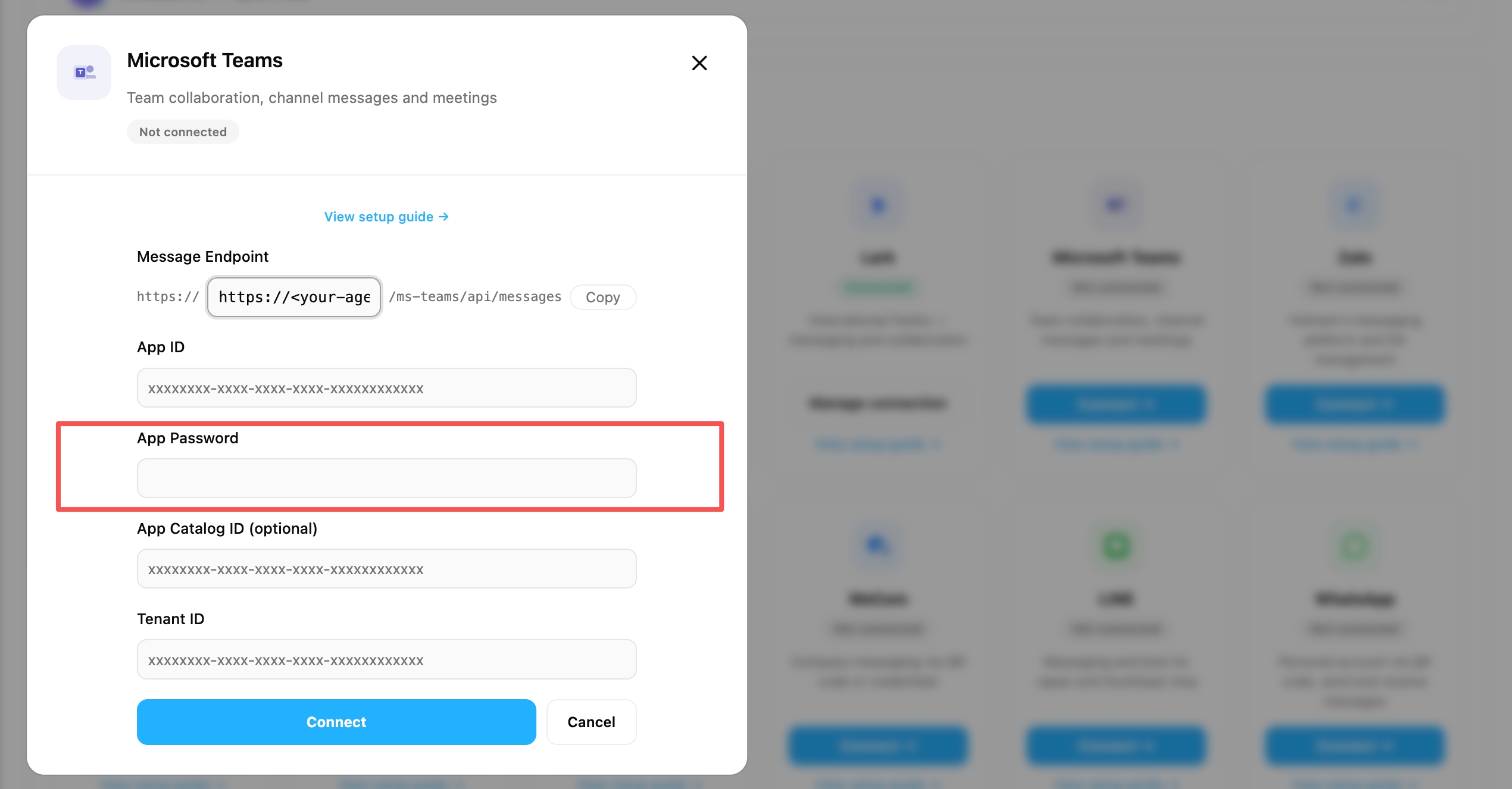
Over the course of the deployment you'll gradually collect 4 credentials, which you'll enter on the Microsoft Teams card under Channels in the OpenMax Workspace:
| Credential | Where to Find |
|---|---|
| App ID | Azure Bot → Configuration (Step 2) |
| Tenant ID | Azure Bot → Configuration (Step 2) |
| App Password | The Value of the client secret (Step 4) |
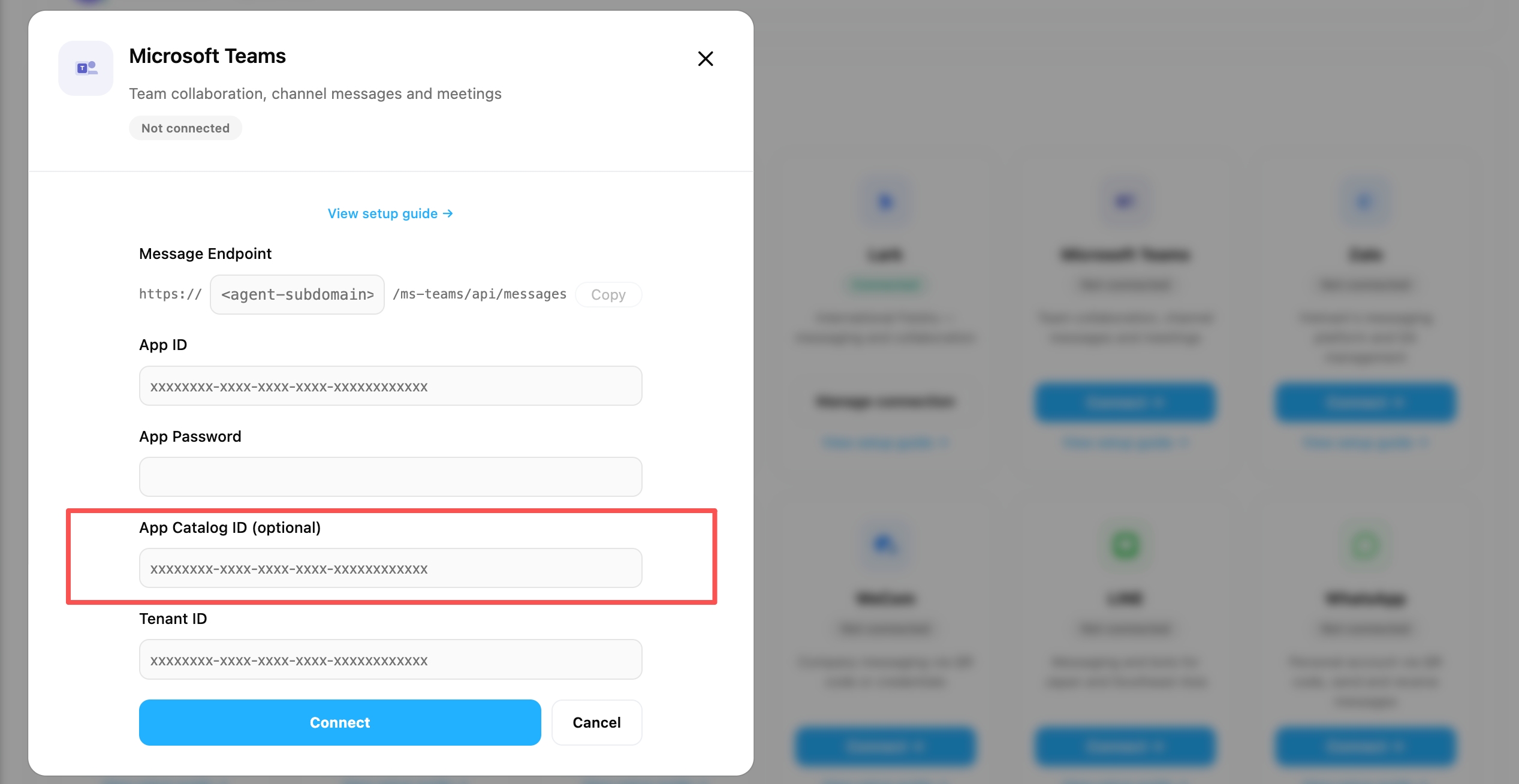
| App Catalog ID | Teams Developer Portal → Basic information (later steps) |
Step 1: Create an Azure Bot
Sign in to Azure Portal. You need an active Azure subscription — if you don't have one yet, see "Before You Begin" above.
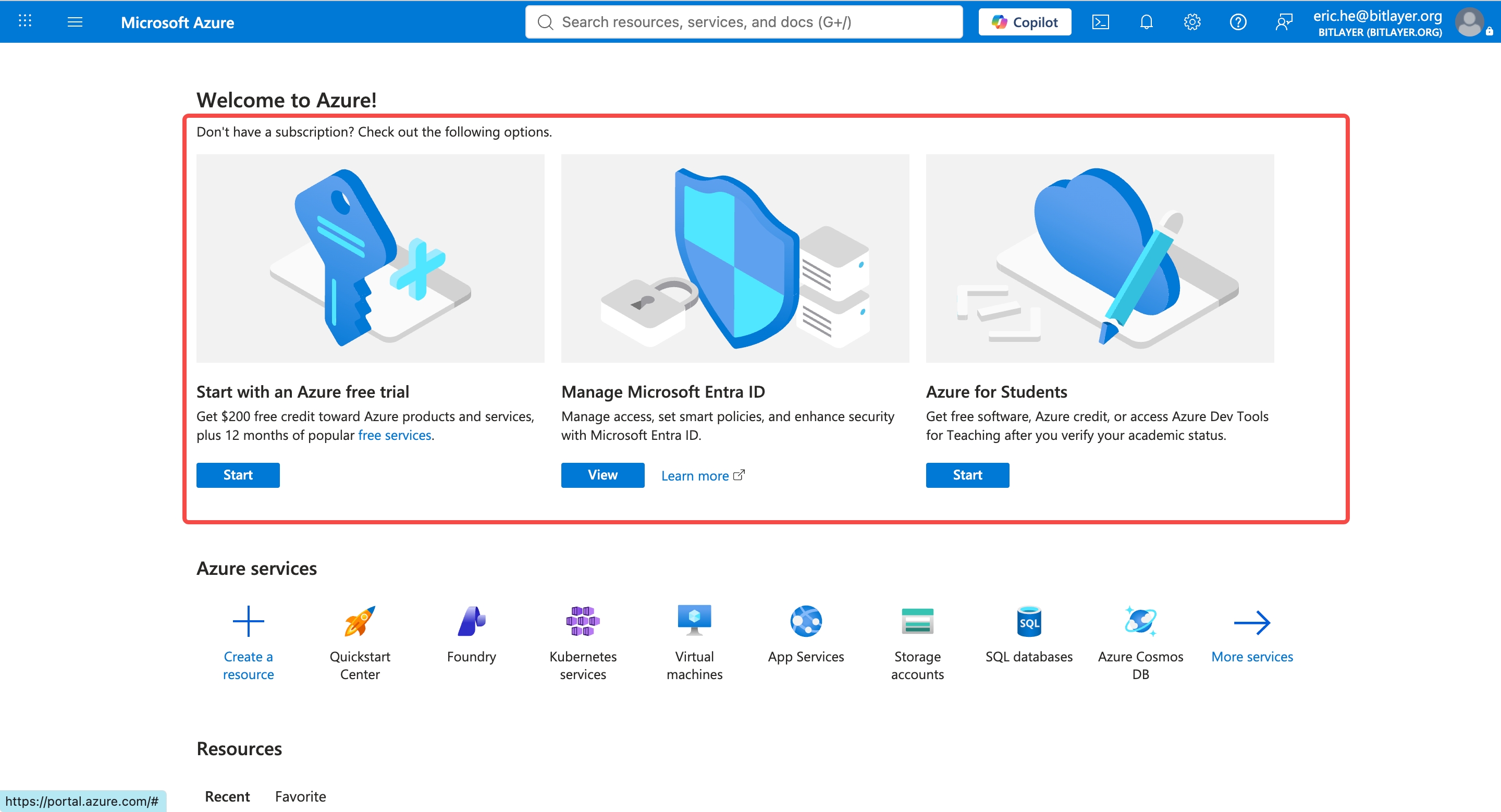
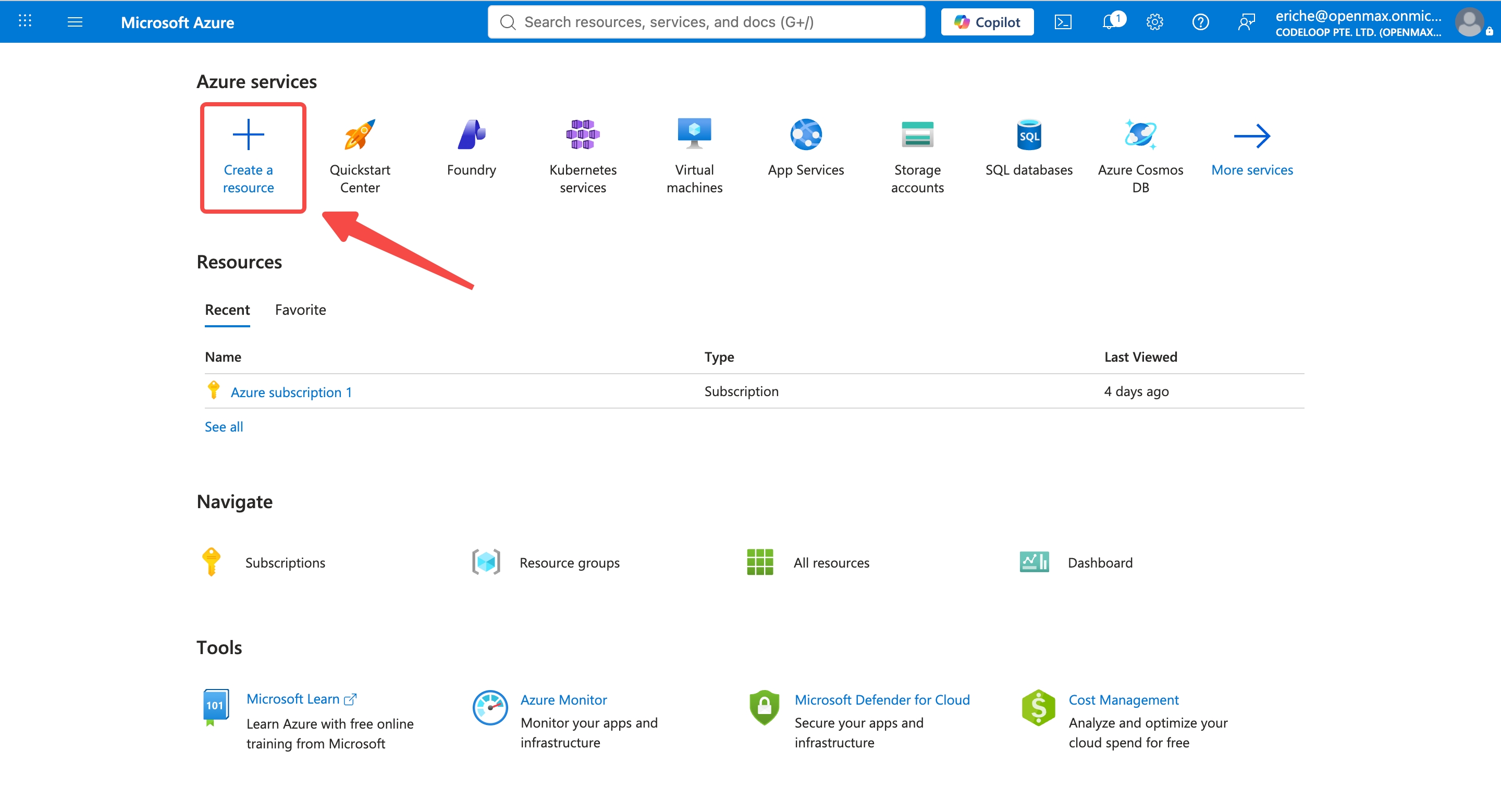
Once your subscription is ready, click Create a resource.
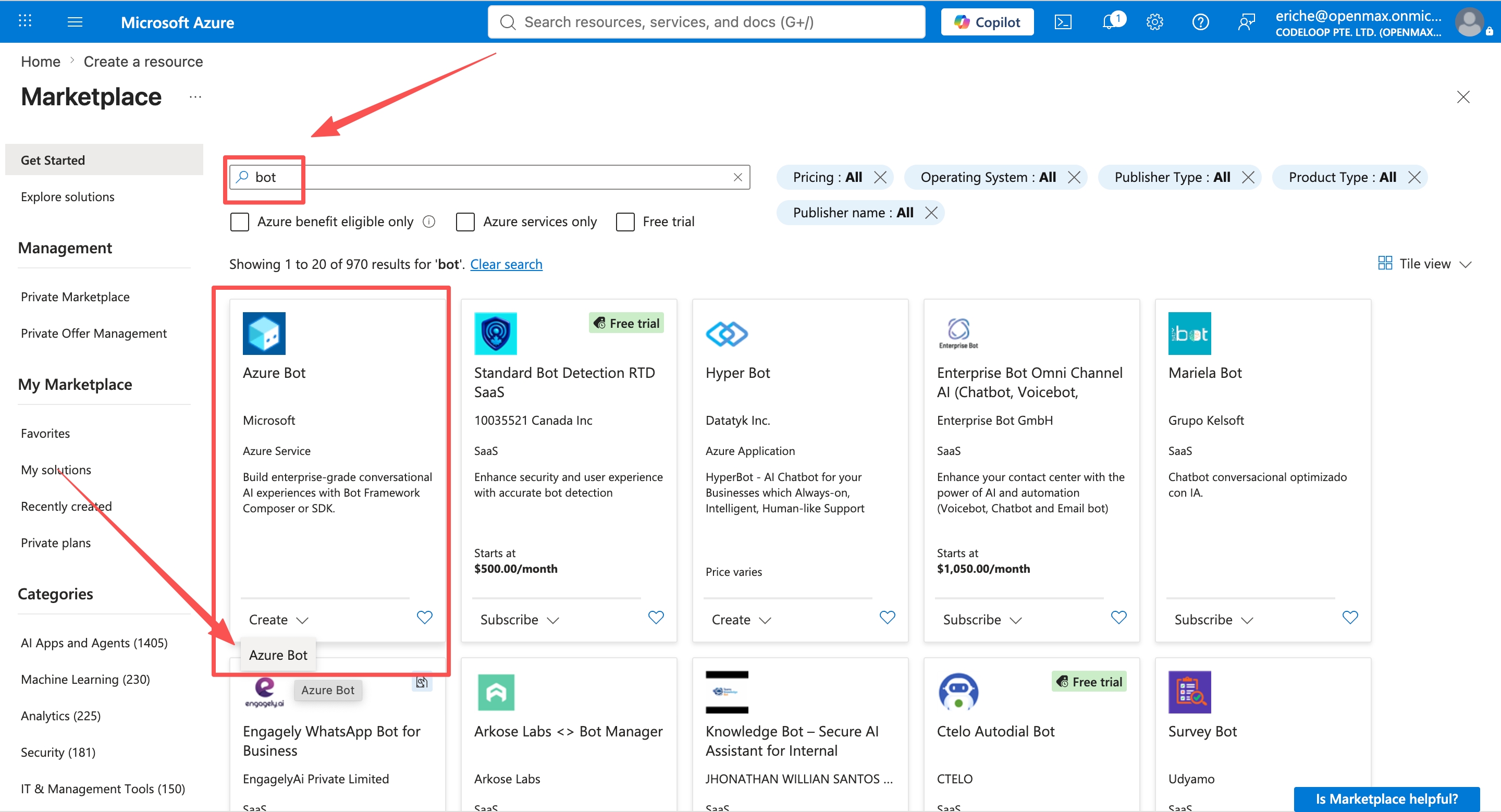
Search for bot, find Azure Bot in the Marketplace, and click Create.
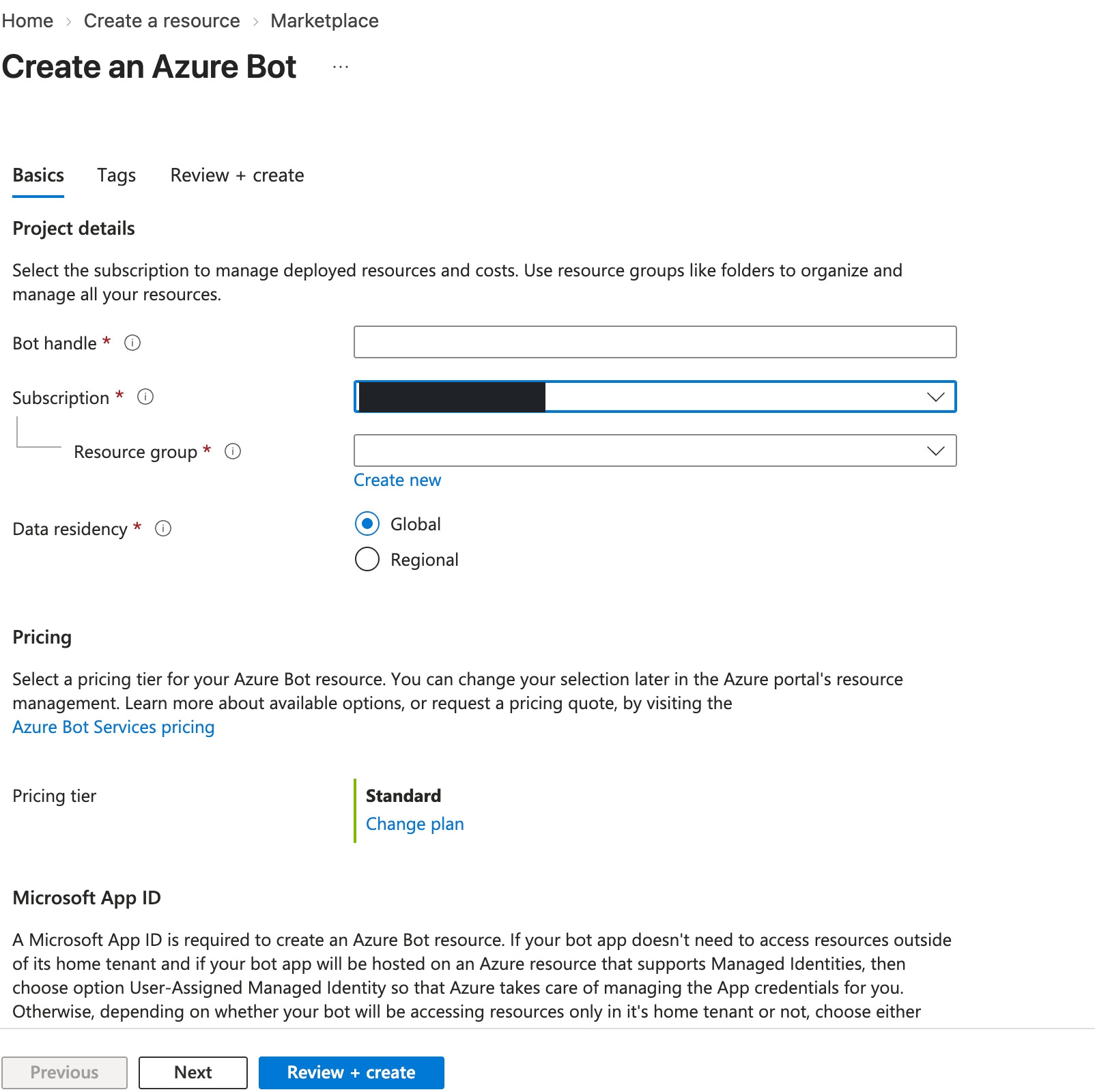
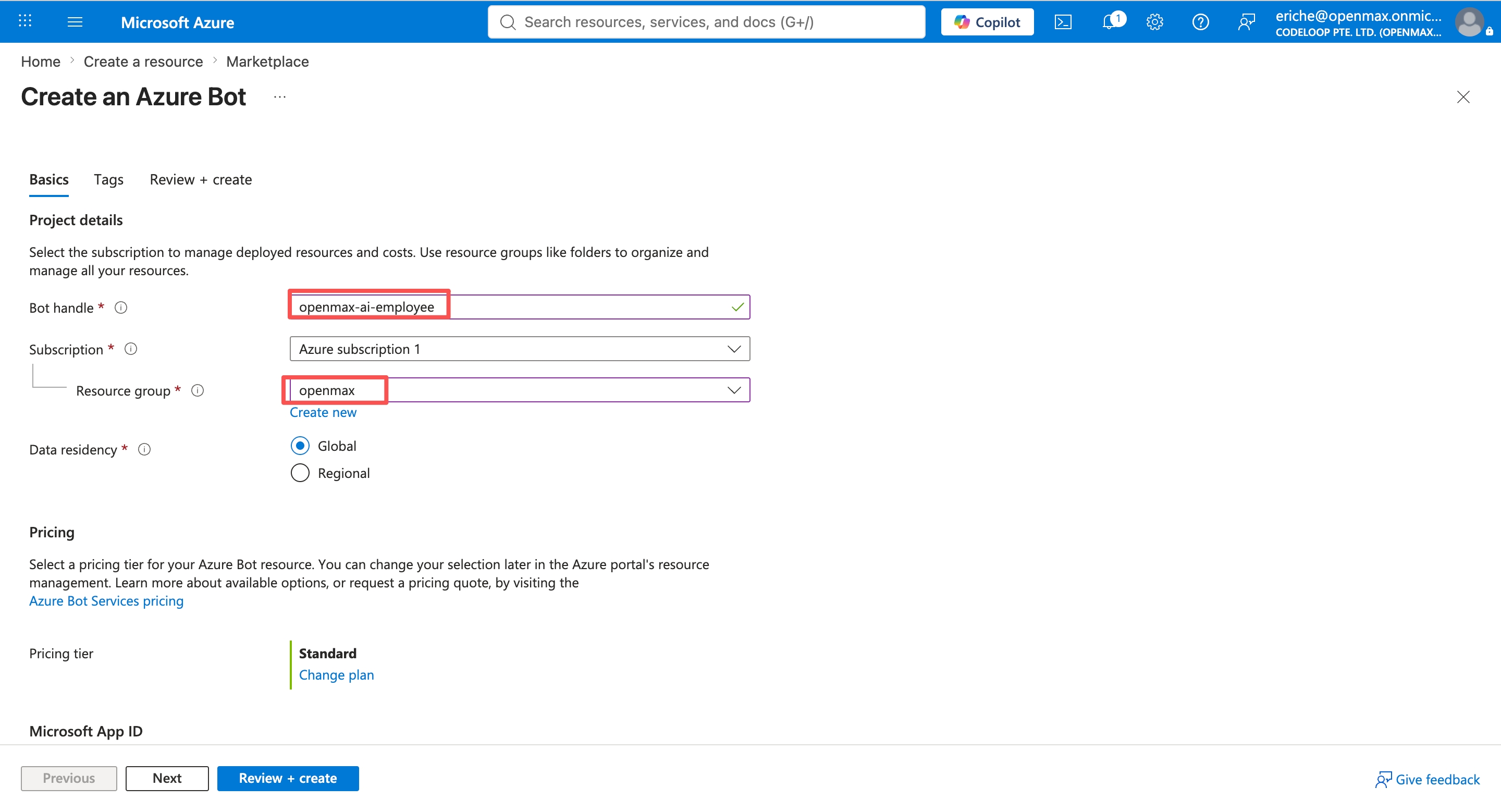
Fill in the Basics tab:
- Bot handle: a unique name, e.g.
openmax-ai-employee - Subscription: your Azure subscription
- Resource group: pick an existing one, or click Create new and name it e.g.
openmax - Data residency: Global
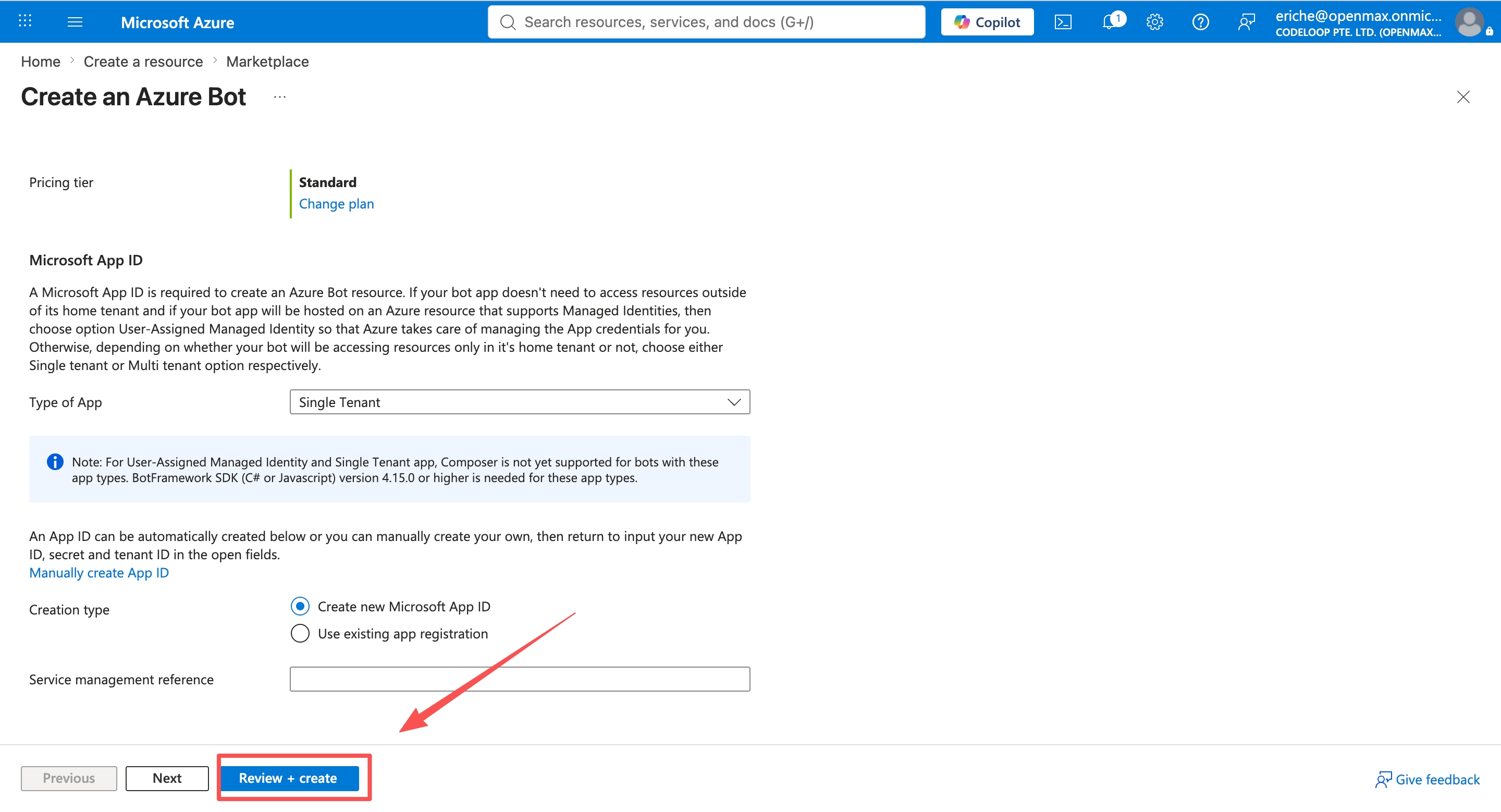
- Pricing tier: Free (F0) (the screenshot shows Standard; both tiers are billed at $0 for the Teams channel, but F0 is safer)
- Type of App: Single Tenant
- Creation type: Create new Microsoft App ID
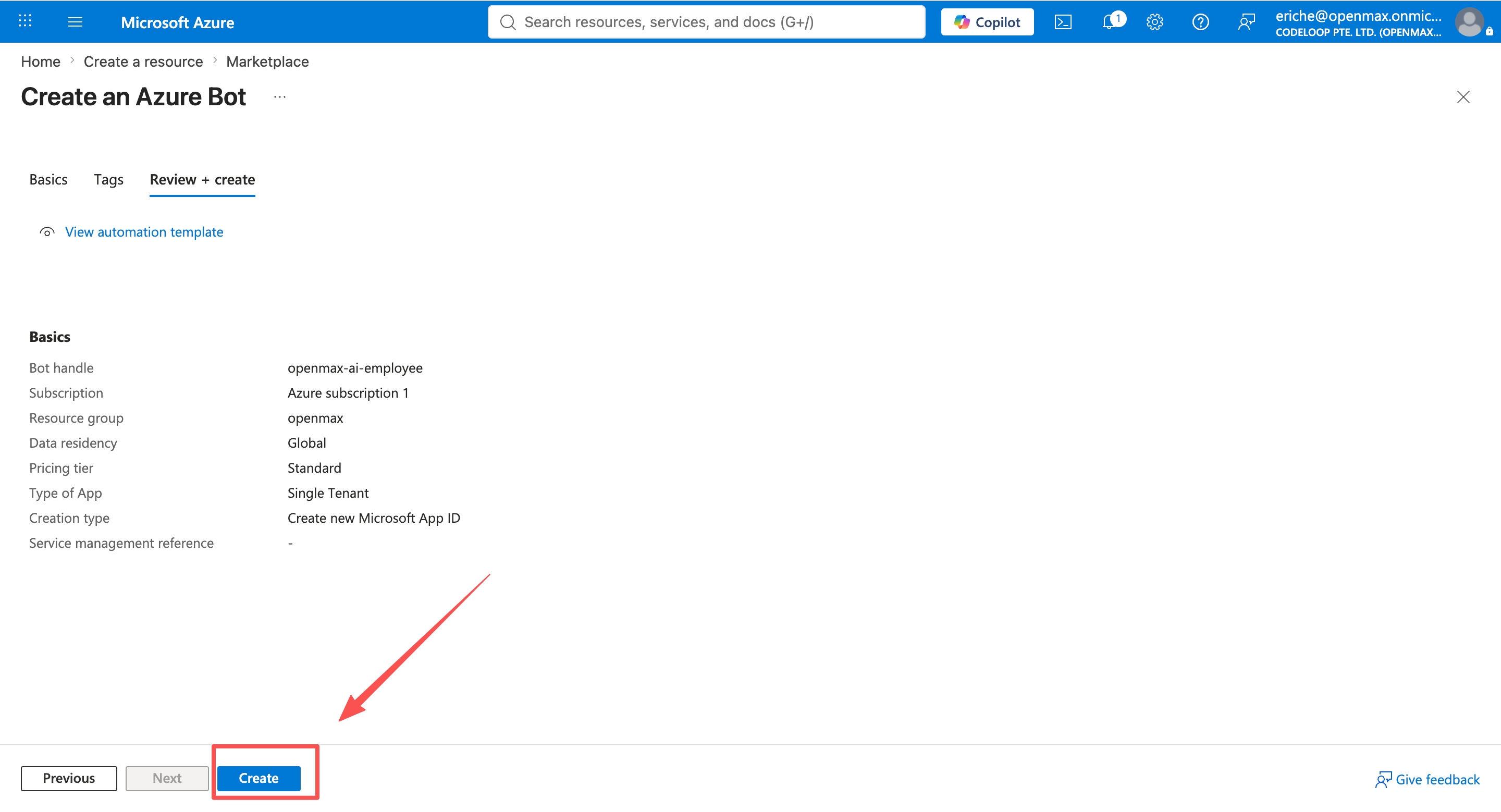
Then click Review + create, and once validation passes, click Create.
- Bot handle: a unique name, e.g.
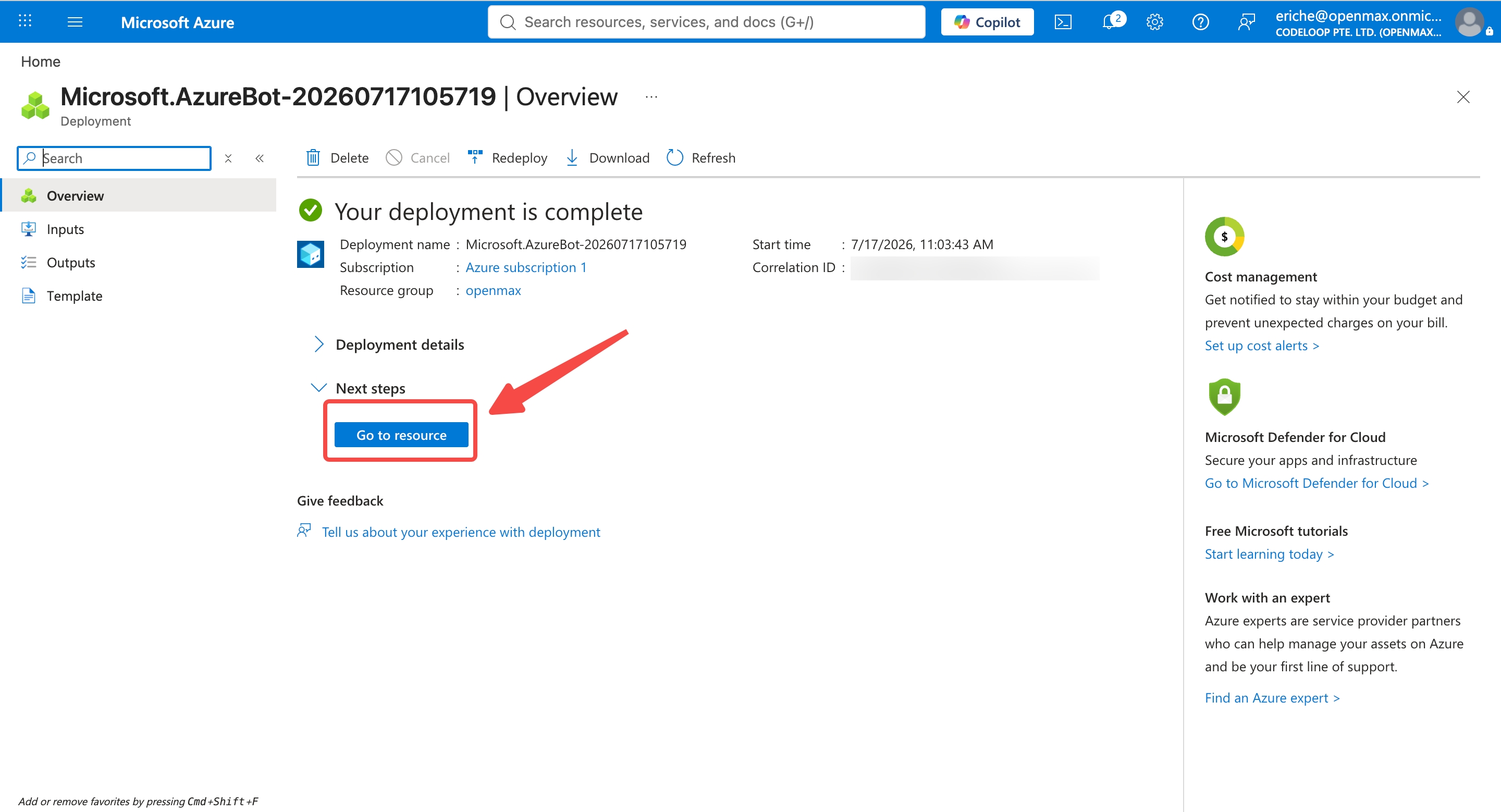
Once deployment is complete, click Go to resource.
Creating an Azure Bot automatically creates an app registration in Microsoft Entra ID — you'll use it in Steps 4 and 5.
Step 2: Configure the Messaging Endpoint and Note the Credentials
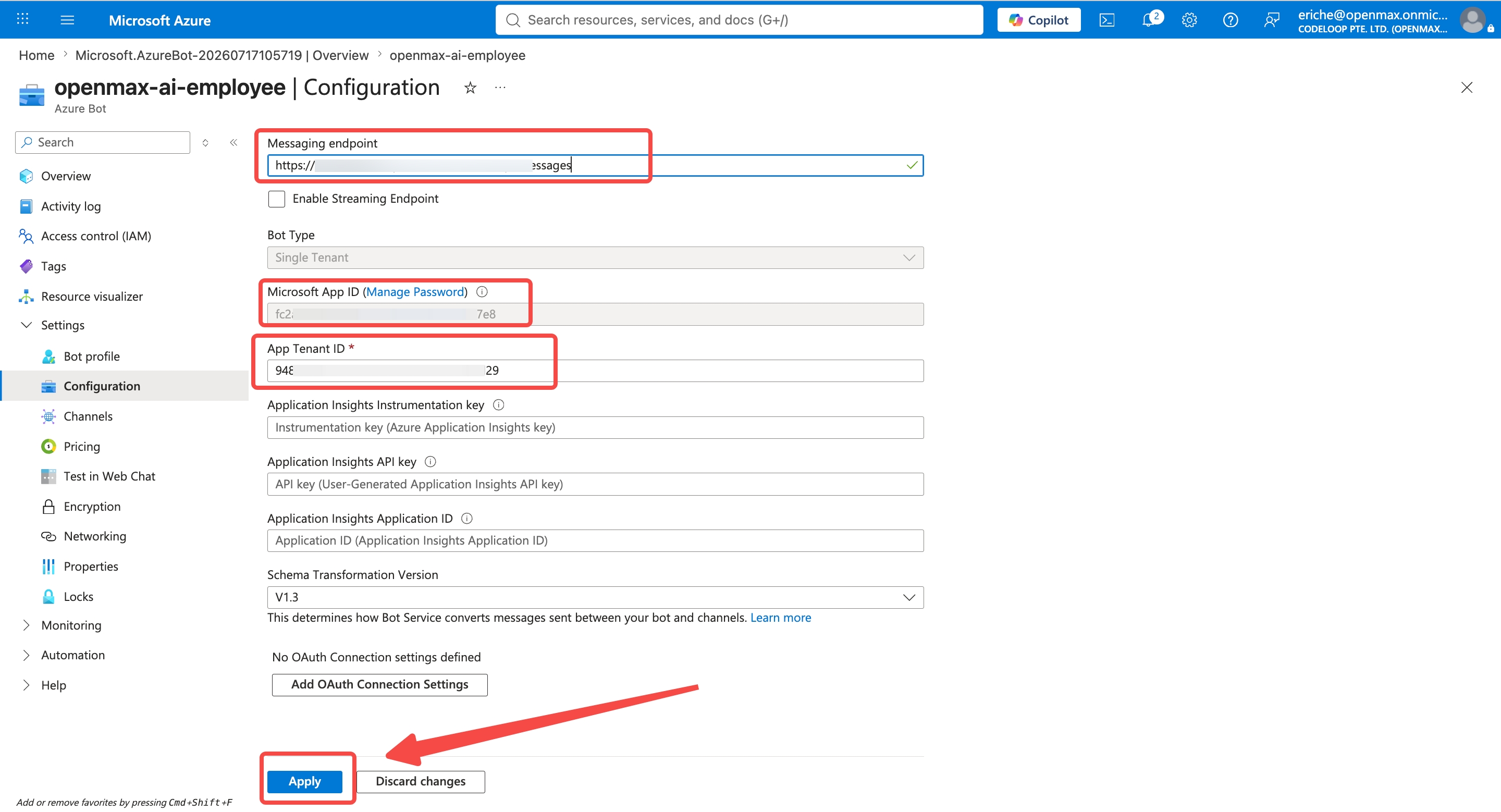
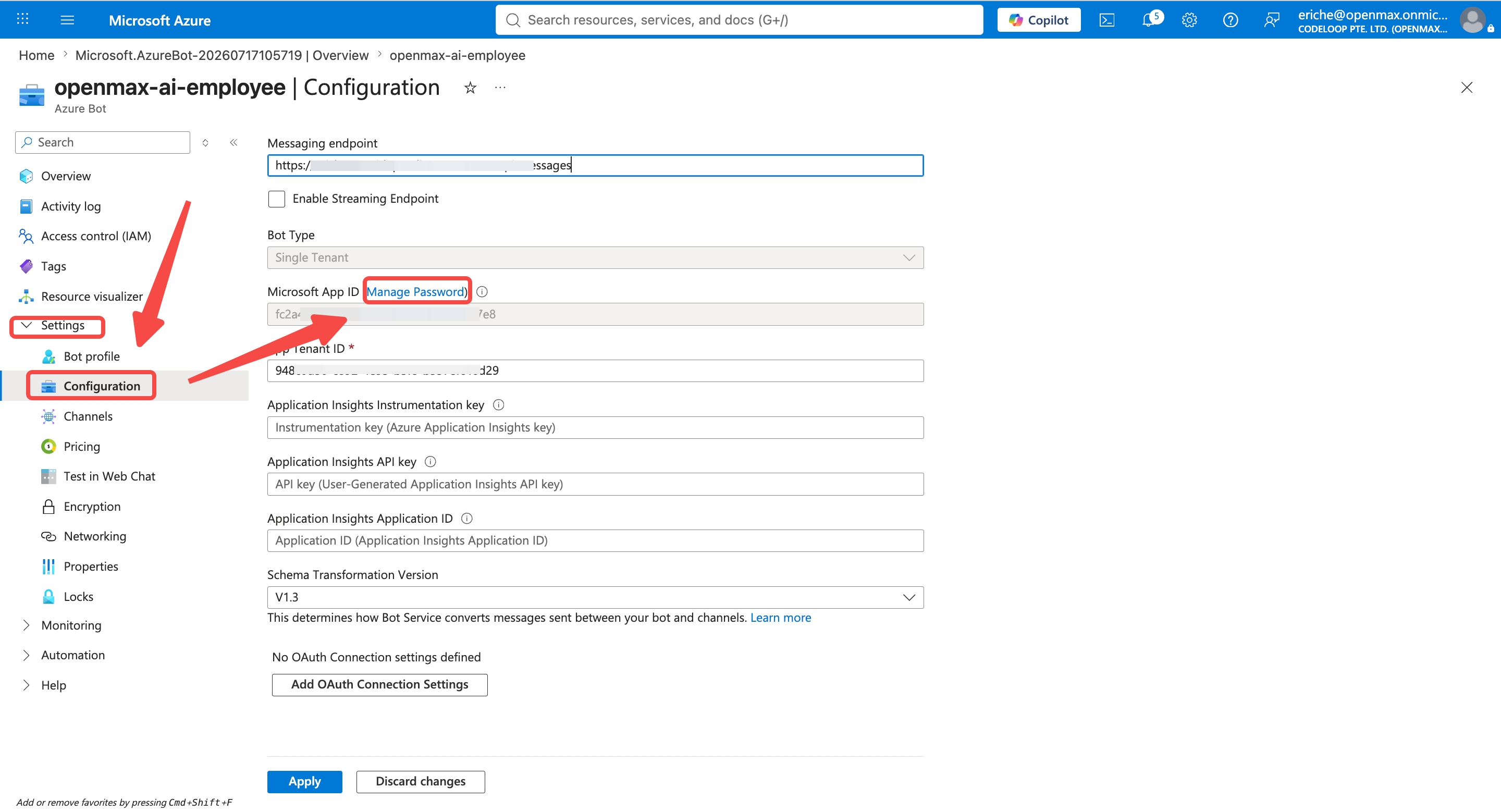
In the Azure Bot resource, click Settings → Configuration. This is where you fill in the endpoint and copy two credentials over to OpenMax.
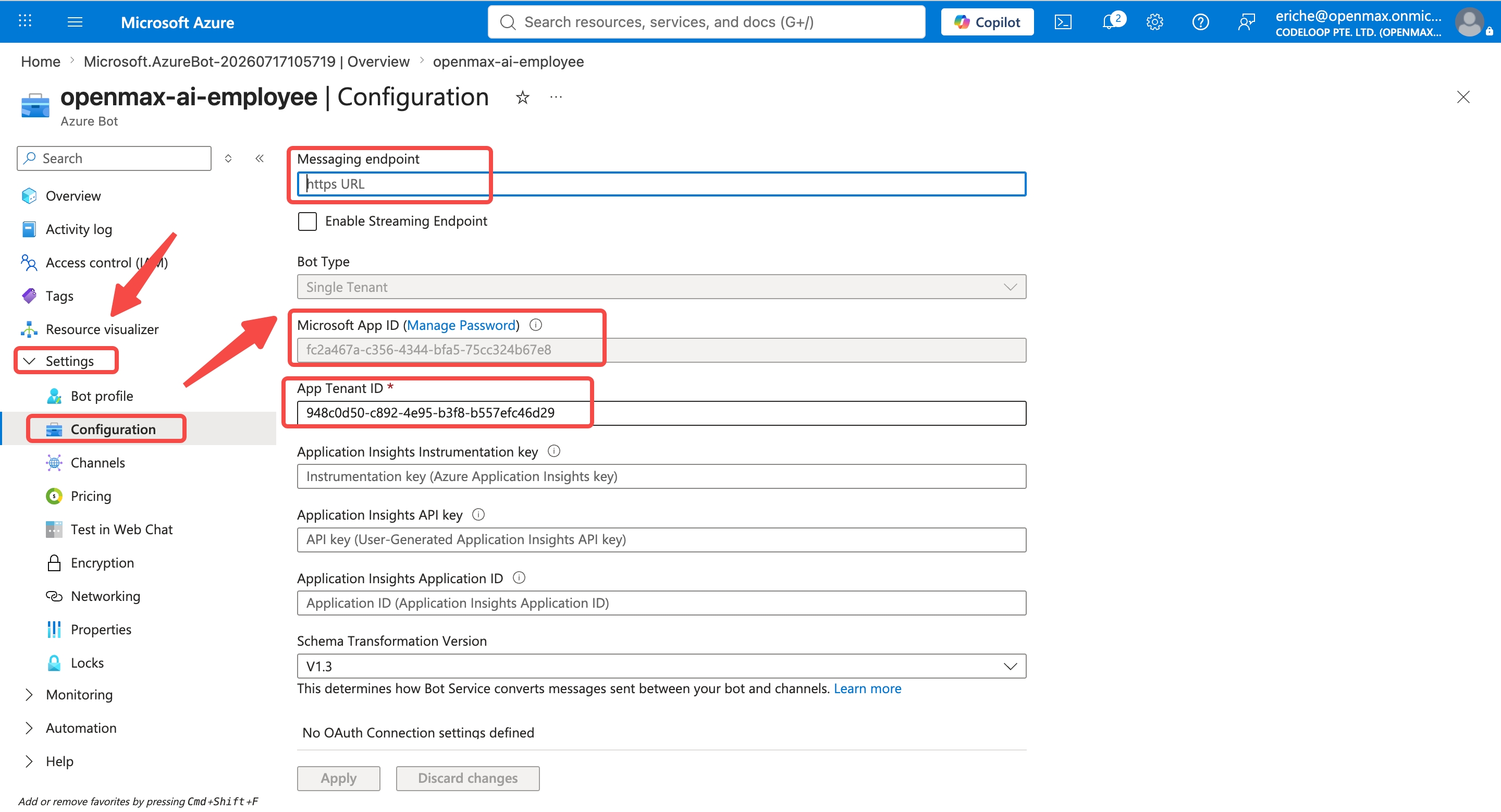
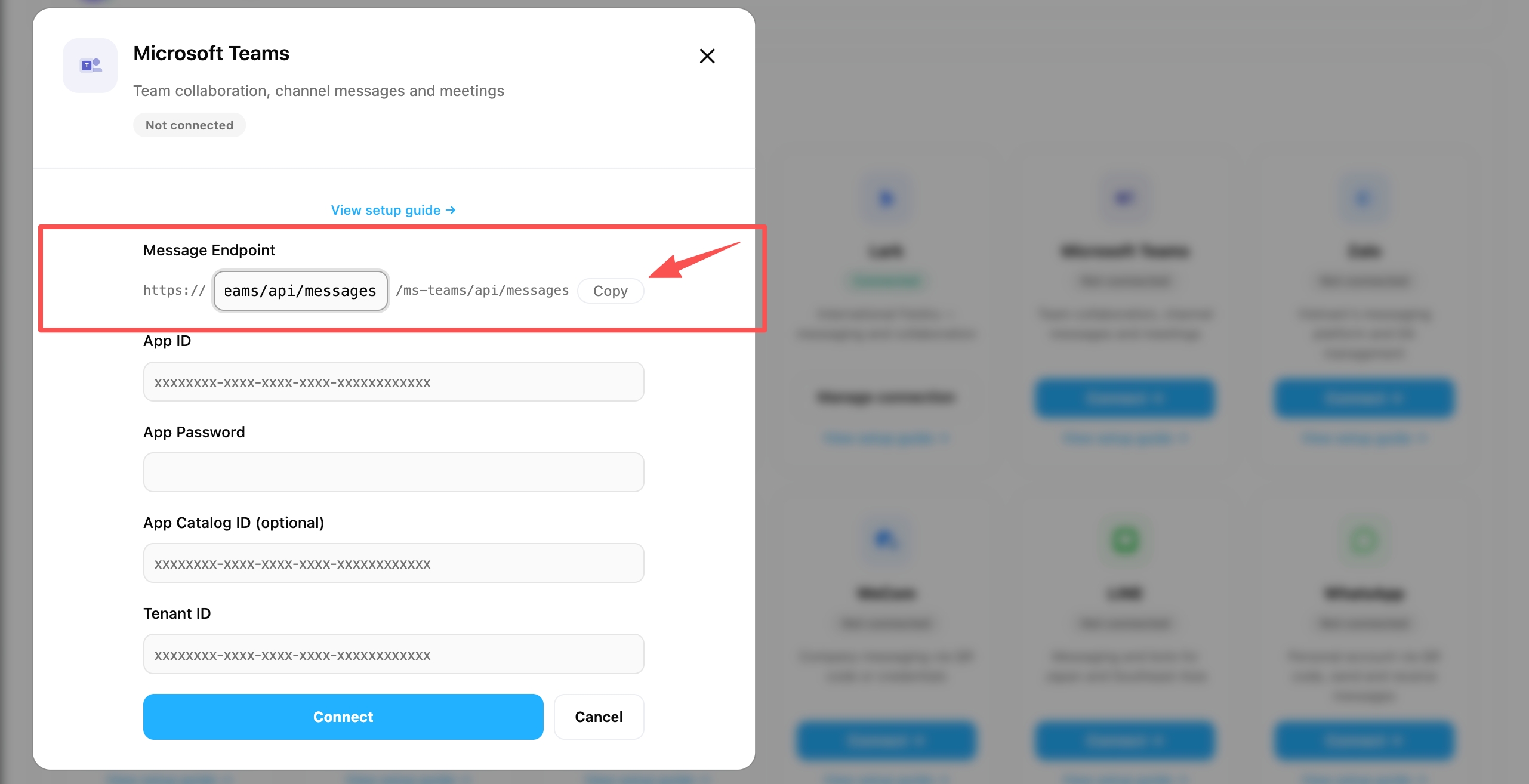
Open the OpenMax Workspace, click Channels in the left sidebar, and find the Microsoft Teams card. Copy the Messaging Endpoint URL shown on the card (in the form
https://<your-agent-domain>/ms-teams/api/messages) and paste it into the Messaging endpoint field on the Azure configuration page.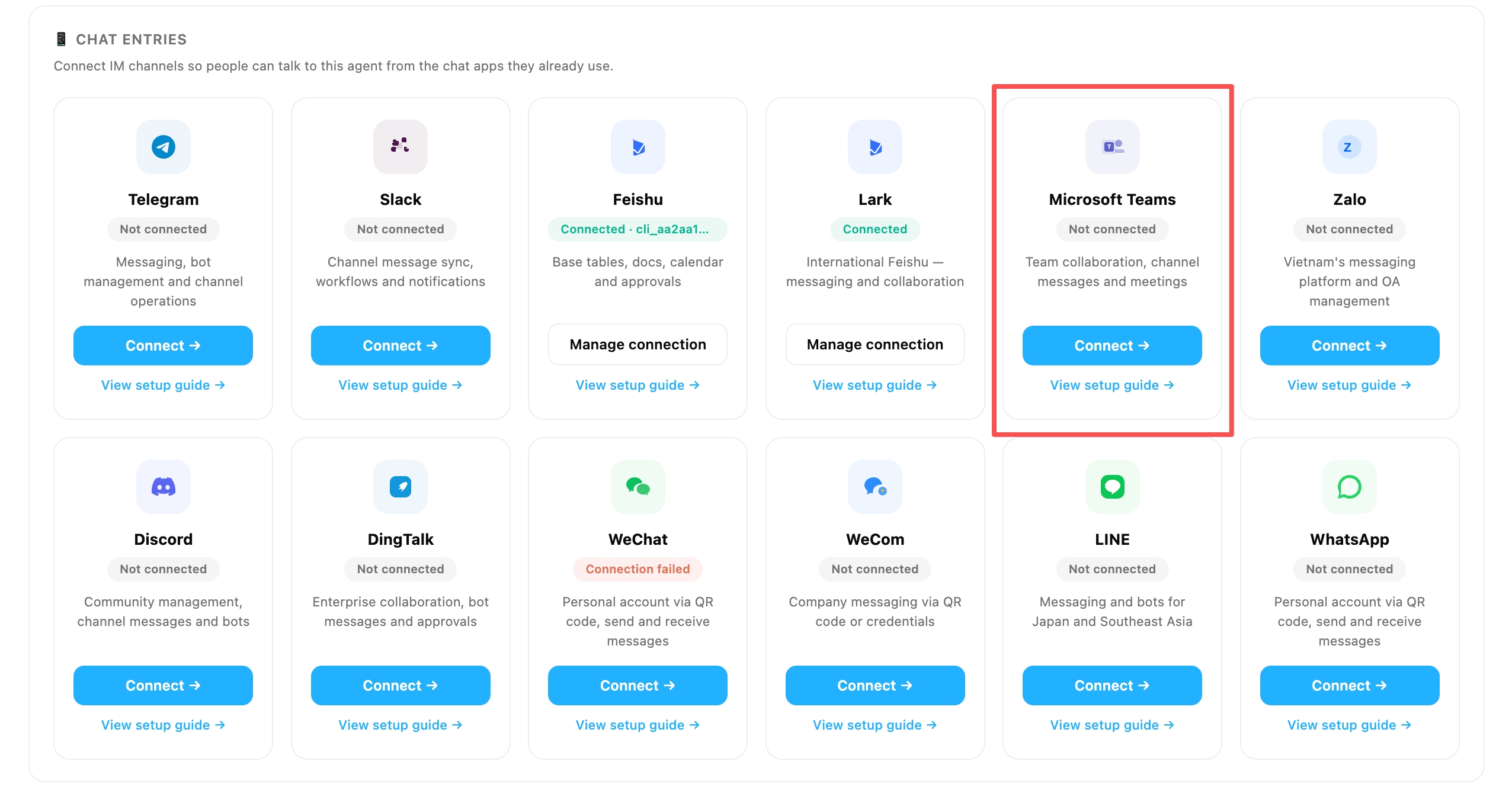
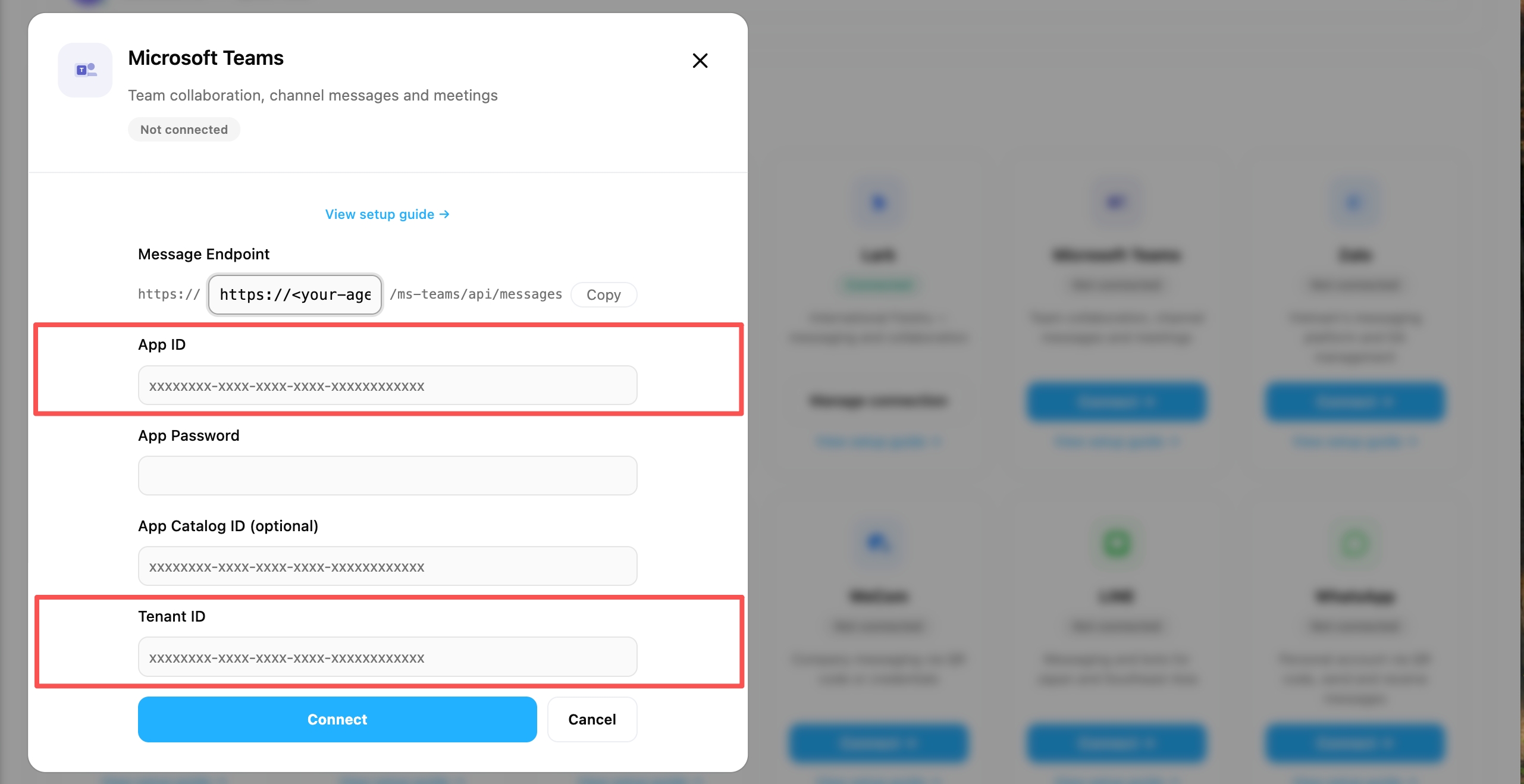
Back in Azure, note the Microsoft App ID (this is your App ID) and the App Tenant ID (this is your Tenant ID), then paste both into the matching fields on the Microsoft Teams card in the OpenMax Workspace.
Once everything is filled in, click Apply.
Step 3: Enable the Microsoft Teams Channel
Required and easy to miss — without this step, Teams will show an "Invalid Bot" error.
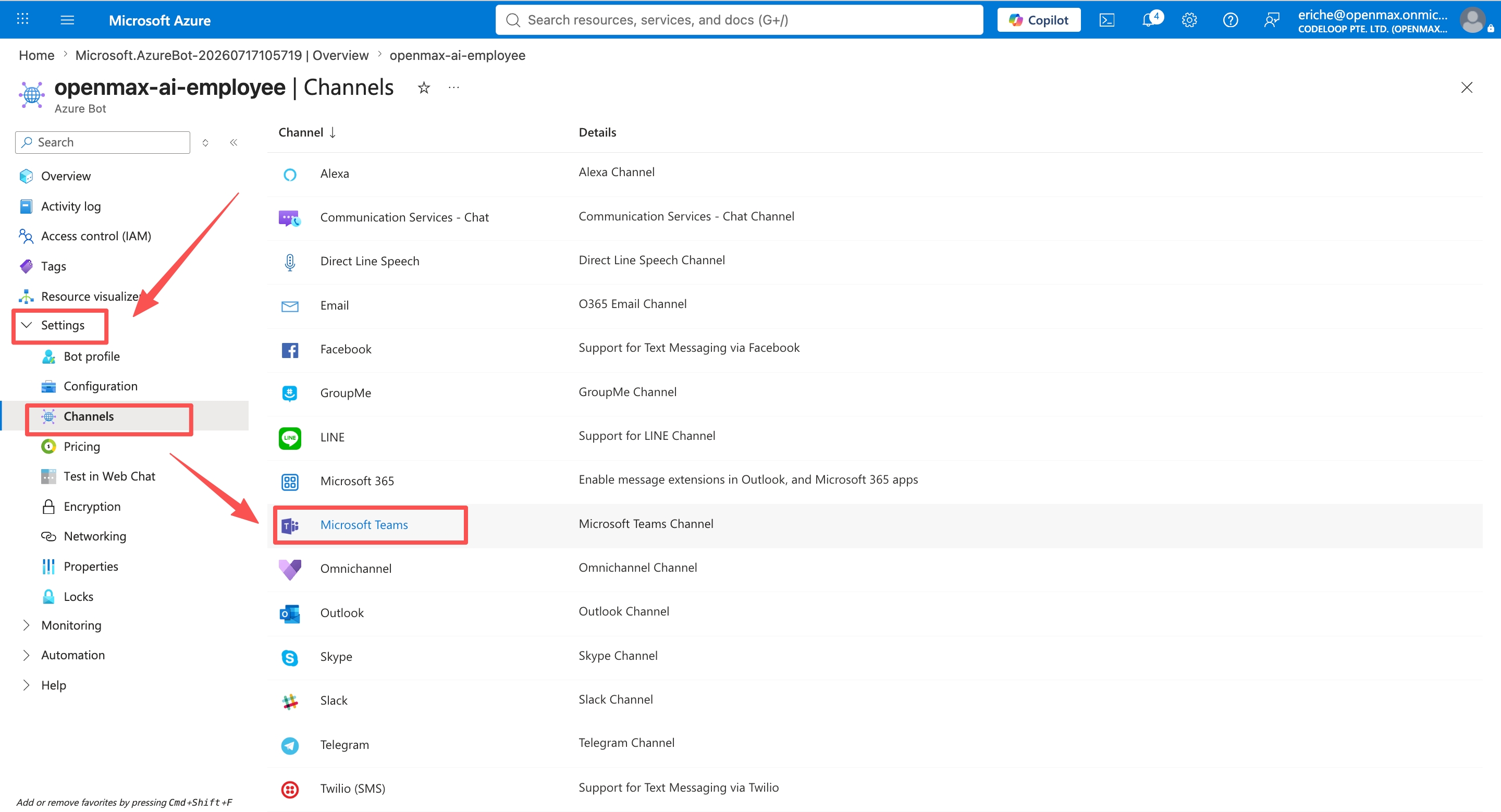
In the Azure Bot resource, click Settings → Channels and find Microsoft Teams.
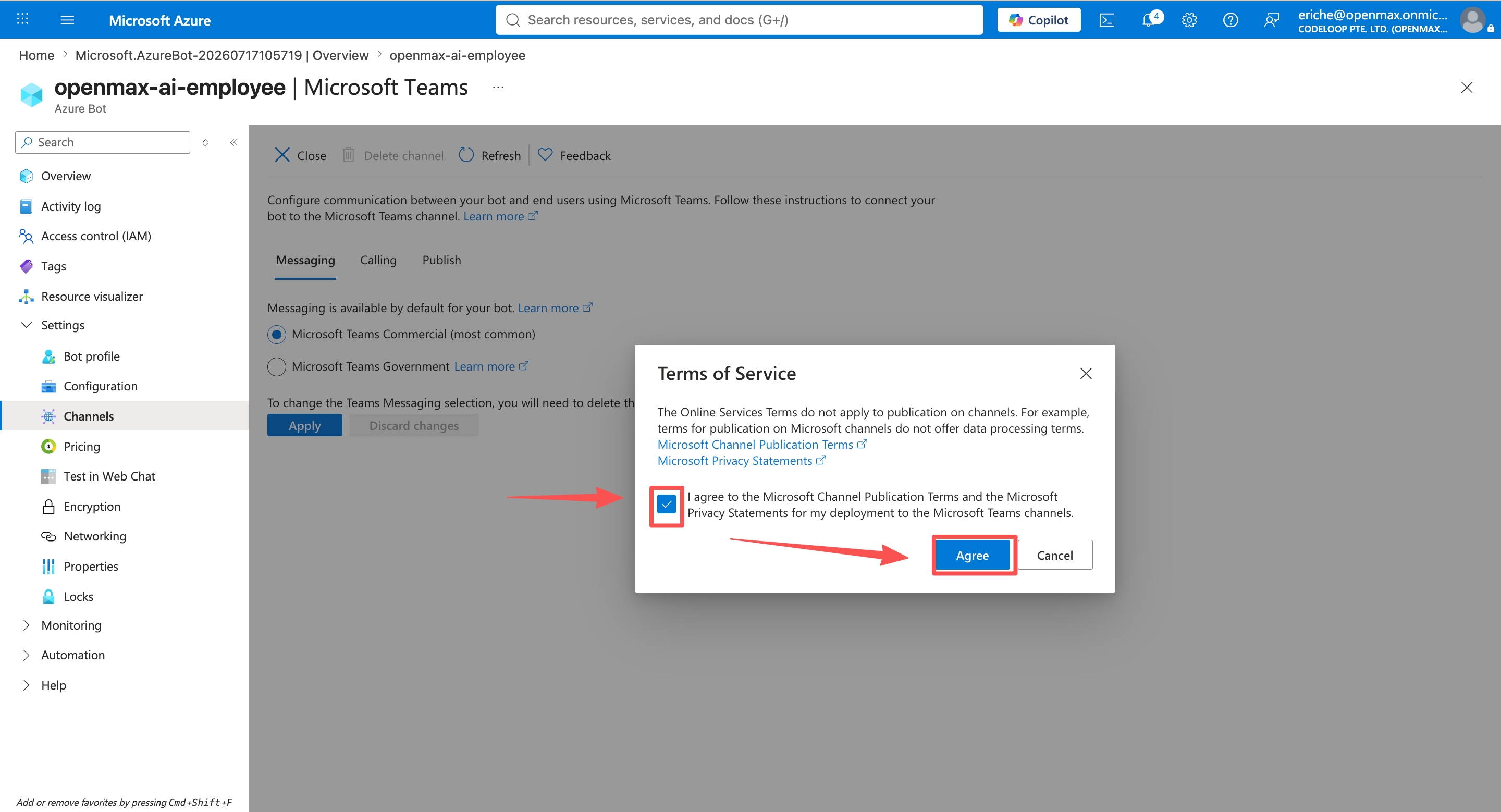
Read and accept the Terms of Service (tick the box, then click Agree).
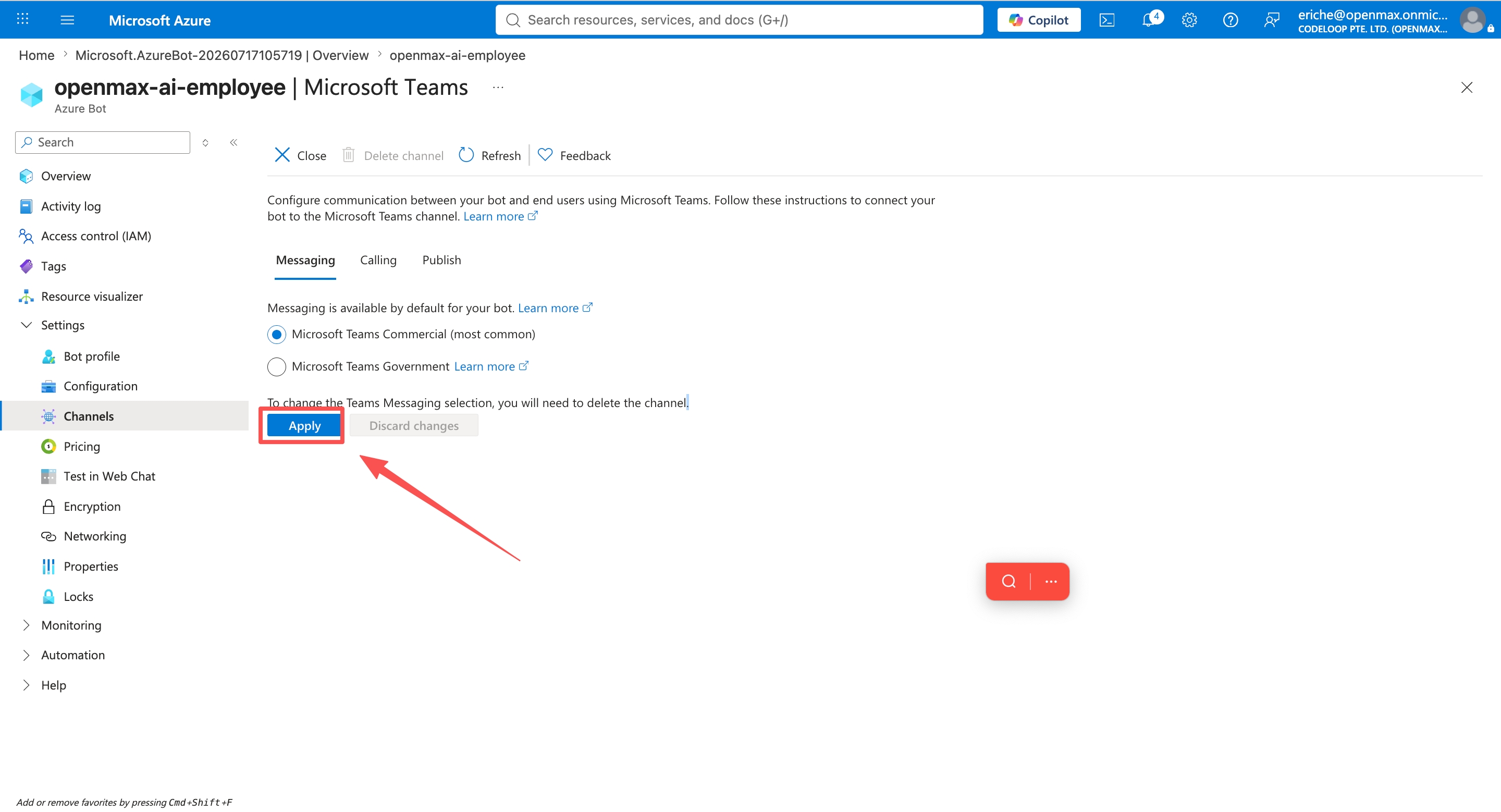
Click Apply. The Microsoft Teams channel should then show as Running in the channel list.
Step 4: Create a Client Secret (App Password)
Go to Settings → Configuration and click Manage Password next to the Microsoft App ID (this opens the "Certificates & secrets" page of the app registration).
Click New client secret, enter a description (e.g.
OpenMax Bot Secret), choose an expiration period, and click Add.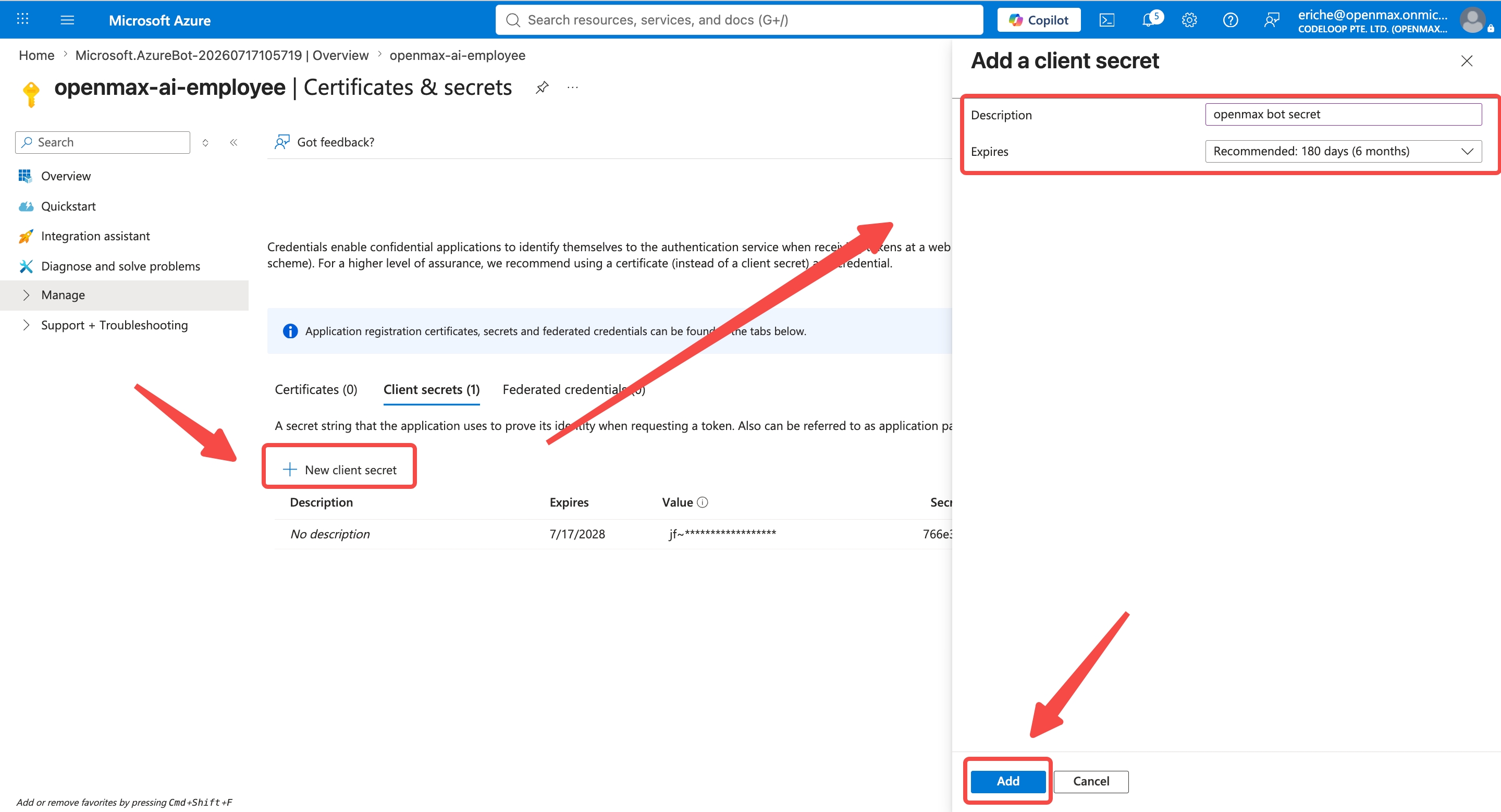
Copy the secret "Value" immediately — it is only shown once, and cannot be viewed again after you leave the page. This is your App Password — save it safely first, then paste it into the App Password field under Channels in the OpenMax Workspace.
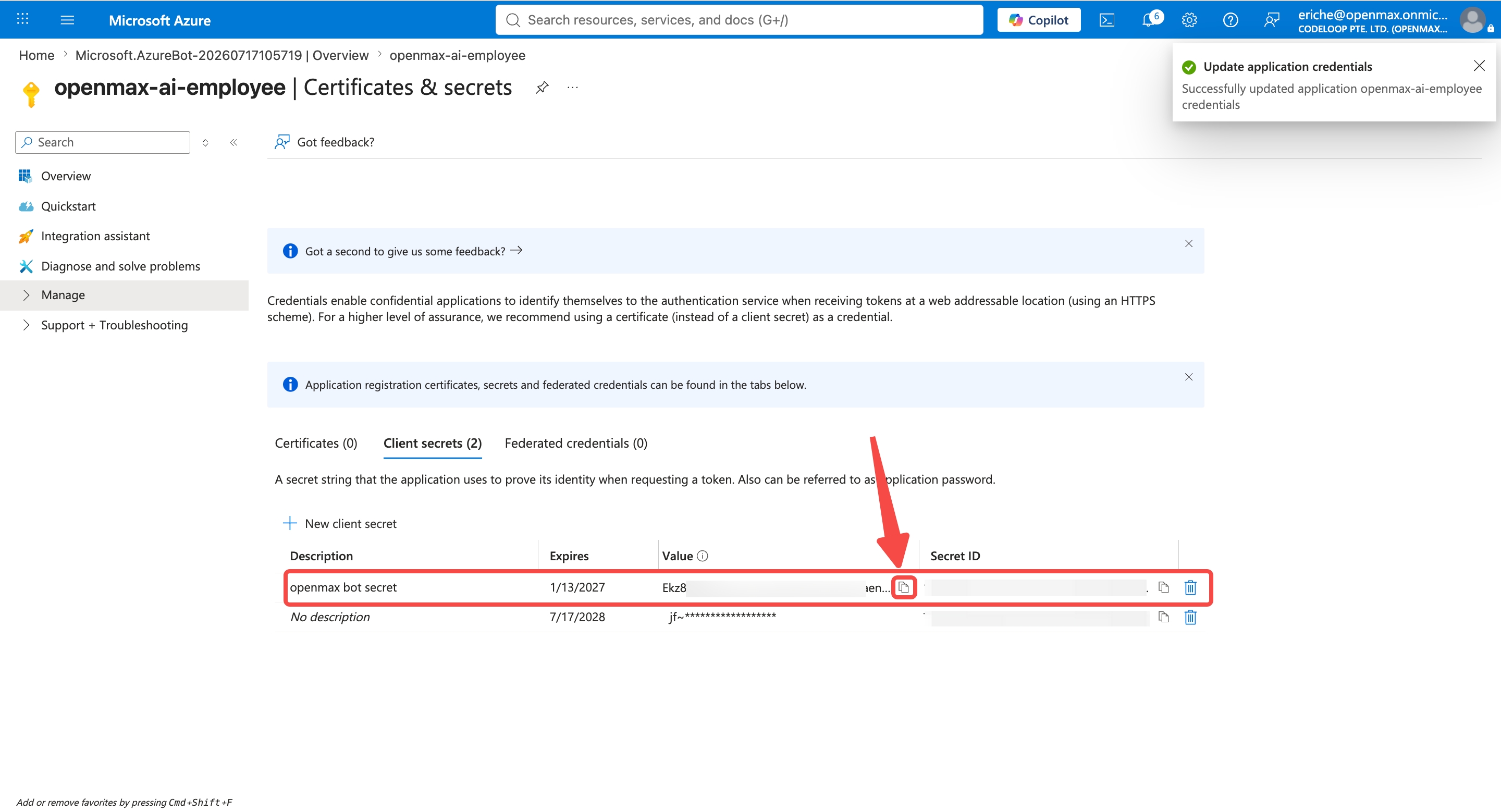
⚠️ Be sure to copy the Value column, not the Secret ID.
Step 5: Configure Graph API Permissions
On the app registration page, click Manage → Manifest (if prompted, select Microsoft Graph App Manifest (New)). Find
"requiredResourceAccess": []and paste the following content inside the[]: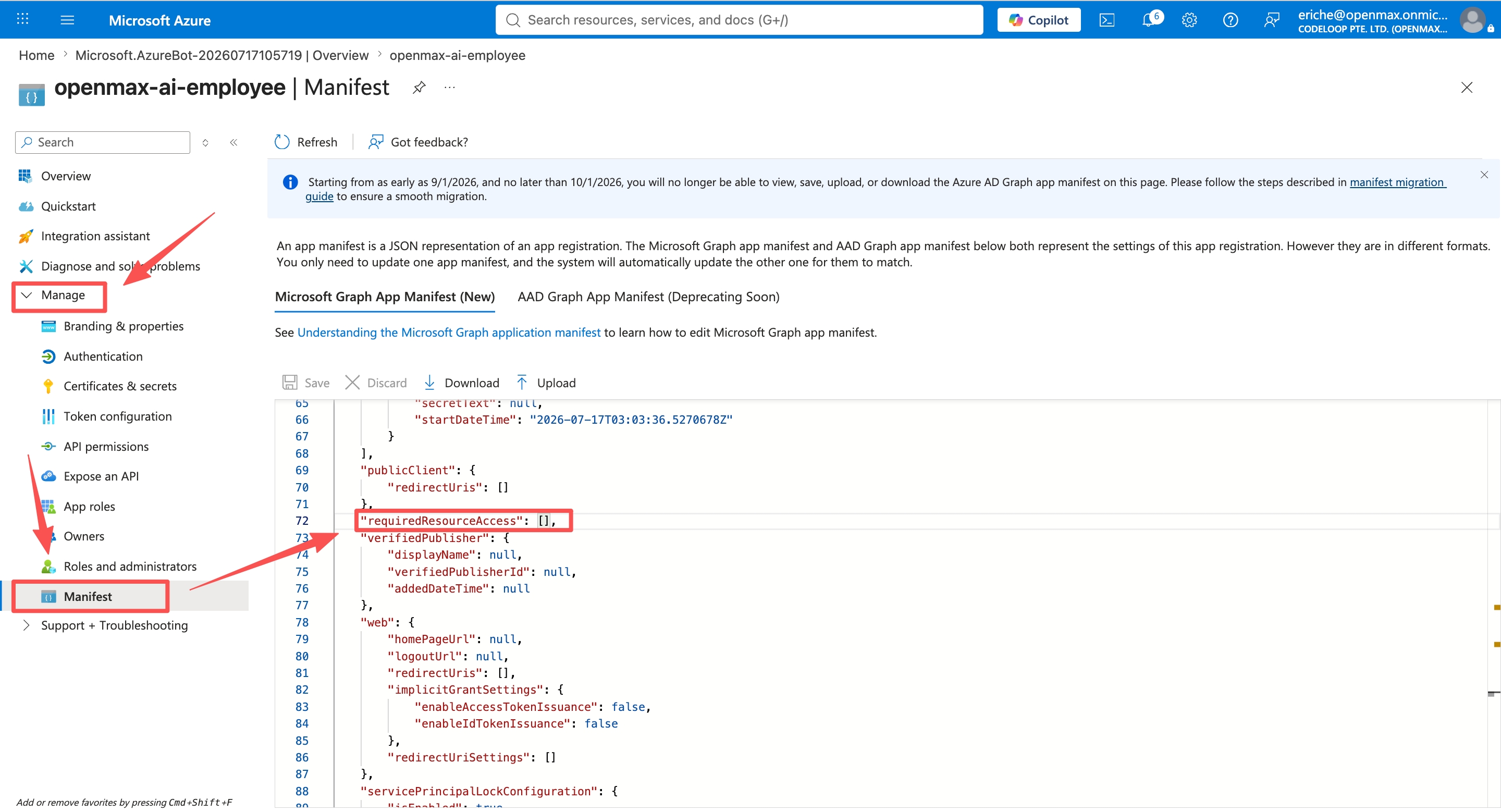
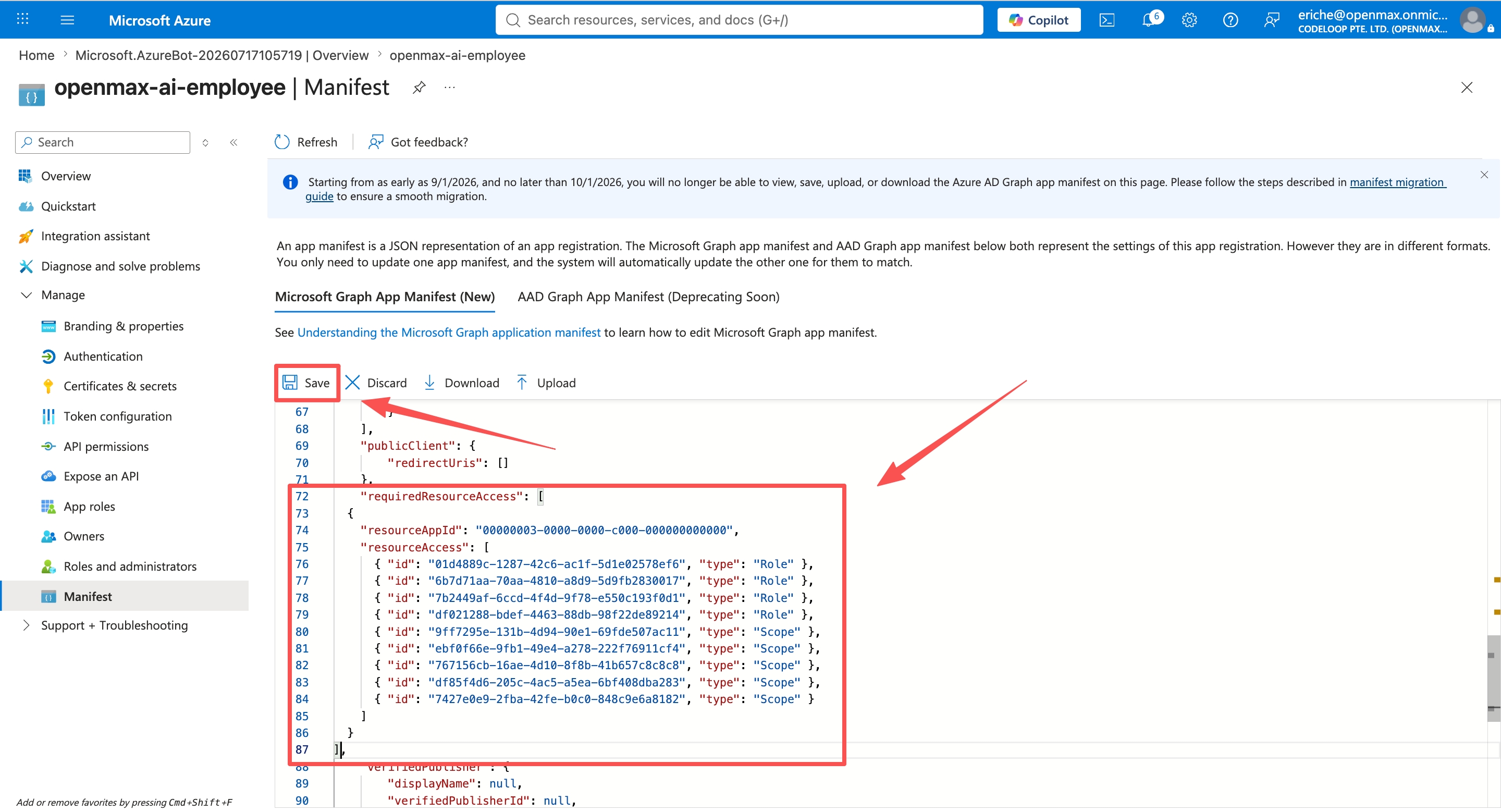
[
  {
    "resourceAppId": "00000003-0000-0000-c000-000000000000",
    "resourceAccess": [
      { "id": "01d4889c-1287-42c6-ac1f-5d1e02578ef6", "type": "Role" },
      { "id": "6b7d71aa-70aa-4810-a8d9-5d9fb2830017", "type": "Role" },
      { "id": "7b2449af-6ccd-4f4d-9f78-e550c193f0d1", "type": "Role" },
      { "id": "df021288-bdef-4463-88db-98f22de89214", "type": "Role" },
      { "id": "9ff7295e-131b-4d94-90e1-69fde507ac11", "type": "Scope" },
      { "id": "ebf0f66e-9fb1-49e4-a278-222f76911cf4", "type": "Scope" },
      { "id": "767156cb-16ae-4d10-8f8b-41b657c8c8c8", "type": "Scope" },
      { "id": "df85f4d6-205c-4ac5-a5ea-6bf408dba283", "type": "Scope" },
      { "id": "7427e0e9-2fba-42fe-b0c0-848c9e6a8182", "type": "Scope" }
    ]
  }
]
After pasting, click Save.
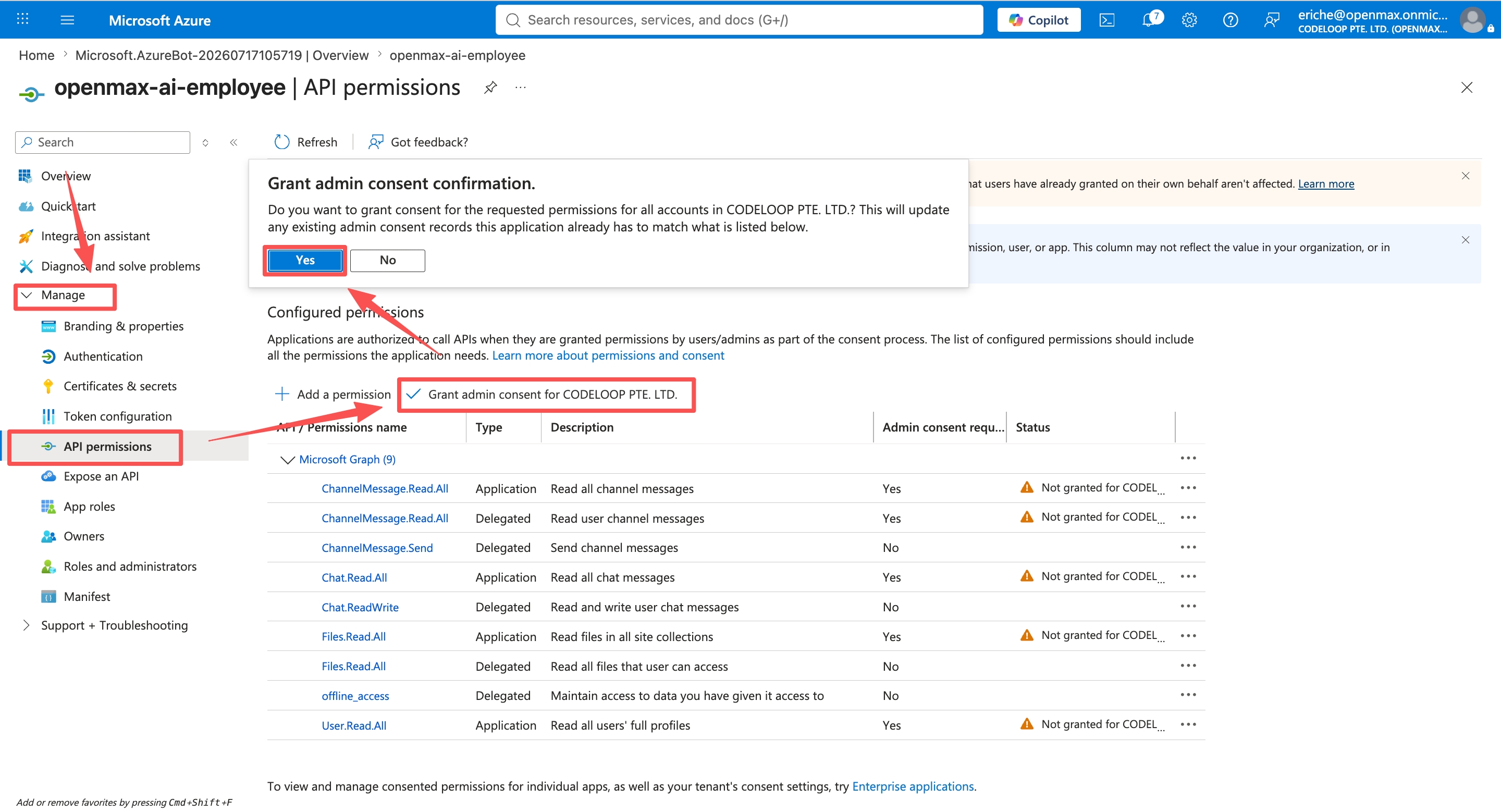
Click Manage → API permissions, then click Grant admin consent for [your organization] and confirm. (This requires a global admin account — see "Before You Begin".)
Enterprise organizations: if you are not an admin, hand this step over. Only a global admin / Privileged Role Administrator can grant consent. Send them your app registration name and ask them to follow this path:
Entra ID → App registrations → switch to the [All applications] tab (the default tab does not show apps created by someone else) → search for the app name → API permissions → Grant admin consent → Yes. All 9 permissions turning into green ticks means it is done.
You can also simply send the admin the URL of the page you are on, or this link:
https://login.microsoftonline.com/<tenant-id>/adminconsent?client_id=<App ID>Here is what it looks like on the admin's side:
The admin has to switch to the [All applications] tab first — the default tab does not list the app you created. (The
https://login.microsoftonline.com/<tenant-id>/adminconsent?client_id=<App ID>link above skips this menu path entirely.)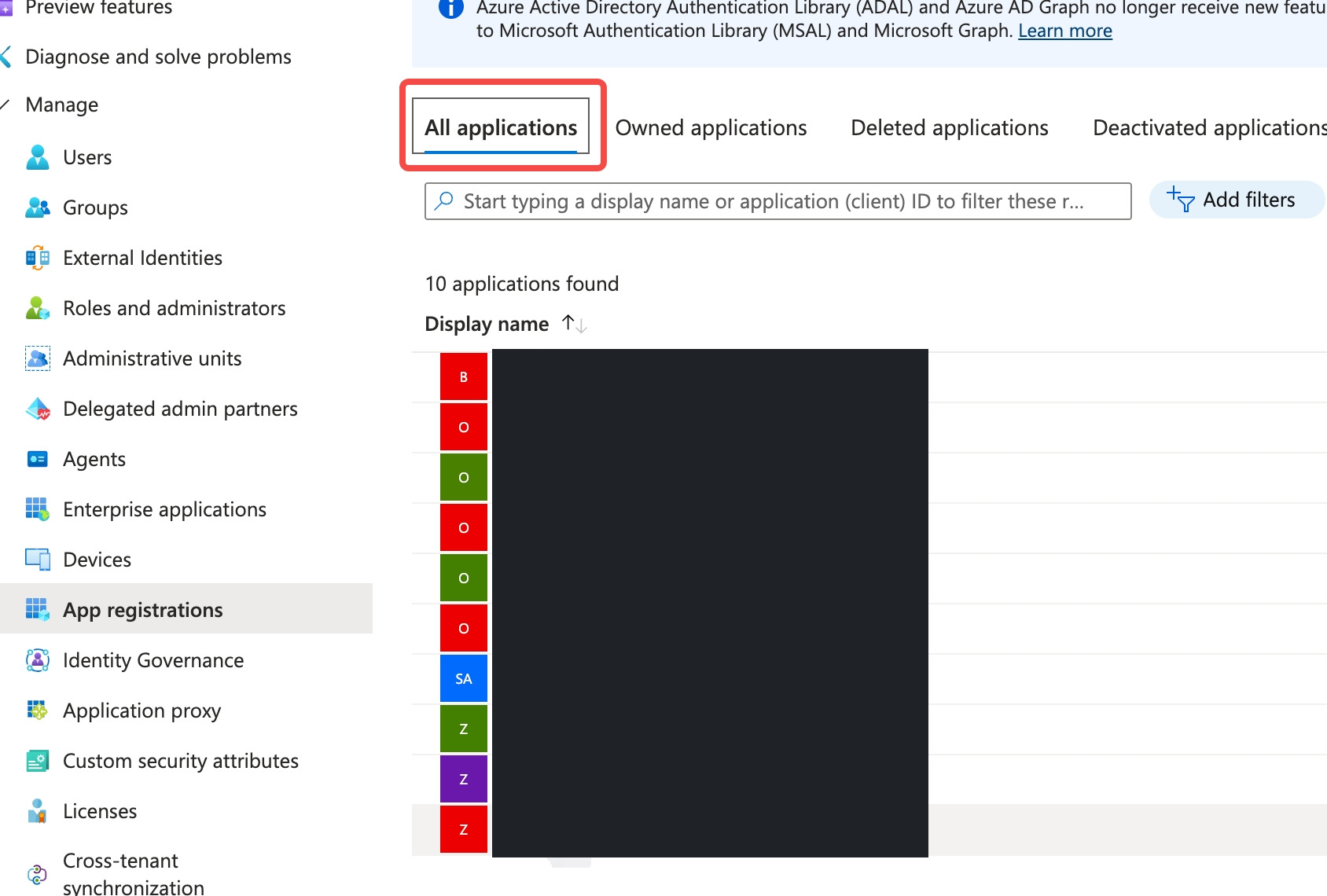
Once the app is open, go to API permissions and click "Grant admin consent":
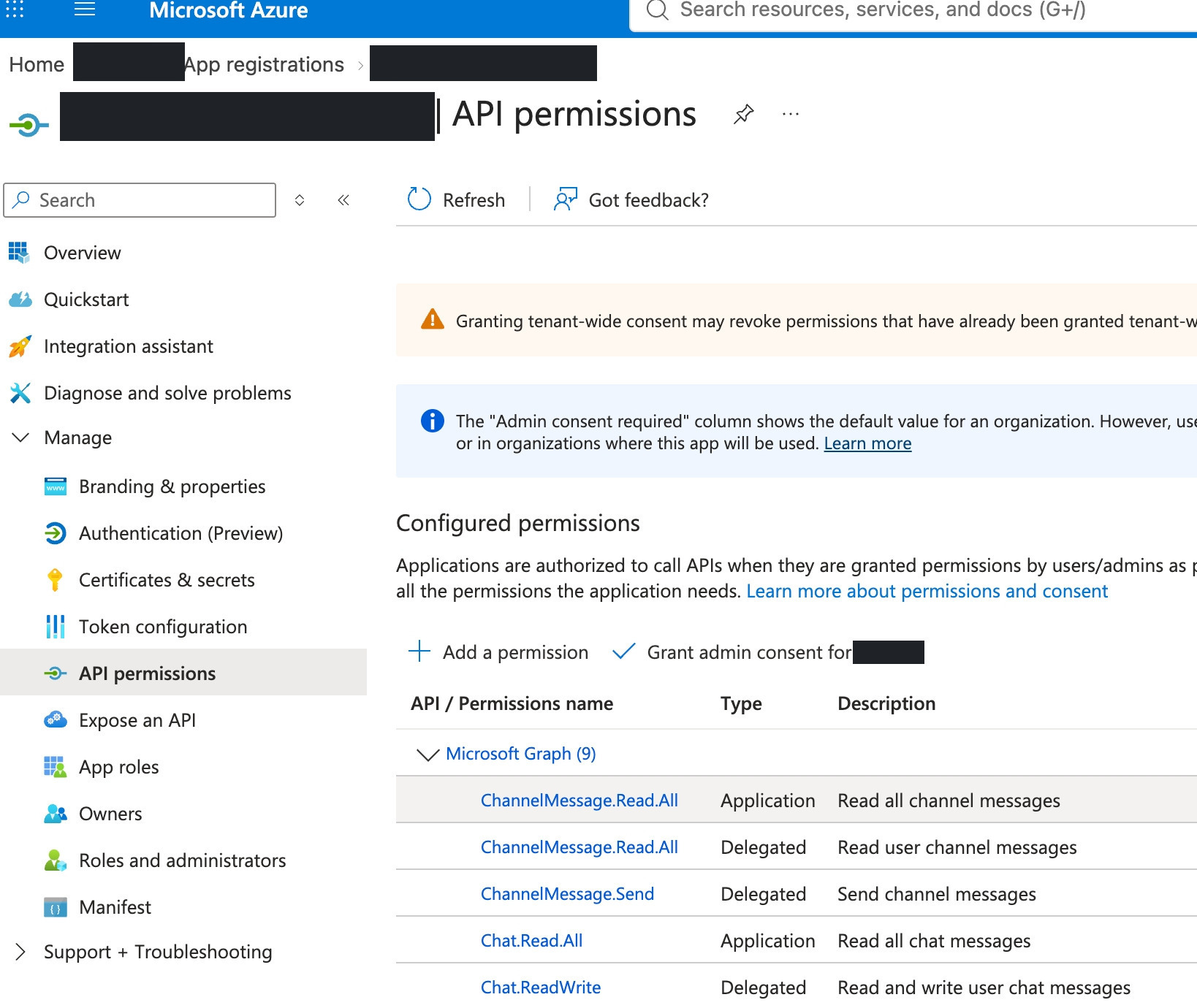
Once consent is granted, the status of all permissions turns green, as shown below.
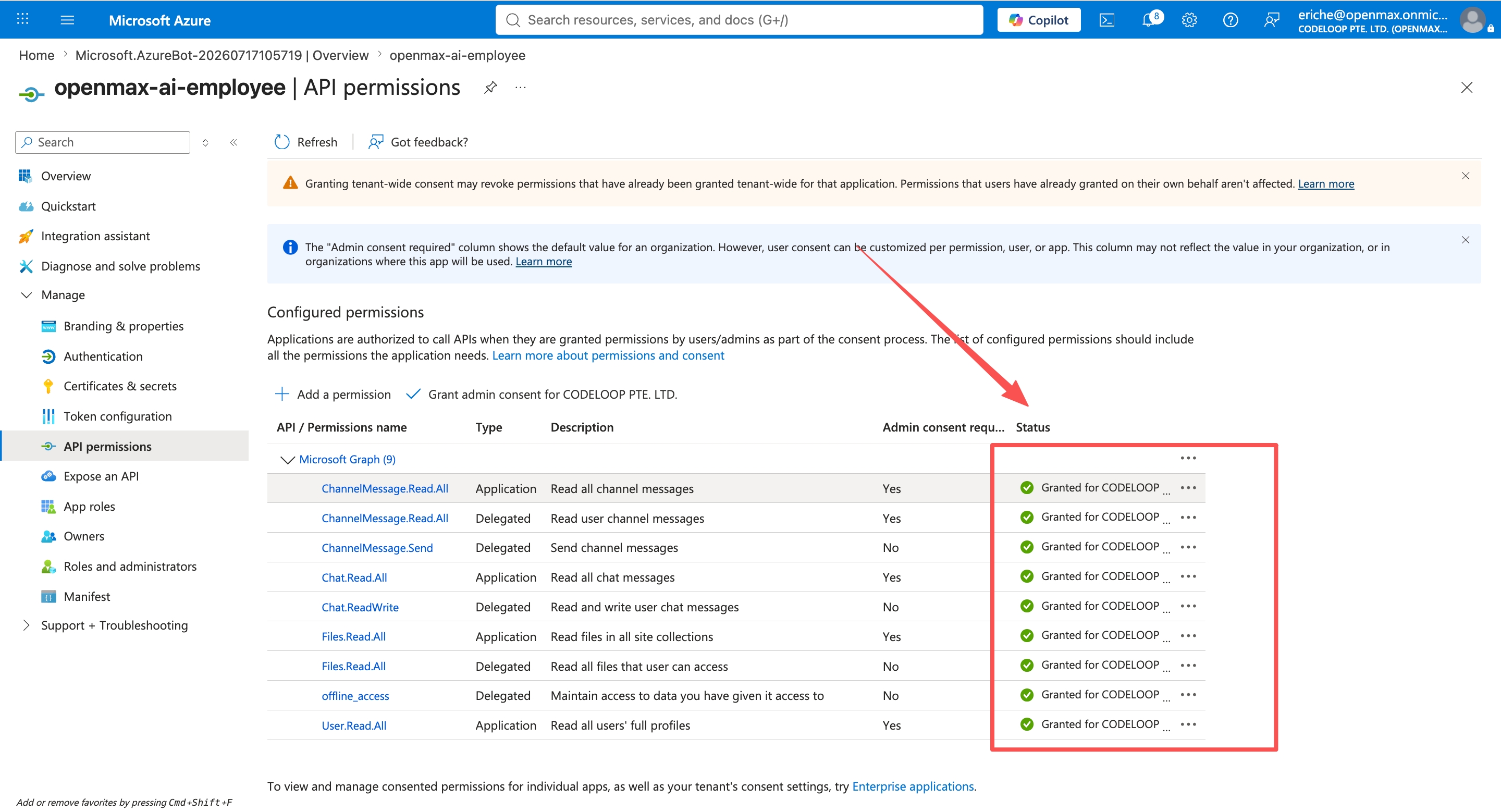
These permissions support file downloads, chat history, emoji reactions, and smart mode. Without admin consent, these features will not work.
Add Redirect URI for Reactions
To enable emoji reactions (💬 thinking indicator, 👍, etc.), add a redirect URI:
- In the app registration page, go to Authentication.
- Click + Add a platform → Web.
- Enter the redirect URI:
https://<your-agent-domain>/ms-teams/auth/callback(use the same domain as the messaging endpoint in Step 2). - Click Configure.
Step 6: Create the App in Teams Developer Portal
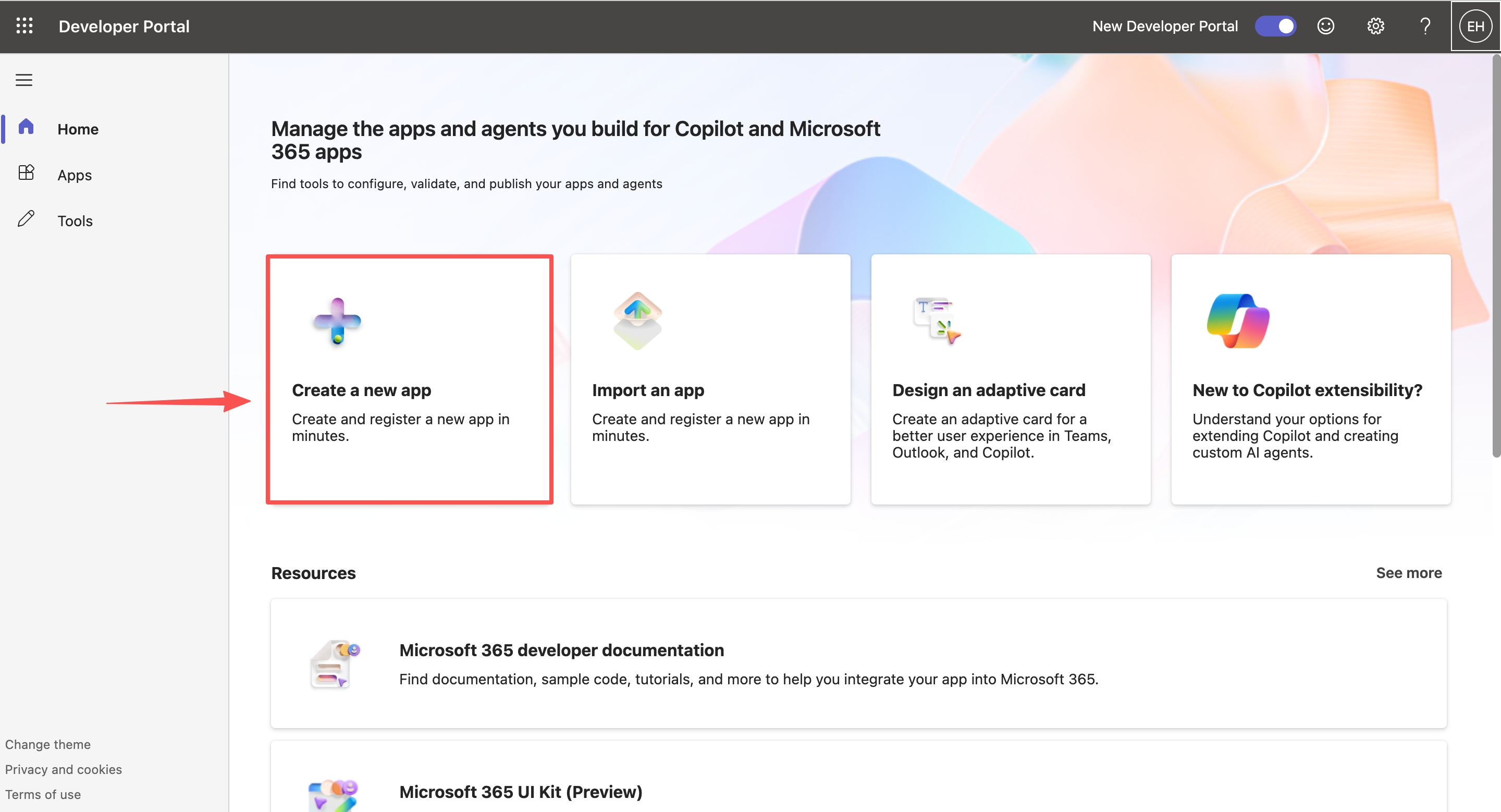
Open the Teams Developer Portal and click Create a new app.
Enter an app name (e.g.
OpenMax AI Employee) and click Create.Give the app a unique name, for example
OpenMax-YourName. In Step 9 the administrator approves it by searching for this name in the Teams Admin Center — if everyone in the company uses the default name, there is no way to tell whose app is whose.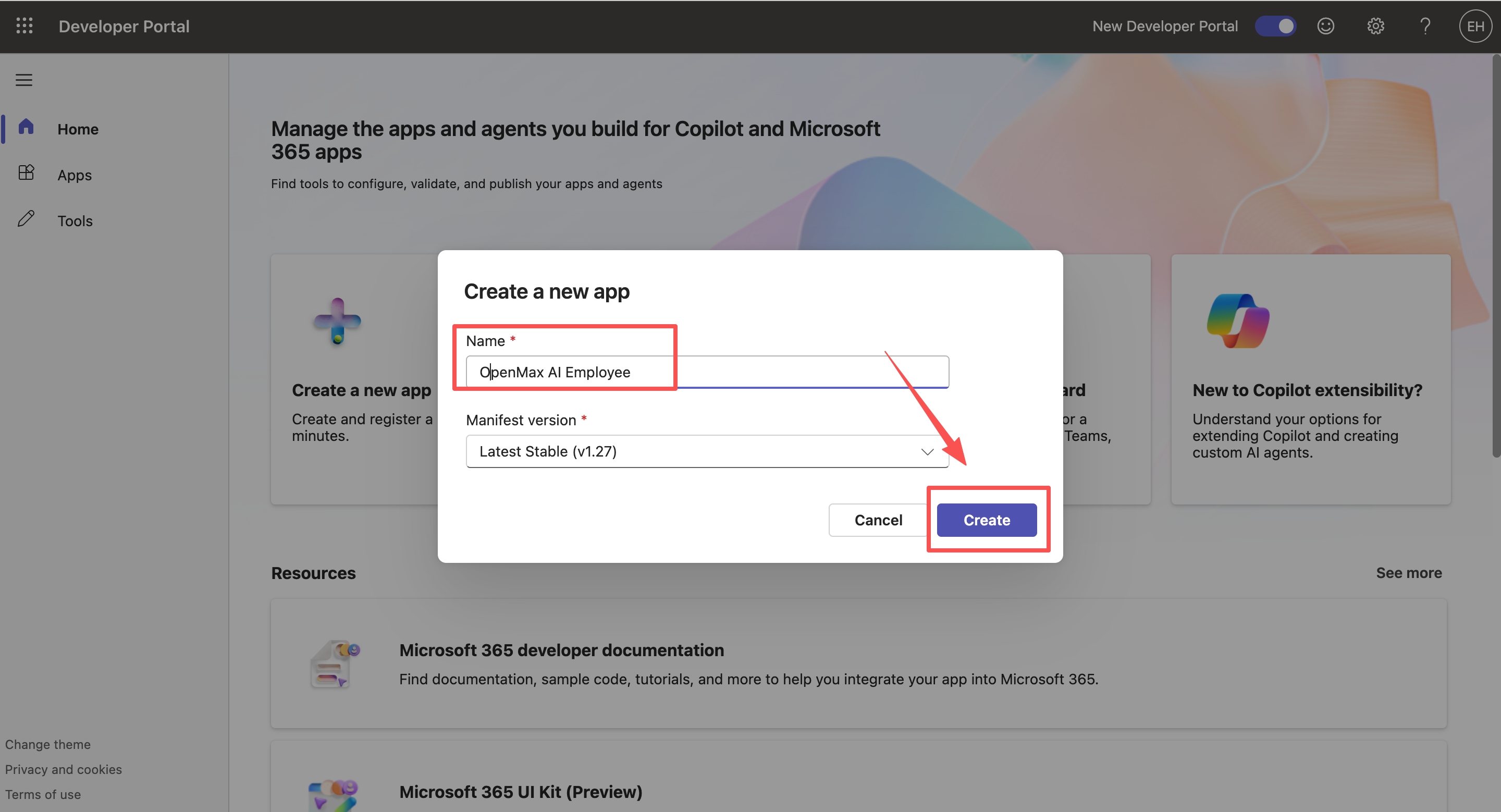
The screenshot uses the sample name
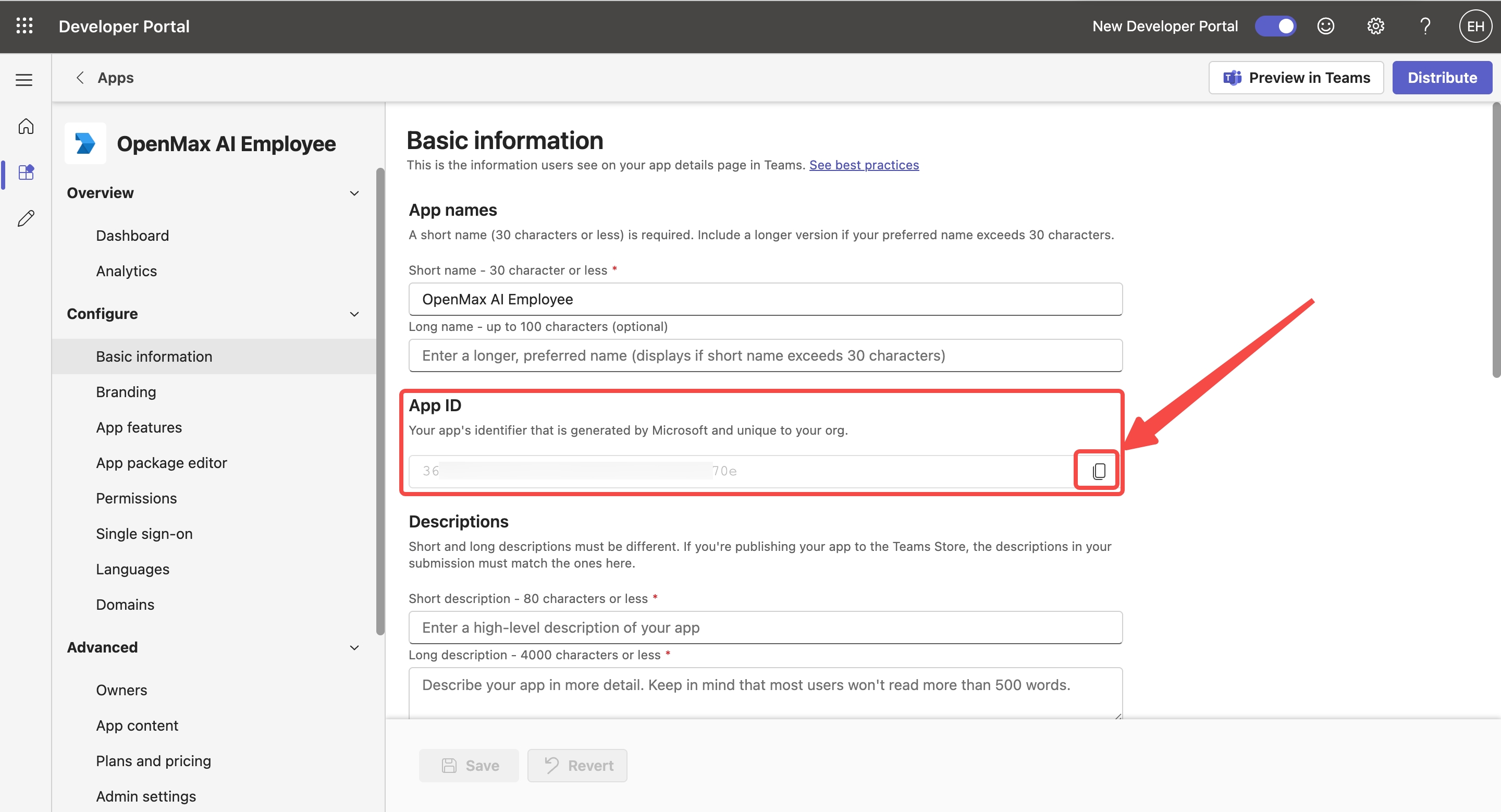
OpenMax AI Employee; in an enterprise organization, replace it with a name that is clearly yours.This name then appears as the Short name under Configure → Basic information — visible in the screenshot below — and that is what the administrator searches for in Step 9.
In Basic information, copy and note down the App ID shown at the top — this is your App Catalog ID. Paste it into the App Catalog ID field in the OpenMax Workspace.
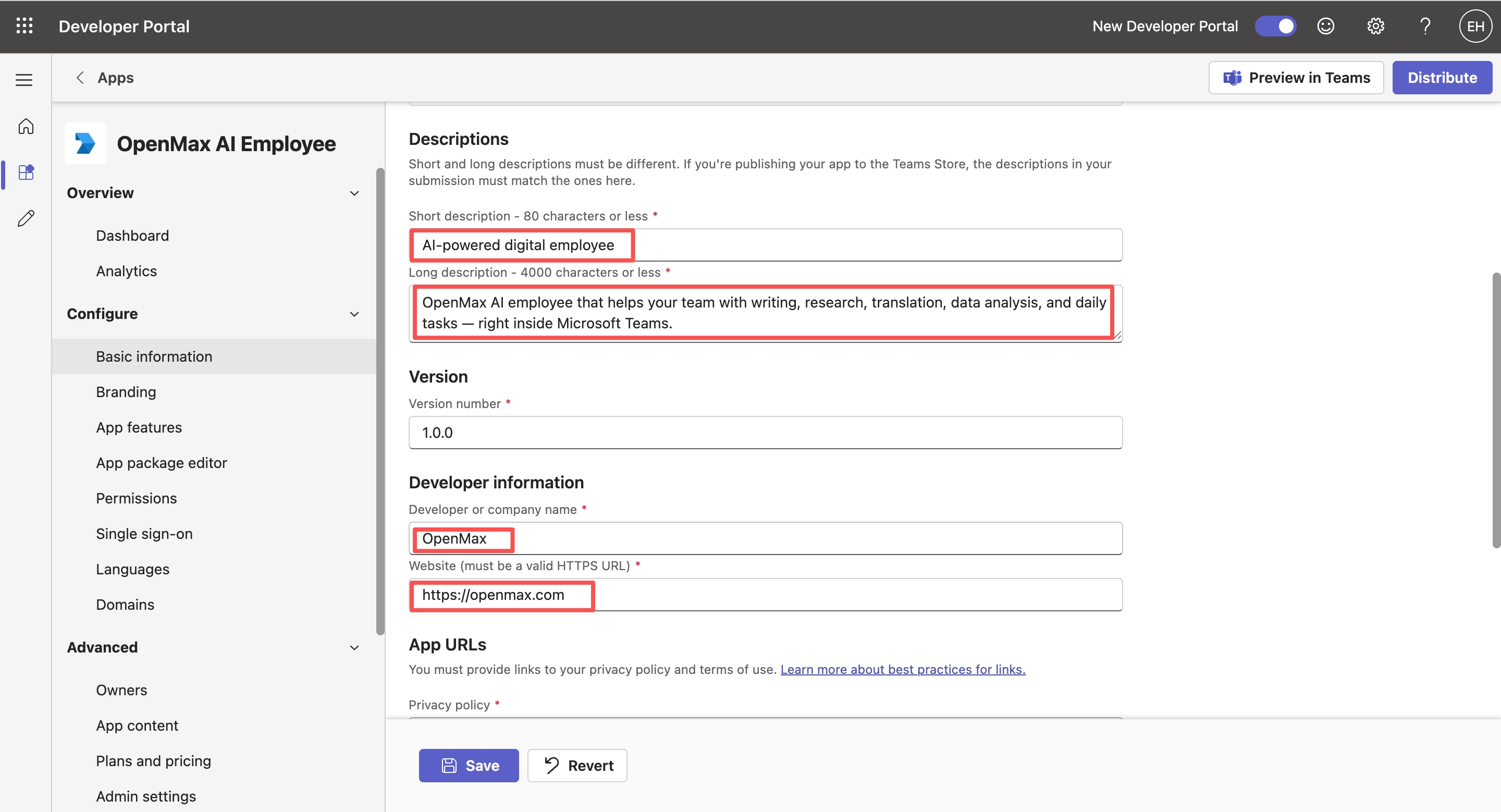
Fill in the required fields:
- Short description: AI-powered digital employee
- Long description: OpenMax AI employee that helps your team with writing, research, translation, data analysis, and daily tasks — right inside Microsoft Teams.
- Developer or company name: OpenMax
- Website: https://openmax.com
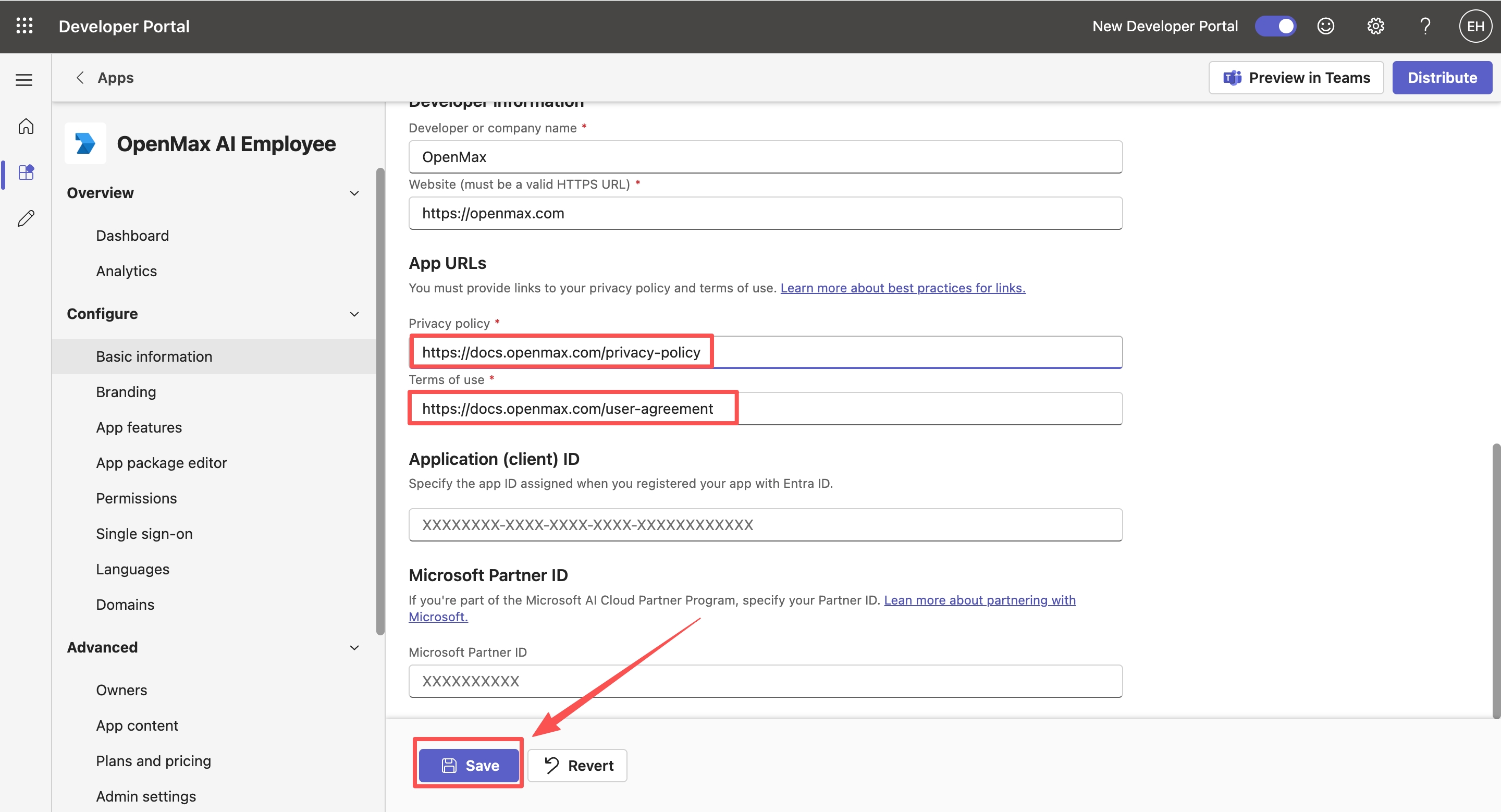
- Privacy policy: https://docs.openmax.com/privacy-policy
- Terms of use: https://docs.openmax.com/user-agreement
Then click Save.
Step 7: Configure the App Manifest
Click Configure → App package editor, then open manifest.json.
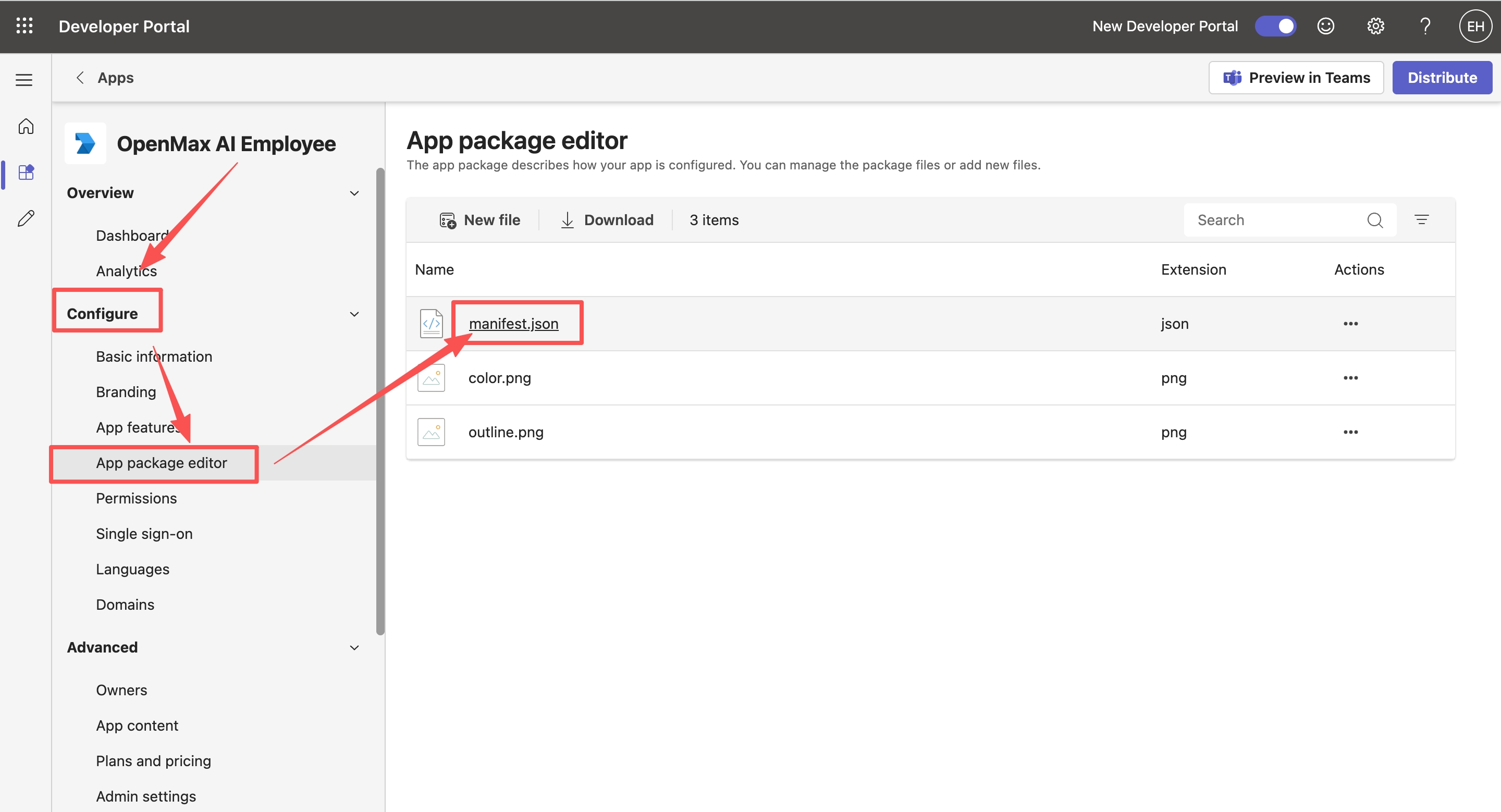
Remove everything in the editor, then paste the manifest below:
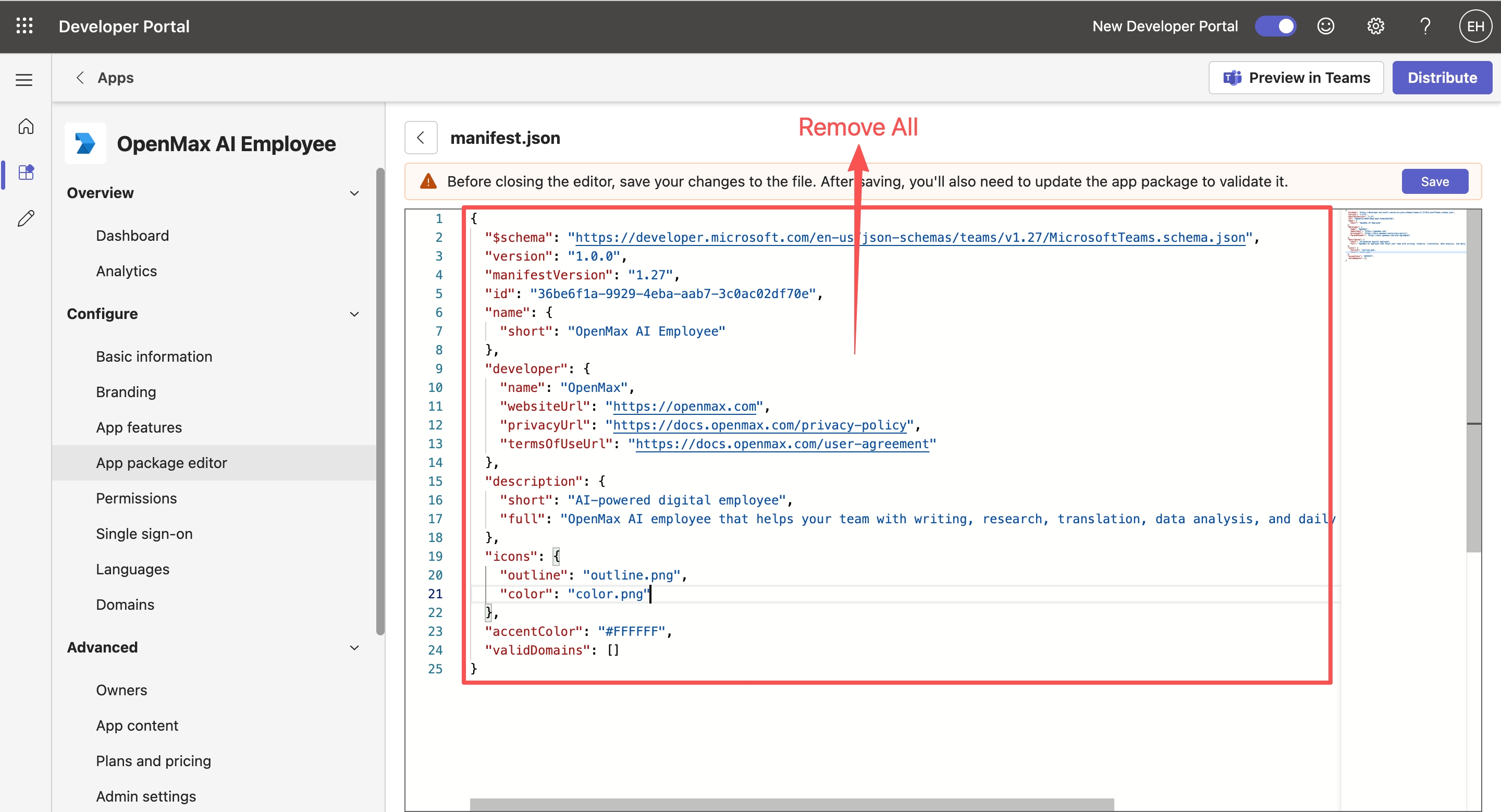
{
  "$schema": "https://developer.microsoft.com/en-us/json-schemas/teams/v1.19/MicrosoftTeams.schema.json",
  "version": "1.0.0",
  "manifestVersion": "1.19",
  "id": "<TEAMS_APP_ID>",
  "name": { "short": "OpenMax AI Employee" },
  "developer": {
    "name": "OpenMax",
    "websiteUrl": "https://openmax.com",
    "privacyUrl": "https://docs.openmax.com/privacy-policy",
    "termsOfUseUrl": "https://docs.openmax.com/user-agreement"
  },
  "description": {
    "short": "AI-powered digital employee",
    "full": "OpenMax AI employee that helps your team with writing, research, translation, data analysis, and daily tasks — right inside Microsoft Teams."
  },
  "icons": { "outline": "outline.png", "color": "color.png" },
  "accentColor": "#FFD646",
  "bots": [{
    "botId": "<AZURE_APP_ID>",
    "scopes": ["personal", "team", "groupChat"],
    "isNotificationOnly": false,
    "supportsCalling": false,
    "supportsVideo": false,
    "supportsFiles": true
  }],
  "permissions": ["messageTeamMembers"],
  "validDomains": [],
  "webApplicationInfo": {
    "id": "<AZURE_APP_ID>",
    "resource": "https://graph.microsoft.com"
  },
  "authorization": {
    "permissions": {
      "resourceSpecific": [
        { "name": "ChatMessage.Read.Chat", "type": "Application" },
        { "name": "ChannelMessage.Read.Group", "type": "Application" }
      ]
    }
  }
}
Replace the placeholders:
name.short→ the app name you chose in Step 6; keep the two identical (this is the name the administrator searches for in Step 9)<TEAMS_APP_ID>(1 place) → your App Catalog ID<AZURE_APP_ID>(2 places:bots[0].botIdandwebApplicationInfo.id) → your App ID (the Microsoft App ID)
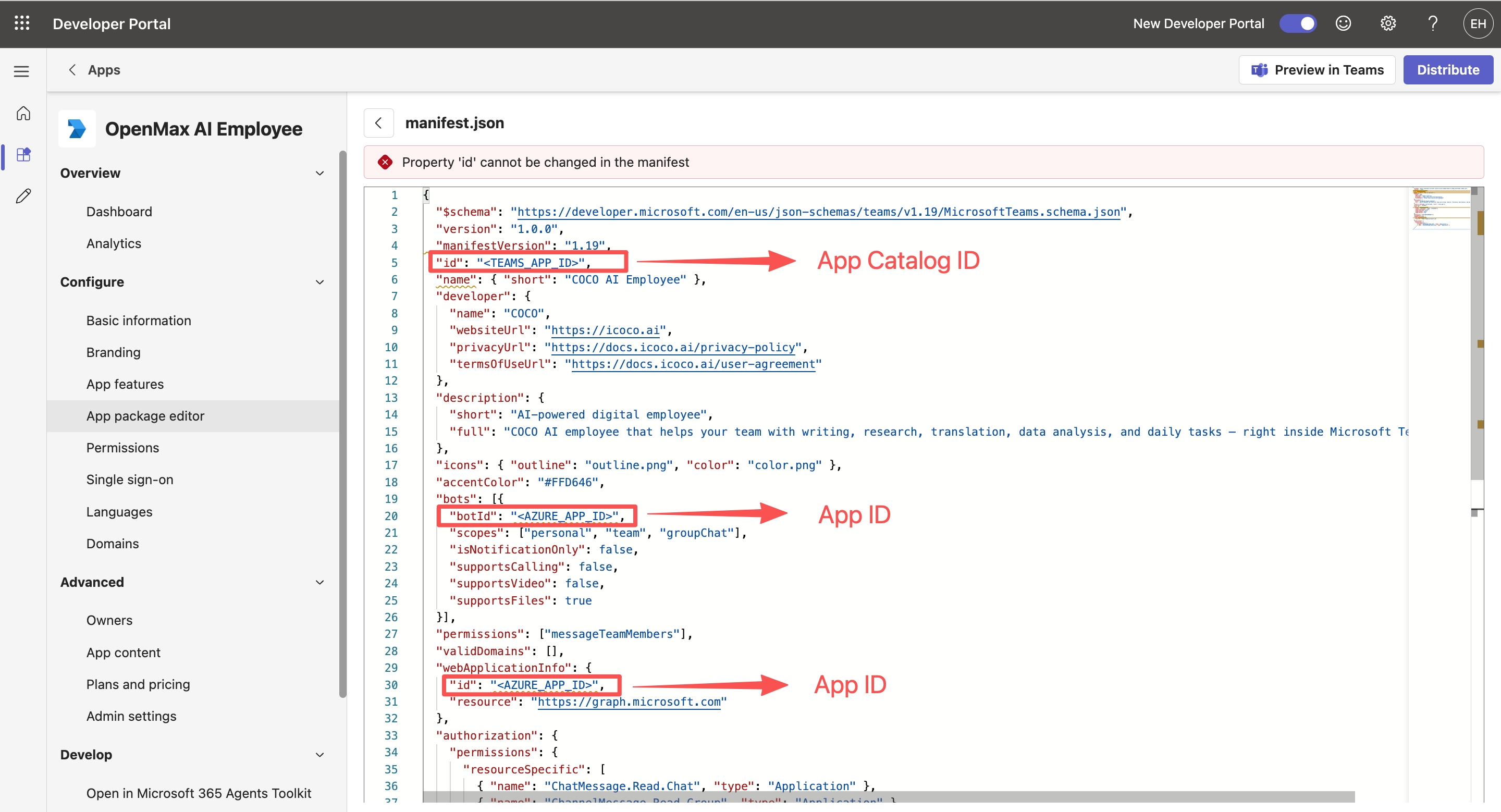
After replacing, click Save, as shown below.
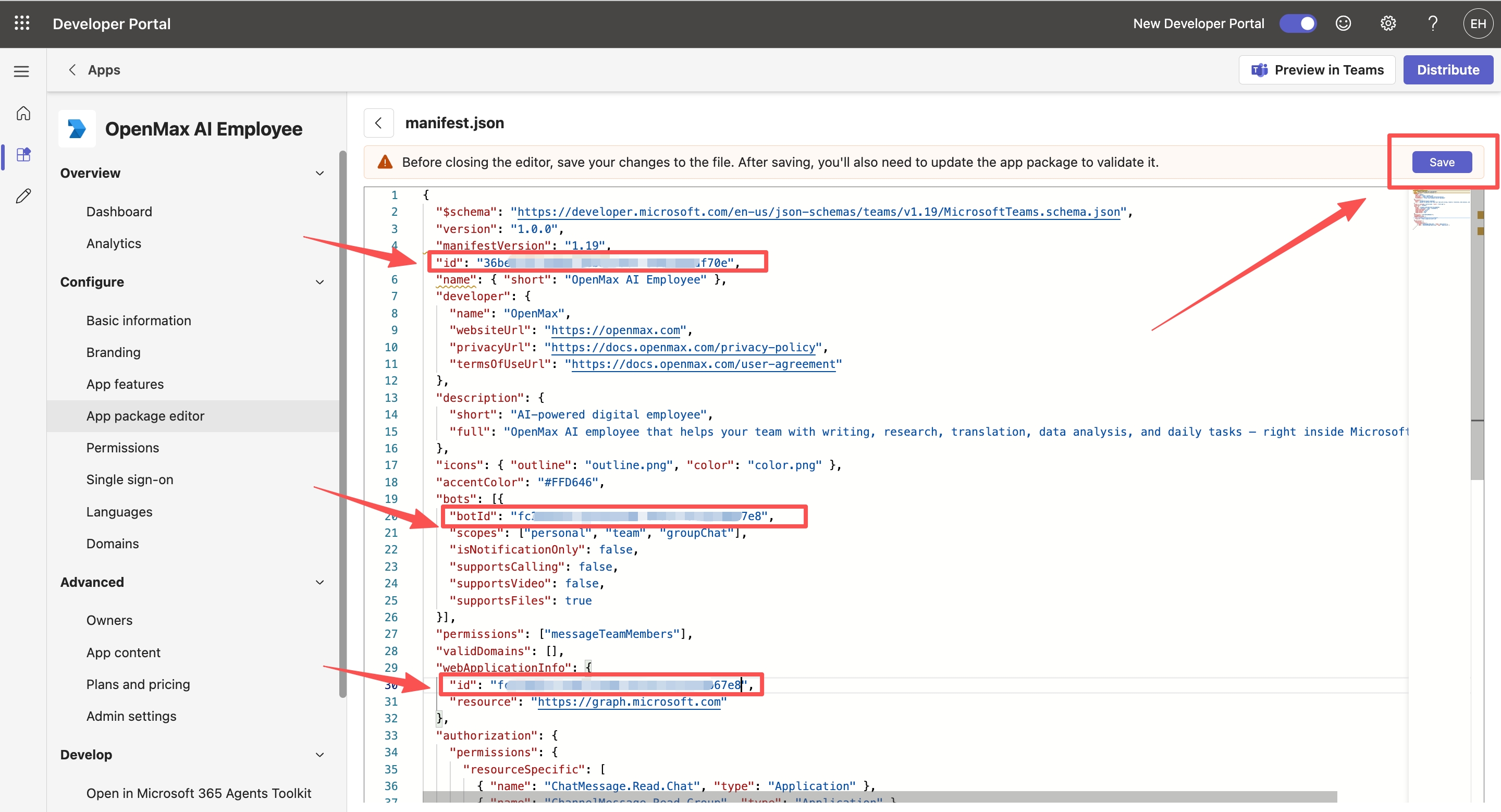
If a red "Property 'id' cannot be changed in the manifest" error appears after pasting, don't worry — it disappears once you replace
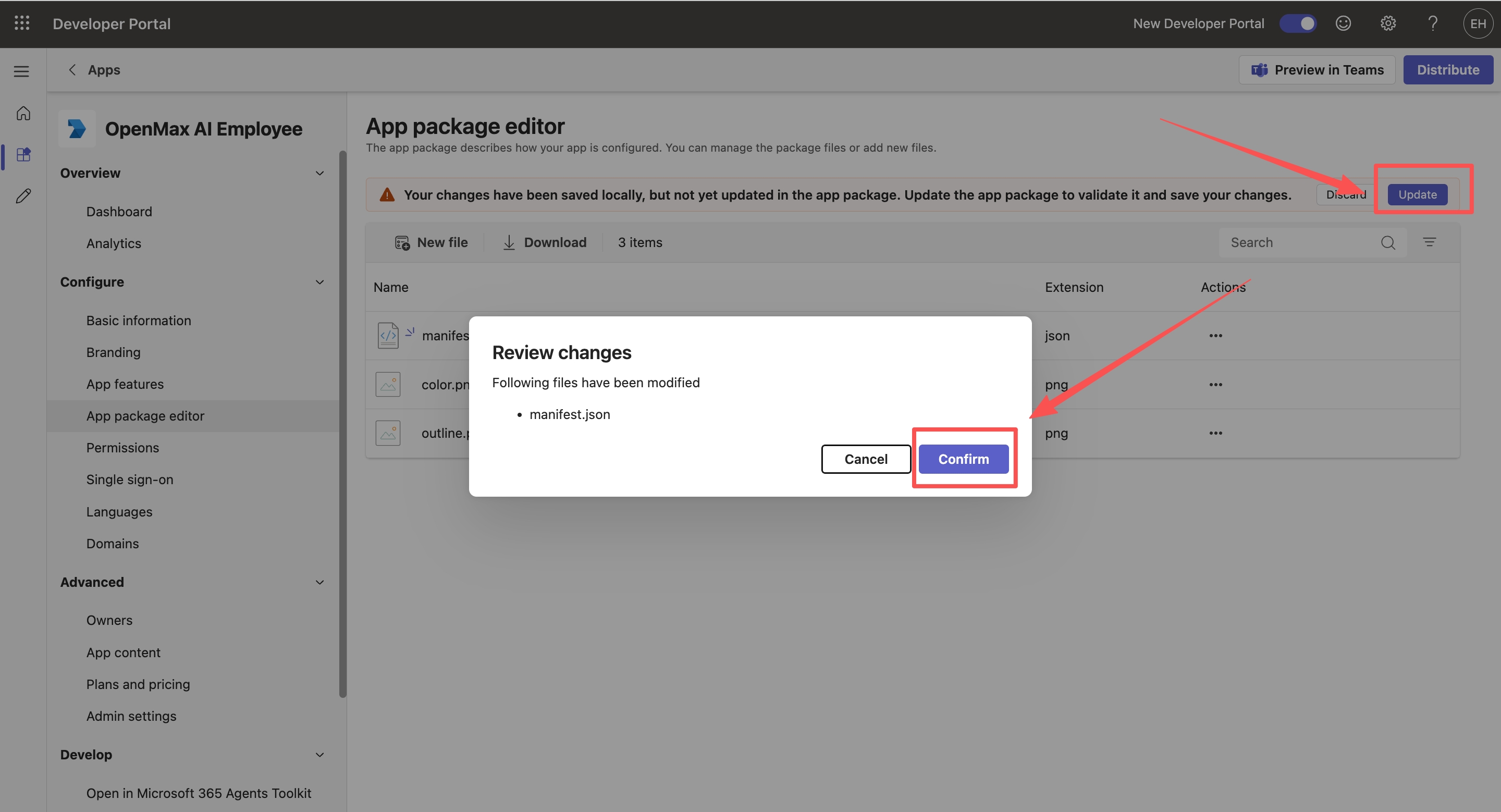
<TEAMS_APP_ID>with your App Catalog ID (theidmust stay your app's own ID).Click Update, then Confirm.
Step 8 (Optional): Branding
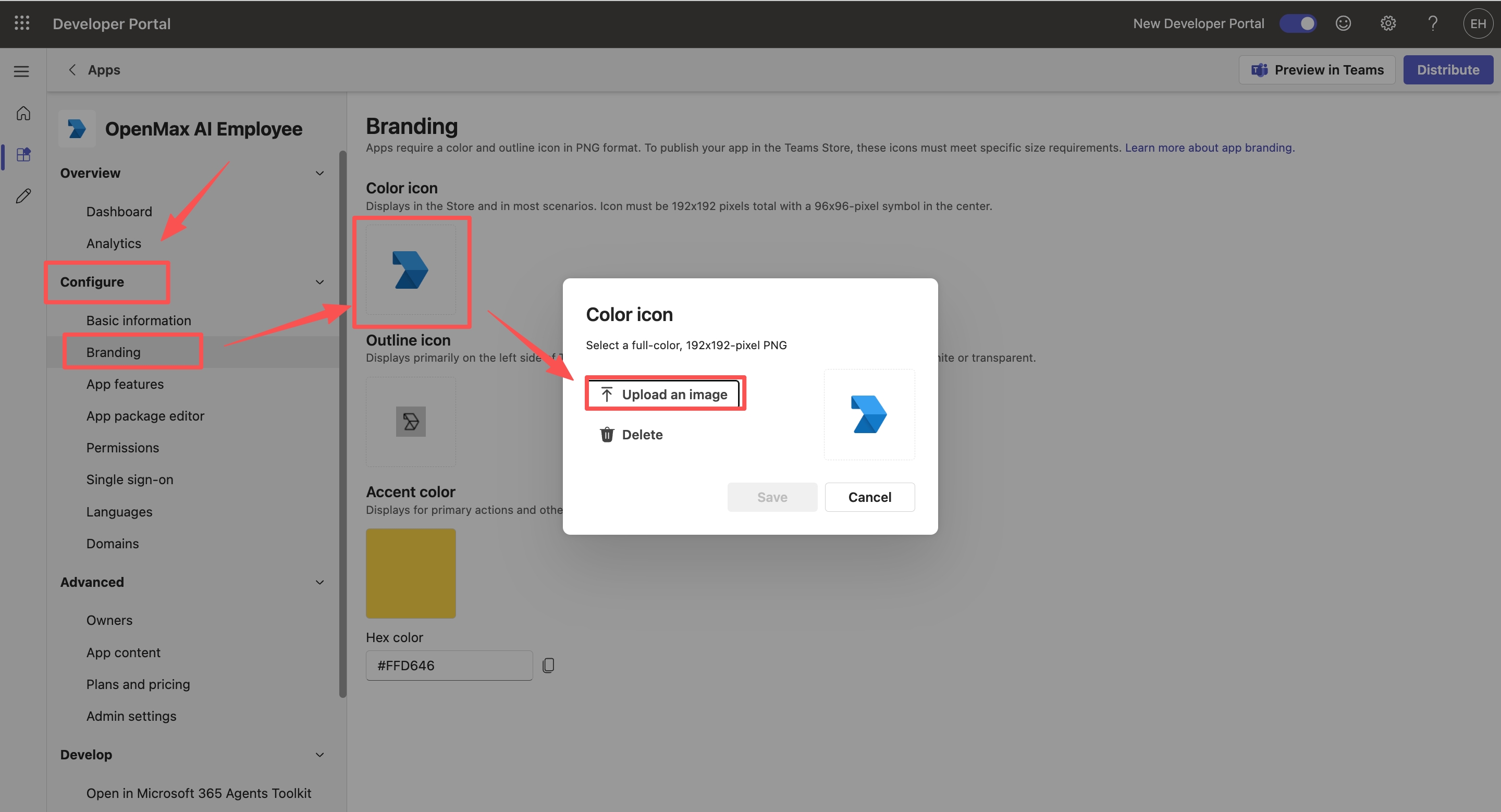
In Configure → Branding you can replace the app icons: a 192×192 full-color PNG and a 32×32 transparent outline PNG. If you skip this, default placeholder icons are used.
Step 9: Publish the App to Your Organization
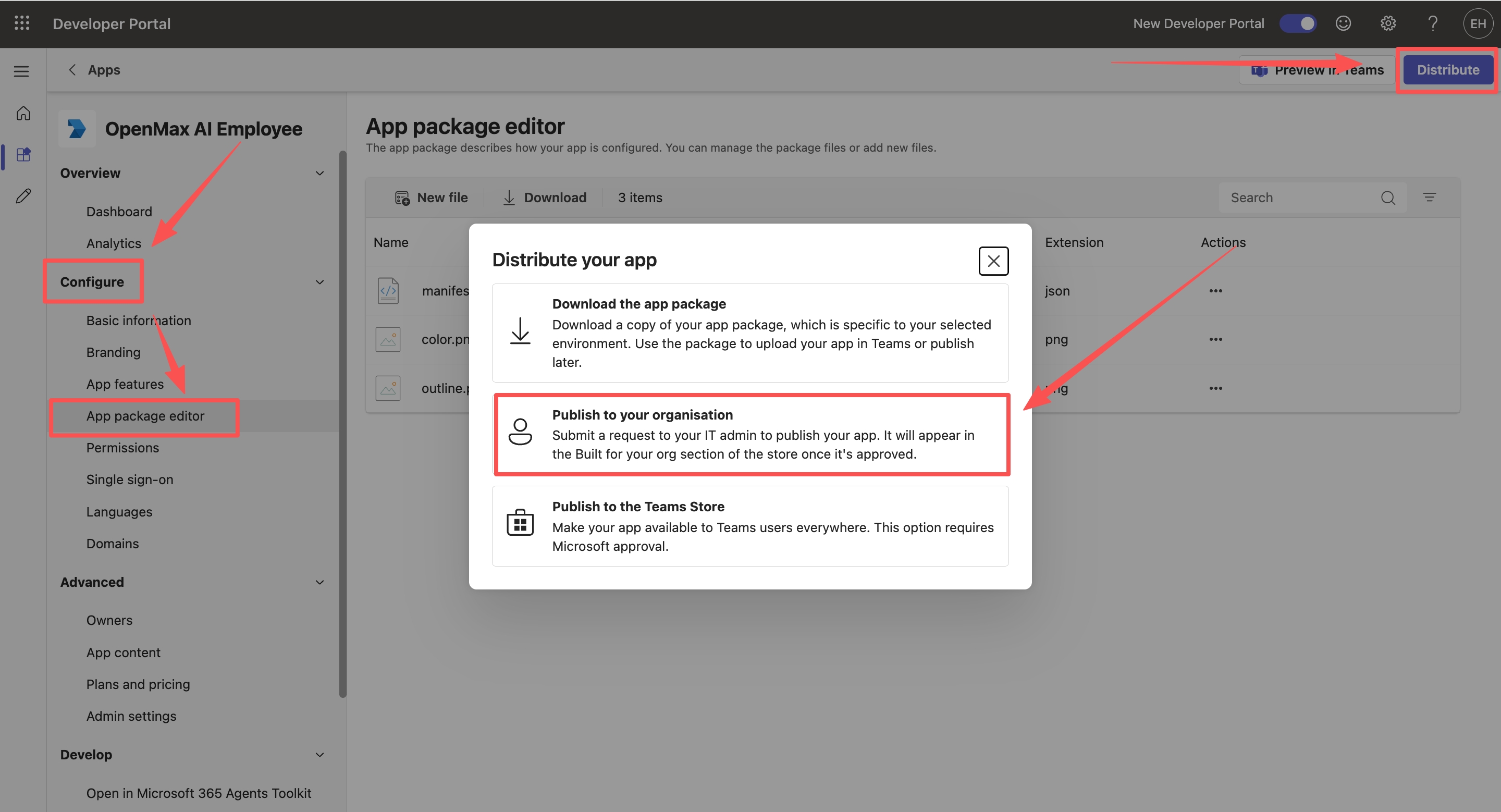
In the App package editor, click Distribute and choose Publish to your organisation.
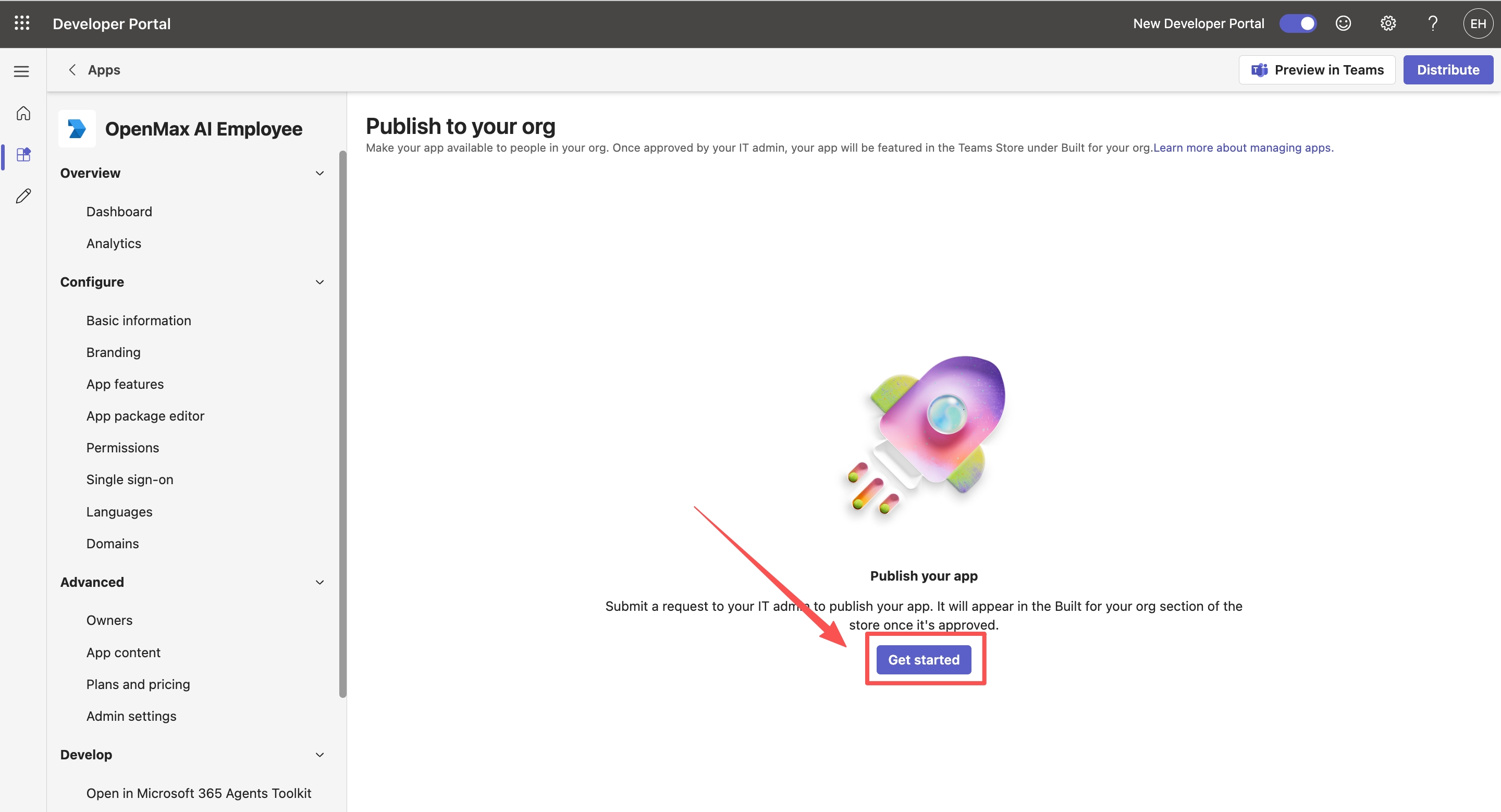
Click Get started. The status then shows the app is submitted and awaiting the admin's approval.
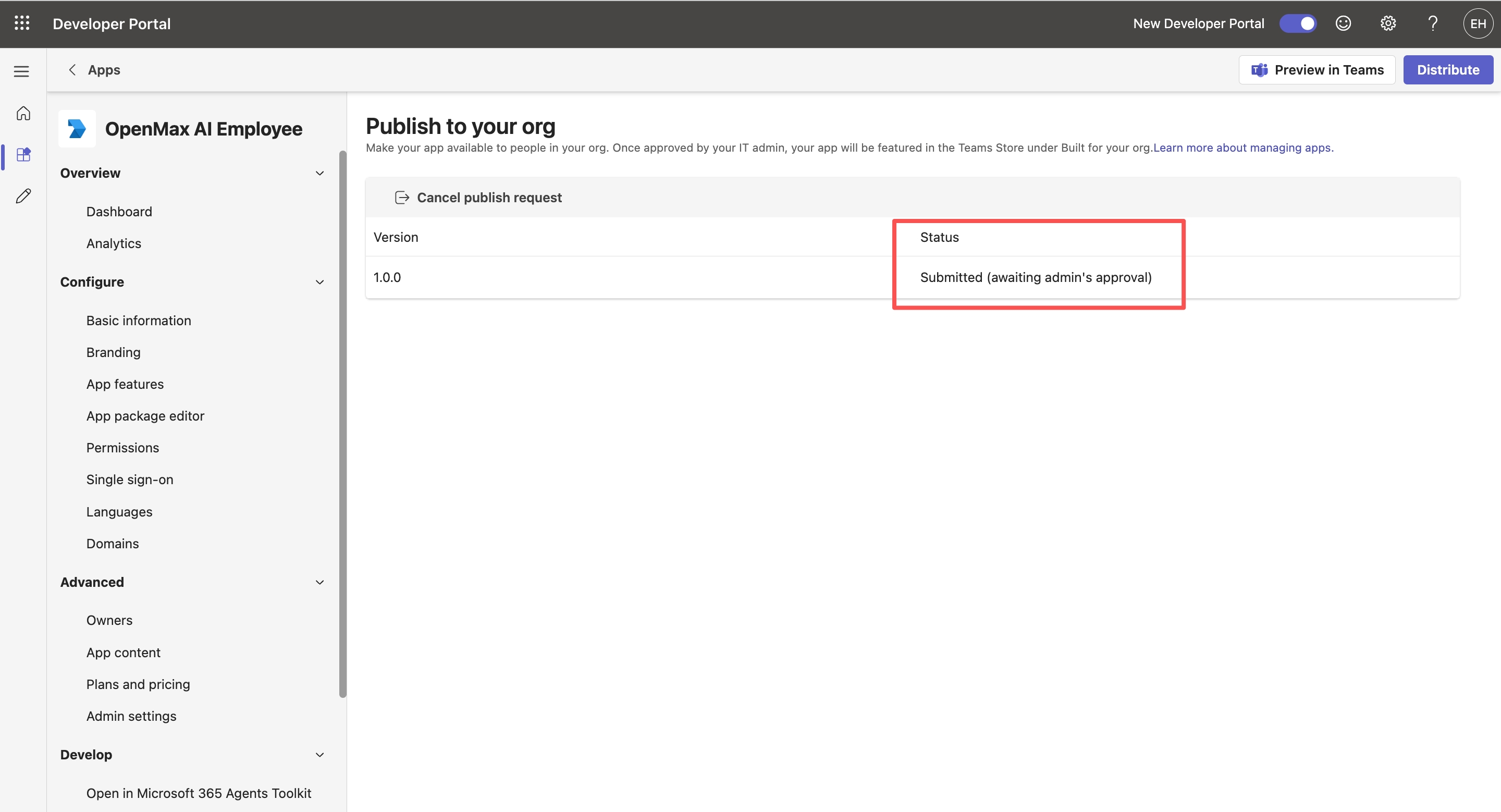
Enterprise organizations: what to do if this fails with "Failed to create publish request". Some organizations do not let members submit a publishing request directly, and the click fails outright. Use the app package instead: in the App package editor, download the app package (.zip) → in Teams, go to Apps → Manage your apps → Upload an app → Submit to your org. The outcome is the same — it lands in the same administrator approval queue.
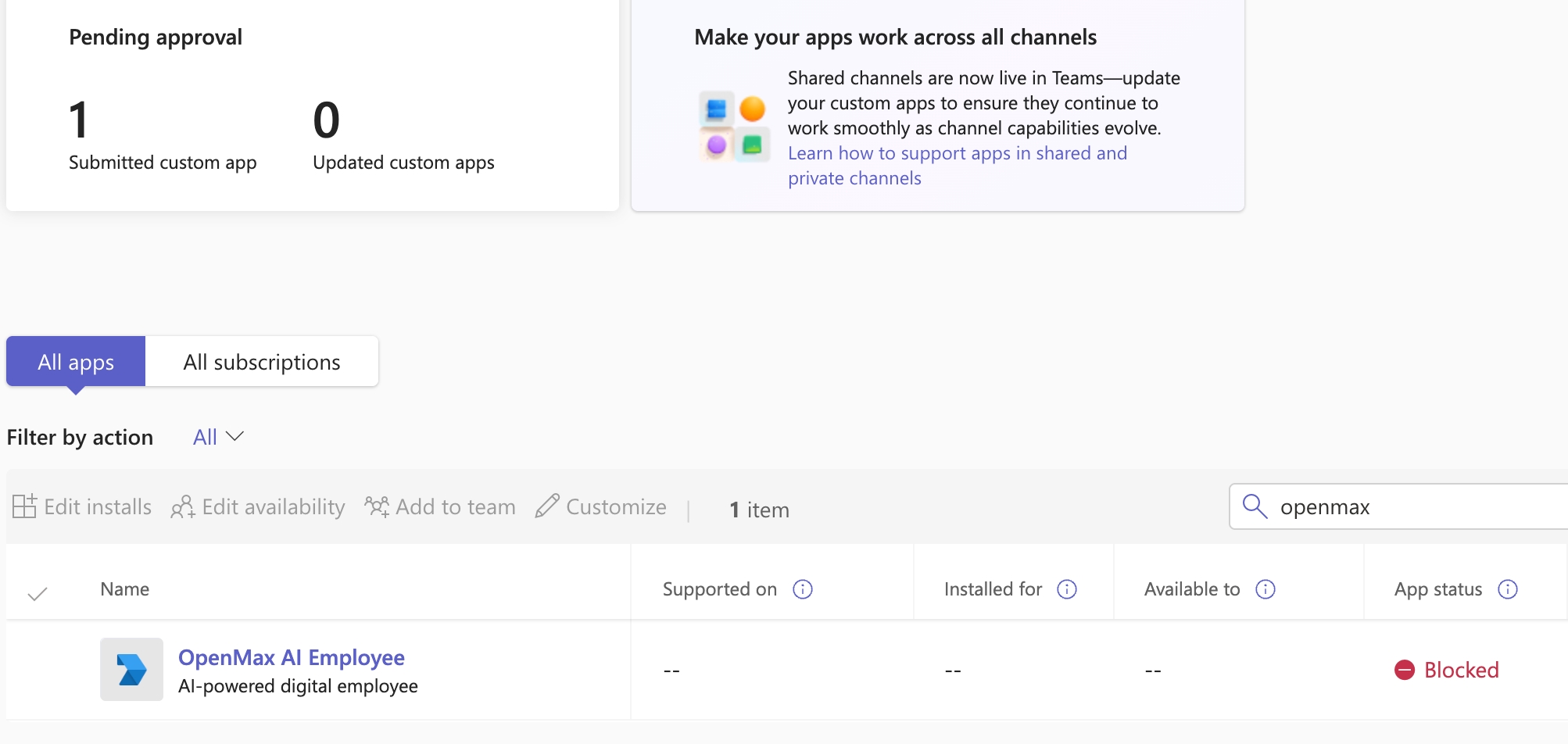
After submission, a Teams administrator must approve the app in the Teams Admin Center → Teams apps → Manage apps (search for your bot's name and open it). The app shows as "Blocked" until it is published — this is the normal pre-approval state.
Remember to tell the Teams administrator your app name. They search by the Teams app name (
name.shortin the manifest), not by the Azure Bot name — the two are not necessarily the same.This has to be a Teams administrator; a team "owner" does not have the permission and will get
INVALID_PRIVILEGE.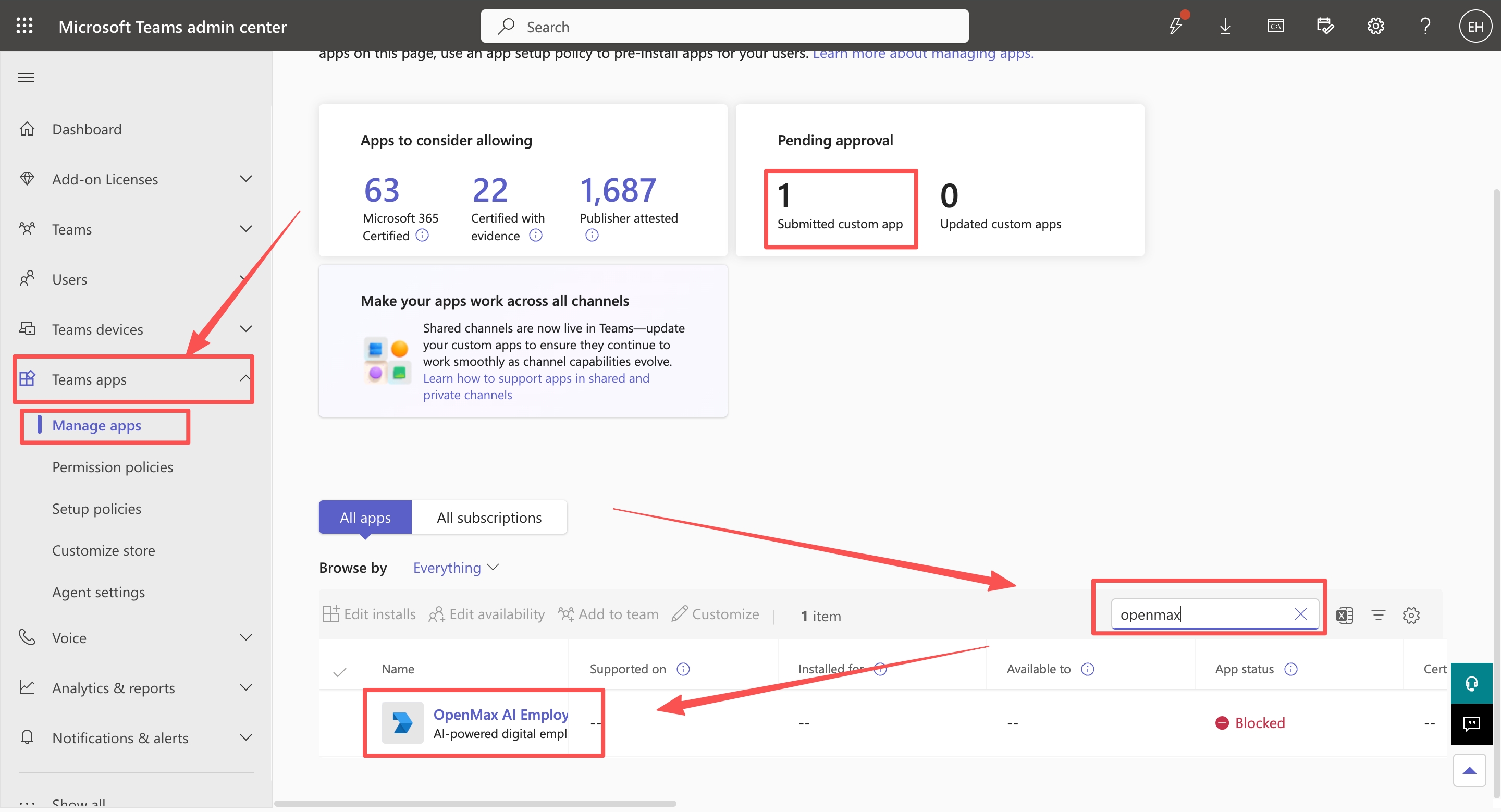
Here is what the administrator sees:
The Manage apps page shows a "Pending approval" card at the top:
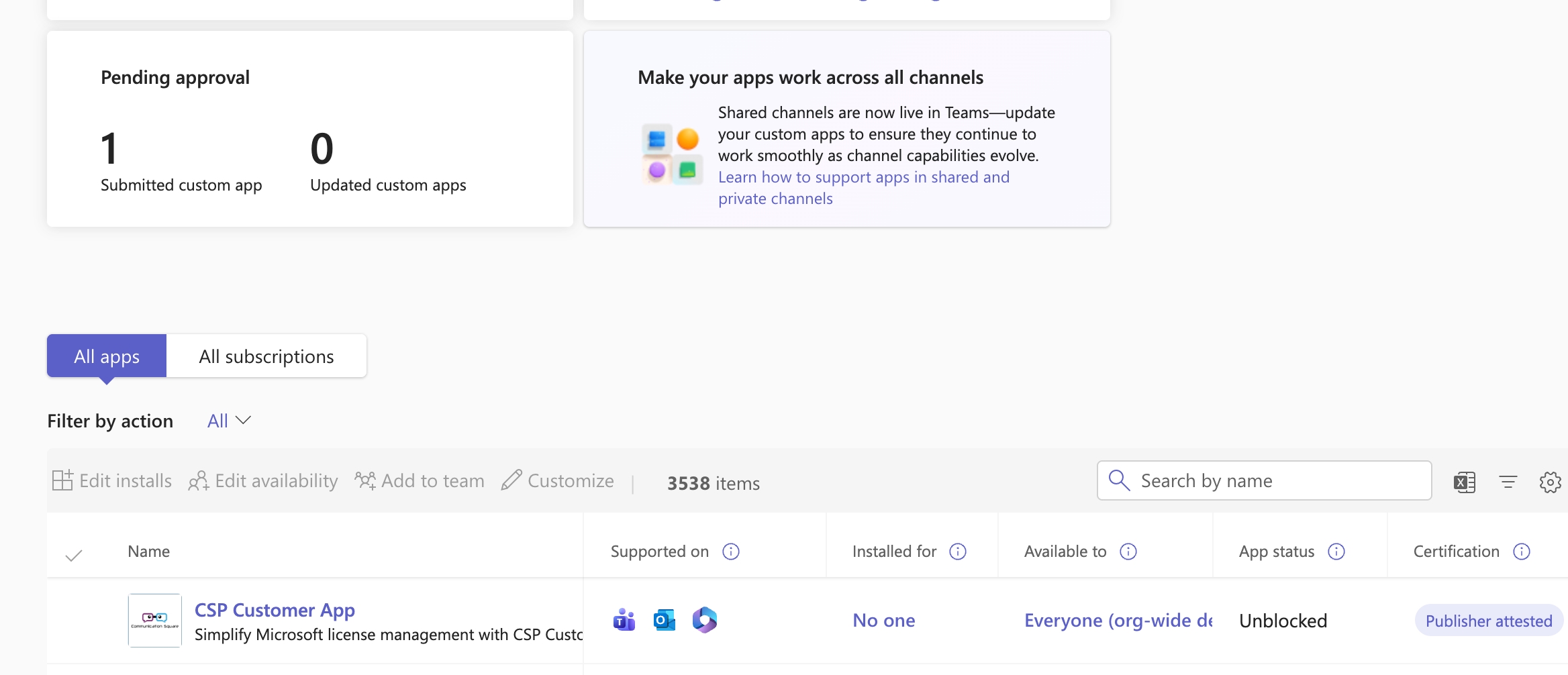
Searching by the app name shows it as "Blocked" — the normal state before approval:
If the Teams Admin Center throws
INVALID_PRIVILEGEon opening, that account is not a Teams administrator — a team "owner" does not have this permission: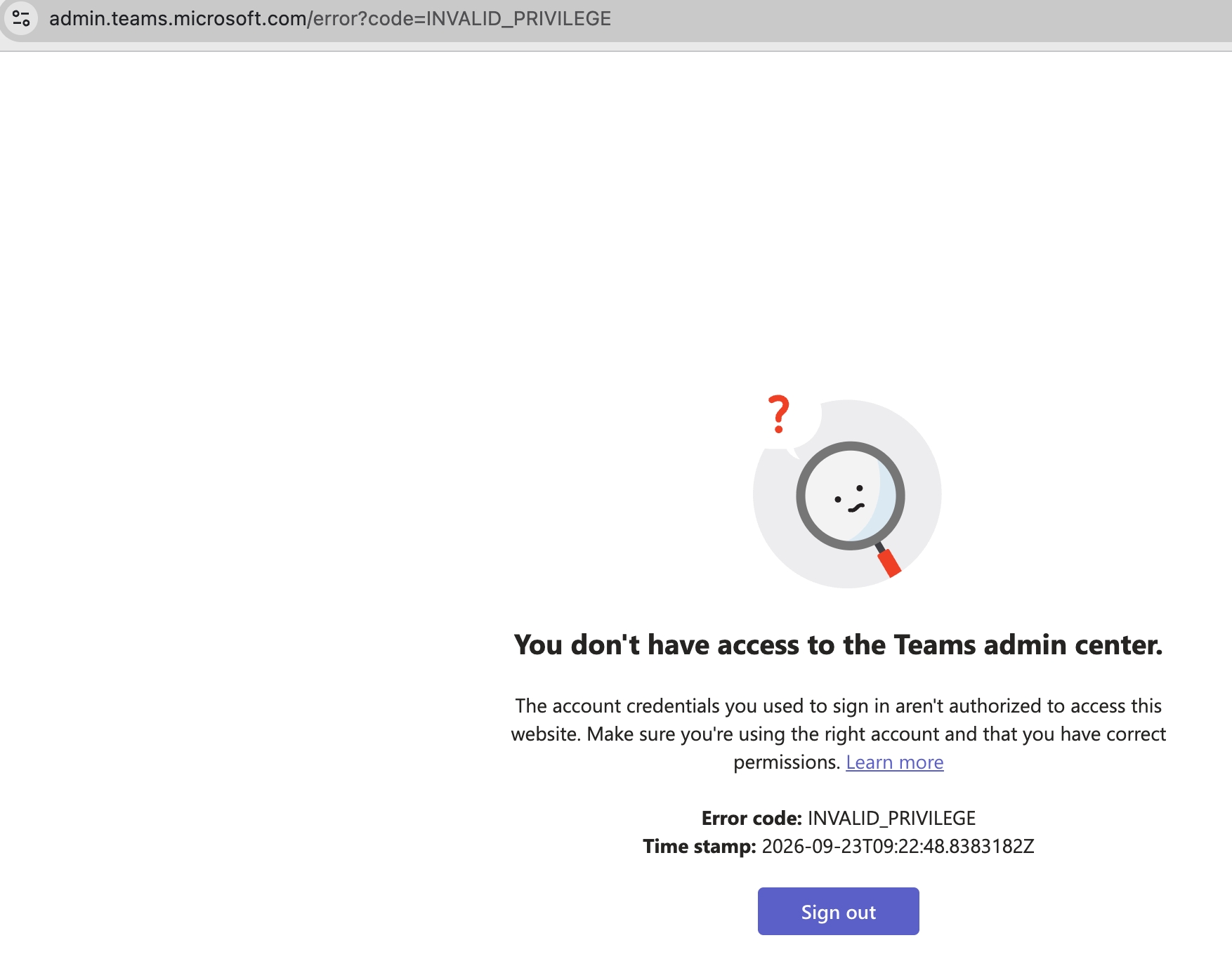
Click Publish.
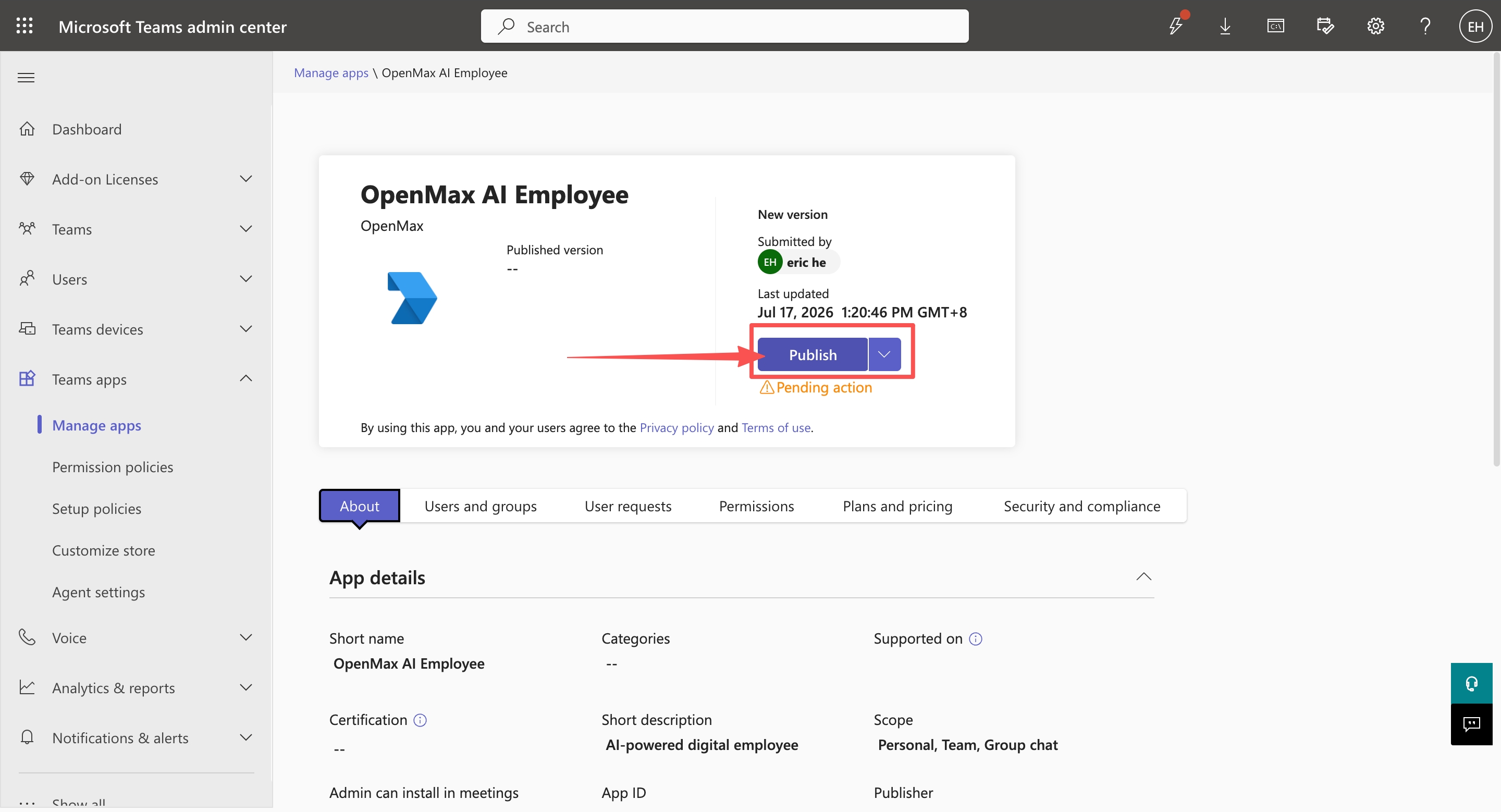
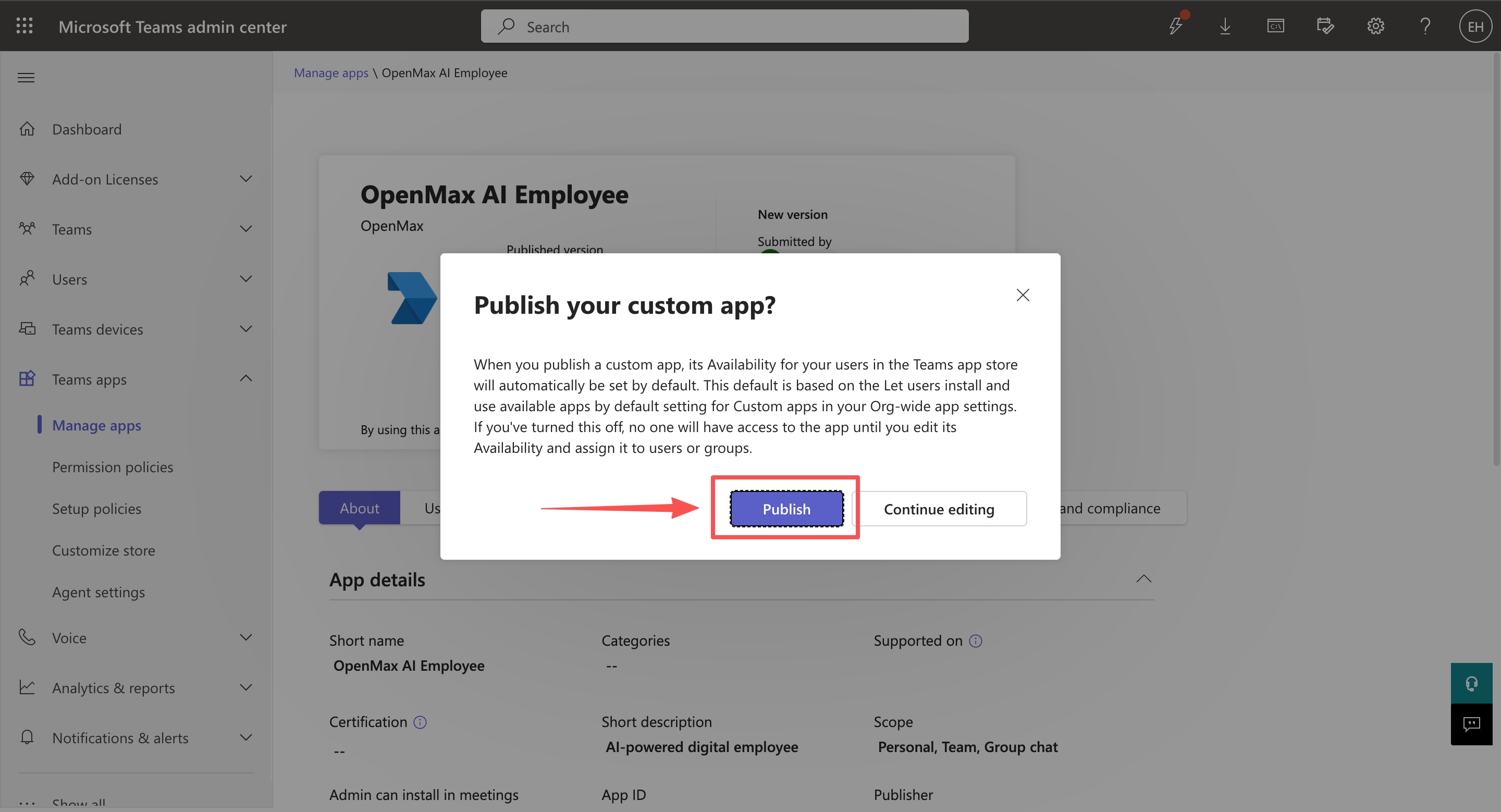
After approval, users need to restart Microsoft Teams to see the new app.
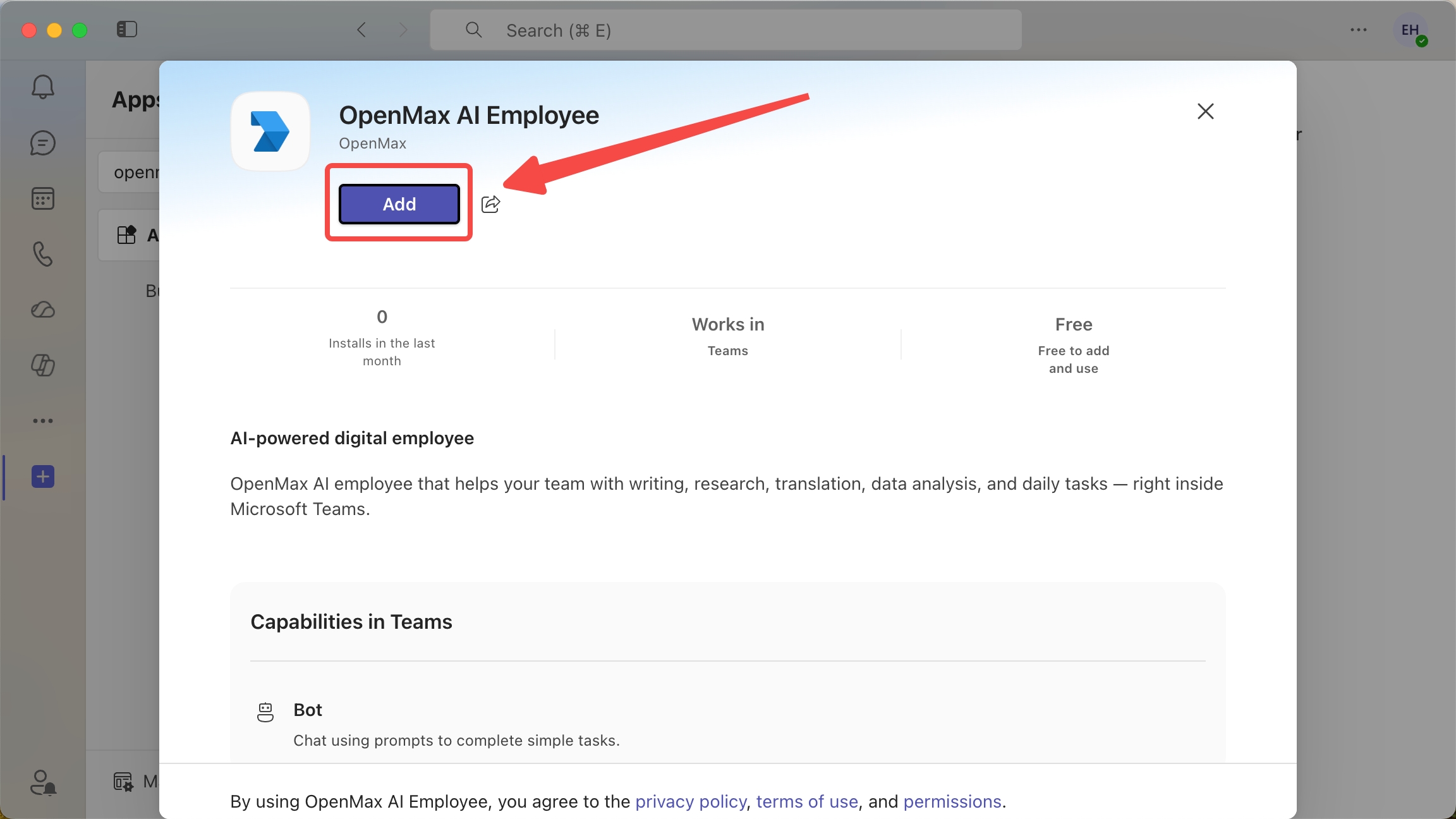
Open the Microsoft Teams desktop app, click Apps, search for your bot's name (e.g.
openmax), and open it.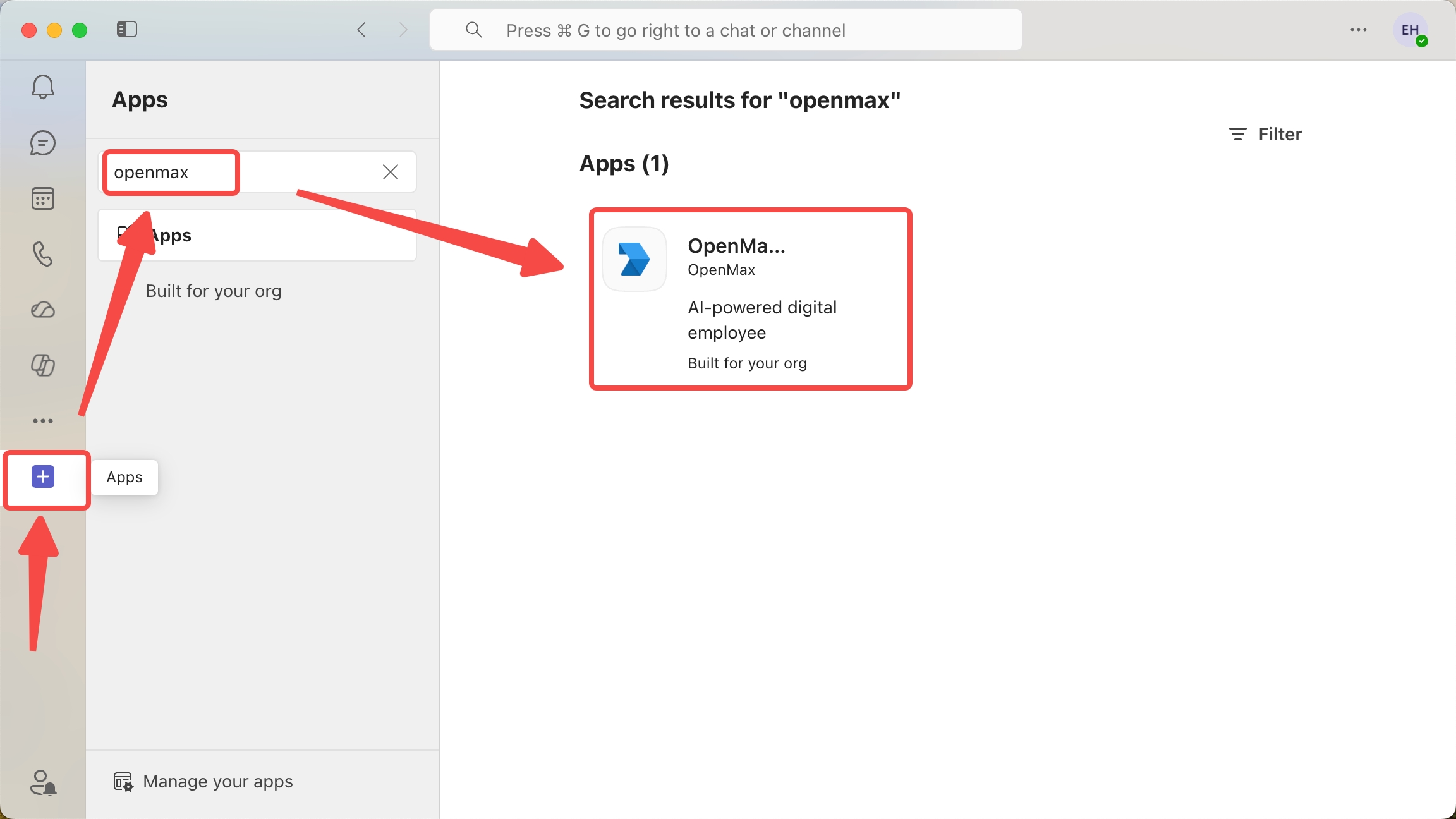
Click Add.
If you see "Permission required. Ask your IT admin to add…", the app has not been approved yet. This is the normal pre-approval state, not a misconfiguration. Wait for the administrator to publish it, restart Teams, and try again.
Click Open.
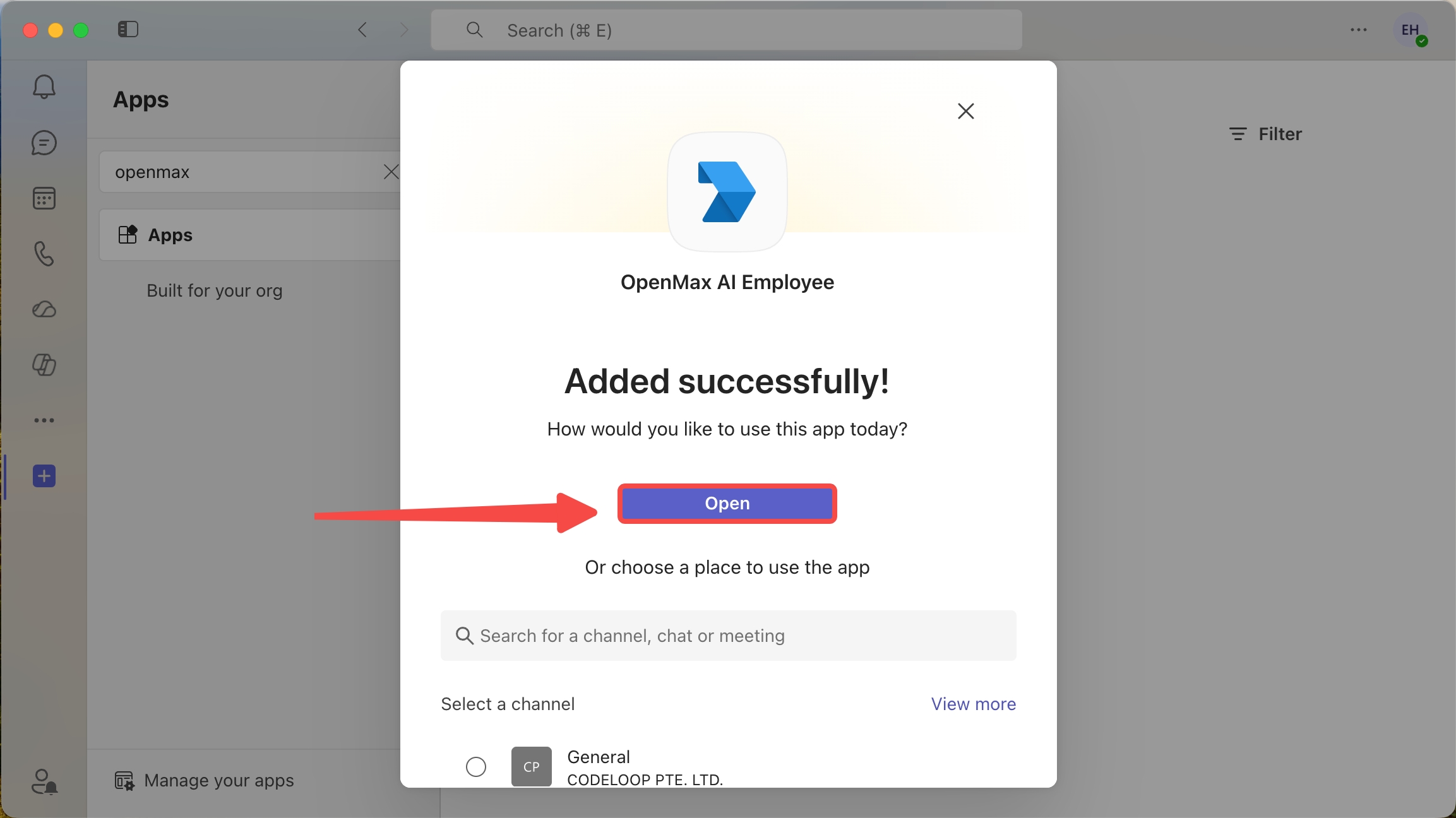
Return to the OpenMax Workspace to connect.
Alternative (no admin approval): you can also download the app package as a .zip from the App package editor and sideload it via Upload a custom app in Teams, if your organization allows custom app uploads.
Step 10: Connect in the OpenMax Workspace
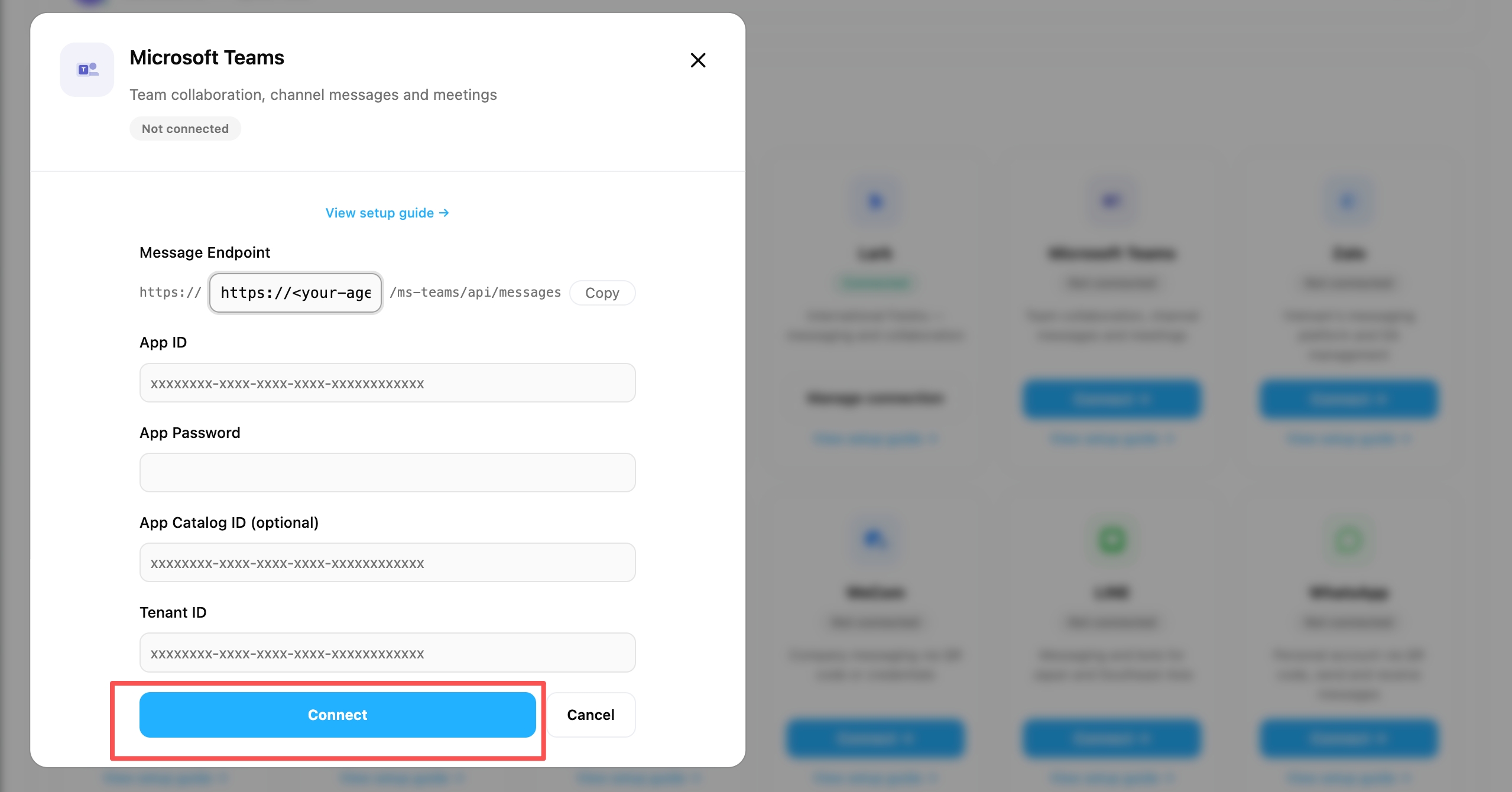
You can do this as soon as you have all four credentials — it does not depend on the approval in Step 9. Connecting and publishing are two independent things, so if you are waiting on a Teams administrator, connect now and pick Step 9 back up once the app is approved.
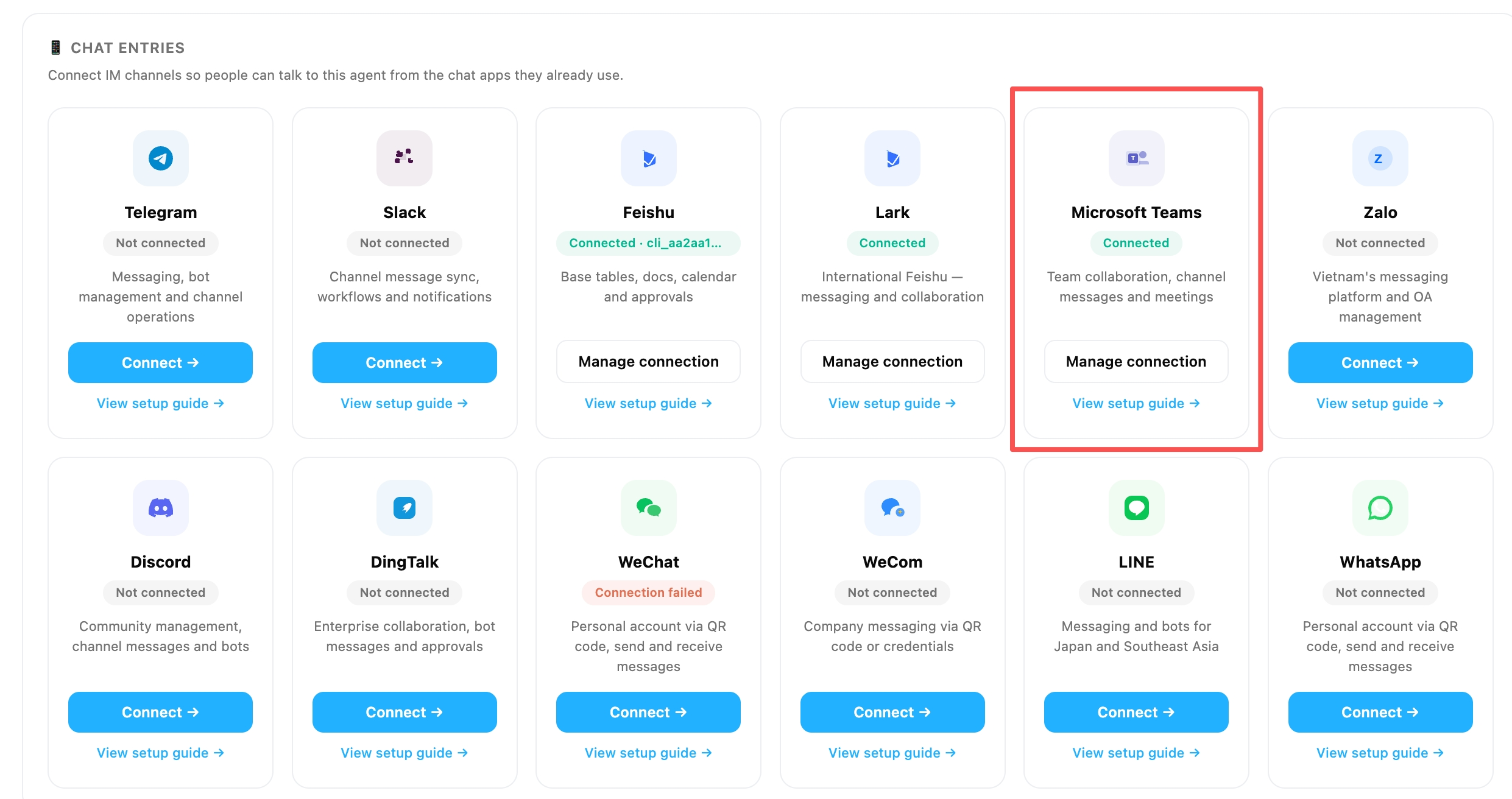
Make sure all four credentials are filled in correctly on the Microsoft Teams channel card — App ID, App Password (the secret Value), Tenant ID, and App Catalog ID — then click Connect.
When the connection succeeds, it looks like this:
Step 11: Start Chatting
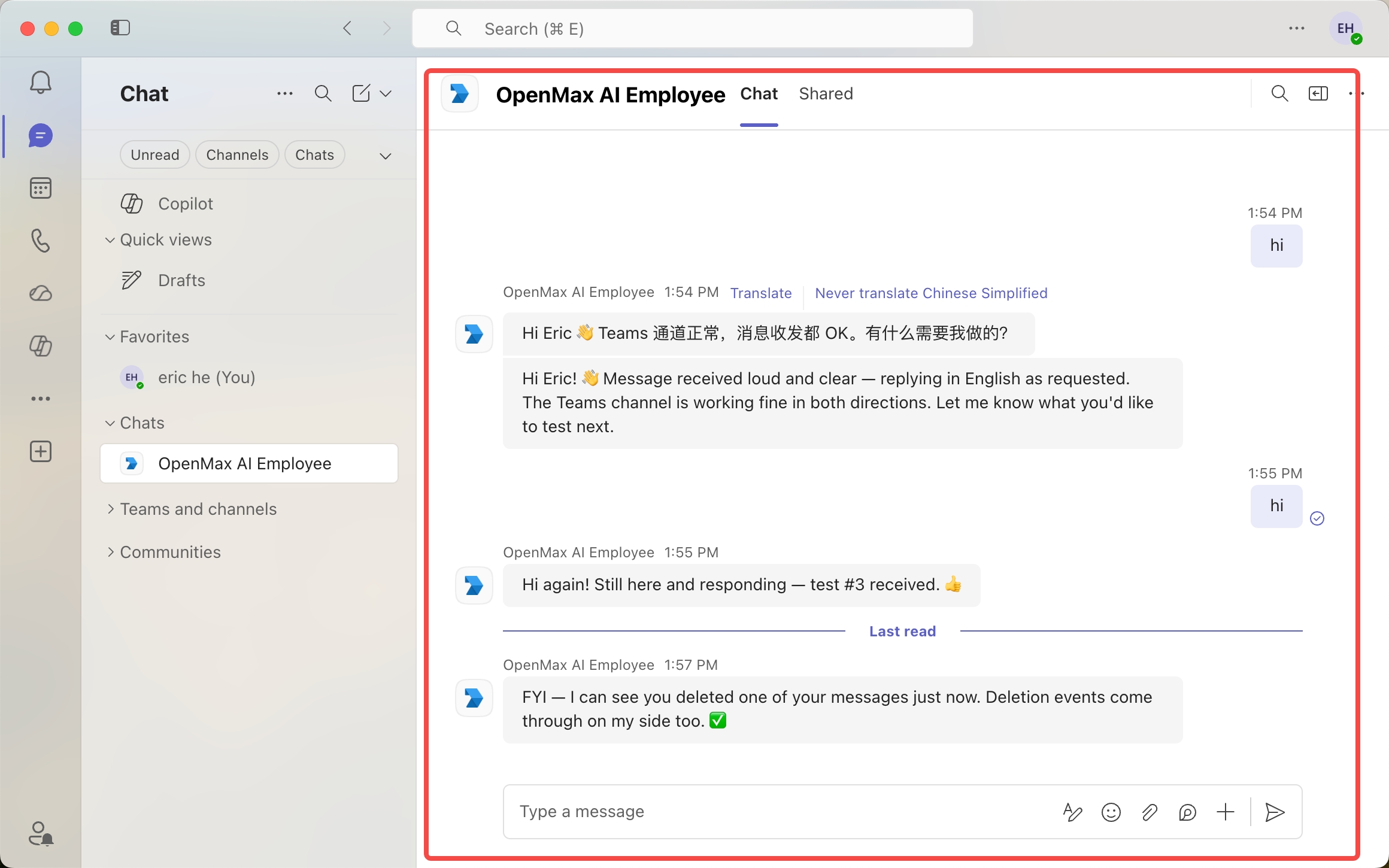
In Teams, search for your bot's name (e.g.
openmax) in Chat, and open it to start chatting.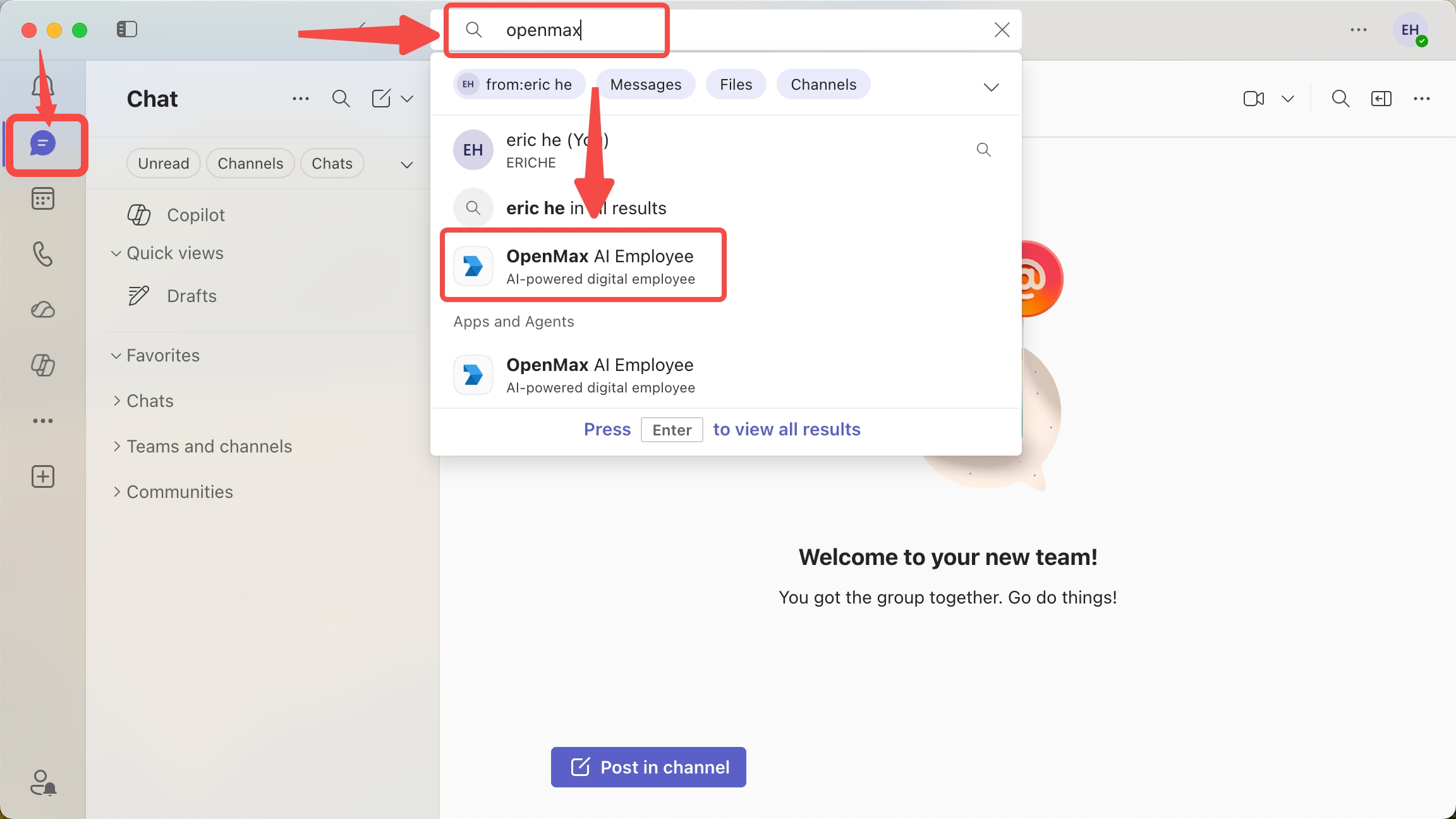
Say hello to your AI employee! For group chats and channels, add the bot and @mention it to talk to it.
One-time extra (recommended): enable reactions. To activate the 💬 thinking indicator and emoji reactions, open https://<your-agent-domain>/ms-teams/auth/sign-in in your browser (same domain as your Messaging endpoint), sign in with your Microsoft 365 account, and close the tab after "Signed in successfully" appears. This only needs to be done once — the bot stores the delegated token and uses it automatically from then on.
Microsoft Teams FAQ
| Issue | Solution |
|---|---|
| Bot not responding in Teams | Check the Messaging endpoint in Azure Bot → Configuration, and confirm the App ID and App Password in the OpenMax Workspace match your Azure Bot |
| Credential validation failed | Make sure you entered the client secret's Value, not the Secret ID, and double-check the Tenant ID |
| Bot not appearing in Teams | The app must be published and approved (Step 9) — or sideloaded — before it appears. Also confirm the <AZURE_APP_ID> in the manifest matches your App Registration |
| App not visible after admin approval | Restart the Teams client — the app list is cached |
| Messages not reaching the bot | The messaging endpoint must be HTTPS and publicly reachable, and the Azure Bot resource must be active |
| File downloads failing | Verify Files.Read.All has admin consent (Step 5) |
| Smart mode not working in channels | Verify ChannelMessage.Read.All has admin consent and the channel is set to smart mode |
| Client secret expired | Create a new client secret in Azure and update the App Password in the OpenMax Workspace |
| Want to disconnect | Click the Disconnect button on the Microsoft Teams card on the Channels page in the OpenMax Workspace |
| "Failed to create publish request" when submitting | Use the app package instead: download the app package (.zip) in the Developer Portal → Teams Apps → Manage your apps → Upload an app → Submit to your org |
| Admin approved it, but it is searchable on mobile and not on desktop | The desktop app index lags. Add it on mobile and send one message, and it will appear on desktop shortly; restarting the Teams client also works |
| "Permission required, ask your IT admin to add it" before approval | Expected — the app is still waiting for admin approval, and works once it is approved |
10. Discord Deployment
Estimated time: ~8 minutes
Note: Discord connects over the Gateway (WebSocket) — no public callback URL or webhook is required. You only need a Bot Token from the Discord Developer Portal.
Only 1 credential is required:
| Credential | Format | Description |
|---|---|---|
| Bot Token | A long opaque token string | Authenticates your bot over the Discord Gateway |
Step 1: Create a Discord Application
Visit the Discord Developer Portal and log in
Click New Application in the top-right corner
Enter a name (e.g.,
OpenMax Employee) and click Create to finish
Step 2: Add a Bot and Copy the Token
In the left sidebar, go to the Bot tab
Click Reset Token (or Add Bot if prompted), then confirm
Copy the Bot Token and save it somewhere safe
Important: The Bot Token is shown only once. If you lose it, you'll need to reset it and copy the new one.
Step 3: Enable the Message Content Intent (required)
Still on the Bot tab, scroll down to Privileged Gateway Intents
Toggle Message Content Intent ON
Save your changes
Important: Without the Message Content Intent enabled, the bot receives empty message text and cannot read what users send.
Step 4: Invite the Bot to Your Server
In the left sidebar, go to OAuth2 → URL Generator
Under Scopes, select
botUnder Bot Permissions, select:
- View Channels
- Send Messages
- Read Message History
- Attach Files
- Add Reactions
Copy the generated URL at the bottom and open it in your browser
Choose the server to add the bot to, then click Authorize
Note: DMs work without a server invite — a server invite is only needed for server/channel use.
Step 5: Connect in OpenMax Workspace
Log into OpenMax Workspace
Go to Agent Management and click the agent you want to deploy to open its detail page
Scroll down to the Channels section, find the Discord card and click Connect
Paste the Bot Token from Step 2
Click Connect — the system will validate the token and complete the connection
Step 6: Start Chatting
DM the bot directly, or @mention it in a server channel
Send any message — your AI employee responds immediately
✅ Deployment complete! Your AI employee is now online — you can chat with it directly or add it to a group.
First message: The first person to DM the bot becomes the Owner (administrator). The owner always has full access regardless of policy settings.
Discord FAQ
| Issue | Solution |
|---|---|
| Bot offline | Verify the Bot Token is correct and the Message Content Intent is enabled in the Discord Developer Portal |
| No reply in a server channel | Ensure the bot is invited to the server, has permission to view and send messages in the channel, and is @mentioned |
| Bot sees empty or no message text | Enable the Message Content Intent in the Bot tab of the Discord Developer Portal |
| Want to disconnect | Click the Disconnect button on the Discord card in the agent detail page's Channels section |
11. LINE Deployment
Estimated time: 5-10 minutes
LINE connects with two credentials — a Channel Access Token and a Channel Secret — plus a Webhook URL that Workspace generates for you. You do not need the numeric Channel ID.
Step 1: Create a LINE Official Account and Enable the Messaging API
Go to the LINE Official Account Manager and create (or open) an Official Account.
Open Settings → Messaging API and click Enable Messaging API, then select or create a provider and agree to the terms.
This creates a Messaging API channel in the LINE Developers Console.
Step 2: Get Your Credentials
In the LINE Developers Console, open your provider → the corresponding channel.
Channel secret — copy it from the Basic settings tab (it's also shown on the OA Manager's Messaging API screen).
Channel access token (long-lived) — open the Messaging API tab, scroll to Channel access token, click Issue, and copy the token.
Important: Both values are secrets — don't share them. The numeric Channel ID is not required.
Step 3: Connect in OpenMax Workspace
Log into OpenMax Workspace, go to Agent Management, click the agent to open its detail page, and scroll down to the Channels section (or use the Channels step in the hire flow).
Find the LINE card and click Connect.
Paste the Channel Access Token and Channel Secret from Step 2.
Click Connect — the system validates the token and deploys your LINE channel.
Once connected, the card shows a Webhook URL (e.g.
https://<your-subdomain>.icoco.ai/line/webhook). Copy it.
Step 4: Configure the Webhook in LINE
Back in the LINE Developers Console → Messaging API tab → Webhook settings.
Paste the Webhook URL from Step 3 and click Save, then turn Use webhook ON.
In the LINE Official Account Manager → Settings → Response settings: turn Webhooks ON and turn Auto-response messages OFF — so your AI employee (not LINE's auto-responder) handles messages.
Step 5: Start Chatting
Add your Official Account as a friend — scan its QR code in the OA Manager, or search its Basic ID (e.g.
@xxxxxxx).Send any message — your AI employee responds immediately.
✅ Deployment complete! Your AI employee is now online — you can chat with it directly or add it to a group.
First message: The first user to DM the account becomes the Owner (administrator), who always has full access regardless of policy settings.
LINE FAQ
| Issue | Solution |
|---|---|
| Bot not responding | Confirm Use webhook is ON, the saved Webhook URL exactly matches the one shown on the LINE card (including /line/webhook), and Auto-response messages is OFF |
| Connected but no inbound messages | Ensure Webhooks is enabled in OA Manager → Response settings, and that you've added the Official Account as a friend |
| Messages received but no reply | The Channel Access Token may be invalid or reissued — reissue a fresh long-lived token in the Developers Console and reconnect |
| Sending images / video / voice / files | Supported out of the box — send them in chat and the AI employee reads them (voice is transcribed automatically) |
| Want to disconnect | Click the Disconnect button on the LINE card in the agent detail page's Channels section |
12. Zalo (Official) Deployment
Estimated time: ~5 minutes for direct messaging; add ~3 minutes to also put the bot in a group chat (requires the Zalo mobile app)
Note: Zalo (Official) connects via the official Zalo Bot Platform API. Only a personal Zalo account is required — you do not need an Official Account (OA) of your own, no servers, and no coding skills needed. Developer docs: docs.zaloplatforms.com/docs/BOT.
Only 1 credential is required:
| Credential | Where to Find | Description |
|---|---|---|
| Bot Token | Zalo mobile app → Zalo Bot Creator mini app; Zalo DMs it to you once the bot is created | Your bot's unique credential (format: numeric_id:secret, e.g. 12345689:abc-xyz) |
Step 1: Create a Bot in the Zalo Mobile App
Bots are created and managed in the Zalo Bot Creator mini app inside the Zalo client, so have your phone ready.
Open Zalo on your phone and search for the Official Account (OA) Zalo Bot Manager
In that OA's chat window menu, choose Tạo bot (Create bot) to open the Zalo Bot Creator mini app (or open the short link zalo.me/s/botcreator directly — in the Zalo mobile app)
Enter a bot name. The name must start with
Bot, e.g.Bot OpenMaxOnce created, Zalo sends you the Bot Token by direct message, in the format
numeric_id:secret(e.g.12345689:abc-xyz)Copy and save this Token — you'll need it in the next step
Token lifetime: the token does not expire unless you reset it yourself in Zalo Bot Creator. A reset token is also delivered by Zalo DM.
Important: The Bot Token is your bot's unique credential. Do not share it with others.
Step 2: Connect in OpenMax Workspace
Log into OpenMax Workspace
Go to Agent Management and click the agent you want to deploy to open its detail page
Scroll down to the Channels section, find the Zalo (Official) card and click Connect
Paste the Bot Token from Step 1
Click Connect — the system will validate the token and complete the connection
Step 3: Start Chatting
Open Zalo on your phone or desktop
Search for your bot name
Send any message — your AI employee responds immediately
✅ Direct messaging is live! Your AI employee is now online and ready for 1-on-1 chats. If you also need it in a group chat, continue to Step 4.
First message: The first user to DM the bot becomes the Owner (administrator). The owner always has full access regardless of policy settings.
Step 4: Add the Bot to a Group Chat
Bots join a group by invite link
Add members in a Zalo group will not find your bot — that is a Zalo limitation. Instead, share the bot's link into the group and have the group owner tap it there to confirm. The flow needs the Zalo mobile app; the desktop client has no such entry point.
Open Zalo on your phone and go to Zalo Bot Creator (the same place you created the bot in Step 1)
Tap your bot in the list to open its info page
Find "Mời Bot vào nhóm" (Invite bot to group) and share/send the bot link into the target group
As the group owner, tap that bot link in the group → a "Thêm Bot vào Nhóm" (Add bot to group) dialog appears → tap "Xác nhận" (Confirm)
The bot posts a join message in the group — it is now in the group
Why the group owner: only the group owner sees the confirmation dialog in Step 4. If you are not the owner, send the bot link to them and ask them to complete this step.
What triggers the bot in a group: it does not receive every group message. Only two things reach it: an @mention of the bot, or a direct reply (quote) to one of the bot's own messages.
Zalo-side limits: Zalo marks bot group chat as Beta. On the free tier each account can create 3 bots, each bot serves up to 50 users, 3,000 messages per month, and up to 3 group chats. See Zalo's official guide.
Zalo (Official) FAQ
| Issue | Solution |
|---|---|
| Bot not responding | Verify the Bot Token is correct. Check the connection status in OpenMax Workspace |
| Cannot send images to the bot | Ensure the image is under 10 MB. Supported formats: JPG, PNG |
| Bot's outbound image not displaying | Outbound images must be hosted on a publicly accessible HTTPS URL |
| Others can't message the bot | By default only the Owner can chat. Change the access policy to Allowlist or Open mode via Workspace settings |
| Want to disconnect | Click the Disconnect button on the Zalo (Official) card in the agent detail page's Channels section |
| Bot not found under "Add members" in a group | Zalo does not support adding bots this way. Follow Step 4 and use the bot-link flow instead |
| Tapping the bot link shows no confirmation dialog | Make sure the person tapping it is the group owner — non-owners never see the "Thêm Bot vào Nhóm" dialog |
| No invite entry point in Zalo desktop | Inviting a bot to a group can only be done in the Zalo mobile app |
| Bot joined the group but does not reply | In Zalo groups a bot only receives messages that @mention it or reply (quote) one of its own messages — ordinary messages do not reach it |
| The bot's reply is cut off | Zalo caps a single message at 2,000 characters — ask your AI employee to split longer answers |
13. Zalo Personal (Unofficial) Deployment
Estimated time: ~2 minutes
Note: Zalo Personal (Unofficial) uses a real Zalo account via QR code scanning — no bot registration, API keys, or developer accounts needed. It connects through zca-js, a reverse-engineered protocol library.
Unofficial Protocol
Zalo Personal (Unofficial) uses an unofficial, reverse-engineered protocol (zca-js) that is not endorsed by Zalo/VNG. Your account could be restricted or banned by Zalo. For an official integration, use Zalo Bot Platform instead.
Use a Dedicated Zalo Account
Please use a separate, dedicated Zalo account for the bot — do not use the same Zalo account that users will use to talk to your OpenMax agent. The connected account becomes the bot's identity, so it must be a different account from any user who will interact with it.
No credentials are required. Authentication is done entirely via QR code:
| Item | Description |
|---|---|
| OpenMax Employee | An existing AI employee with at least one channel already connected (e.g., Telegram, Feishu, WhatsApp) |
| Dedicated Zalo Account | A phone with Zalo installed and logged in to a separate account — not the same account users will use to message your OpenMax agent |
| ~2 minutes | Time to complete deployment |
Step 1: Ask Your AI Employee to Install Zalo Personal (Unofficial)
Message your AI employee in any connected channel (Telegram, Feishu, WhatsApp, etc.):
"Install the Zalo Personal (Unofficial) channel"
Your AI employee will automatically install the Zalo Personal (Unofficial) component and generate a QR code, which it sends back to you in the chat.
Step 2: Scan the QR Code with Your Dedicated Zalo Account
Open Zalo on the phone logged in to your dedicated bot account (not your personal account)
Tap the QR code scanner (usually in the top-right corner of the home screen or in the search bar)
Point your camera at the QR code your AI employee sent you
Confirm the login on your phone when prompted
Step 3: Connection Confirmed
Your AI employee will confirm the connection is established. Your dedicated Zalo account is now the bot's identity on Zalo.
Step 4: Start Chatting
- Anyone who sends a message to your dedicated bot Zalo account will receive AI-powered responses
✅ Deployment complete! Your AI employee is now online — you can chat with it directly or add it to a group.
First message: The first user to send a DM becomes the Owner (administrator). The owner always has full access regardless of policy settings.
Zalo Personal (Unofficial) FAQ
| Issue | Solution |
|---|---|
| QR code expired before scanning | Ask your AI employee to generate a new QR code (e.g., "Reconnect Zalo Personal (Unofficial)") |
| Connection lost after some time | Zalo may disconnect long-running sessions. Ask your AI employee to reconnect (e.g., "Reconnect Zalo Personal (Unofficial)") |
| Account warning or restriction | This uses an unofficial protocol. If you receive a warning from Zalo, stop using the integration and consider switching to the official Zalo Bot Platform |
| Others can't message the bot | By default only the Owner can chat. Ask your AI employee to enable Allowlist or Open mode to grant access |
| Want to disconnect | Ask your AI employee to disconnect the Zalo Personal (Unofficial) channel (e.g., "Disconnect Zalo Personal (Unofficial)") |