

Let your Agent do the work in your browser
Pull numbers from admin dashboards, turn them into tables, fill in forms, gather information across websites — install the Zylos Browser extension and hand it to your Agent. You can see which page it's on and how far it's got, in real time.
Your Agent. Right in your browser.
Chat with it next to any web page, share the page context it needs with your Zylos Agent, and let it get things done in your browser.
- Current page context and selected text
- Images, documents and file attachments
- Visible task progress, stop it any time
Four details that make it easy to use
While your Agent works in the browser, every step is right in front of you: which page it opened, what it read, where it clicked. If something looks off, stop it any time.
- 01Expand the activity summarySee at a glance which steps it took and how long they took.
- 02Follow along page by pagePage changes and every action are shown in real time.
- 03Stop any timeStop a running task right from the input box.
Ask right next to the page: what it's about, which dates matter, what to do next. No copy and paste — the page goes to your Agent along with your question.
- 01The whole page comes alongPage title, URL and body text are added to the chat automatically.
- 02Answers right beside youReplies appear in the side panel, clear and easy to read.
- 03The chat stays at handKeep the side panel open and ask whenever you like.
Spot a passage you want to discuss, explain or rewrite? Select it and hand it straight to your Agent.
- 01Select to quoteSelected text goes straight into your message.
- 02Preview before sendingThe quote shows up in the input box first.
- 03Remove it if you change your mindDrop the selection with one click.
Images, documents, spreadsheets — tap + to hand them to your Agent and let it work from your files.
- 01Tap + or drag and dropTap + to add, or drag files into the input box.
- 02Attachments stay compactThey sit as small icons in the input box, keeping the chat tidy.
- 03Know which file is whichHover to see the file name.
Install the extension, connect your Agent
The extension is just a window. The work is done by your own Agent.
Install the extension
There are two ways to install it — pick either one. Once installed, open it in your browser's side panel.
Option 1: Chrome Web Store (recommended, updates automatically)
Add to ChromeOption 2: If you can't reach the Chrome Web Store, download the package from GitHub
Download from GitHub- Open the page above and, under “Assets”, download the first file ending in
-chrome.zip.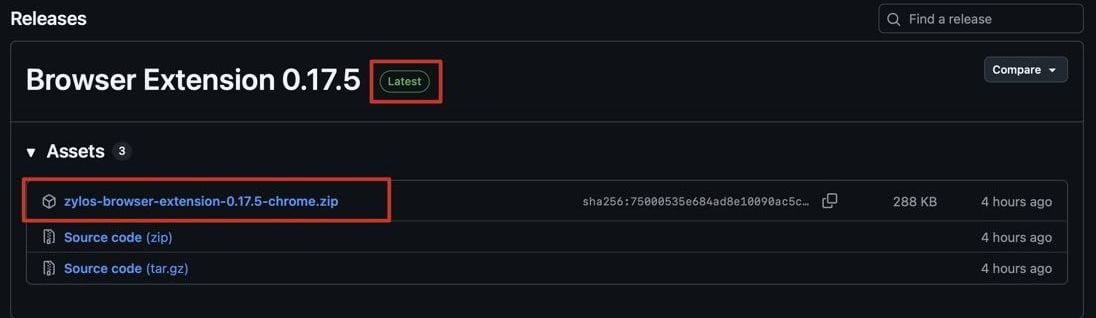
- Unzip the downloaded archive into a folder.
- Open
chrome://extensionsin Chrome's address bar and turn on “Developer mode” in the top-right corner. - Click “Load unpacked” and choose the folder you just unzipped.
An extension installed this way does not update automatically. When a new version comes out, repeat these steps to download and load it again.
Ask your Agent for a connection address and Key
Copy the prompt below and send it to your Agent (wherever you usually chat with it). It will install the browser remote service and reply with two things in the chat.
Please install and configure Zylos Browser Remote so I can chat with you through the Chrome extension and let you operate my browser. I confirm the installation (confirm). Please read the installation guide first: https://github.com/zylos-ai/zylos-browser-remote/blob/main/README.md Then: 1. Check whether browser-remote is already installed; if it is, reuse it. 2. Use your existing public HTTPS domain to configure the WebSocket forwarding route. 3. Start the service and check that the Relay and the public endpoint are reachable. 4. Generate a connection Key for my Chrome extension. 5. Read the component's SKILL.md, follow the tool contract attached to each extension request, and return action decisions via decision.js; send your final answer with the C4 reply command attached to the current request. When you're done, reply directly in this conversation with: Address: wss://your-real-domain/browser-remote/ext Key: the full key generated this time, not the keyId I'll enter these two values in the extension settings, then we'll verify chat and browser use together.
- Address
wss://your-agent-domain/browser-remote/ext- Key
The full connection key (not the short keyId)
Already set up? Just use your existing address and full Key — no need to send the prompt again.
Enter them in the extension and start chatting
Open “Settings” in the side panel, enter the address and Key, and click “Save and connect”. Once connected, just tell it what to do, for example:
“Summarize the current page, then click the search button here for me.”
Good to know before you install
Where does the web page content go?
Will the Agent act on my web pages on its own?
Does it support Edge or other browsers?
Let your Agent work web pages for you
Add to ChromeWorks in a dedicated zylos tab group · Sensitive pages blocked by default · Every step visible in real time · Stop any time