
Whatsapp Setup
WhatsApp — How to Let Team Members or Others Use Your Bot
Use Case
You've connected OpenMax AI to WhatsApp and can chat with the Bot. But by default, only you (the Owner) can talk to the Bot — how do you let team members or others use it too?
This tutorial shows how to quickly open up Bot permissions to others using natural language commands.
You'll need to connect WhatsApp first. For setup instructions, see the WhatsApp Deployment Guide.

操作
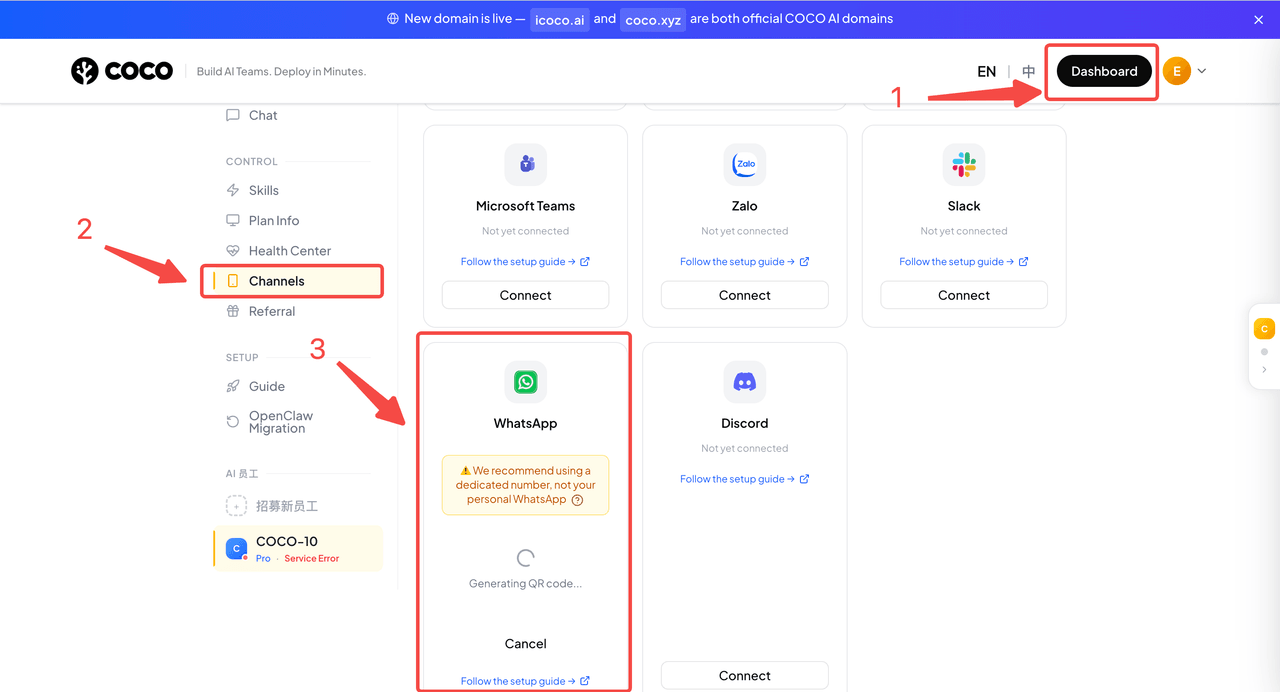
Step 1: Log in to Workspace and Connect WhatsApp
Log in to OpenMax 工作空间
Top right 工作台 → Left sidebar 通讯渠道 → WhatsApp Connect
Wait for the QR code to generate
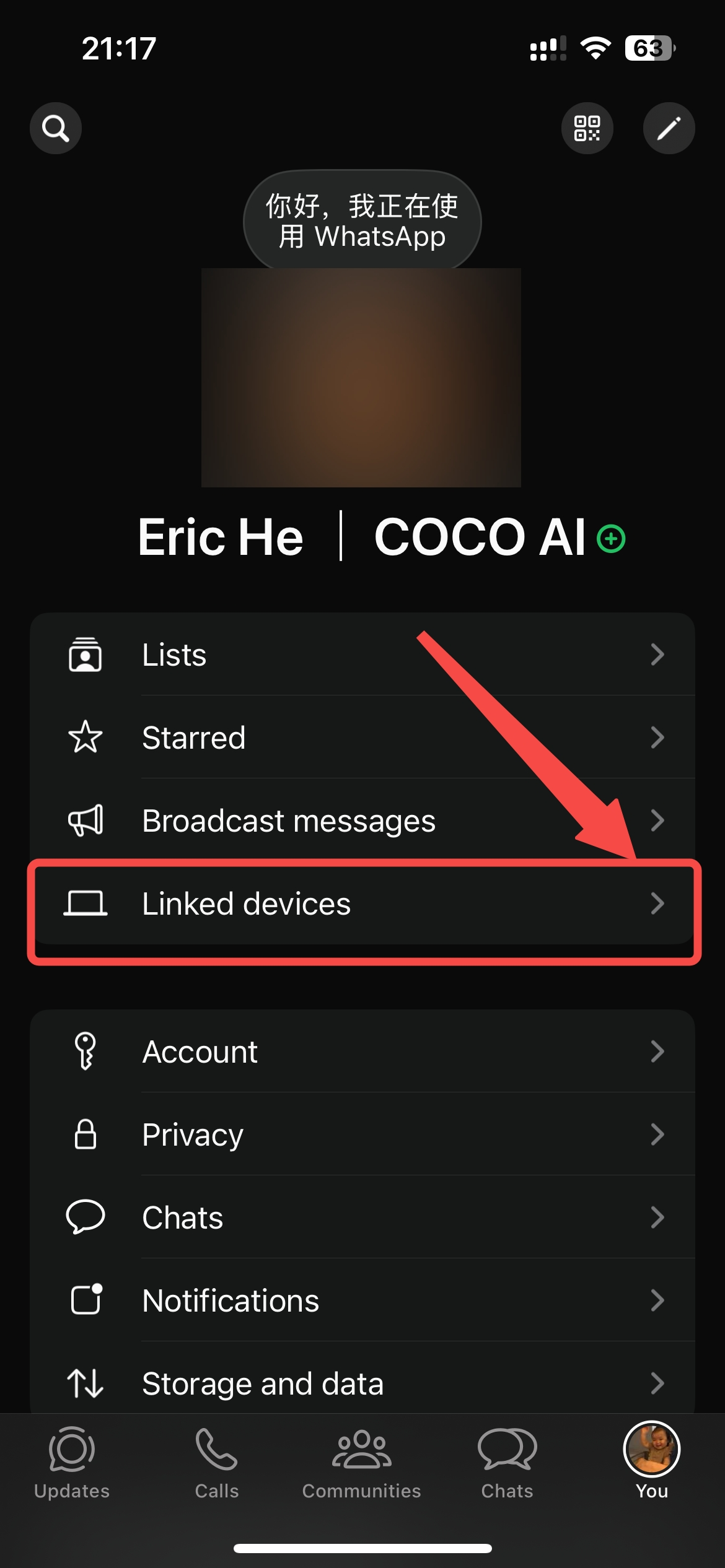
Step 2: Open WhatsApp on Your Phone and Go to "Linked Devices"
Open WhatsApp on your phone
Tap the profile icon in the bottom right
In the settings list, tap Linked Devices
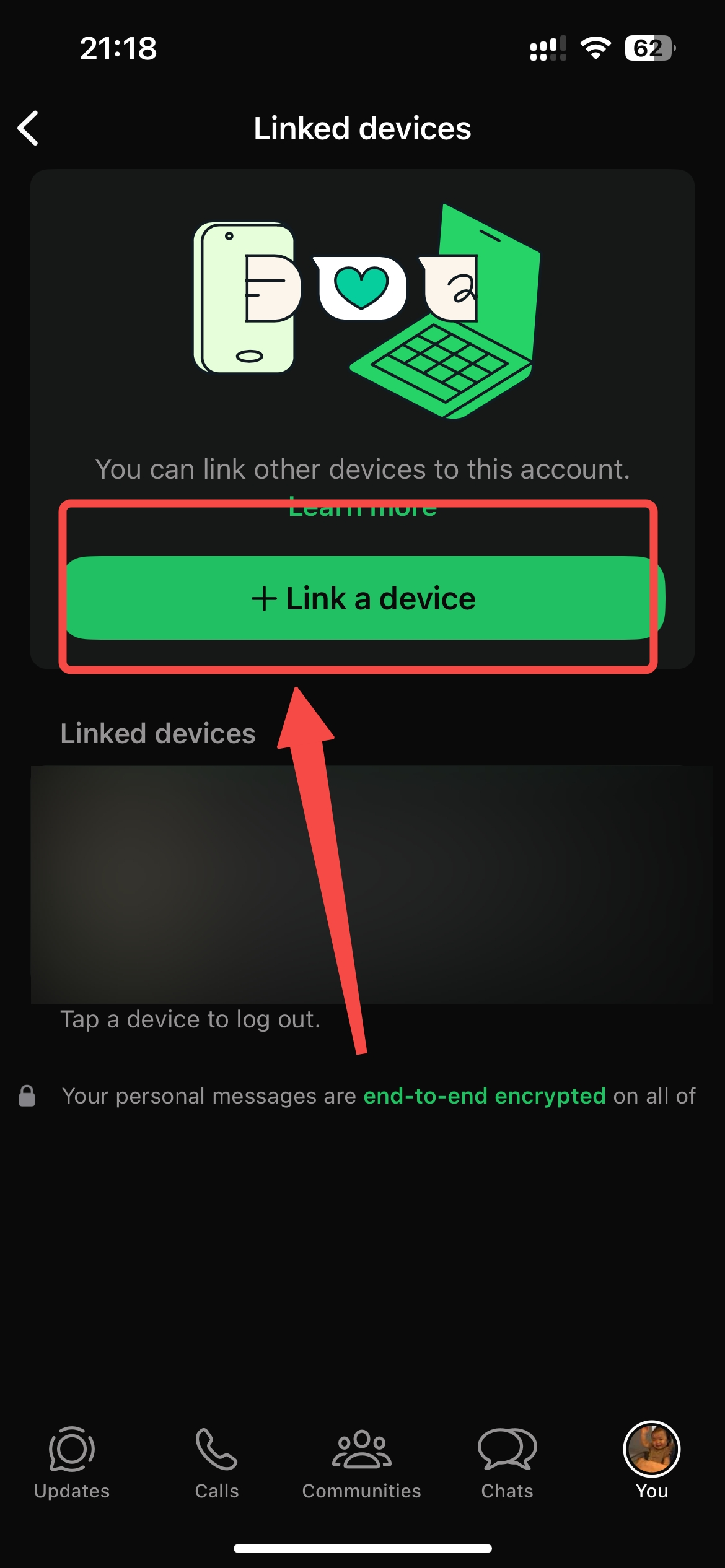
Step 3: Tap "Link a Device" and Scan the QR Code
On the Linked Devices page, tap the + Link a Device button
Point your phone camera at the QR code displayed in Workspace
Step 4: Verify the Connection
After scanning, Workspace automatically detects the connection and the WhatsApp card will show as Connected.
Step 5: Verify the Bot Is Working
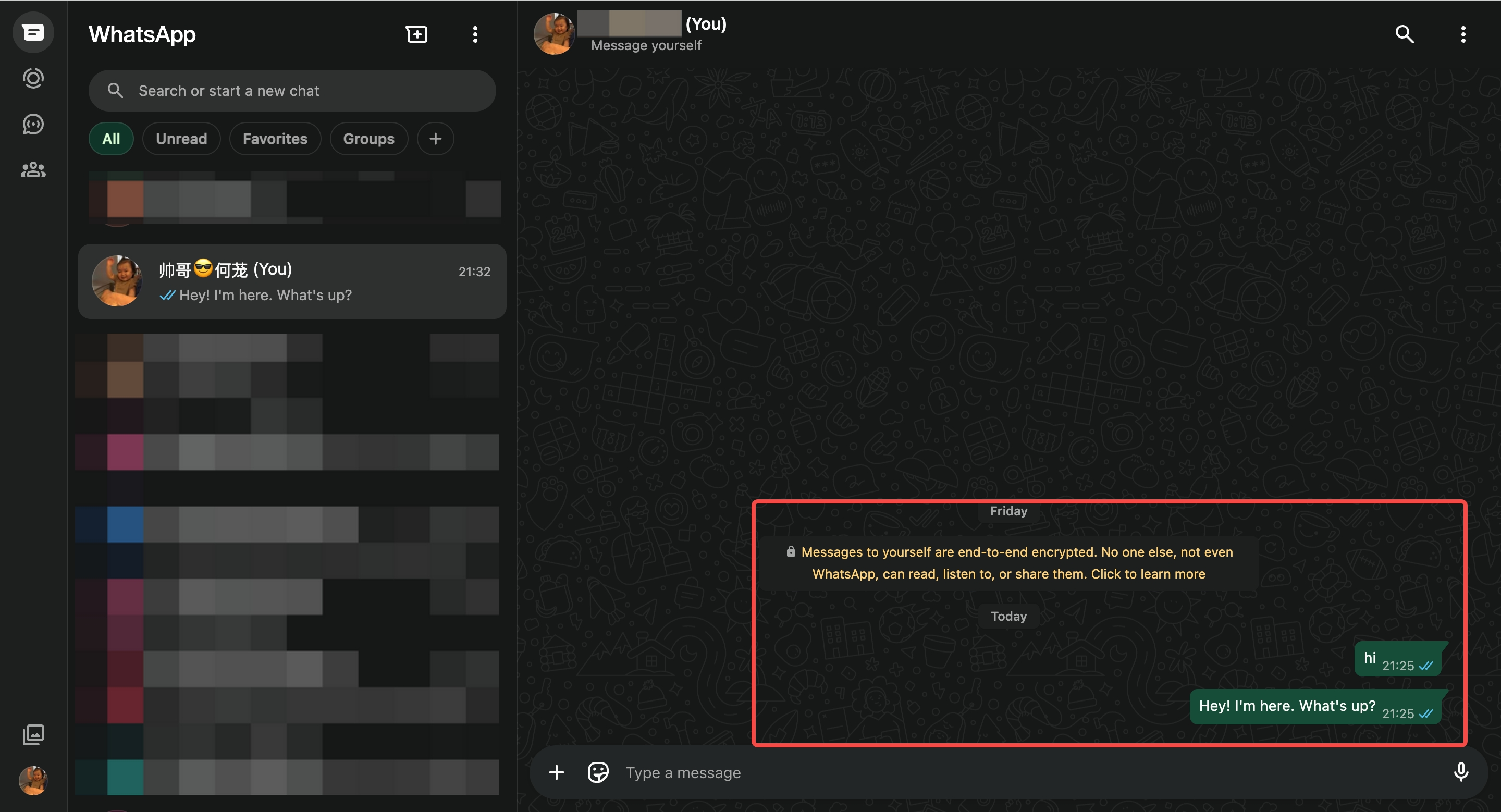
Once connected, you are the Bot's Owner (admin). Search for your own account (phone number) in WhatsApp and send yourself a message — the Bot will automatically reply.
Step 6: Grant Others Access to the Bot
By default, only the Owner can talk to the Bot. To allow others, choose one of two modes:
Allowlist mode: Only specified numbers can chat
Open mode: Anyone can chat

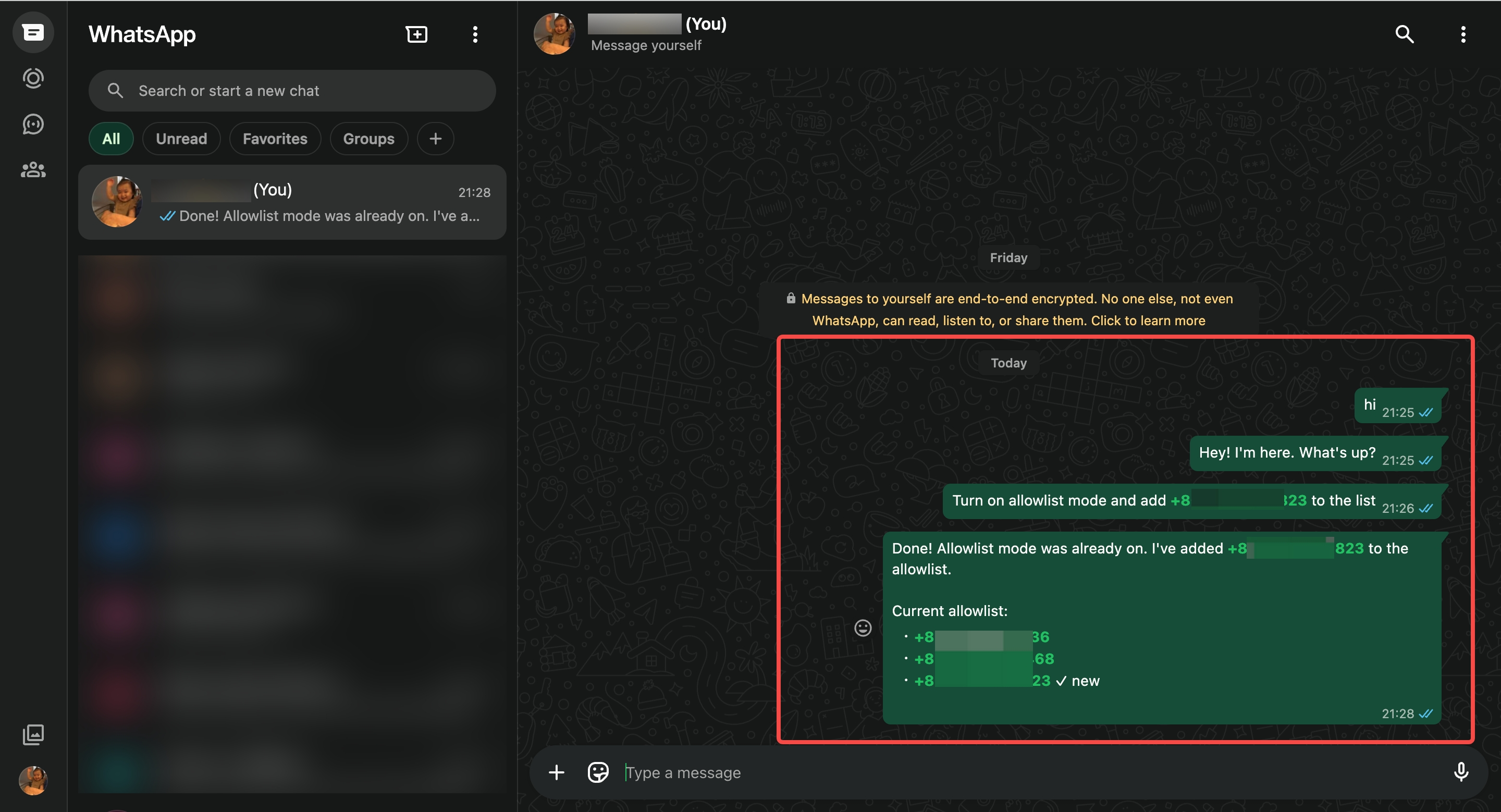
You can configure this using natural language commands to the Bot:
Allowlist example:
Turn on allowlist mode and add +1 555-xxx-xxxx to the listOpen example:
Turn on open mode, anyone can DM you
Step 7: Have the Bot Proactively DM
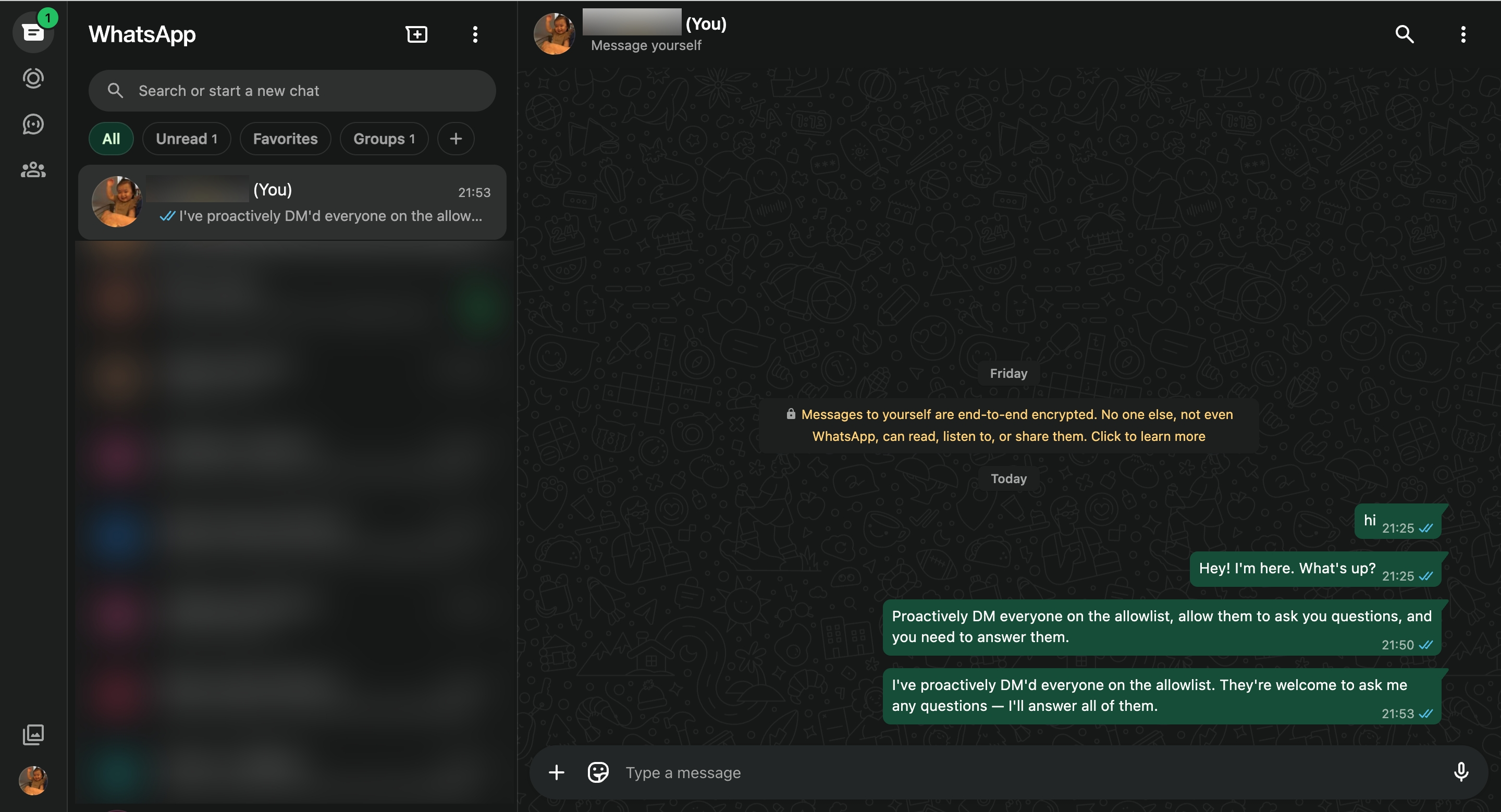
After adding people to the allowlist, you can have the Bot proactively message everyone on the list to let them know they can ask the Bot questions directly.
Simply tell the Bot: Proactively DM everyone on the allowlist, allow them to ask you questions, and you need to answer them.
The Bot will reach out to each person on the list, letting them know they can start chatting.
说明
WhatsApp linked devices will automatically disconnect if your phone is offline for an extended period. Simply re-scan the QR code in Workspace to reconnect.
All mode switching and allowlist management can be done through natural language commands — no manual configuration needed.
To revoke someone's access to the Bot, simply tell the Bot to remove their number from the allowlist, e.g.
Remove +1 555-xxx-xxxx from the allowlist.
Learn more: openmax.comContact us: support@openmax.com