

Message thread
Show one conversation's messages with live updates, reactions, recall and edit, read receipts, quoted replies, and the planned agent run progress and stop button.
Message thread
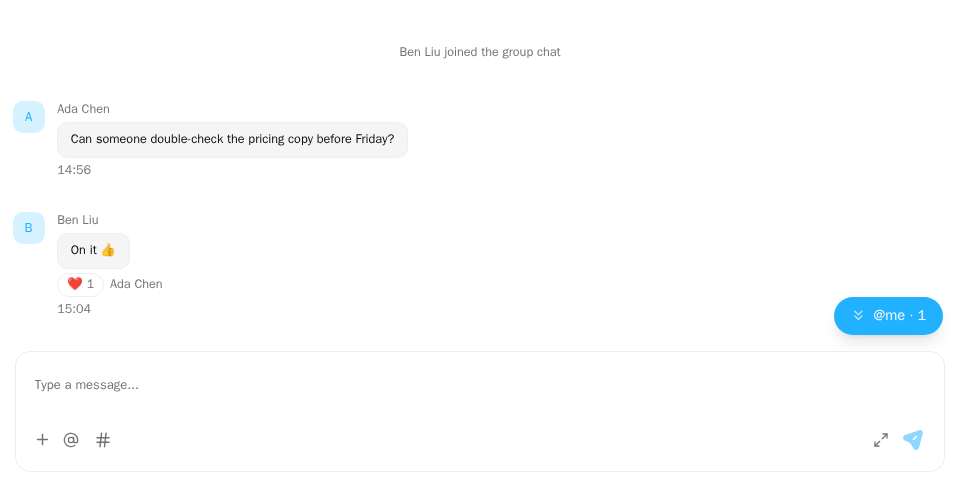
Screenshot of this demo. It runs on an in-memory sample host (useDemoHost from the demo kit, which is not part of the packages); in your app, pass the host from createChatHost() instead.
Demo source (uses the docs demo kit and Tailwind CSS classes, so it cannot be copied as is): message-thread-basic.tsx
"use client";

import { ChatHostProvider } from "@openmaxai/chat/host";
import { MessageThread } from "@openmaxai/chat/message-thread";
// Docs helpers: useDemoHost() is an in-memory host with sample data (no backend).
// In your app, pass the host from createChatHost() or your own ChatHost instead.
import { useDemoData, useDemoHost } from "./kit";

export default function MessageThreadDemo() {
	const host = useDemoHost();
	const { conversations } = useDemoData();
	const conversation = conversations[0]; // a group with text, images, a card and reactions

	return (
		<ChatHostProvider host={host}>
			<div className="flex h-full flex-col bg-background text-foreground">
				<MessageThread conversation={conversation} />
			</div>
		</ChatHostProvider>
	);
}
The demo uses an in-memory host (useDemoHost). In a real app the
host comes from createChatHost; the examples below assume one is already provided. This MessageThread is
the legacy message thread and reads react-query: the host brings no QueryClientProvider, so wrap one around it yourself.
This page covers MessageThread, a low-level component of @openmaxai/chat. They have no style root: the SDK stylesheet applies only inside the .omx-chat component root each SDK component brings along, and ChatRoot is not a style scope itself, so the examples below render unstyled as written. To use them, put them inside ChatRoot and wrap them in an element with the class omx-chat (plus omx-dark in dark mode, with colorScheme="dark" on ChatRoot), or style them yourself. A wrapper alone is not enough: outside ChatRoot, dialogs, menus and popovers portal to document.body, outside your wrapper, and get no styles; within ChatRoot they land in its overlay container, which carries the class omx-chat. With a host from createChatHost, use the SDK component CwsMessageThread instead; see Quick start.
When to use
- The main area once a conversation is selected: virtualized history, unread divider, composer, and per-message actions.
- It owns the message cache: optimistic sends, retry or discard on failure, and in-place updates for reactions, recalls and edits.
- It has no header. Put a
ChatHeaderabove it if needed. - When the conversation has agents, it is planned to also draw their run progress, tool steps and stop button under the messages. See Agent run progress.
Examples
Basic
conversation-pane.tsx
import { MessageThread } from "@openmaxai/chat/message-thread";

export function ConversationPane({ conversation }: { conversation: ChatConversation | null }) {
  return (
    <MessageThread
      key={conversation?.id}
      conversation={conversation}
      emptyState={<p>Pick a conversation.</p>}
    />
  );
}
Set key to the conversation id so scroll position, reply-to and edit mode reset on switch.
Direct message with read receipts
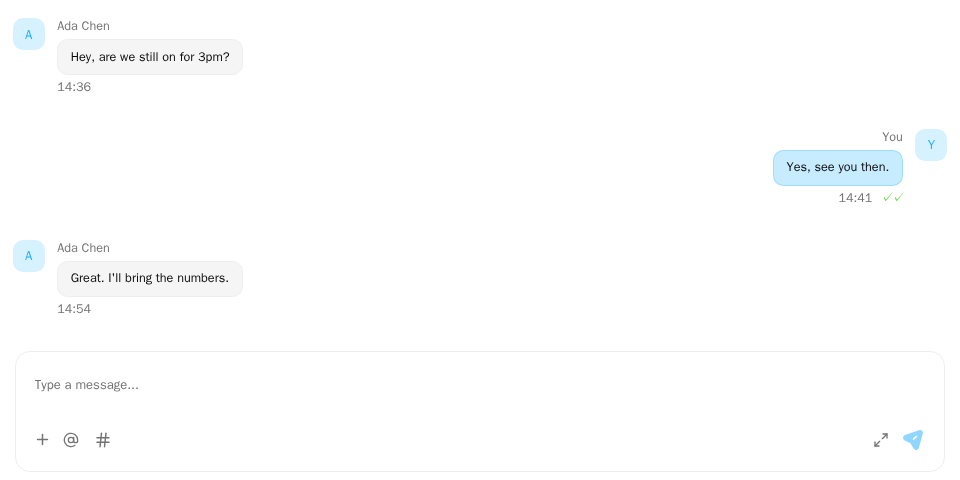
Screenshot of this demo. It runs on an in-memory sample host (useDemoHost from the demo kit, which is not part of the packages); in your app, pass the host from createChatHost() instead.
Demo source (uses the docs demo kit and Tailwind CSS classes, so it cannot be copied as is): message-thread-dm.tsx
"use client";

import { ChatHostProvider } from "@openmaxai/chat/host";
import { MessageThread } from "@openmaxai/chat/message-thread";
// Docs helpers: useDemoHost() is an in-memory host with sample data (no backend).
// In your app, pass the host from createChatHost() or your own ChatHost instead.
import { useDemoData, useDemoHost } from "./kit";

export default function DirectMessageDemo() {
	// The demo host implements `messaging.loadReadCursors`, so your messages show read ticks.
	// Send something: the other person "reads" it and replies a second later.
	const host = useDemoHost();
	const { conversations } = useDemoData();
	const conversation = conversations.find((c) => c.id === "ada");

	return (
		<ChatHostProvider host={host}>
			<div className="flex h-full flex-col bg-background text-foreground">
				<MessageThread conversation={conversation ?? null} />
			</div>
		</ChatHostProvider>
	);
}
In a DM your messages get a double tick once read; in a group a read count opens the read / unread list. Requires the read receipts capability.
Unread divider and read position
const [anchor] = useState(() => conversation.last_read_seq ?? 0); // frozen on open

<MessageThread
  key={conversation.id}
  conversation={conversation}
  firstUnreadAnchorSeq={anchor}
  onVisibleSeqChange={(seq) => reportReadCursor(conversation.id, seq)}
/>;
Messages with a higher seq than the anchor are unread; the thread draws the divider above the
first one and scrolls there. The thread never reports read cursors itself: without
onVisibleSeqChange, the conversation stays unread after a reload.
Uploads with the OpenMax SDK
OpenMax uploads are per conversation, so the SDK host uploads attachments only inside ConversationScope: wrap each open conversation in one. Outside it the composer shows no attach button and attachments.start rejects.
import { MessageThread } from "@openmaxai/chat/message-thread";
import { ConversationScope } from "@openmaxai/chat-sdk/react";

<ConversationScope conversationId={conversation.id}>
  <MessageThread key={conversation.id} conversation={conversation} />
</ConversationScope>;
Message actions
Hovering a message with the mouse (tapping the bubble on touch) shows the action bar next to it; the same actions are all in the "More" menu too, which works with the keyboard and screen readers.
| Action | Where | When it is there | Capability |
|---|---|---|---|
| Copy | Bar, menu | Text messages and agent replies with a non-empty body. Copies the Markdown source; on success the button briefly turns into a check mark, on failure a notice shows | — |
| React | Bar, menu ("Add reaction") | The message was sent and not recalled, and you can post in the conversation | messaging (addReaction, removeReaction) |
| Reply | Bar, menu | You can post in the conversation | — |
| Edit | Bar, menu | Your own text and media messages, within 15 minutes of sending | messaging (editMessage) |
| Recall | Bar, last item of the menu (red) | Your own text and media messages, within 2 minutes of sending; asks for confirmation | messaging (recallMessage) |
| Pin, Unpin Planned | Menu | The message was sent and not recalled, and you can post in the conversation | messaging (pinMessage, unpinMessage) |
| Actions added by plugins Planned | Menu; a plugin may also put itself on the bar | Decided by the plugin; see Message-action plugins | The plugin's requiredPorts |
Messages that are sending, failed or blocked only have "Copy"; recall tombstones and system notices have no actions. Observed and read-only conversations only have "Copy". An action whose capability is missing is not shown, rather than greyed out.
More menu
Planned
The rightmost button of the action bar is "More" (⋯). It opens every action available for that message, in a fixed order: Reply, Copy, Add reaction, Edit, Pin or Unpin, plugin actions (in the order of messageActions), a separator, Recall.
- Right-click on a message on desktop opens the same menu at the pointer. With text selected, right-click is still the browser's own menu, so you can copy just the selection.
- Touch still taps the bubble for the action bar, then "More"; a long press is still left to the system for selecting text and opens no menu. Images are the exception: a tap opens the viewer, a long press shows the action bar.
- Keyboard: in the message list,
ArrowUp/ArrowDownmove focus between messages, and the focused message shows its action bar;Shift+F10or the context-menu key opens "More". In the menu, arrow keys move,Enterruns,Escapecloses and returns focus to the message. - The menu closes after running an item. Recall still asks for confirmation first.
Pinning
Planned
A pinned message shows a pin in its time row; ChatMessage gains two fields, pinned_at and pinned_by. "Pin" calls messaging.pinMessage(messageId), shown optimistically and rolled back with a notice on failure; unpinMessage the same. Pins and unpins by others update after the messages signal's fetch. A list of all pinned messages in a conversation is not in this version.
Markdown body
The bodies of text messages from people and of agent replies are both Markdown and drawn by the same rules. The host's render (renderMessageText, renderMarkdown) does the drawing; the default render from createLocalPorts follows this section, and so must your own render. See Host capabilities · render. Planned
| Syntax | Drawn as |
|---|---|
**x**, *x*, ~~x~~, `x` |
Bold, italic, strikethrough, inline code |
- , 1. at line start |
Unordered and ordered lists, nestable |
> at line start |
Quote |
# to ###### at line start |
A bolder, larger line — not a real heading element, so the page's heading outline is not disturbed |
| Code block fenced with three backticks | Monospace, scrolls sideways; a given language is named in the top-right corner, with a "Copy code" button. No syntax highlighting |
| GFM table | A table that scrolls sideways when wide |
[x](url), bare URLs |
Links opening in a new tab (rel="noopener noreferrer") |
 |
No external image is loaded; shown as a link to that URL |
--- |
Divider |
- A newline is a newline. A single line break in the body breaks the line, without two trailing spaces, as in any chat.
- No HTML. HTML tags in the body show as text.
- Only safe links. Only
http:,https:,mailto:and in-app links the host knows (such as knowledge base links) become links; anything else (javascript:and the like) shows as text. - Mentions and work item references are unchanged.
@plus a name still draws as a mention pill (withdata-mention-*), work item references still draw as chips and are clickable when the layer that renders message bodies receivesworkReferences(the defaultrenderwires it fromports.workReferences; without it the chip is drawn but cannot be clicked), and_or*inside a name is never read as formatting. - Nothing is interpreted inside code.
@, links and formatting inside inline code and code blocks show as typed. - Older messages are drawn as Markdown too. A
*, a leading1.or#in an earlier message shows as formatting. - Lists and previews use plain text. The last message in the conversation list, draft previews, quote bars and system notices drop the Markdown marks and keep the words.
- Copy and edit use the source. Copy gives the Markdown source; the editor shows it formatted and saves Markdown back.
Strings in the chat namespace: markdown.copyCode ("Copy code"), markdown.codeCopied ("Copied").
Agent run progress
Planned
Once the host provides the agentRuns capability, MessageThread draws the progress of agent runs on its own; there is nothing to mount. The data comes from the message store.
Run progress
As soon as a run appears (queued), a progress row shows under the message that triggered it; without a trigger message it shows at the bottom of the thread. Several runs in one conversation get one row each. The ChatAgentRun.status value for each state is in brackets; following AG-UI, an unrecognised outcome counts as success, and a RUN_ERROR after RUN_FINISHED means the run failed (error).
| State | From | Shows |
|---|---|---|
Queued (queued) Our extension |
outer frame queued: true |
Agent avatar and name, "Queued", stop button |
Running (running) |
RUN_STARTED |
Agent avatar and name, "Working", current tool name, elapsed time, stop button |
Finished (finished) |
RUN_FINISHED with outcome success or none |
Collapses to a one-line summary (e.g. "Used 3 tools · 12 s") attached to the agent's reply |
Stopped (cancelled) |
RUN_FINISHED with outcome cancelled |
"Stopped" |
Error (error) |
RUN_ERROR, including one that arrives after RUN_FINISHED |
"Something went wrong" and the message |
Waiting for an answer (interrupted) |
RUN_FINISHED with outcome interrupt (phase 2) |
"Waiting for an answer"; click to jump to the approval card |
The summary finds its run through the reply's metadata.run_id; until the reply arrives, the summary stays under the trigger message.
"Queued" shows only after the run has waited for more than 2000 ms. The threshold is one setting for the whole chat, set once when the chat is created: the queuedRunDelayMs option of createChatHost (see Adapter interface · createChatHost({ adapter })), or agentRuns.queuedRunDelayMs when you implement the host yourself. The message thread, the run list and the header counts all use it; no component has a prop for the threshold. Policies such as "in a group, reply only when mentioned" run on the agent side, so the backend cannot tell which messages the agent will handle: every message dispatched to an agent creates a run, and an ignored message relies on the agent ending its run at once with RUN_FINISHED; the threshold keeps such quickly ended runs from flickering in a busy group. Until a run starts or passes the threshold, it also stays out of the agent's run list.
Tool steps
Expanding the progress row shows the tool steps, one row per tool call, in the order they started:
| Column | From |
|---|---|
| Tool name | toolCallName of TOOL_CALL_START; agentRuns.describeTool can turn it into a readable label |
| Status | Running: TOOL_CALL_START received; done: TOOL_CALL_RESULT received |
| Duration | From TOOL_CALL_START to TOOL_CALL_RESULT |
| Arguments, result | TOOL_CALL_ARGS, TOOL_CALL_RESULT. Who sees them is configured by the agent's owner. When they do not arrive, this column is not shown |
Tool calls with no result when the run ends take the run's final state: stopped or error. A subagent's work (events with the same subagentRunId) shows as a group inside this run's tool steps, headed by SUBAGENT_STARTED's name and the invocation's status (running, done, suspended, stopped, error; suspended means the invocation is waiting for outside input and a later run may continue it). While the invocation is open and the viewer has stop permission, the group header has a stop button that stops only that invocation while the run goes on Our extension; once stopped, the header shows "Stopped", and tool calls in the group with no result yet show as stopped too. When phase 2 adds STEP_STARTED / STEP_FINISHED, tool calls are grouped by step.
Stop button
Stopping applies to one run, or to one subagent invocation inside it, never to the whole agent. The button shows while the run is queued or running and the outer frame's permissions.cancel is true; the server gives that permission only to the run's initiator and the agent's owner (only the owner for a run with no initiator). The button on the progress row stops the whole run; clicking calls agentRuns.cancelRun:
- Between the request and the end of the run, the button shows "Stopping" and is disabled.
- The run ends with
RUN_FINISHEDwithoutcomecancelled; the progress row changes to "Stopped", visible to everyone in the conversation. - If the request fails, the button comes back and the error goes through the host's
attention.
The button on a subagent invocation's group header in the tool steps stops only that invocation Our extension: it calls agentRuns.cancelRun with subagentRunId added; the invocation ends with SUBAGENT_ERROR whose code is "cancelled", the group header changes to "Stopped", and the run goes on with its progress row unchanged. The button also reads permissions.cancel and also shows "Stopping" while it waits.
Known limitation: stopping a run in the main session
The agent handles every conversation's messages in one main session and hands some work to subagents. Stopping a run that is executing in the main session may interrupt the main session too, affecting what the agent is doing in other conversations. The limitation goes away once the agent uses a separate session per conversation.
Streaming output
Planned
An agent's reply appears as it is generated, without waiting for the whole of it. Streaming is only a preview: when the reply is done, the agent sends a message with metadata.run_id as usual, and that message is the record.
- Data: within the run the agent sends
TEXT_MESSAGE_START→ severalTEXT_MESSAGE_CONTENT(each with adelta) →TEXT_MESSAGE_END, pushed inagent_eventframes. The store joins thedeltapieces of onemessageIdinrun_seqorder and keeps them as atextpart of the run,statusstreaming, anddoneafterTEXT_MESSAGE_END. - Where it shows: below the run progress row, like an agent message bubble, drawn as Markdown; unclosed code blocks and lists are drawn as they come. A blinking caret marks the end.
- Swapped for the real message: when a message arrives with
metadata.run_idandmetadata.stream_message_idequal to the text'smessageId, it replaces the preview in place, without the list jumping. Until then the preview stays. - A run can stream several texts (several
messageIds), one bubble each in the order they started. - When the run is stopped or fails, the text so far stays in the bubble with "Stopped" or "Something went wrong" under it. Such a preview is not stored and is gone after a reload; if the agent did send the real message, the message counts.
- Missed pieces are filled by
run_seqgap-fill, and opening a conversation rebuilds the text so far from the run snapshot, so someone joining midway sees the whole preview. - Scrolling: at the bottom, the list follows the new text; elsewhere it stays put, and the preview neither counts as a new message nor shows the "new messages" button. The real message counts as usual.
- Throttled: at most one redraw per animation frame, however densely the pieces arrive.
- The preview has no action bar: no copy, reaction or reply until the real message arrives.
- Without
agentRuns, or when the agent sends noTEXT_MESSAGE_*, there is no streaming: the whole message arrives as before.
Using them on their own
The progress row, tool steps and stop button can also be imported on their own and placed in your own layout:
import { AgentRunProgress, AgentRunSteps, AgentStopButton } from "@openmaxai/chat/agent-runs";

<AgentRunProgress runId={runId} conversationId={conversation.id} />;
<AgentRunSteps runId={runId} conversationId={conversation.id} />;
<AgentStopButton runId={runId} conversationId={conversation.id} />;
<AgentStopButton runId={runId} subagentRunId={subagentRunId} conversationId={conversation.id} />;
| Component | Props | Description |
|---|---|---|
AgentRunProgress |
runId, conversationId?, defaultExpanded? |
One run's progress row, with tool steps and stop button inside |
AgentRunSteps |
runId, conversationId? |
Just the tool steps |
AgentStopButton |
runId, conversationId?, subagentRunId? |
Just the stop button; renders nothing without stop permission or once the run has ended. With subagentRunId it stops only that subagent invocation Our extension, and also renders nothing once that invocation has ended |
The run is looked up in the store by runId. For a run not bound to a conversation (Agent panel only), leave out conversationId.
The agentRuns capability is described in Connect your own backend · Agent runs.
API
| Prop | Type | Default | Description |
|---|---|---|---|
conversation |
ChatConversation | null |
required | The open conversation, as returned by the list |
emptyState |
ReactNode |
— | Shown when conversation is null |
composerChrome |
"card" | "flush" |
"card" |
Composer frame. flush where the input touches the container edge (floating windows) |
firstUnreadAnchorSeq |
number |
— | Read position on open; drives the divider and initial scroll. 0 = nothing read. Keep it fixed while open |
onVisibleSeqChange |
(maxVisibleSeq: number) => void |
— | Called with the seq of the last message in view when the visible range changes |
provisioningBlocked |
boolean |
false |
Peer agent still being set up: composer is read-only with a notice |
autoFocusOnOpen |
boolean |
false |
Focus the composer on open. Ignored with touch input, so the on-screen keyboard doesn't pop up (see Responsive behavior) |
showConnectionStatus Planned |
boolean |
true |
Whether to draw the connection status bar at the top |
Observed conversations, agent collaboration conversations and DMs with dm.can_send === false are
read-only automatically.
Capabilities
Features whose capability the host doesn't provide are not shown.
| Capability | What the user gets |
|---|---|
messaging (addReaction, removeReaction) |
Emoji picker and reaction chips; click to toggle, hover to see who reacted |
messaging (recallMessage) |
Recall your own messages within 2 minutes, with a confirm dialog |
messaging (editMessage) |
Edit your own text and media messages within 15 minutes; add or remove attachments. Enter saves, Shift+Enter adds a line, Esc cancels |
messaging (listMessageEdits) |
"(edited)" opens earlier versions |
messaging (loadReadCursors) |
Ticks in DMs, read counts in groups |
messaging (loadMessage) |
Quoted parents outside the loaded window are fetched |
mentions |
@me · N capsule: click for the next mention, long-press to mark all read |
inboundDelivery (subscribe) |
New messages, reactions, receipts and card results without a reload |
messaging (loadThreadSince) |
Others' new messages appear live; without it they need a reload (reactions stay live) |
attachments (subscribeTasks) |
Progress bar and cancel on outgoing attachments |
attachments (resolveUrls) |
Received attachments display; without it they show as unavailable |
profileCard |
Clickable avatars. See Profile card |
cards |
Buttons and choices on cards (installs the card plugin); without it cards are drawn read-only. See Interactive cards |
agentRuns Planned |
Agent run progress, tool steps, stop button and streaming output, see above |
messaging (pinMessage, unpinMessage) Planned |
Pin and Unpin in the menu; see Pinning |
mediaViewer |
Clickable images. See Image viewer |
The host methods behind each capability are in the API reference; composer requirements are on Composer.
Accessibility
- Action bar buttons are labelled; the bar shows on mouse hover or, with touch, on tap. Reaction chips
use
aria-pressed. - Read ticks are
role="img"("sent" / "read"); the group read count is anaria-expandedbutton opening a labelledrole="dialog"list. - Clickable images are
role="button"labelled "view image". The edit box is a labelledrole="textbox"witharia-multiline. - The "More" menu is
role="menu"withrole="menuitem"items; the Recall item's name says it recalls. The "More" button hasaria-haspopup="menu"andaria-expanded. Planned - A streaming bubble has
aria-busy="true"and its pieces are not announced one by one; when it finishes, the run progress row's live region announces it once. Planned - The planned run progress row is a named region; state changes (queued, started, finished, stopped, error) are announced through a polite (
polite) live region, individual tool calls are not. The stop button is a native button whose name includes the agent's name. Planned
FAQ
No reactions or read receipts in my thread.
The host doesn't provide the reactions or read receipts capability. Your own host can; which ones
createChatHost provides is on Known limitations · Default host.
Can I open a conversation from just its id (deep link)?
Yes. Get the conversation with useConversation(id): when it is not in the loaded list, it calls the host's conversations.loadConversation to fetch it by id, and you pass it on as usual. When the conversation does not exist or cannot be accessed it returns undefined and you show a message. If the host has no loadConversation, a conversation that is not in the loaded list cannot be fetched and is treated as not found. Planned
The conversation is unread again after a reload.
Pass onVisibleSeqChange and report the value to your backend.